
1. Introduction
This manual provides essential information for setting up, operating, and maintaining your Dell 15.6" FHD Touchscreen Laptop, Model LDC15250. Please read this guide thoroughly to ensure proper use and to maximize the performance and longevity of your device.

Figure 1.1: Dell 15.6" FHD Touchscreen Laptop. This image shows the laptop open, displaying its screen and keyboard, highlighting its sleek design.
2. Safety Information
Observe the following safety precautions to prevent damage to your laptop and to ensure your personal safety:
- Do not expose the laptop to extreme temperatures, humidity, or direct sunlight.
- Avoid placing heavy objects on the laptop.
- Use only the power adapter supplied with your laptop.
- Keep liquids away from the laptop to prevent electrical shock or damage.
- Do not attempt to disassemble or repair the laptop yourself. Refer to qualified service personnel.
3. Package Contents
Verify that all items are present in your package:
- Dell 15.6" FHD Touchscreen Laptop
- Power Adapter and Power Cord
- Quick Start Guide (if applicable)
4. Product Overview
4.1. Components
Your Dell laptop is equipped with a 13th Generation Intel Core i5-1334U processor, Intel UHD Graphics, 8GB DDR5 RAM, and a 256GB SSD for efficient performance. It features a 15.6-inch FHD (1920 x 1080) Anti-Glare LED Backlight Touch Narrow Border WVA Display.

Figure 4.1: Intel Core i5-1334U Processor. This image highlights the Intel Core i5-1334U processor, indicating its 10 cores, 12 threads, and 5.0GHz CPU boost clock frequency.

Figure 4.2: DDR5 Memory and SSD Storage. This image illustrates the DDR5 technology for faster speeds and smoother performance, along with SSD storage for quick boot-up.
4.2. Ports and Connectors
The laptop provides various ports for connecting external devices:
- 1 x USB-A 2.0 Port
- 1 x USB-A 3.2 Gen 1 Port
- 1 x USB-C 3.2 Gen 1 Port
- 1 x HDMI 1.4 Port
- 1 x Headset Jack (combo audio)
- 1 x SD Card Reader
- 1 x Power Jack

Figure 4.3: Multi-port Connection. This diagram shows the location of the power jack, HDMI 1.4, USB 3.2 Gen 1 Type-A, USB 3.2 Gen 1 Type-C, headset jack, USB 2.0, and SD card reader ports on the laptop's sides.
5. Setup
5.1. Initial Power On
- Connect the power adapter to the laptop's power jack and then to a power outlet.
- Open the laptop lid and press the power button, usually located on the top-right of the keyboard or side.
- Follow the on-screen instructions to complete the Windows 11 Home setup, including language, region, network connection, and user account creation.
5.2. Connecting Peripherals
You can connect various external devices such as mice, keyboards, external displays, and storage devices using the available ports. For wireless devices, ensure Bluetooth is enabled in Windows settings.
6. Operating Your Laptop
6.1. Touchscreen Usage
The 15.6-inch FHD display supports touch input. You can interact with the operating system and applications directly on the screen using gestures similar to a tablet or smartphone.
6.2. Keyboard and Touchpad
The laptop features a US English, Full Size Keyboard with a dedicated numeric keypad for efficient data entry.

Figure 6.1: Laptop Keyboard with Number Pad. This image shows the full-size keyboard, highlighting the integrated numeric keypad for fast data entry.
The touchpad below the keyboard functions as a mouse. Use single-finger taps for left-click, two-finger taps for right-click, and multi-touch gestures for scrolling and zooming.
6.3. Webcam and Audio
The integrated 720p HD Webcam allows for video calls and conferencing. Dual speakers provide audio output. For enhanced audio quality during calls, the laptop includes features to reduce distracting sounds.
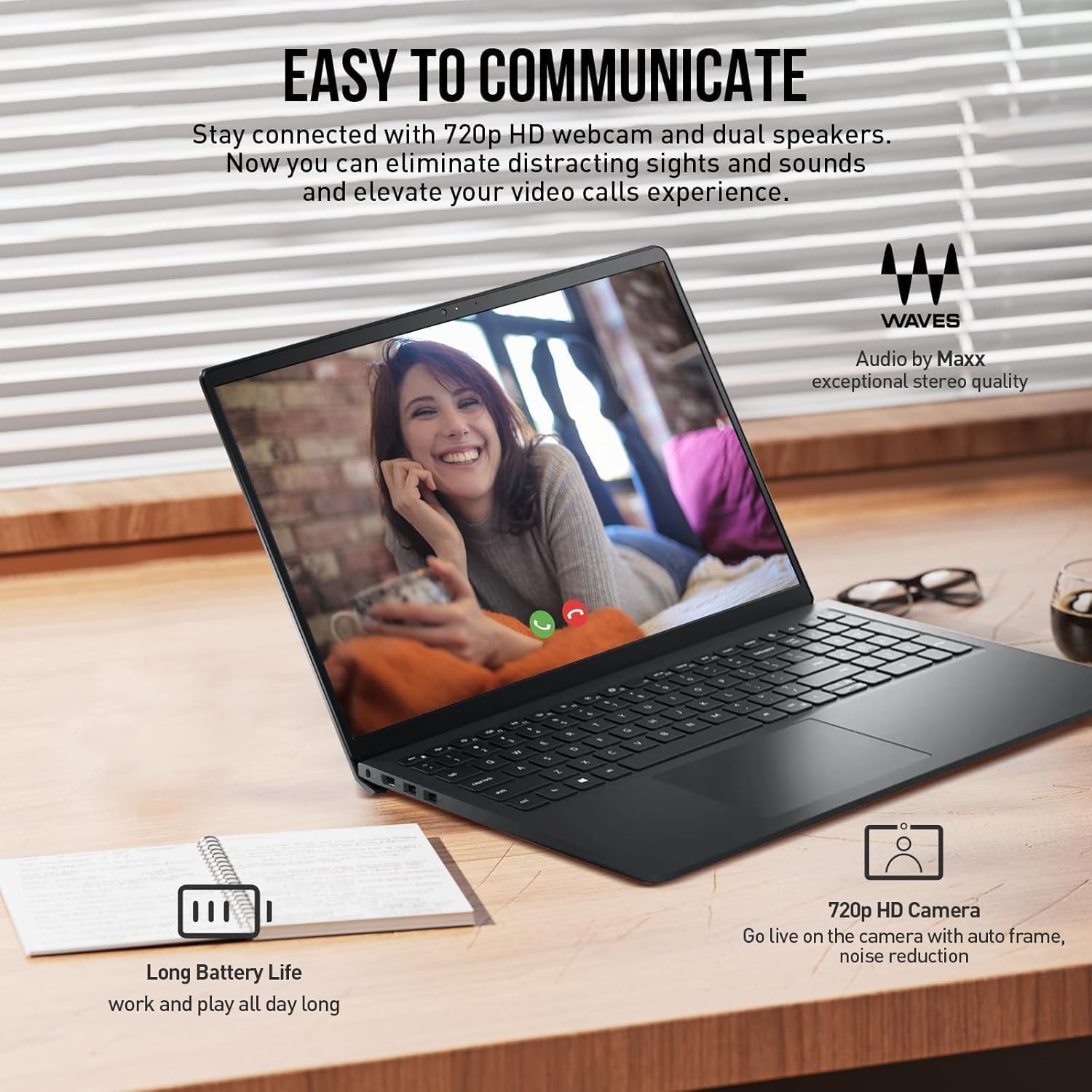
Figure 6.2: Webcam and Audio Features. This image illustrates the 720p HD webcam and dual speakers, emphasizing clear communication and audio quality.
6.4. Connectivity
- Wi-Fi 6: Connect to wireless networks for internet access. Manage Wi-Fi connections through Windows settings.
- Bluetooth 5.0: Pair with Bluetooth-enabled devices such as headphones, speakers, or mice.
7. Maintenance
7.1. Cleaning
Use a soft, lint-free cloth to clean the screen and exterior surfaces. For stubborn smudges, dampen the cloth slightly with water or a screen-cleaning solution. Avoid harsh chemicals.
7.2. Software Updates
Regularly update your Windows operating system and drivers to ensure optimal performance and security. Access Windows Update through the Settings menu.
7.3. Battery Care
To prolong battery life, avoid fully discharging the battery frequently. Store the laptop in a cool, dry place when not in use for extended periods. The laptop features a 3-Cell 41Whr Battery, providing up to 9 hours of usage.
8. Troubleshooting
If you encounter issues with your laptop, refer to the following common solutions:
- No Power: Ensure the power adapter is securely connected to both the laptop and a working power outlet. Try a different outlet.
- Display Issues: If the screen is blank, try adjusting the brightness or connecting an external monitor to check if the display output is working.
- Wi-Fi Connectivity Problems: Check if Wi-Fi is enabled in Windows settings. Restart your router and the laptop.
- Slow Performance: Close unnecessary applications, check for malware, and ensure your operating system is up to date.
For more complex issues, consult the Dell support website or contact customer service.
9. Specifications
| Feature | Detail |
|---|---|
| Brand | Dell |
| Model Name | Dell LDC15250 Laptop |
| Screen Size | 15.6 inches |
| Display Resolution | FHD (1920 x 1080) |
| Display Type | Anti-Glare LED Backlight Touch WVA Display |
| Processor | 13th Generation Intel Core i5-1334U (10-Core, up to 4.6 GHz) |
| Graphics | Intel UHD Graphics (Integrated) |
| RAM Memory | 8 GB DDR5 |
| Storage | 256 GB PCIe NVMe SSD |
| Operating System | Windows 11 Home |
| Wireless Connectivity | Wi-Fi 6, Bluetooth 5.0 |
| Ports | 1x USB-A 2.0, 1x USB-A 3.2, 1x USB-C 3.2, 1x HDMI 1.4, 1x Headset Jack, 1x SD Card Reader |
| Webcam | Integrated 720p HD Webcam |
| Battery | 3-Cell 41Whr, up to 9 hours battery life |
| Dimensions (L x W x H) | 14.11" x 9.27" x 0.75" |
| Weight | 3.66 lbs |
| Color | Black |
10. Warranty and Support
10.1. Warranty Information
Your Dell LDC15250 Laptop comes with a Limited Warranty. Please refer to the warranty documentation included with your purchase or visit the official Dell support website for detailed terms and conditions.
10.2. Customer Support
For technical assistance, troubleshooting, or service inquiries, please visit the official Dell Support website or contact Dell customer service directly. Have your laptop's service tag or serial number ready when contacting support.
Dell Support Website: www.dell.com/support


