
1. Introduction
The MiBOXER SPIW5 5-in-1 SPI+DMX LED Controller is a versatile lighting control solution designed for both smart home and professional lighting systems. It supports five output modes: DIM, CCT, RGB, RGBW, and RGB+CCT, making it compatible with a wide range of constant voltage LED strips and addressable digital pixel LEDs (SPI). This controller features dual-output functionality for SPI signal (e.g., WS2811, SK6812) and DMX512 protocol, allowing integration with both pixel-based and stage lighting setups. Control is available via the MiBOXER Smart App over WiFi for scene customization, scheduling, and group management, and through 2.4GHz RF for compatibility with MiBOXER remotes.
2. Product Features
- Supports WiFi and 2.4G wireless transmitting technology.
- Built-in SPI/DMX dual communication protocol.
- Allows adjustment of different modes, color, brightness, and dynamic illumination effects.
- Output signal: SPI (TTL) 800Kbps, DMX: 250Kbps, 500Kbps, 750Kbps.
- Compatible with DIM, CCT, RGB, RGBW, and RGB+CCT output modes.
- Supports various addressable digital pixel LEDs (e.g., WS2811, SK6812).
- Control via MiBOXER Smart App (WiFi) and 2.4GHz RF remotes.
3. Specifications
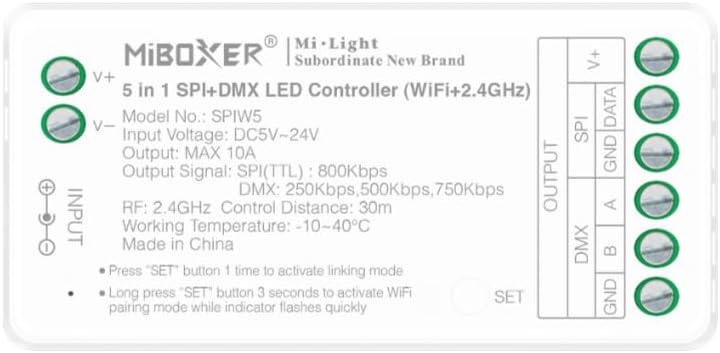
Image 3.1: Front view of the MiBOXER SPIW5 controller showing input/output terminals and specifications.
| Parameter | Value |
|---|---|
| Model No. | SPIW5 |
| Input Voltage | DC5V~24V |
| Output Current | MAX 10A |
| Output Signal (SPI) | TTL 800Kbps |
| Output Signal (DMX) | 250Kbps, 500Kbps, 750Kbps |
| RF Control Frequency | 2.4GHz |
| RF Control Distance | 30m (approx. 98 feet) |
| Working Temperature | -10~40°C (14~104°F) |
| Dimensions | 74.5mm x 36mm x 17mm (approx. 3 x 1.4 x 0.7 inches) |
| Item Weight | 1.6 ounces |
| Material | Plastic |
| Indoor/Outdoor Usage | Indoor |

Image 3.2: Detailed dimensions of the MiBOXER SPIW5 controller and its packaging.
4. Package Contents

Image 4.1: Contents included in the MiBOXER SPIW5 product package.
The MiBOXER SPIW5 package typically includes:
- 1x MiBOXER SPIW5 5-in-1 SPI+DMX LED Controller
- 1x User Manual (this document)
- 1x Connector Cable (for power or signal, as applicable)
5. Setup and Installation
Before installation, ensure all power is disconnected. Incorrect wiring can damage the controller or LED strips.
5.1 Wiring Diagram
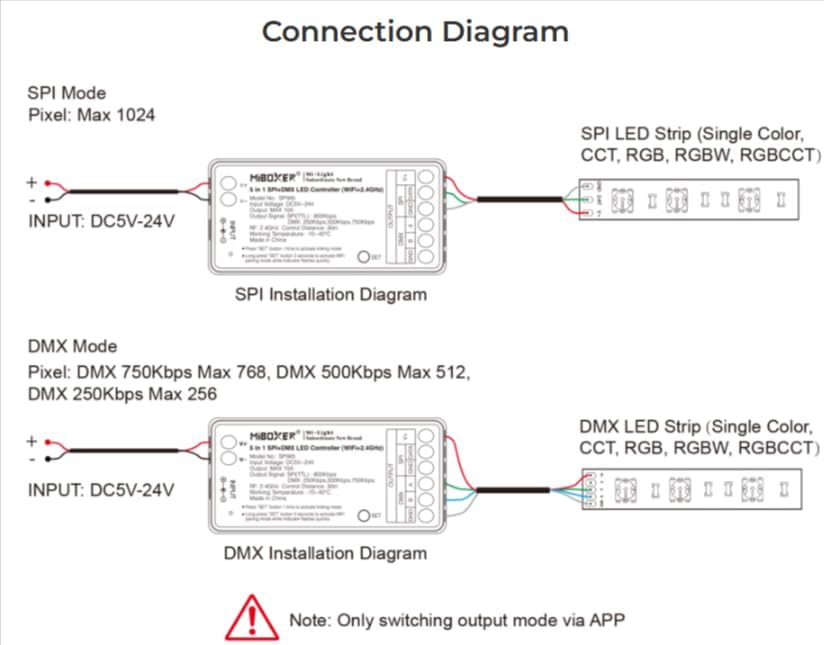
Image 5.1: Connection diagrams for both SPI and DMX modes, illustrating power and signal connections.
The controller supports both SPI and DMX output modes. The output mode can only be switched via the MiBOXER Smart App.
SPI Mode Installation
- Connect the DC5V-24V power supply to the INPUT V+ and V- terminals of the controller.
- Connect the SPI LED strip (e.g., single color, CCT, RGB, RGBW, RGB+CCT) to the OUTPUT SPI terminals:
- Connect the DATA line from the LED strip to the DATA terminal on the controller.
- Connect the GND line from the LED strip to the GND terminal on the controller.
- Ensure the maximum pixel count for SPI mode is 1024.
DMX Mode Installation
- Connect the DC5V-24V power supply to the INPUT V+ and V- terminals of the controller.
- Connect the DMX LED strip (e.g., single color, CCT, RGB, RGBW, RGB+CCT) to the OUTPUT DMX terminals:
- Connect the DMX A line from the LED strip to the A terminal on the controller.
- Connect the DMX B line from the LED strip to the B terminal on the controller.
- Connect the GND line from the LED strip to the GND terminal on the controller.
- Note the maximum pixel counts for DMX mode based on speed: 750Kbps Max 768 pixels, 500Kbps Max 512 pixels, 250Kbps Max 256 pixels.
6. Operating Instructions
The MiBOXER SPIW5 controller can be operated via WiFi using the MiBOXER Smart App or via 2.4GHz RF remotes.
6.1 System Overview

Image 6.1: Diagram illustrating the various control methods for the MiBOXER SPIW5 controller, including app, voice assistants, and remote.
6.2 WiFi Pairing (MiBOXER Smart App)
- Download the MiBOXER Smart App from your device's app store.
- Ensure your smartphone is connected to a 2.4GHz WiFi network.
- Power on the SPIW5 controller.
- Long press the "SET" button on the controller for 3 seconds until the indicator light flashes quickly. This activates WiFi pairing mode.
- Open the MiBOXER Smart App, follow the on-screen instructions to add a new device, and connect to the controller.
- Once paired, you can control the LED strips, adjust modes, colors, brightness, and set schedules via the app.

Image 6.2: Examples of the MiBOXER Smart App interface for controlling LED lighting.
6.3 2.4G RF Remote Linking
- Ensure the SPIW5 controller is powered on.
- Press the "SET" button on the controller one time to activate linking mode. The indicator light will flash slowly.
- Within 3 seconds of pressing the "SET" button, perform the linking operation on your MiBOXER 2.4G RF remote control (refer to your remote's specific instructions for linking).
- Successful linking is usually indicated by the LED strip flashing or changing color.
7. Maintenance
- Keep the controller in a dry environment, away from moisture and direct sunlight.
- Clean the device with a soft, dry cloth. Do not use harsh chemicals or abrasive cleaners.
- Ensure proper ventilation around the controller to prevent overheating.
- Regularly check wiring connections for security and integrity.
8. Troubleshooting
| Problem | Possible Cause | Solution |
|---|---|---|
| LED strip does not light up. | No power, incorrect wiring, faulty LED strip, incorrect output mode. | Check power supply connection. Verify wiring according to diagrams. Test LED strip with another power source. Ensure correct output mode (SPI/DMX) is selected via the app. |
| Cannot connect via WiFi. | Controller not in pairing mode, incorrect WiFi network (not 2.4GHz), incorrect password, router issues. | Long press "SET" for 3 seconds until indicator flashes quickly. Ensure phone is on 2.4GHz WiFi. Re-enter WiFi password. Restart router and controller. |
| 2.4G RF remote not working. | Remote not linked, remote battery low, remote out of range. | Press "SET" once on controller, then link with remote within 3 seconds. Replace remote battery. Ensure remote is within 30m range. |
| LED effects are not smooth or incorrect. | Incorrect LED strip type selected in app, pixel count mismatch, signal interference. | Verify the LED strip type and pixel count settings in the MiBOXER Smart App. Check for strong electromagnetic interference. |
9. Warranty and Support
For warranty information and technical support, please refer to the official MiBOXER website or contact your retailer. Keep your purchase receipt as proof of purchase.
For further assistance, you may visit the MiBOXER Store on Amazon.


