1. Product Overview
The TCL 40SF560 is a 40-inch QLED Direct Smart Full HD LED TV designed to deliver an immersive viewing experience. It features QLED technology for vibrant colors, Full HD resolution for crisp and clear images, and HDR10 support for enhanced contrast and detail. Integrated with Fire TV, it provides easy access to a wide range of streaming content and smart home control via Alexa. Its metallic, frameless design offers a sleek and modern aesthetic.

Figure 1.1: Front view of the TCL 40SF560 QLED Smart TV. This image showcases the television's slim bezels and overall design.
2. Setup Guide
2.1. Unboxing and Package Contents
Carefully remove all components from the packaging. Ensure all items listed below are present:
- TCL 40SF560 QLED Smart TV
- Remote Control
- Power Cable
- TV Stand (2 pieces)
- User Manual (this document)
2.2. Attaching the TV Stand
To attach the stand, place the TV screen-down on a soft, clean surface to prevent scratches. Align each stand piece with the corresponding slots on the bottom of the TV and secure them with the provided screws.

Figure 2.1: TV dimensions and remote control layout. This image provides a visual reference for the TV's physical size and the included remote control.
2.3. Connecting External Devices
The TCL 40SF560 offers various ports for connecting external devices. Refer to the diagram below for port locations and types.

Figure 2.2: Overview of the TV's input and output ports, including HDMI, USB, Optical, Cable, Satellite, AV Input, Headphone, and CI Slot.
- HDMI: Connect Blu-ray players, game consoles, or set-top boxes.
- USB: For media playback from USB drives.
- Optical: For digital audio output to soundbars or home theater systems.
- Cable/Satellite: For connecting antenna or satellite dish.
- AV Input: For older devices using composite video and stereo audio.
- Headphone: For private listening.
- CI Slot: For Conditional Access Modules (CAMs) to decrypt pay-TV channels.
2.4. Initial Power On and Fire TV Setup
After connecting all desired devices and the power cable, plug the TV into a power outlet. Press the power button on the remote control. The TV will guide you through the initial Fire TV setup process, including network connection, Amazon account login, and channel scanning.
3. Operating Instructions
3.1. Remote Control Functions
The included remote control provides full functionality for navigating the TV's interface and controlling playback. Key buttons include:
- Power: Turns the TV on/off.
- Navigation Pad (Up/Down/Left/Right/OK): For menu navigation and selection.
- Back: Returns to the previous screen.
- Home: Accesses the Fire TV home screen.
- Volume Up/Down: Adjusts audio volume.
- Mute: Mutes/unmutes sound.
- Channel Up/Down: Changes TV channels.
- App Shortcut Buttons: Direct access to popular streaming services.
- Microphone Button: Activates Alexa voice control.
3.2. Smart TV Features (Fire TV)
Your TCL TV is powered by Fire TV, offering a centralized hub for all your entertainment.

Figure 3.1: The Fire TV home screen, showing various streaming applications and content recommendations.
- Streaming Apps: Access Netflix, Prime Video, Disney+, YouTube, and many more directly from the home screen.
- Alexa Voice Control: Press the microphone button on your remote and speak commands to search for content, launch apps, control smart home devices, and more.
- AirPlay 2 & Miracast: Wirelessly cast content from your compatible Android, iOS, or Mac devices to the TV.
- User Profiles: Create up to six user profiles to personalize recommendations and watchlists for each family member.
3.3. Picture and Audio Settings
Optimize your viewing and listening experience by adjusting picture and audio settings.
3.3.1. Picture Quality (QLED, Full HD, HDR10)

Figure 3.2: Visual representation of TCL QLED technology, highlighting its ability to produce vibrant and accurate colors.
The QLED display utilizes quantum dot technology for a wider color gamut and enhanced brightness. The Full HD resolution ensures sharp and detailed images.
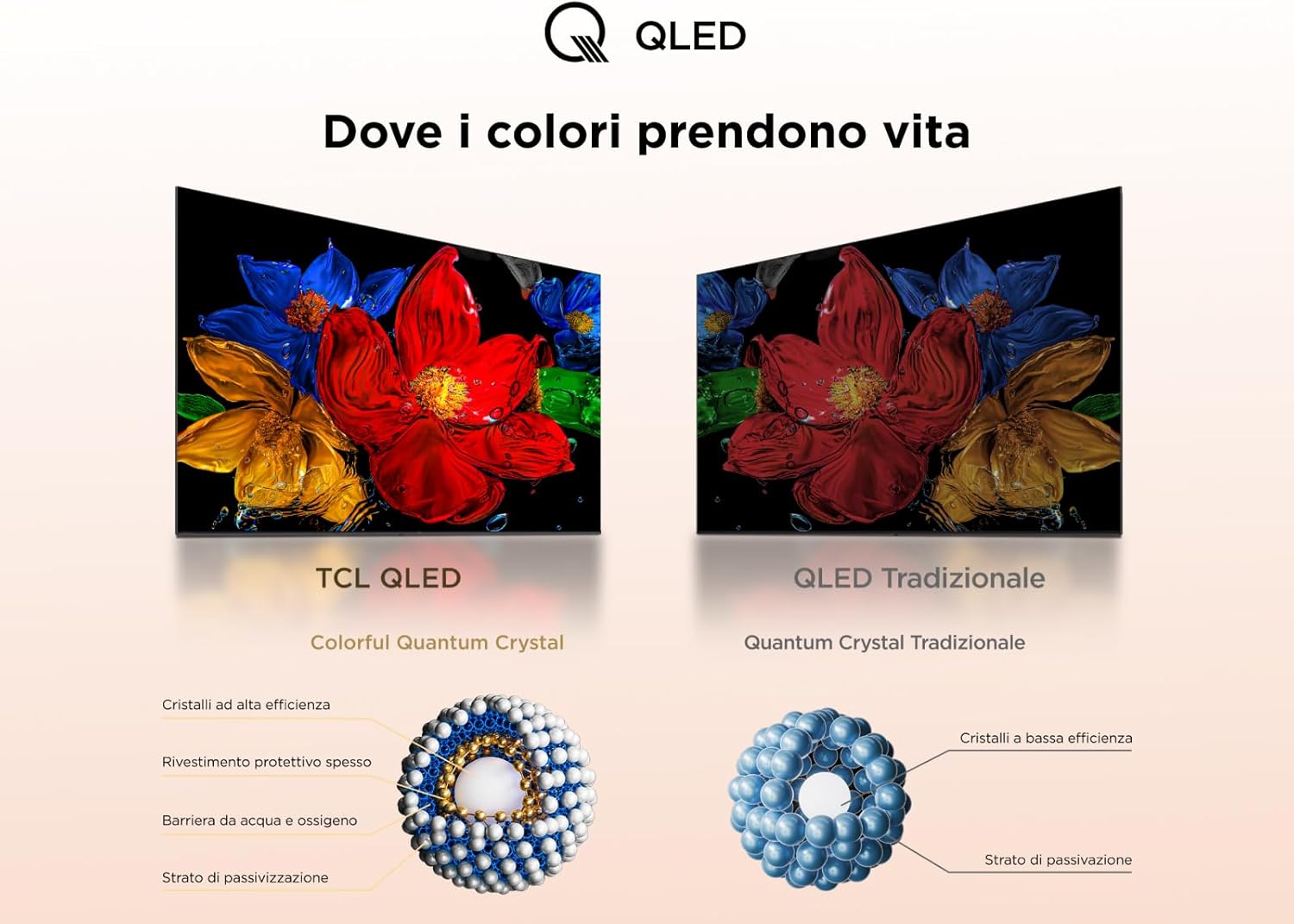
Figure 3.3: Comparison illustrating the clarity and detail provided by Full HD resolution compared to standard HD.
HDR10 support dynamically adjusts image signals to improve contrast and color accuracy, even for non-HDR content.

Figure 3.4: Demonstration of how HDR10 enhances brightness, contrast, and color in images.
Access picture settings via the Fire TV menu to adjust brightness, contrast, color, and picture modes (e.g., Standard, Movie, Sport).
3.3.2. Audio Quality (Dolby Audio)

Figure 3.5: Visual representation of an immersive audio experience, indicative of Dolby Audio capabilities.
The TV features Dolby Audio for a clear and immersive sound experience. You can adjust audio modes (e.g., Standard, Music, Clear Voice) and equalizer settings in the sound menu.
4. Maintenance
4.1. Cleaning the TV
To clean the screen, gently wipe it with a soft, lint-free cloth. For stubborn marks, slightly dampen the cloth with water or a screen-cleaning solution. Avoid using harsh chemicals or abrasive materials. For the TV frame and stand, use a dry or slightly damp cloth.
4.2. Software Updates
Ensure your TV's software is up-to-date for optimal performance and new features. The Fire TV system typically updates automatically when connected to the internet. You can manually check for updates in the TV's settings menu.
5. Troubleshooting
This section addresses common issues you might encounter with your TCL 40SF560 TV.
| Problem | Possible Cause / Solution |
|---|---|
| No Power | Ensure the power cable is securely plugged into both the TV and a working electrical outlet. Try a different outlet. |
| No Picture / Black Screen | Check input source (HDMI, TV, etc.). Ensure external devices are powered on and connected correctly. Restart the TV by unplugging it for 30 seconds. |
| No Sound | Check volume level and mute status. Ensure external audio systems are connected and powered on. Check audio output settings on the TV. |
| Remote Control Not Responding | Replace batteries. Ensure no obstructions between the remote and the TV's IR sensor. Re-pair the remote if it's a Bluetooth remote. |
| Wi-Fi Connectivity Issues | Restart your router and modem. Ensure the TV is within range of your Wi-Fi network. Re-enter Wi-Fi password in TV settings. |
| Standby LED is too bright | Some users report the standby LED is bright. Check TV settings for an option to dim or disable the LED. If no option is available, consider covering it. |
| HbbTV Functionality Issues | If experiencing issues with HbbTV, try disabling and re-enabling the function in the TV settings. Ensure a stable internet connection. |
6. Specifications
Detailed technical specifications for the TCL 40SF560 TV.
| Feature | Detail |
|---|---|
| Brand | TCL |
| Model Number | 40SF560 |
| Screen Size | 40 Inches (102 cm) |
| Display Technology | QLED, Direct LED |
| Resolution | Full HD (1920 x 1080 pixels) |
| Refresh Rate | 60 Hz |
| HDR Support | HDR10 |
| Audio Technology | Dolby Audio |
| Operating System | Fire TV |
| Connectivity | Bluetooth, Wi-Fi, USB, Ethernet, HDMI (x2) |
| Dimensions (WxDxH) | 89.2 x 18.4 x 55.8 cm (with stand) |
| Weight | 6.4 kg |
| Energy Efficiency Class (SDR) | F |
| Energy Consumption (SDR) | 39 kWh/1000h |
| Energy Consumption (HDR) | 68 kWh/1000h |
| Country of Origin | China |
6.1. Energy Information


Figure 6.1: The energy efficiency label (left) and detailed energy information sheet (right) for the TCL 40SF560 TV.
For more detailed energy information, please refer to the official EU EPREL database: EPREL Product Page
7. Warranty and Support
This product comes with a manufacturer's warranty. For specific details regarding warranty coverage and terms, please refer to the warranty card included in your product packaging or visit the official TCL support website.
If you require technical assistance or have questions not covered in this manual, please contact TCL customer support.
- Product Returns: If you wish to return a product within 30 days of receipt because you have changed your mind, please consult the Amazon help page on returns.
- Defective/Damaged Products: If you have received a defective or damaged product, please consult the Amazon help page on defective items.