
1. Introduction
This manual provides detailed instructions for the setup, operation, and maintenance of your XBJ K6 Mini Portable Projector. Please read this manual thoroughly before using the device to ensure proper functionality and to maximize your viewing experience. Keep this manual for future reference.
2. What's in the Box
- XBJ K6 Portable Projector
- Power Cord
- Remote Control
- User Manual (this document)
3. Product Overview
The XBJ K6 Mini Portable Projector is designed for versatile entertainment and presentation. It features 1080P support with 4K decoding, electric focus, auto keystone correction, and a 360° rotatable stand. Integrated with a Smart Android System, WiFi 6, and Bluetooth 5.2, it offers seamless connectivity and access to various applications.

Figure 3.1: XBJ K6 Mini Portable Projector front view with key features.
4. Setup Instructions
4.1 Placement
Position the projector on a stable, flat surface. The 360° rotatable stand allows for flexible projection angles, including walls, ceilings, or tents. Ensure there are no obstructions in front of the lens.

Figure 4.1: Projector placement flexibility with 360° rotating stand.
4.2 Power Connection
- Connect the power cord to the projector's power input port.
- Plug the other end of the power cord into a suitable electrical outlet.
- Press the power button on the projector or remote control to turn on the device.
4.3 Focus Adjustment
The projector features electric focus. Use the remote control to adjust the sharpness of the projected image. Press the 'F+' or 'F-' buttons on the remote until the image is clear.

Figure 4.2: Adjusting electric focus with the remote control.
4.4 Keystone Correction
The XBJ K6 projector includes automatic keystone correction. This feature automatically adjusts the image to be rectangular, even if the projector is placed at an angle. Manual adjustments may also be available through the settings menu if needed.
5. Operating Instructions
5.1 Navigating the Smart Android System
The projector runs on a Smart Android System, providing access to various pre-installed applications like Netflix and YouTube. Use the remote control to navigate the interface, select apps, and adjust settings.
5.2 Wi-Fi Connectivity
The projector supports Dual-Band WiFi 6 (2.4G/5G) for fast and stable internet connection.
- Go to the projector's settings menu.
- Select 'Network' or 'Wi-Fi'.
- Choose your desired Wi-Fi network from the list.
- Enter the password if prompted and connect.
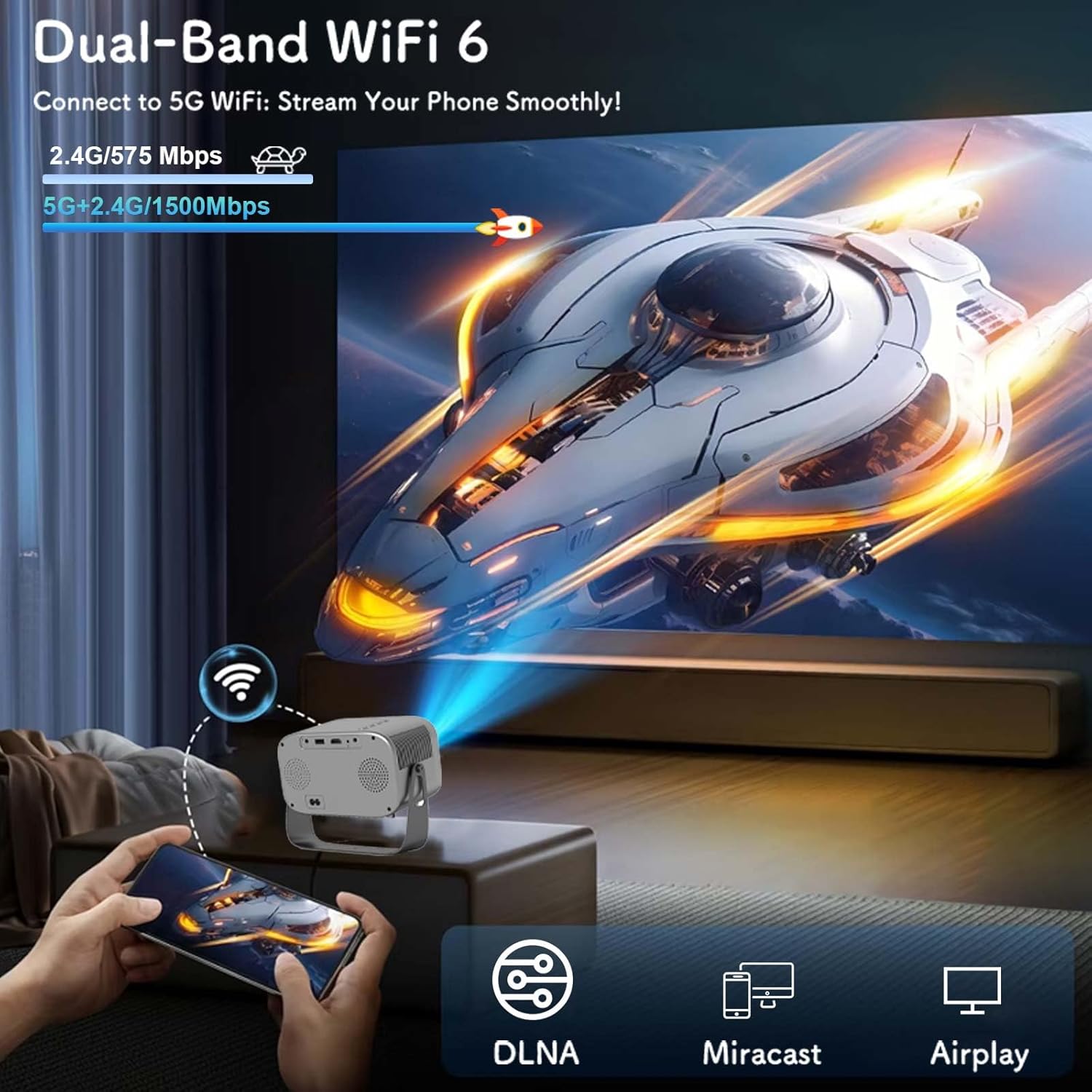
Figure 5.1: Connecting to Dual-Band WiFi 6 and screen mirroring.
5.3 Bluetooth Connectivity
The projector features Bluetooth 5.2, allowing connection to external audio devices like HiFi speakers or headphones for enhanced sound.
- Ensure your Bluetooth audio device is in pairing mode.
- On the projector, go to the settings menu and select 'Bluetooth'.
- Scan for available devices and select your audio device to pair.

Figure 5.2: Bluetooth 5.2 connectivity for external audio.
5.4 Screen Mirroring
The projector supports DLNA, Miracast, and Airplay for screen mirroring from smartphones and other compatible devices. Ensure your device and the projector are connected to the same Wi-Fi network for optimal performance.
5.5 Connecting External Devices
The projector offers multiple interfaces for connecting various devices:
- HDMI: Connect laptops, game consoles, TV sticks, etc.
- USB: Play media from USB flash drives.
- AV: Connect older devices using an AV cable (not included).
- 3.5mm Audio Jack: Connect wired headphones or external speakers.
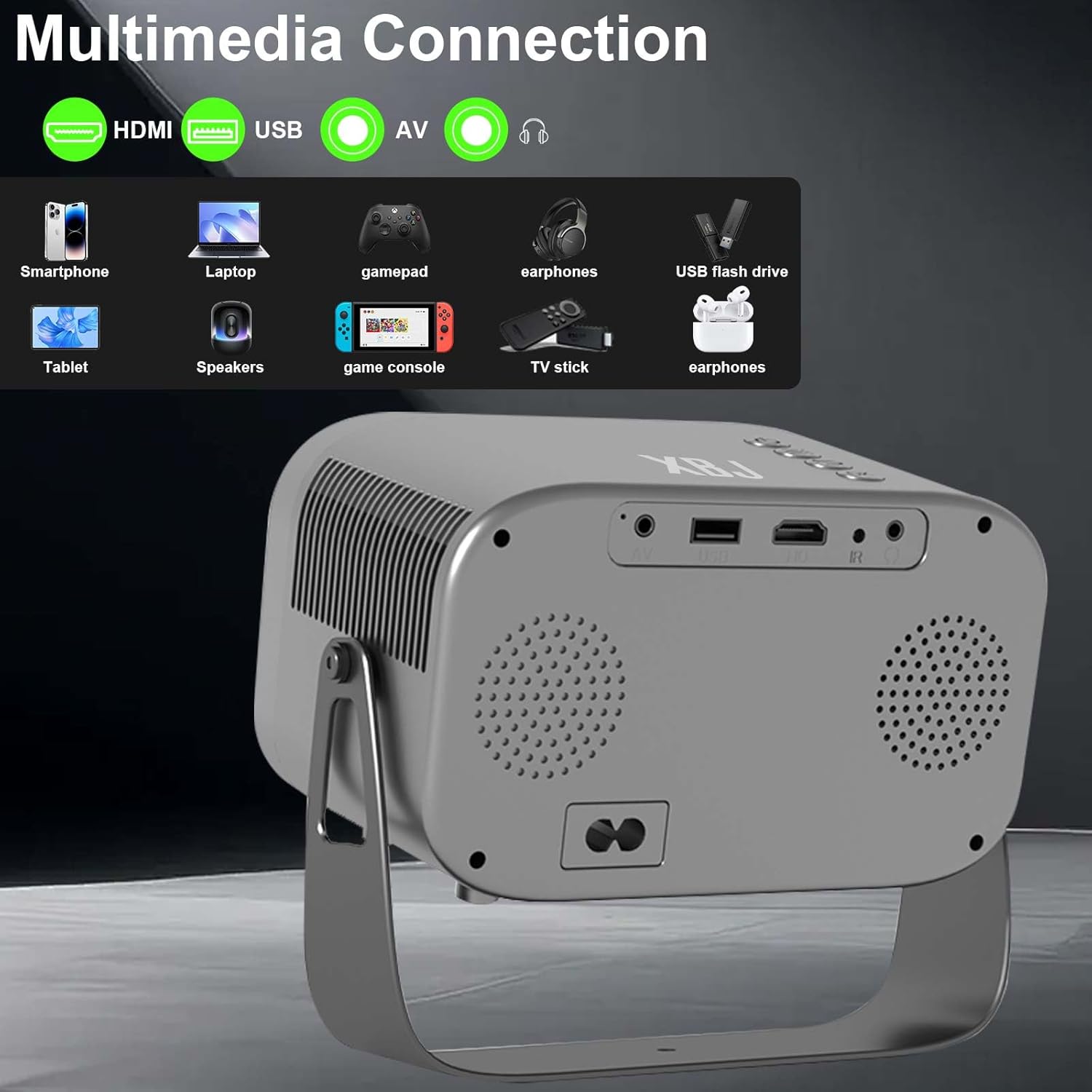
Figure 5.3: Multimedia connection ports on the XBJ K6 projector.
6. Maintenance
6.1 Cleaning the Lens
Use a soft, lint-free cloth specifically designed for optical lenses to gently wipe the projector lens. Avoid using abrasive materials or harsh chemicals, which can damage the lens coating.
6.2 Cleaning the Exterior
Wipe the exterior of the projector with a soft, dry cloth. For stubborn marks, a slightly damp cloth can be used, followed by a dry cloth. Ensure no liquid enters the device.
6.3 Storage
When not in use for extended periods, store the projector in a cool, dry place, away from direct sunlight and extreme temperatures. It is recommended to cover the lens to protect it from dust.
7. Troubleshooting
If you encounter issues with your XBJ K6 projector, please refer to the following common solutions:
- No Power: Ensure the power cord is securely connected to both the projector and the power outlet. Try a different outlet.
- No Image: Check all cable connections (HDMI, AV). Ensure the correct input source is selected in the projector's menu. Adjust focus.
- Blurry Image: Use the remote control's 'F+' and 'F-' buttons to adjust the electric focus. Ensure the projection surface is flat.
- No Sound or Low Sound: Adjust the volume on both the projector and any connected external audio devices. Check Bluetooth connection if using wireless speakers/headphones. Ensure internal speakers are not muted.
- Wi-Fi/Bluetooth Connection Issues: Ensure the projector is within range of your router/Bluetooth device. Restart the projector and your network devices. Re-pair Bluetooth devices.
- App Functionality Issues: Ensure the projector is connected to the internet. Check for app updates within the Android system. Some apps may have specific device compatibility requirements.
For further assistance, please contact customer support.
8. Specifications
| Feature | Specification |
|---|---|
| Brand | XBJ |
| Model Number | TYYK6SKS001 |
| Item Weight | 1.87 pounds |
| Product Dimensions | 7.28 x 4.17 x 6.06 inches |
| Display Resolution | 1280 x 720 (Supports 1080P/4K decoding) |
| Brightness | 300 ANSI Lumens |
| Connectivity Technology | 3.5mm Jack, Bluetooth 5.2, HDMI, USB, Wi-Fi 6 |
| Special Features | Built-In Cooling System, Built-In Speaker, Built-In Wi-Fi, Digital Keystone Correction, Portable, Electric Focus, 360° Rotatable Stand |
| Recommended Uses | Education, Gaming, Home Cinema |
9. Warranty and Support
9.1 Warranty Information
New products may be damaged during shipping. If you receive a damaged item, please contact our store immediately. We are fully responsible for products sold via our official store.
9.2 Customer Support
For technical support or any issues you encounter with your XBJ K6 Mini Portable Projector, please contact our customer support team. We are committed to helping you resolve any problems.
Email: ESzxkj@outlook.com
24/7 Customer Support is available.

