
1. Introduction
Thank you for choosing the DinoFire USB Type C Wireless Presentation Clicker. This device is designed to enhance your presentations with its dual Bluetooth and 2.4GHz RF connectivity, versatile USB-A and USB-C compatibility, and ergonomic design. This manual provides detailed instructions for setup, operation, and maintenance to ensure optimal performance.

Image: The DinoFire USB Type C Wireless Presentation Clicker, a sleek black device with control buttons.
2. Safety Information
- Laser Safety: Do not point the laser beam directly at people or animals. Avoid direct eye exposure to the laser beam. This product uses a Class 2 laser.
- Battery Handling: Use only specified AAA batteries. Do not mix old and new batteries, or different types of batteries. Dispose of used batteries according to local regulations.
- Storage: Keep the device away from extreme temperatures, direct sunlight, and moisture.
- Children: Keep out of reach of children.
3. Setup
3.1. Battery Installation
- Locate the battery compartment cover on the back of the presenter.
- Slide the cover open.
- Insert two AAA batteries (not included) into the compartment, ensuring correct polarity (+/-).
- Close the battery compartment cover securely.

Image: The presenter showing the battery compartment and the integrated USB receiver storage.
3.2. Connecting via USB Receiver (2.4GHz RF Mode)
- Open the battery compartment cover and remove the integrated USB receiver. This receiver features both USB-A and USB-C connectors for broad compatibility.
- Plug the appropriate connector (USB-A or USB-C) of the receiver into an available USB port on your computer.
- Turn on the presenter using the ON/OFF switch located on the side.
- The computer should automatically detect and install the necessary drivers. The presenter is now ready for use in 2.4GHz RF mode.
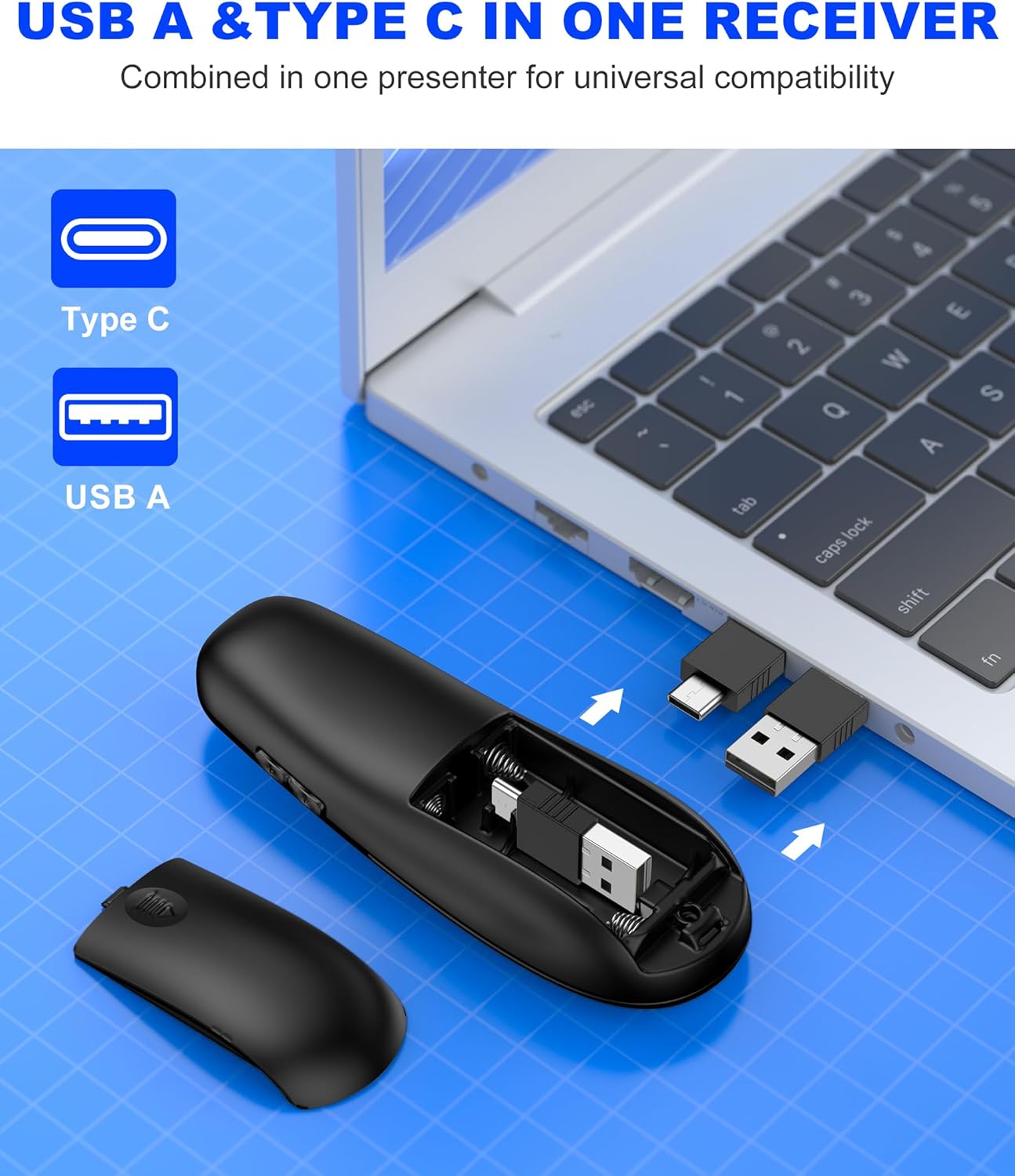
Image: Close-up of the dual USB-A and USB-C receiver, highlighting its versatile design.
3.3. Connecting via Bluetooth (BT Mode)
- Ensure the presenter is turned on.
- Press and hold the CONNECT button (usually a small circular button near the laser pointer) for a few seconds until the indicator light flashes, indicating pairing mode.
- On your computer, go to Bluetooth settings and search for new devices.
- Select "DinoFire Presenter" (or similar name) from the list of available devices to pair.
- Once paired, the indicator light on the presenter will stop flashing and remain solid. The presenter is now ready for use in Bluetooth mode.
- To switch between BT and RF modes, simply press the dedicated BT/RF switch button on the presenter.
4. Operating Instructions
The DinoFire Wireless Presentation Clicker offers a range of functions to control your presentations effectively.
- Page Up/Down: Use the arrow buttons (▲ / ▼) to navigate through your presentation slides.
- Laser Pointer: Press the dedicated laser button (often a triangle icon) to activate the bright laser light for highlighting key areas.
- Full/Black Screen: A dedicated button allows you to toggle between a full screen display and a black screen to draw audience attention.
- Volume Control: Adjust the audio volume of your computer directly from the presenter.
- Hyperlink Activation: Activate hyperlinks within your presentation with a dedicated button.
- Window Switching: Seamlessly switch between open windows on your computer.
- Automatic Sleep Mode: The presenter automatically enters sleep mode after 30 seconds of inactivity to conserve energy. Press any button to wake it up.

Image: Diagram illustrating the various functions of the presentation clicker buttons, including page navigation, window switching, hyperlink, and volume control.
5. Features
- BT & RF 2.4 GHz Dual Modes: Quickly switch between Bluetooth and 2.4GHz RF modes for flexible connectivity with various devices.
- Plug & Play USB A & C Connectors: Equipped with dual USB-A/USB-C connectors combined in one receiver for universal compatibility with laptops and desktop computers.
- Ergonomic Design: Features a curved design for a comfortable grip, allowing for extended use without discomfort.
- Long Control Wireless Range: Enjoy a maximum wireless control range of 164 feet (50 meters), providing freedom to move around the room during presentations.
- Bright Laser Light: The integrated laser pointer helps to effectively highlight content on your slides.

Image: Illustration showing the presenter's long control range, indicating up to 164 feet for wireless control and 628 feet for laser light.

Image: A hand holding the presenter, illustrating its comfortable, ergonomic grip.
6. Maintenance
- Cleaning: Use a soft, dry cloth to clean the surface of the presenter. Do not use abrasive cleaners or solvents.
- Storage: When not in use, store the USB receiver inside the presenter's battery compartment to prevent loss. Store the presenter in a cool, dry place.
- Battery Replacement: Replace batteries when the indicator light shows low power or when the device becomes unresponsive.
7. Troubleshooting
| Problem | Possible Cause | Solution |
|---|---|---|
| Presenter not responding (RF Mode) | USB receiver not properly connected or not detected. | Ensure the USB receiver is fully inserted into a working USB port. Try a different USB port. |
| Presenter not responding (Bluetooth Mode) | Not paired or out of range. | Ensure Bluetooth is enabled on your computer. Re-pair the device following the Bluetooth connection steps. Move closer to the computer. |
| Laser pointer not working | Low battery or laser button not pressed. | Replace batteries. Ensure the laser button is pressed firmly. |
| Short wireless range | Interference or obstacles. | Minimize obstacles between the presenter and the receiver. Avoid using near other wireless devices that may cause interference. |
| Presenter automatically enters sleep mode too quickly | This is normal behavior for energy saving. | Press any button to wake the presenter from sleep mode. |
8. Specifications
- Brand: DinoFire
- Model Name: AAA+USB A&C+BT
- Model Number (Mfr Part Number): WP506
- Connectivity Technology: Bluetooth, Radio Frequency (2.4GHz)
- Max Wireless Control Range: 164 Feet (50 meters)
- Compatible Devices: Laptops, Desktop Computers (Bluetooth-enabled)
- Receiver: Dual USB-A / USB-C
- Battery Type: 2 x AAA batteries (not included)
- Special Feature: Ergonomic Design, Laser Pointer, Dual Mode Connectivity
- Color: Black
9. Warranty and Support
The DinoFire USB Type C Wireless Presentation Clicker comes with a 3-Year Warranty.
For technical support, troubleshooting assistance, or warranty claims, please contact DinoFire customer service through the retailer where the product was purchased or visit the official DinoFire website for contact information.
Manufacturer: Shenzhen Qixun Space Technology Co., Ltd.