
M-Amazup L-CD201
M-Amazup L-CD201 Portable Desktop CD Player User Manual
Model: L-CD201
Introduction
Thank you for purchasing the M-Amazup L-CD201 Portable Desktop CD Player. This manual provides essential information for setting up, operating, and maintaining your device. Please read it thoroughly before use to ensure optimal performance and safety.
Package Contents
Verify that all items are present in the package:
- CD Player x1
- Cable x1
- Adapters x1
- Remote Control
- User Manual (this document)

Image: The M-Amazup L-CD201 CD Player, remote control, cables, and user manual laid out next to its packaging.
Product Overview
The M-Amazup L-CD201 is a versatile portable desktop CD player offering multiple playback options and features. It includes dual speakers, an LCD display, and supports various audio sources.
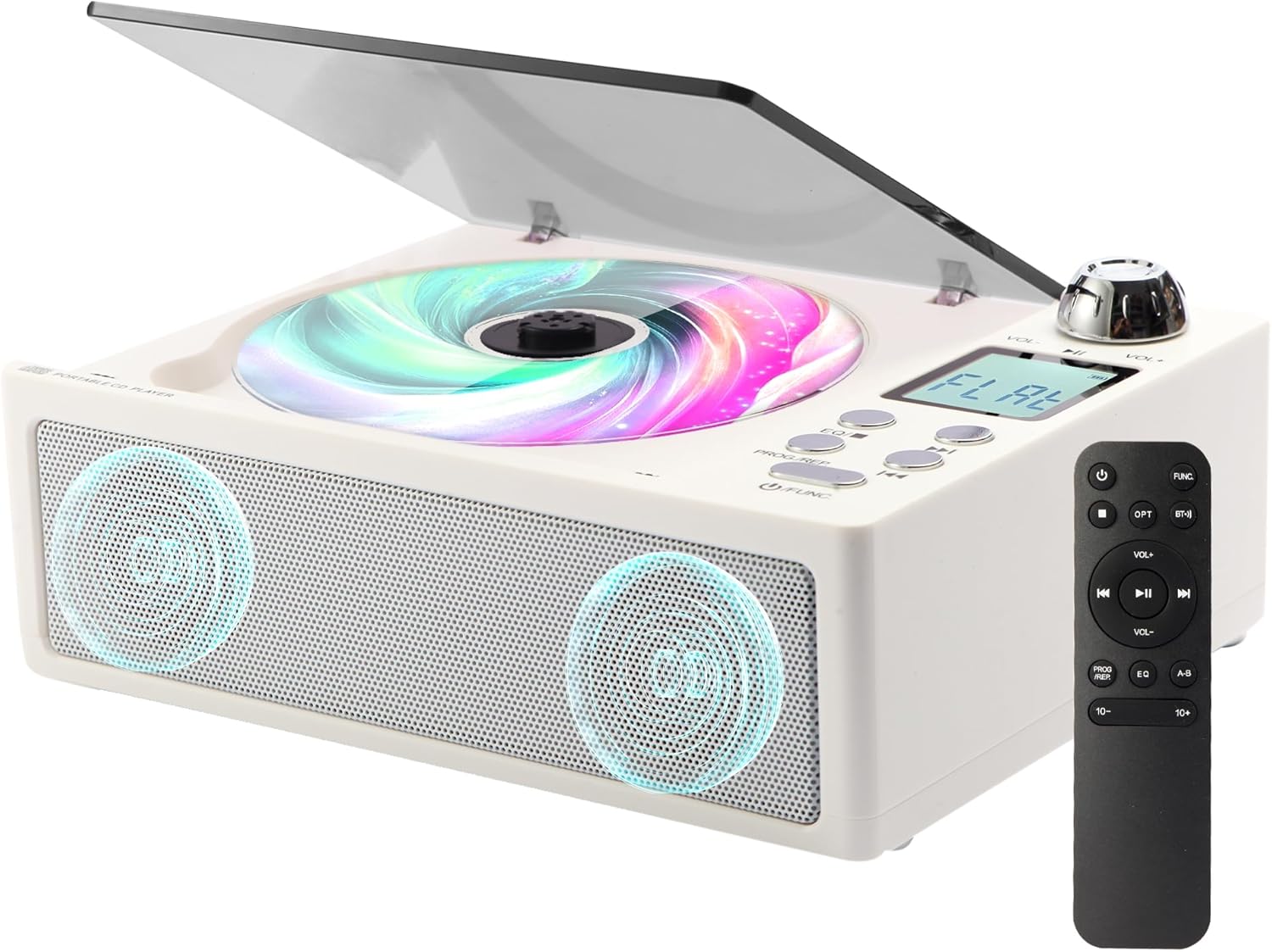
Image: Front view of the M-Amazup L-CD201 Portable Desktop CD Player, showing the CD compartment, control buttons, and dual speakers.
Key Features:
- CD, CD-R, CD-RW, MP3, WMA Playback
- Bluetooth 5.3 Receiver and Transmitter
- FM Radio (87.5-108MHz)
- USB and TF Card Playback
- AUX Input/Output
- Optical Output
- Built-in Dual Speakers
- Remote Control Operation
- 1.3-inch LCD Display
- 5 EQ Modes (POP/JAZZ/CLASSIC/ROCK/FLAT)
Setup
1. Power Connection:
Connect the provided power adapter to the DC 5V input port on the back of the CD player. Plug the adapter into a standard wall outlet. The device does not have a built-in battery and requires continuous power.

Image: Close-up of the M-Amazup L-CD201 CD Player showing the DC 5V input port and the power adapter connected.
2. Initial Power On:
Once connected to power, press the Power button on the unit or the remote control to turn on the device. The LCD display will illuminate.
Operating Instructions
Basic Controls:
- Power Button: Turns the unit on/off.
- Mode Button: Switches between CD, Bluetooth, FM, USB, TF Card, and AUX modes.
- Volume Knob: Rotates to adjust volume. Press to mute/unmute.
- Play/Pause Button: Starts or pauses playback.
- Previous/Next Buttons: Skips tracks or tunes FM radio stations.
- EQ Button: Cycles through sound equalization modes (POP, JAZZ, CLASSIC, ROCK, FLAT).

Image: The M-Amazup L-CD201 CD Player on a table with its remote control, illustrating simplified operation.
1. CD Playback:
- Open the translucent dust cover.
- Place a CD (CD, CD-R, CD-RW) onto the spindle, label side up.
- Close the dust cover.
- Press the Mode button to select "CD" mode.
- The player will automatically begin playback. Use Play/Pause, Previous/Next buttons to control.

Image: The M-Amazup L-CD201 CD Player with a colorful CD spinning under its translucent cover, demonstrating CD playback.
2. Bluetooth Mode (Receiver):
- Press the Mode button to select "Bluetooth" mode. The LCD display will show "BT" and the device will enter pairing mode.
- On your smartphone, tablet, or other Bluetooth device, search for "L-CD201" in the Bluetooth settings.
- Select "L-CD201" to pair. Once connected, you can stream audio from your device to the CD player.

Image: The M-Amazup L-CD201 CD Player with icons representing various devices (smartphone, laptop, desktop PC, tablet, MP3 player) wirelessly connected via Bluetooth, indicating its receiver function.
3. Bluetooth Mode (Transmitter):
- While playing a CD or other audio source, press and hold the Bluetooth button (if available, or refer to specific remote instructions) to activate transmitter mode.
- Ensure your Bluetooth headphones or speaker are in pairing mode.
- The CD player will automatically search and connect to nearby Bluetooth audio devices.

Image: The M-Amazup L-CD201 CD Player wirelessly transmitting audio to a pair of headphones and a portable Bluetooth speaker, demonstrating its transmitter function.
4. FM Radio:
- Press the Mode button to select "FM" mode.
- Use the Previous/Next buttons to manually tune to a station.
- To auto-scan and save stations, press and hold the Play/Pause button (or specific FM scan button on remote).
Image: The M-Amazup L-CD201 CD Player on a table, with a graphic overlay showing FM radio frequencies and signal strength, indicating its radio reception capability.
5. USB/TF Card Playback:
- Insert a USB flash drive into the USB port or a TF card into the TF card slot.
- Press the Mode button to select "USB" or "TF" mode.
- The player will automatically detect and play supported audio files (MP3, WMA).
6. AUX Input/Output:
- AUX Input: Connect an external audio device (e.g., MP3 player, phone) to the AUX IN port using a 3.5mm audio cable. Select "AUX" mode to play audio from the external device.
- AUX Output (Headphone Jack): Connect headphones to the 3.5mm headphone jack for private listening.
7. Optical Output:
For high-fidelity audio, connect the optical output port to a compatible audio system or amplifier using an optical cable. This provides a lossless digital audio signal.
Maintenance
- Cleaning: Use a soft, dry cloth to clean the exterior of the unit. Do not use liquid cleaners or abrasive materials.
- CD Care: Handle CDs by the edges. Clean dirty CDs with a soft, lint-free cloth, wiping from the center outwards.
- Dust Cover: Keep the translucent dust cover closed when not in use to prevent dust accumulation on the CD lens.
- Storage: Store the player in a cool, dry place away from direct sunlight and extreme temperatures.
Troubleshooting
| Problem | Possible Cause | Solution |
|---|---|---|
| No power | Power adapter not connected or faulty outlet. | Ensure the power adapter is securely connected and the outlet is functional. |
| CD not playing | CD is dirty, scratched, or inserted incorrectly. Incorrect mode selected. | Clean the CD, check for damage, ensure it's placed correctly. Select "CD" mode. |
| No sound | Volume too low, muted, or incorrect output selected. | Increase volume, check if muted. Ensure no headphones are connected if using speakers, or vice-versa. |
| Bluetooth pairing issues | Device too far, not in pairing mode, or interference. | Ensure both devices are in pairing mode and within range. Restart both devices. |
| Poor FM reception | Weak signal or interference. | Adjust the player's position. Perform an auto-scan for stations. |
Specifications
| Feature | Detail |
|---|---|
| Brand | M-Amazup |
| Model Name | L-CD201 |
| Color | White |
| Connectivity Technology | Auxiliary, Bluetooth, Optical, USB |
| Special Features | Built-in Speaker, Built-In Bluetooth Receiver and Transmitter, Dustproof, Headphone Jack Output, Portable |
| Number of Discs | 1 |
| Supported Audio Formats | CD, CD-R, CD-RW, MP3, WMA |
| Connector Type | 3.5mm Jack |
| Specific Uses | Home |
| Item Dimensions (L x W x H) | 7.5"L x 5.8"W x 2.3"H |
| Item Weight | 0.92 kg |
| Power Source | External Power Adapter (No built-in battery) |
Warranty and Support
For warranty information and technical support, please refer to the contact details provided with your purchase documentation or visit the official M-Amazup website. Keep your purchase receipt as proof of purchase for warranty claims.
Manufacturer: M-Amazup
Seller: Golden-Audio
For further assistance, you may contact the seller directly through the Amazon platform.
Important Safety Information
- Do not expose the unit to rain or moisture.
- Do not disassemble the unit. Refer all servicing to qualified personnel.
- Avoid placing the unit near heat sources or in direct sunlight.
- Use only the provided power adapter.
- Keep out of reach of children.
Product Videos
M-Amazup CD Player Portable, Desktop CD Players for Home
Video: An official product video from the seller, Golden-Audio, showcasing the M-Amazup Portable Desktop CD Player and its features. This video demonstrates the product's design and various functionalities.
Ask a question about this manual
Ask about setup, troubleshooting, compatibility, parts, safety, or missing instructions. Manuals+ will review the question and use this page’s manual context to help answer it.