
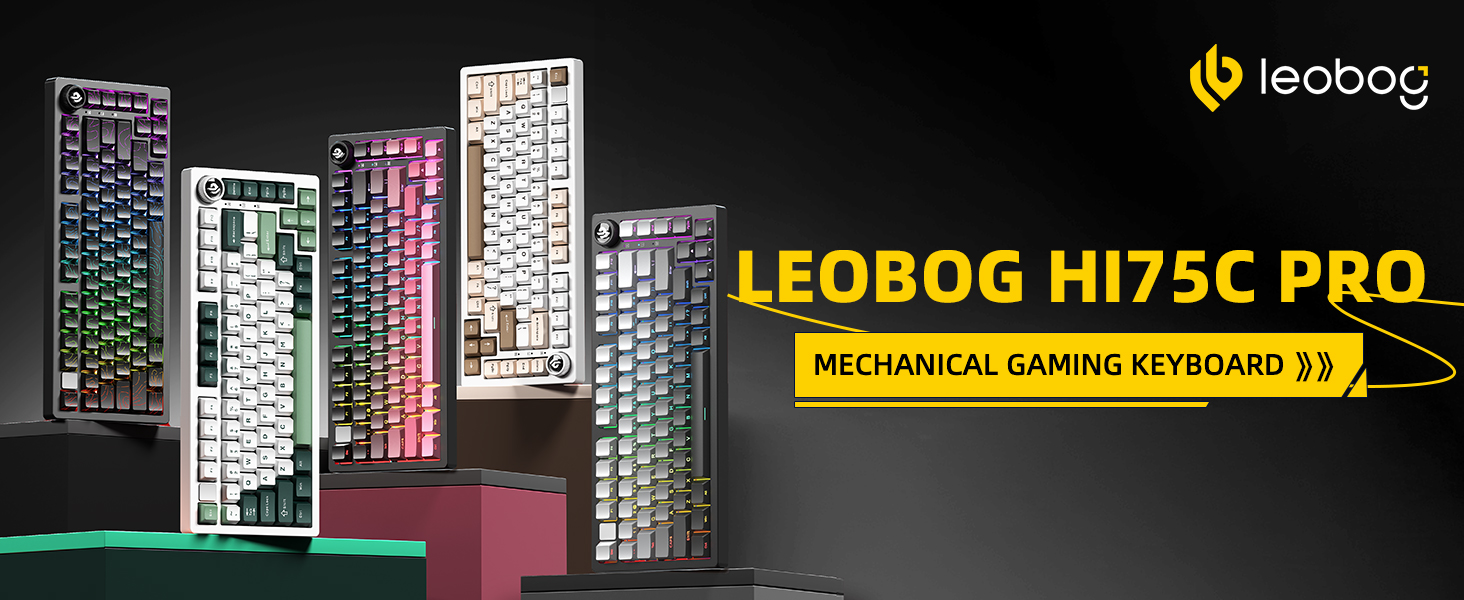
1. Introduction
The LEOBOG HI75C Pro is a versatile gaming keyboard designed for optimal performance and user experience. Featuring a durable aluminum alloy construction, multi-mode connectivity, vibrant RGB backlighting, and hot-swappable switches, it caters to both gaming enthusiasts and professional users. This manual provides detailed instructions for setup, operation, and maintenance to ensure you get the most out of your keyboard.
Official product video showcasing the LEOBOG HI75C Pro Aluminum Alloy Mechanical Gaming Keyboard.
2. Package Contents
- LEOBOG HI75C Pro Gaming Keyboard
- USB-C to USB-A Cable (Coiled, braided)
- Keycap Puller
- User Manual (This document)
3. Product Overview
The LEOBOG HI75C Pro features a compact 75% layout, combining essential keys with a space-saving design. Its robust aluminum alloy casing ensures durability and a premium feel.

Front view of the LEOBOG HI75C Pro Gaming Keyboard, highlighting its 75% layout and keycap colors.

Diagram illustrating key features: BT5.0/2.4G/Wired connectivity, hot-swappable switches, RGB backlighting, 75% layout, gasket structure, and 4000mAh battery.
4. Key Features
- Aluminum Alloy Construction: Provides superior heat dissipation, robustness, and durability. Features an exquisite powder coating process to prevent fingerprints.
- Gasket Structure: Incorporates multi-layered sound-silencer cotton to significantly reduce cavity noise and enhance typing sound for a softer, more pleasant experience.
- 3-Mode Connectivity: Supports Bluetooth 5.0, 2.4GHz wireless, and USB wired connections. Connect up to five devices and switch easily via shortcut keys or the side button.
- 75% Layout (81 Keys): Offers a balance between a concise design and full functionality, optimizing desktop space.
- RGB Backlighting: Features 16.8 million colors with 17 lighting effects. Includes 10 music rhythm lighting modes via the driver. Lighting can be turned off using the knob to extend battery life (approx. one month without lights).
- Dual-Mode Knob: A multi-functional knob for precision control, allowing seamless switching between work and gaming modes, and adjusting volume or lighting brightness.
- High-Speed Response: Equipped with an advanced gaming keyboard chip, achieving a response speed of up to 2.8ms.
- Hot-Swappable Switches: Supports 3-pin and 5-pin switches, allowing for easy customization and a HIFI typing sound. Comes with LEOBOG Ice Vein Switches (38gf initial, 42gf conductive, 55gf bottom pressure, 60M+ clicks mechanical life, 2mm trigger, 4mm total stroke).
- Ergonomic Design: Scientific step-by-step keycap height design promotes relaxed wrist and finger positioning.
- Detachable USB-C Cable: Includes an extendable spring-loaded data cable (1.8 to 2 meters) for instant wired connection.

Detailed diagram of the keyboard's gasket structure, showing layers for sound dampening and typing comfort.

Illustration demonstrating the ergonomic keycap height design, promoting comfortable typing posture.
5. Setup
The LEOBOG HI75C Pro offers multiple connectivity options to suit your needs.

Visual representation of the keyboard's three connection modes: Type-C wired, 2.4G wireless, and Bluetooth.
5.1 Wired Connection
- Locate the USB-C port on the keyboard.
- Connect the provided USB-C cable to the keyboard and the USB-A end to your computer.
- The keyboard will automatically be recognized and ready for use.
5.2 2.4GHz Wireless Connection
- Locate the 2.4GHz USB dongle, usually stored in a compartment on the keyboard.
- Plug the dongle into an available USB port on your computer.
- Switch the keyboard's mode selector to 2.4G. The keyboard will connect automatically.
5.3 Bluetooth Connection
- Switch the keyboard's mode selector to BT (Bluetooth).
- On your device (PC, Mac, Smartphone, Tablet), open Bluetooth settings.
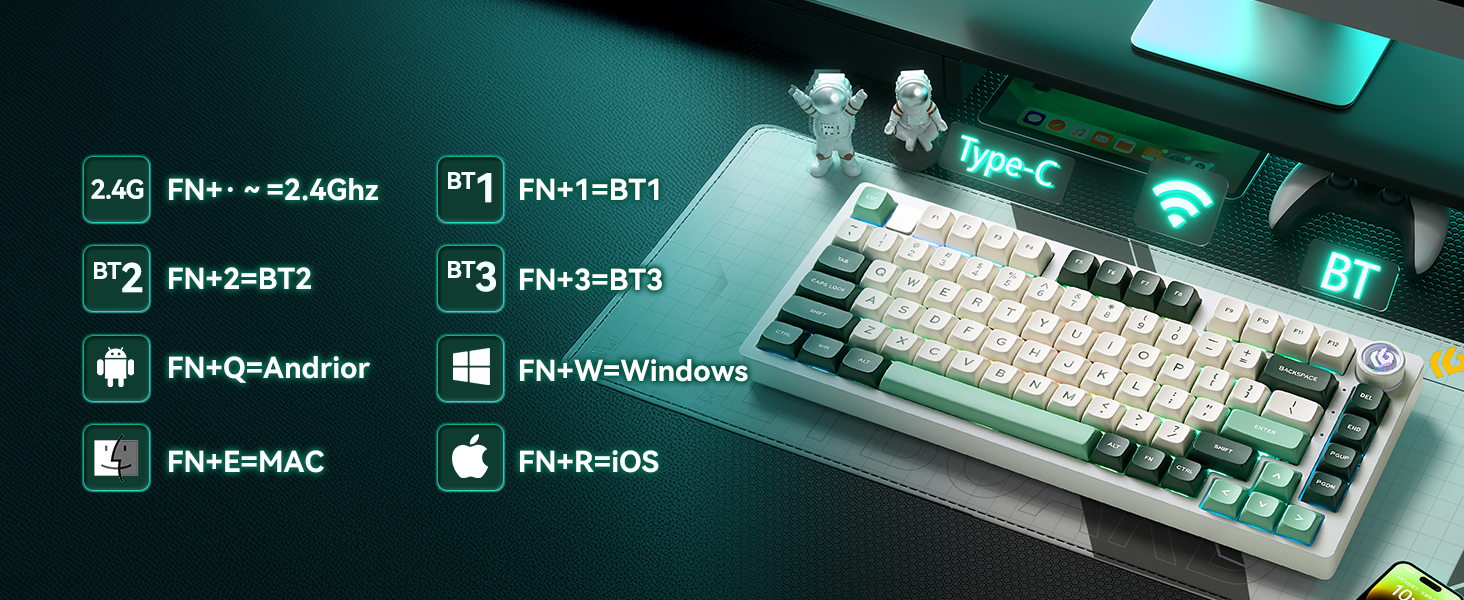
- The keyboard supports up to three Bluetooth devices (BT1, BT2, BT3). Use FN+1, FN+2, or FN+3 to select a channel.
- Press and hold FN+1 (or FN+2/FN+3) for 3-5 seconds until the indicator light flashes, indicating pairing mode.
- Select "LEOBOG HI75C Pro" from your device's Bluetooth list to pair.
- Once connected, the indicator light will stop flashing.
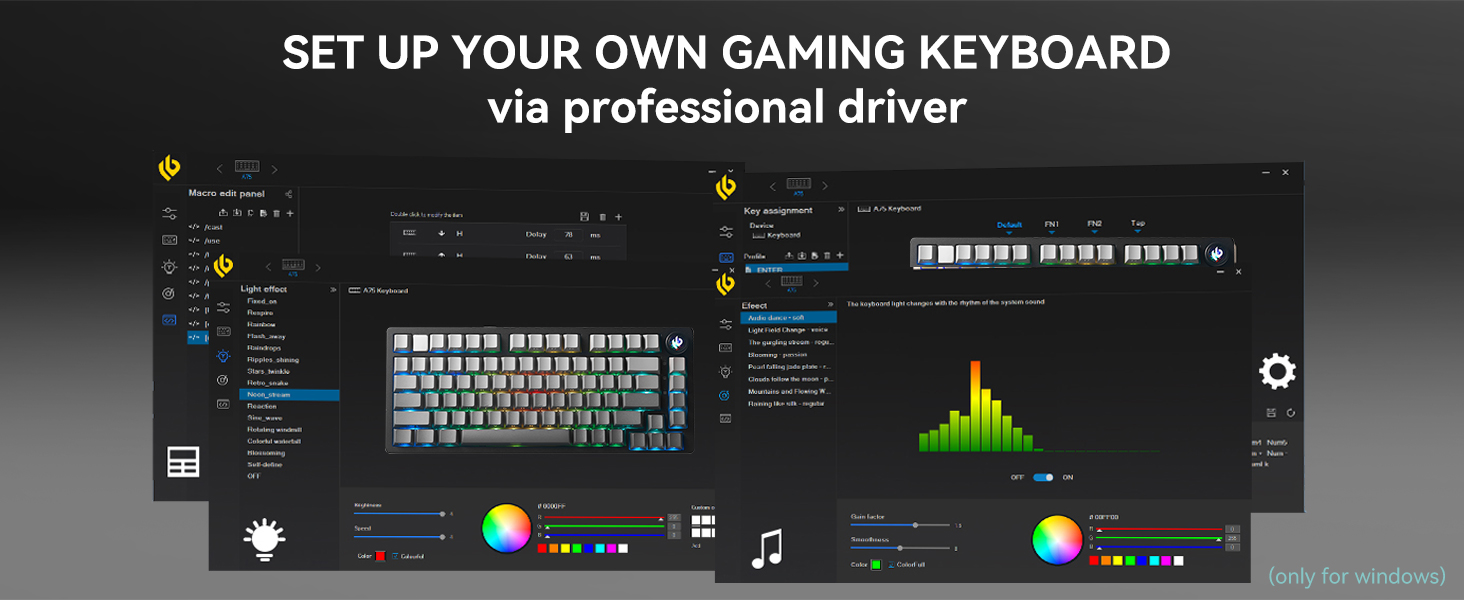
Diagram showing connectivity options (2.4G, BT1, BT2, BT3) and operating system hotkeys (FN+Q for Android, FN+W for Windows, FN+E for Mac, FN+R for iOS).
5.4 Charging
The keyboard is equipped with a 4000mAh battery. Connect the USB-C cable to the keyboard and a power source to charge. The FN key will illuminate red to indicate charging status and turn off when fully charged.
Image indicating the 4000mAh battery capacity of the keyboard.
6. Operating Instructions
6.1 Dual-Mode Knob Control
The multi-functional knob allows you to switch between two primary modes:
- Office Mode: When the knob indicator light is on continuously, rotate the knob to adjust system volume.
- Game Mode: When the knob indicator light is breathing, rotate the knob to adjust RGB lighting brightness.
Press and hold the knob to toggle between Office Mode and Game Mode.

Diagram explaining the multimedia knob's function, including switching between game and office modes.
6.2 RGB Backlighting Control
The keyboard features 16.8 million RGB lighting colors and various effects. Use the knob in Game Mode to adjust brightness. Specific lighting effects can be cycled through using FN key combinations or the dedicated driver software.
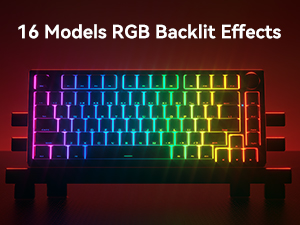
Image displaying various RGB backlit effects available on the keyboard.
6.3 Multimedia Control
Use the Function (FN) key in combination with other keys for multimedia control. Refer to the key layout diagram for specific combinations (e.g., FN+F1-F12 for media functions).
6.4 Hot-Swappable Switches
The LEOBOG HI75C Pro supports 3-pin and 5-pin mechanical switches, allowing you to customize your typing experience without soldering. Use the provided keycap puller and switch puller (not included in package contents, but implied by hot-swappable feature) to replace switches.

Image demonstrating hot-swappable keycaps and switches, highlighting the Ice Vein Switch specifications.
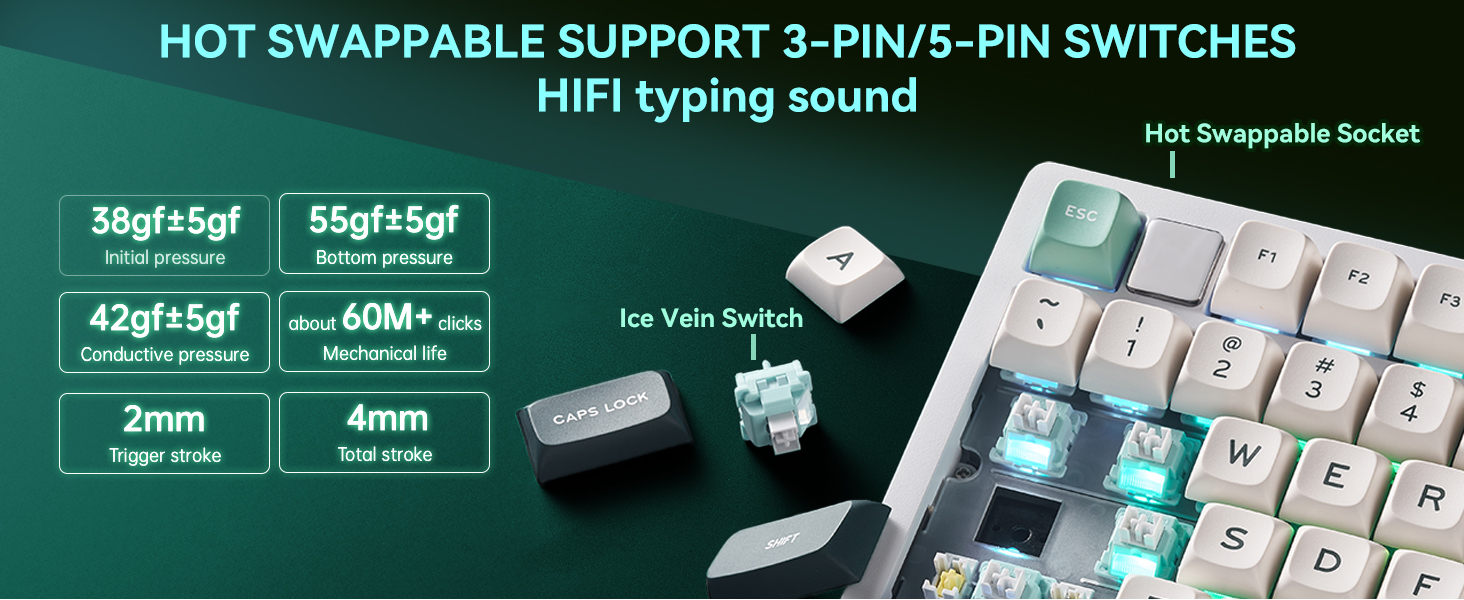
Visual confirming hot-swappable support for both 3-pin and 5-pin switches, emphasizing HIFI typing sound.
6.5 Driver Software
For advanced customization of key assignments, macro settings, and RGB lighting effects, download and install the professional driver software from the official LEOBOG website. The software is typically Windows-compatible.
Screenshot of the professional driver software interface, showing options for macro editing, key assignment, and light effects.
7. Specifications
| Feature | Detail |
|---|---|
| Model | HI75C PRO |
| Brand | LEOBOG |
| Layout | 75% (81 keys) |
| Connectivity | Bluetooth 5.0, 2.4GHz Wireless, USB-C Wired |
| Switches | LEOBOG Ice Vein Switch (Hot-swappable 3-pin/5-pin) |
| Backlighting | RGB (16.8 million colors, multiple effects) |
| Battery Capacity | 4000mAh |
| Response Speed | 2.8ms (wired) |
| Keycap Material | PBT (Side Engraved) |
| Construction | Aluminum Alloy Case, Gasket Mount |
| Product Dimensions | 16.38 x 7.08 x 1.74 inches |
| Item Weight | 3.69 pounds |
| Compatible OS | PC, Mac, Windows, Android, iOS |
8. Maintenance
- Cleaning Keycaps: Use a soft, damp cloth to wipe keycaps. For deeper cleaning, remove keycaps with the provided puller and wash with mild soap and water. Ensure they are completely dry before reattaching.
- Cleaning Switches: Use compressed air to remove dust and debris from around the switches. Avoid spraying liquids directly into the switches.
- Case Cleaning: Wipe the aluminum alloy case with a soft, dry cloth. Avoid abrasive cleaners that may damage the finish.
- Storage: When not in use, store the keyboard in a dry, dust-free environment. The included plastic cover can help protect it.
9. Troubleshooting
- Keyboard not responding: Ensure the keyboard is charged or connected via USB-C. Check the mode selector switch (Wired, 2.4G, BT). For wireless modes, ensure the dongle is properly inserted or Bluetooth is paired.
- Keys not registering: If specific keys are not working, try removing and re-inserting the switch using a switch puller. Ensure the switch pins are not bent.
- RGB lights not working: Check if the keyboard is in Game Mode and the knob is used to adjust brightness. Ensure the driver software is installed and configured correctly.
- Connectivity issues: For 2.4GHz, try a different USB port for the dongle. For Bluetooth, unpair and re-pair the device. Ensure no other wireless devices are causing interference.
- Battery not charging: Verify the USB-C cable is securely connected to both the keyboard and the power source. Try a different cable or power adapter.
10. Warranty and Support
LEOBOG products are manufactured to high-quality standards. For warranty information, technical support, or service inquiries, please refer to the official LEOBOG website or contact customer support directly. Please retain your proof of purchase for warranty claims.

Icons representing various customer support contact methods.


