
1. Introduction
This manual provides comprehensive instructions for the setup, operation, and maintenance of your DOYO Gaming Steering Wheel with Pedal. Please read this manual thoroughly before use to ensure proper functionality and to maximize your gaming experience. This device is compatible with Nintendo Switch, PC, PlayStation 4, PlayStation 3, iOS, and Android devices.
1.1. Package Contents
Verify that all items listed below are present in your package:
- Steering Wheel Body (x1)
- Steering Wheel Fixture (x1)
- TYPE-C Data Cable (x1)
- Pedals (x1)
- Instruction Manual (x1)

Image 1.1: The DOYO Gaming Steering Wheel and Pedal unit, showing the main wheel with integrated controls and the separate pedal unit.
2. Safety Information
Please observe the following safety guidelines to prevent damage to the product or personal injury:
- Do not expose the device to water or excessive moisture.
- Avoid extreme temperatures.
- Do not attempt to disassemble or repair the device yourself. Contact customer support for assistance.
- Keep out of reach of small children to prevent choking hazards from small parts.
- Ensure the steering wheel is securely mounted before use to prevent it from falling.
3. Product Overview
The DOYO Gaming Steering Wheel features a 270-degree rotation for realistic steering input and dual-vibration motors for immersive feedback. It offers both wireless Bluetooth 5.0 connectivity and wired connection options.
3.1. Key Features
- Universal Compatibility: Supports Nintendo Switch, PC, PS4, PS3, iOS, and Android devices.
- Wireless Bluetooth 5.0: Provides a stable connection within an 8-meter radius.
- Dual-Vibration Motors: Delivers tactile feedback for an enhanced gaming experience.
- 270-Degree Rotation: Offers precise control for racing simulations.
- Adjustable Dead Zone and Sensitivity: Allows for customized control settings.
- Screenshot Function: Available for specific platforms like Nintendo Switch (e.g., Mario Kart).
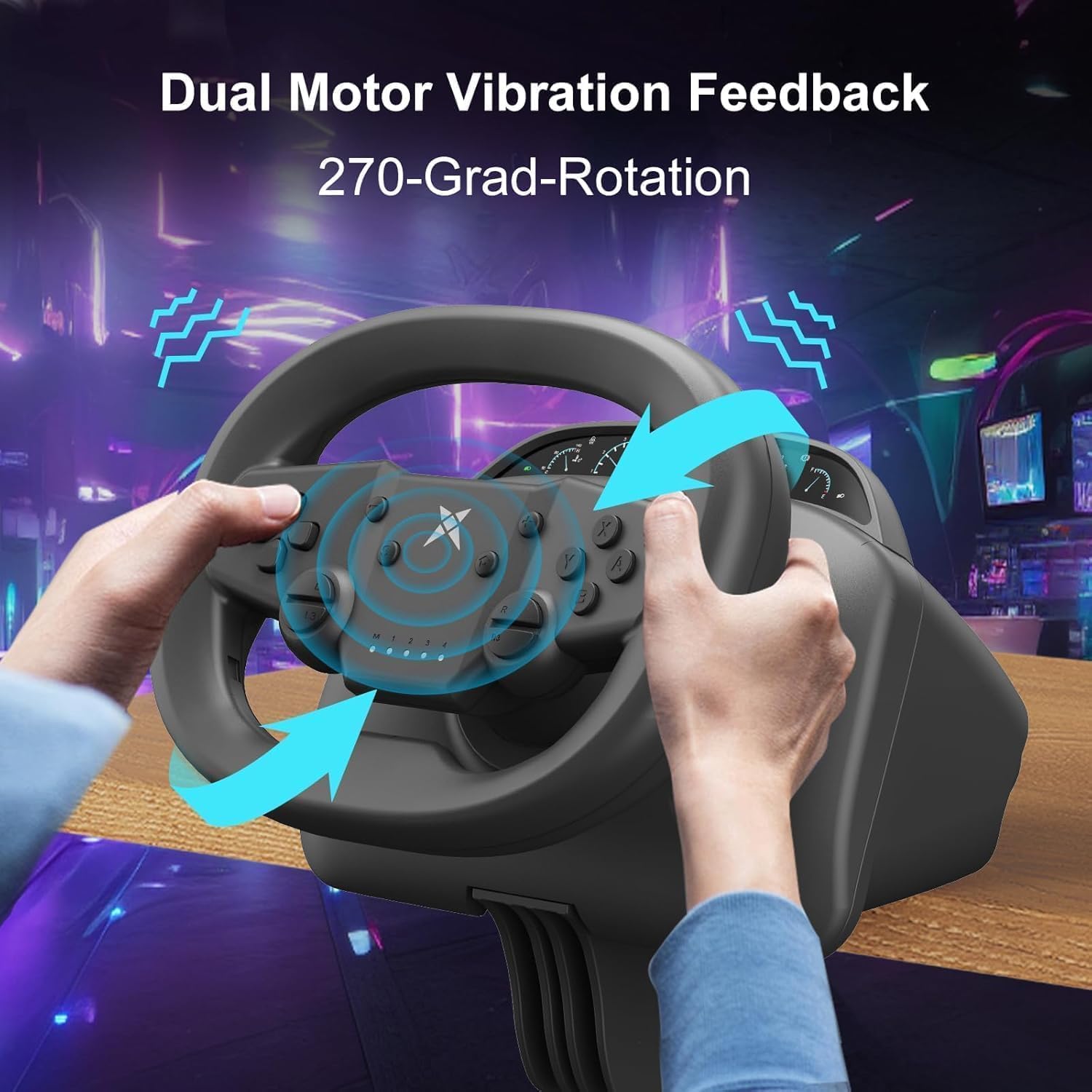
Image 3.1: Illustration of the dual motor vibration feedback and 270-degree rotation capability of the steering wheel.

Image 3.2: Detailed diagram showing the various buttons and indicators on the steering wheel, including D-Pad, A/B/X/Y buttons, Select, Pause/Start, HOME button, ZR/ZL triggers, dead zone/sensitivity adjustment, and M indicator.
4. Setup
4.1. Mounting the Steering Wheel
Use the included steering wheel fixture to securely attach the wheel to a desk or table. The fixture is compatible with various desktop thicknesses, typically ranging from 3mm to 49mm.
- Place the steering wheel on the edge of your desired surface.
- Slide the fixture clamp onto the edge of the surface from underneath the steering wheel.
- Tighten the screw on the fixture until the steering wheel is firmly secured and does not wobble.

Image 4.1: Illustrations demonstrating how to use the stable fixture to clamp the steering wheel to a desk, showing compatibility with different desk thicknesses.
4.2. Connecting the Pedals
Connect the pedal unit to the steering wheel using the designated port. The pedal unit provides acceleration and brake input for a more realistic driving simulation.
4.3. Powering On and Connection
The steering wheel supports both wireless Bluetooth and wired connections, depending on the platform.

Image 4.2: Diagram illustrating the connection methods: Bluetooth for Laptop, Android, and Switch, and Wired for PC (Windows), PS3, and PS4.
4.3.1. Bluetooth Connection (Laptop, Android, iOS, Nintendo Switch)
- Ensure the steering wheel is charged or has sufficient battery.
- Turn on the steering wheel.
- On your device (Laptop, Android, iOS, Switch), navigate to the Bluetooth settings.
- Search for available devices and select the DOYO Steering Wheel to pair.
- Once paired, the indicator lights on the steering wheel will confirm the connection.

Image 4.3: A family enjoying a racing game using the DOYO steering wheel connected via Bluetooth 5.0 to a large screen, highlighting the stable wireless connection.
4.3.2. Wired Connection (PC, PS3, PS4)
- Connect the TYPE-C data cable to the steering wheel.
- Connect the other end of the TYPE-C data cable to an available USB port on your PC, PS3, or PS4 console.
- The device should be recognized automatically. For PC, it supports Windows 10/XP/7/8/8.1 systems and typically functions as Plug & Play with X-Input or D-Input modes.

Image 4.4: Illustration of connecting the DOYO steering wheel to a PC via USB, demonstrating its Plug & Play compatibility with Windows systems and X-Input/D-Input support.
5. Operating Instructions
5.1. Basic Operation
- Once connected, launch your preferred racing game.
- Use the steering wheel to control direction and the pedals for acceleration and braking.
- Familiarize yourself with the button layout (refer to Image 3.2) for in-game actions.
5.2. Adjusting Dead Zone and Sensitivity
The steering wheel allows for customization of dead zone and sensitivity settings to match your preference. Refer to the 'M indicator' and 'Indicators 1/2/3/4' on the steering wheel (Image 3.2) for guidance during adjustment. Specific instructions for adjustment modes are typically detailed in the quick start guide included in the package.
5.3. Platform-Specific Features
- Nintendo Switch (e.g., Mario Kart): The steering wheel offers enhanced vibration feedback and a screenshot function to capture in-game moments.
- PlayStation 4: Experience immersive feedback and precise control in popular racing titles.
- Mobile Gaming (iOS/Android): Enhance your mobile racing experience with the physical controls of the steering wheel.

Image 5.1: A user engaging with the DOYO steering wheel while playing a racing game on a PS4, demonstrating the 270-degree rotation in action.

Image 5.2: The DOYO steering wheel set up for mobile gaming, showing compatibility with both Android and iOS phones and tablets.
5.4. Recommended Games
The DOYO Gaming Steering Wheel is compatible with a wide range of racing games across various platforms. Here are some recommended titles:
5.4.1. Nintendo Switch Platform

Image 5.3: Examples of recommended Nintendo Switch games, including Mario Kart 8 Deluxe, GRIP: Combat Racing, GEAR.CLUB UNLIMITED, and FAST RMX.
5.4.2. PC Platform

Image 5.4: Examples of recommended PC games, including Euro Truck Simulator 2, DiRT Rally, Need for Speed, and CTS.
5.4.3. PS3 & PS4 Platform

Image 5.5: Examples of recommended PS3 & PS4 games, including The Crew 2, Driveclub, Gran Turismo 5, and Ridge Racer 7.
5.4.4. Android & iOS Platform

Image 5.6: Examples of recommended Android & iOS games, including Asphalt 9: Legends, CSR 2 Racing, Grand Prix Story, and Horizon Chase.
6. Maintenance
Proper maintenance ensures the longevity and optimal performance of your steering wheel.
- Cleaning: Use a soft, dry cloth to wipe down the steering wheel and pedals. Avoid abrasive cleaners or solvents.
- Storage: Store the device in a cool, dry place away from direct sunlight when not in use.
- Cable Care: Avoid sharp bends or kinks in the TYPE-C data cable to prevent damage.
7. Troubleshooting
If you encounter issues with your DOYO Gaming Steering Wheel, refer to the following common problems and solutions:
| Problem | Possible Cause | Solution |
|---|---|---|
| Steering wheel not connecting wirelessly. | Bluetooth not enabled, device out of range, low battery, interference. | Ensure Bluetooth is on, device is within 8m, charge the wheel, reduce interference. Re-pair the device. |
| Steering wheel not recognized via wired connection. | Loose cable, faulty USB port, driver issue (PC). | Check cable connection, try a different USB port. For PC, ensure drivers are up to date (usually automatic). |
| No vibration feedback. | Game settings, vibration feature disabled, game does not support vibration. | Check in-game settings for vibration options. Ensure the game supports force feedback. |
| Controls are unresponsive or inaccurate. | Incorrect calibration, high dead zone setting, game compatibility. | Recalibrate the steering wheel (refer to quick start guide). Adjust dead zone and sensitivity settings. Ensure the game is compatible. |
If the problem persists after attempting these solutions, please contact DOYO customer support for further assistance.
8. Specifications
| Feature | Detail |
|---|---|
| Model | Gaming Steering Wheel with Pedal |
| ASIN | B0F9P8K8Q3 |
| Connectivity | Wireless Bluetooth 5.0, Wired (TYPE-C USB) |
| Wireless Range | Up to 8 meters (Bluetooth) |
| Rotation Angle | 270 degrees |
| Vibration | Dual-Vibration Motors |
| Compatibility | PC (Windows 10/XP/7/8/8.1), PS4, PS3, Nintendo Switch, iOS, Android |
| Package Dimensions | 9.8 x 9 x 9 inches |
| Item Weight | 4.54 pounds |
| Manufacturer | made in China |
| Date First Available | November 22, 2024 |
9. Warranty and Support
For warranty information and customer support, please refer to the documentation included with your product or visit the official DOYO website. If you have any questions or require assistance, please contact DOYO customer service.