
Introduction
This user manual provides detailed instructions for the C idea CM817 Pro Max 8-inch Tablet. Please read this manual thoroughly before using your device to ensure proper operation and to maximize its features. Keep this manual for future reference.
Package Contents
Verify that all items are present in the package:
- C idea CM817 Pro Max 8-inch Tablet
- Charging Adapter
- USB-C Cable
- User Manual (this document)
- Stylus Pen (if included in your specific package)
- Keyboard (if included in your specific package)
- Mouse (if included in your specific package)

Image: The C idea CM817 Pro Max tablet shown with its common accessories, which may include a keyboard, mouse, charging adapter, USB-C cable, and stylus pen.
Product Overview
Familiarize yourself with the physical components of your C idea CM817 Pro Max tablet.

Image: A diagram illustrating the various ports and buttons on the C idea CM817 Pro Max tablet, including the front camera, rear camera, power button, volume controls, speakers, TF/SIM card slot, USB-C port, and headphone jack.
- Front Camera: For video calls and selfies.
- Rear Camera: For capturing photos and videos.
- Power On/Off Button: Press and hold to power on/off or restart. Press briefly to wake/sleep the screen.
- Volume Buttons: Adjust the tablet's audio volume.
- Speakers: Output audio.
- TF/SIM Slot: Insert a TF (MicroSD) card for expandable storage or a SIM card for cellular connectivity.
- USB-C Port: For charging the tablet and connecting to a computer for data transfer.
- Headphone Jack: Connect 3.5mm headphones.
Setup
1. Charging the Tablet
Before first use, fully charge the tablet. Connect the USB-C cable to the tablet's USB-C port and the other end to the charging adapter. Plug the adapter into a power outlet. The battery indicator on the screen will show charging status.
2. Powering On/Off
- Power On: Press and hold the Power On/Off button until the C idea logo appears.
- Power Off: Press and hold the Power On/Off button until the power options menu appears, then select "Power off".
- Restart: From the power options menu, select "Restart".
3. Initial Setup
Upon first power-on, follow the on-screen prompts to configure your tablet:
- Select your preferred language.
- Connect to a Wi-Fi network.
- Sign in with your Google account or create a new one. This is necessary to download apps from the Google Play Store.
- Set up screen lock (PIN, pattern, or password).
- Review and accept terms and conditions.
4. Inserting SIM and MicroSD Cards
Locate the TF/SIM slot on the side of the tablet. Use the provided SIM ejector tool (if applicable) to open the tray. Carefully place your SIM card and/or MicroSD card into the designated slots, ensuring correct orientation. Close the tray securely.
Operating Instructions
1. Basic Navigation
- Touch: Tap an icon to open an app or select an item.
- Swipe: Drag your finger across the screen to scroll through pages or content.
- Pinch: Use two fingers to zoom in or out on images and web pages.
- Home Screen: The main screen where you can access apps and widgets.
- Notification Panel: Swipe down from the top of the screen to access notifications and quick settings.

Image: The C idea CM817 Pro Max tablet showcasing its Android home screen, featuring various application icons and a clean user interface.
2. Wi-Fi and Cellular Connectivity
To connect to Wi-Fi, go to Settings > Network & internet > Wi-Fi. Turn Wi-Fi on and select your desired network. Enter the password if prompted. For cellular data, ensure a SIM card is inserted and go to Settings > Network & internet > Mobile network to configure data settings.
3. Using the Camera
Open the Camera app from the home screen or app drawer. Tap the shutter button to take a photo. Switch between the 5MP front camera and 8MP rear camera using the camera switch icon. You can also record videos.
4. Storage Management
Your tablet comes with 512GB of internal storage and supports up to 512GB expandable storage via a MicroSD card. To view storage usage, go to Settings > Storage. Regularly clear unnecessary files and uninstall unused apps to maintain performance.

Image: Multiple C idea tablets demonstrating the ample storage capacity, highlighting 8GB RAM, 512GB internal ROM, and support for an additional 512GB via TF (MicroSD) card.
5. Battery Life
The 8000mAh battery provides extended usage. To optimize battery life, reduce screen brightness, disable Wi-Fi/Bluetooth when not in use, and close background apps. You can monitor battery usage in Settings > Battery.
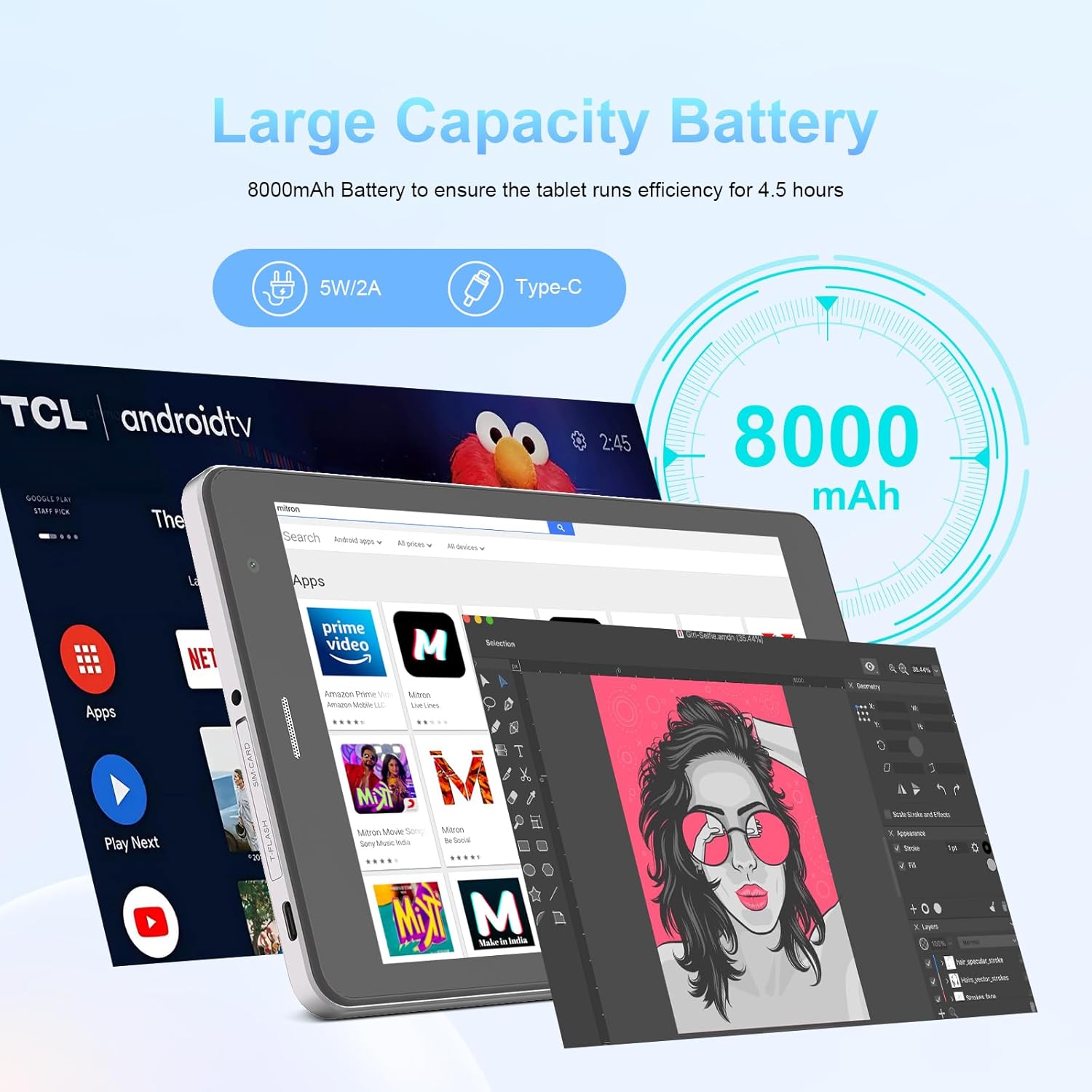
Image: The C idea CM817 Pro Max tablet, emphasizing its 8000mAh large capacity battery, designed for extended operational hours.
6. Display Settings
The tablet features an 8-inch 1280x800 IPS HD display. Adjust brightness, font size, and display timeout in Settings > Display for a comfortable viewing experience.

Image: The C idea CM817 Pro Max tablet showcasing its 8-inch IPS HD screen with a resolution of 800x1280 pixels, providing clear visuals.
Maintenance
1. Cleaning
Use a soft, lint-free cloth to clean the screen and body of the tablet. Do not use abrasive cleaners or solvents, as they may damage the surface. Avoid getting moisture into ports.
2. Software Updates
Regularly check for system updates to ensure your tablet has the latest features and security patches. Go to Settings > System > System update to check for and install updates.
3. Battery Care
To prolong battery lifespan, avoid exposing the tablet to extreme temperatures. Do not let the battery completely drain frequently. Use the original charger or a certified compatible charger.
Troubleshooting
- Tablet not turning on: Ensure the tablet is charged. Press and hold the Power On/Off button for at least 10-15 seconds to force a restart.
- Wi-Fi connection issues: Restart your Wi-Fi router and the tablet. Forget the network in Wi-Fi settings and reconnect.
- Slow performance: Close unused apps, clear cache (Settings > Storage), and restart the tablet. Consider uninstalling large or unnecessary applications.
- Camera not working: Ensure the Camera app has necessary permissions (Settings > Apps > Camera > Permissions). Restart the tablet.
- Storage full: Delete old photos/videos, uninstall unused apps, or move files to an inserted MicroSD card.
- Apps crashing: Clear the app's cache and data (Settings > Apps > [App Name] > Storage > Clear cache/Clear data). If the issue persists, uninstall and reinstall the app.
Specifications
| Feature | Detail |
|---|---|
| Brand | C idea |
| Model Name | CM817 Pro Max |
| Operating System | Android 15 |
| Processor | Octa-core (MediaTek) |
| RAM | 8GB |
| Internal Storage (ROM) | 512GB |
| Expandable Storage | Up to 512GB (via TF/MicroSD card) |
| Screen Size | 8 Inches |
| Screen Resolution | 1280 x 800 pixels (IPS HD) |
| Front Camera | 5MP |
| Rear Camera | 8MP |
| Battery Capacity | 8000mAh (Lithium Polymer) |
| Connectivity | Wi-Fi, 5G SIM, Bluetooth |
| Ports | USB-C, 3.5mm Headphone Jack |
| Item Weight | 1 kg 80 g |
| Package Dimensions | 29.8 x 18 x 6.4 cm |
Warranty and Support
For warranty information and technical support, please refer to the warranty card included in your package or contact C idea customer service. Keep your purchase receipt as proof of purchase.