
1. Product Overview
The NBDDIGITAL 5K 48MP Digital Camera, Model S110, is designed for photography enthusiasts and vloggers. It features high-resolution image capture and video recording capabilities, along with versatile shooting modes and connectivity options.

Image 1.1: NBDDIGITAL 5K 48MP Digital Camera and included accessories, including wide-angle and macro lenses, batteries, charger, and USB cables.
Key Features:
- 5K Video Recording: Capture ultra-crisp 5K videos at 30fps or 4K videos at 60fps.
- 48MP Photo Resolution: Produce vibrant, high-detail photographs.
- 180° Flip Screen: A 3-inch screen that rotates for easy self-portraits and vlogging.
- Autofocus (AF) and Manual Focus (MF): Achieve precise focus for various shooting scenarios.
- 16x Digital Zoom: Bring distant subjects closer without physical movement.
- Wide-Angle and Macro Lenses: Expand your creative options for landscapes and close-up shots.
- Built-in Fill Light: Enhance visibility in low-light conditions.
- Multiple Shooting Modes: Includes time-lapse, slow-motion, looping video, and video pause.
- WiFi Connectivity: For quick sharing and remote control.
- Webcam Functionality: Connect to a PC via USB for video calls and live streaming.
2. Setup Guide
2.1. Battery Installation and Charging
- Open the battery compartment cover located on the bottom of the camera.
- Insert the provided Lithium-Ion battery, ensuring correct polarity.
- Close the battery compartment cover securely.
- To charge, place the battery in the charging dock and connect the dock to a power source using the USB cable. The indicator light will show charging status.
- Ensure batteries are fully charged before first use for optimal performance.
2.2. Memory Card (TF Card) Insertion
- Locate the memory card slot on the side of the camera.
- Insert the 32GB TF card (or another compatible card, up to 128GB) with the gold contacts facing the front of the camera until it clicks into place.
- To remove, gently press the card until it springs out.
2.3. Lens Attachment
The camera comes with a 52mm wide-angle and macro lens. To attach:
- Align the lens with the camera's lens mount.
- Gently twist the lens clockwise until it locks into position.
- To switch between wide-angle and macro, detach the outer wide-angle component to reveal the macro lens.

Image 2.1: Illustration of attaching the wide-angle lens and separating it to use the macro lens.
2.4. Initial Power On
Press and hold the power button until the screen illuminates. Follow any on-screen prompts for initial setup, such as setting date and time.
3. Operating Instructions
3.1. Basic Photography
- Power On: Press the power button.
- Focusing: Gently press the shutter button halfway down to activate autofocus. The camera will indicate when focus is achieved.
- Taking a Photo: Press the shutter button fully down to capture the image.
- Self-Timer: Access the menu to set a 2s, 5s, or 10s self-timer for delayed shots.
- Continuous Shooting: Enable continuous shooting mode via the menu to capture a rapid sequence of photos.
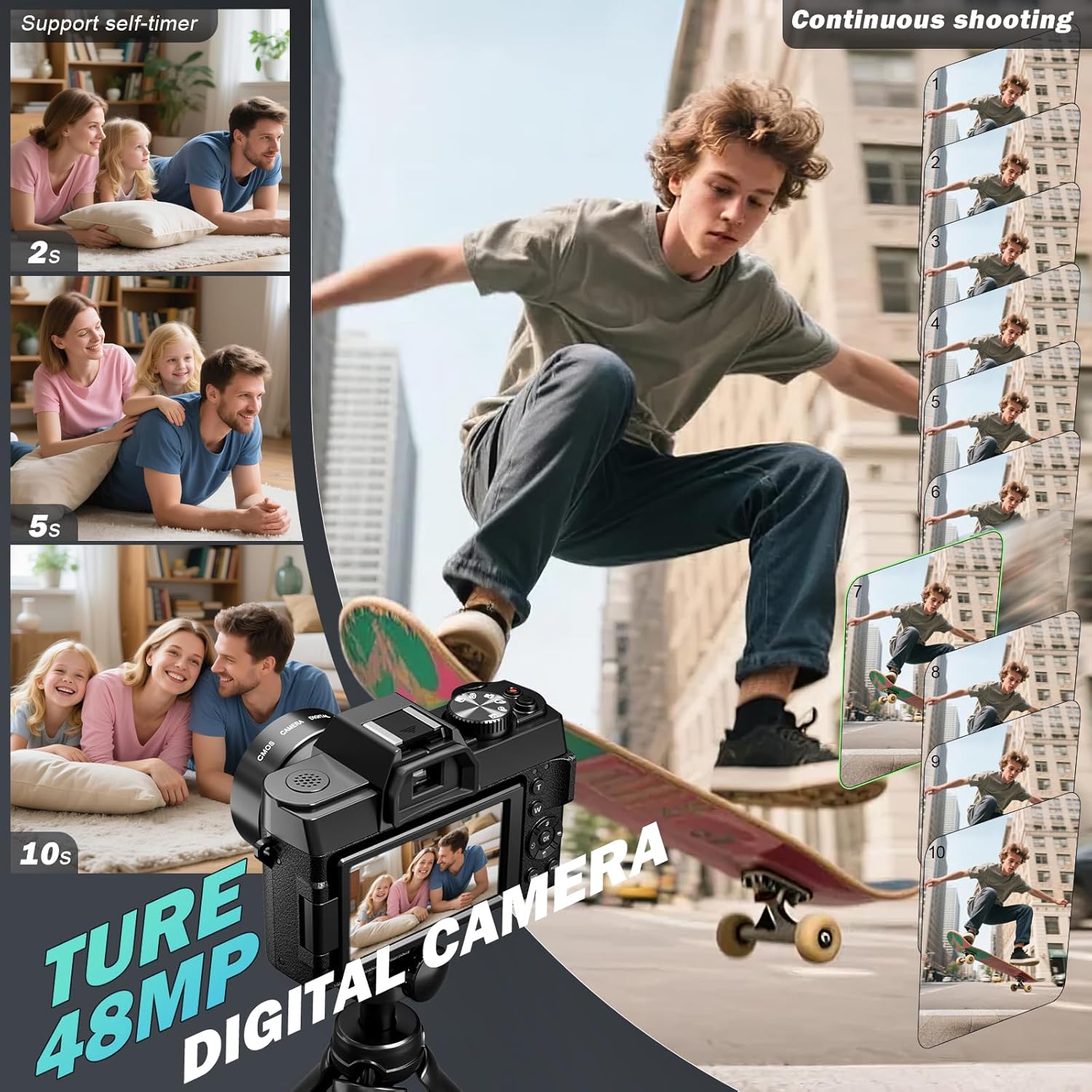
Image 3.1: Visual guide for setting the self-timer and capturing continuous shots.
3.2. Video Recording
- Start/Stop Recording: Press the dedicated record button to begin and end video capture.
- Resolution: The camera supports 5K at 30fps and 4K at 60fps. Adjust settings in the video menu.
- Built-in Fill Light: Activate the fill light in low-light environments for improved video quality.

Image 3.2: The camera capturing 5K video, ideal for vlogging and action shots.
3.3. Using the 180° Flip Screen
The 3-inch LCD screen can be flipped 180 degrees, allowing you to view yourself while recording or taking selfies. This is particularly useful for vlogging and self-portraits.

Image 3.3: The camera's 180° flip screen in use, demonstrating its utility for self-recording and low-light photography with the built-in flash.
3.4. Zoom and Lenses
- 16x Digital Zoom: Use the zoom controls on the camera to magnify your subject digitally.
- Wide-Angle Lens: Attach the wide-angle component for broader landscape shots.
- Macro Lens: Detach the wide-angle component to use the macro lens for detailed close-up photography.

Image 3.4: The camera's 16x digital zoom capability, highlighting its powerful CMOS sensor.
3.5. Creative Shooting Modes
The camera offers various modes to enhance your creative projects:
- Time-Lapse: Capture a series of images over time to create a sped-up video.
- Slow-Motion: Record videos that play back at a slower speed.
- Looping Video: Continuously record video, overwriting older footage once the memory card is full.
- Video Pause: Pause and resume video recording within a single file.

Image 3.5: Examples of creative shooting modes available on the camera, including time-lapse and slow motion.
3.6. Connectivity (WiFi & Webcam)
- WiFi: Enable WiFi in the camera settings to connect to a smartphone or tablet for remote control and instant sharing of photos and videos. Refer to the camera's on-screen instructions for pairing.
- Webcam Function: Connect the camera to your PC via a USB cable. Select "PC Camera" mode on the camera's screen to use it as a webcam for video calls or live streaming.
- USB Transfer: Connect the camera to your PC via USB and select "Mass Storage Mode" to transfer files directly.

Image 3.6: The camera's versatile connectivity options, including WiFi for sharing and USB for webcam use and file transfer.
4. Maintenance
4.1. Cleaning the Camera and Lenses
- Use a soft, lint-free cloth to clean the camera body.
- For lenses, use a specialized lens cleaning solution and a microfiber cloth. Avoid touching the lens surface directly with fingers.
- Do not use harsh chemicals or abrasive materials.
4.2. Battery Care
- Store batteries in a cool, dry place when not in use.
- Avoid fully discharging batteries frequently to prolong their lifespan.
- Do not expose batteries to extreme temperatures.
4.3. Storage
When not in use, store the camera in a protective bag or case to prevent dust and scratches. Remove the battery if storing for extended periods.
5. Troubleshooting
- Camera does not power on: Ensure the battery is correctly inserted and fully charged.
- Images are blurry: Check if autofocus is enabled and has locked onto the subject. Clean the lens if smudged. Ensure sufficient lighting.
- Memory card error: Reinsert the TF card. If the issue persists, try formatting the card (this will erase all data) or use a different compatible card.
- WiFi connection issues: Ensure the camera's WiFi is enabled and your smart device is within range. Restart both devices if necessary.
- Short battery life: Reduce screen brightness, turn off WiFi when not in use, and ensure batteries are fully charged before each use. Consider carrying a spare charged battery.
6. Specifications
| Feature | Detail |
|---|---|
| Brand | NBDDIGITAL |
| Model Name | S110 |
| Model Number | MC-S110-QT-US-2507 |
| Effective Still Resolution | 48 MP |
| Video Resolution | 5K (30fps), 4K (60fps) |
| Digital Zoom | 16x |
| Screen | 3-inch LCD (180° Flip) |
| Photo Sensor | CMOS (1/2.3-inch) |
| Image Stabilization | Anti-Shake |
| Focus System | Autofocus (AF) and Manual Focus (MF) |
| Lens | 52mm Wide-Angle and Macro Lens |
| Connectivity | Wi-Fi, USB |
| Supported File Formats | MP4 (Video), JPEG (Photo) |
| Memory Card | 32GB TF Card (included) |
| Battery Type | Lithium Ion (1 included) |
| Item Weight | 1.04 Kilograms |
| Minimum Shutter Speed | 1/500s |
| Exposure Control | Automatic, Manual |
| White Balance | Auto |
| Viewfinder | Electronic |
| Flash | Built-in Fill Light |
| Aperture Range | F2.8-F5.6 |
| Water Resistance | Not Water Resistant |
| Audio Recording | Yes |
| Shooting Modes | Automatic, Landscape, Macro, Movie |
7. Warranty Information
This NBDDIGITAL camera comes with a 1-year warranty from the date of purchase. The warranty covers manufacturing defects and malfunctions under normal use. It does not cover damage caused by misuse, accidents, unauthorized repairs, or natural disasters. Please retain your proof of purchase for warranty claims.
8. Customer Support
For further assistance, technical support, or warranty inquiries, please contact NBDDIGITAL customer service. Refer to the contact information provided in your product packaging or visit the official NBDDIGITAL website.
Online Resources: Visit the NBDDIGITAL Store on Amazon