
1. Introduction
Thank you for choosing the XBJ Smart Projector LXPT001. This portable projector is designed to provide a versatile entertainment experience with its advanced features, including 4K decoding support, Android 11 operating system, dual-band 5G WiFi, and Bluetooth 5.2 connectivity. Its 180° rotatable design and automatic keystone correction allow for flexible projection in various indoor and outdoor settings.
This manual provides essential information for setting up, operating, and maintaining your projector to ensure optimal performance and longevity.
2. What's in the Box
- XBJ Portable Projector
- Power Cord
- Remote Control
- User Manual
3. Product Overview
The XBJ Smart Projector LXPT001 is a compact and lightweight device, measuring approximately 4.06 x 3.62 x 6.89 inches and weighing 14.1 ounces. Its design allows for 180° rotation, enabling projection onto walls, ceilings, or screens with ease.

Figure 1: XBJ Smart Projector LXPT001 and included remote control.
3.1 Ports and Controls
The projector features multiple connectivity options for versatile use:
- HDMI Port: For connecting laptops, TV sticks, gaming consoles (PS5/XBOX), and other HDMI-enabled devices.
- USB Port: For connecting USB drives to play media files.
- 3.5mm Audio Jack: For connecting external headphones or speakers.
- Power Input: For connecting the power cord.

Figure 2: Rear view of the projector highlighting its various input/output ports.
3.2 Portability and Design
The projector's compact size and lightweight design make it ideal for easy transport and use in various locations, from bedrooms to outdoor camping trips.
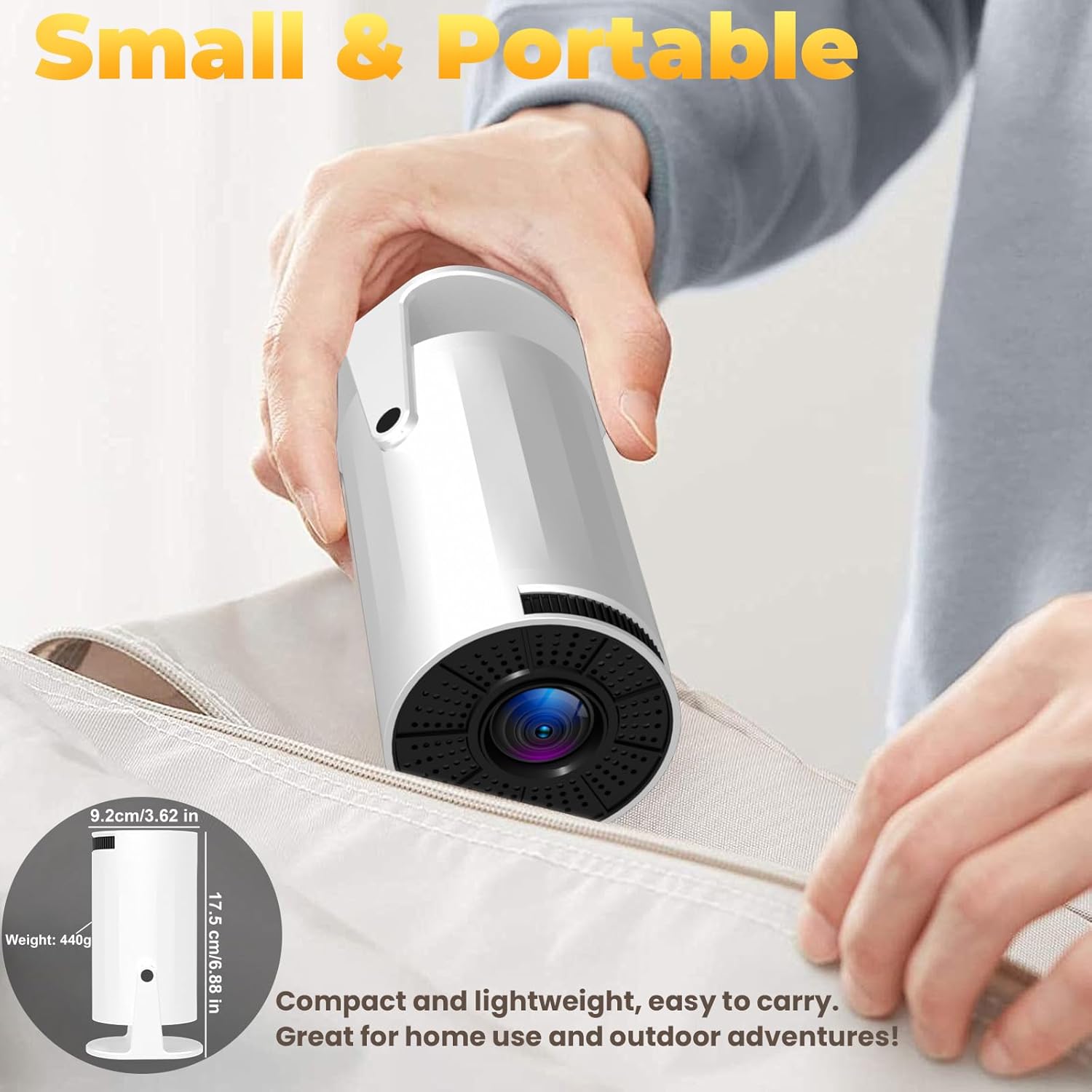
Figure 3: The projector's compact design allows for easy portability.
Video 1: An overview of the XBJ Mini Portable Movie Projector, showcasing its design and features.
4. Setup Instructions
4.1 Initial Power-On
- Connect the power cord to the projector's power input and then to a power outlet.
- Press the power button on the projector or the remote control to turn on the device.
4.2 Network Setup (5G WiFi)
For optimal performance and smooth screen mirroring, connect your projector to a 5G WiFi network:
- Navigate to the 'Settings' menu on the projector's home screen using the remote control.
- Select 'Network Settings' or 'WiFi'.
- Choose your desired 5G WiFi network from the list and enter the password.

Figure 4: Projector interface displaying WiFi settings and other display adjustments.
Video 2: A guide demonstrating how to connect the projector to WiFi and perform screen casting.
4.3 Keystone Correction and Focus
The projector features 180° rotation and auto keystone correction for optimal image alignment. Manual focus is also available for fine-tuning clarity.
- 180° Rotation: Physically adjust the projector's angle to project onto desired surfaces (walls, ceilings).
- Auto Keystone Correction: The projector will automatically adjust the image shape to be rectangular.
- Manual Focus: Use the focus ring on the projector or remote control to sharpen the image.
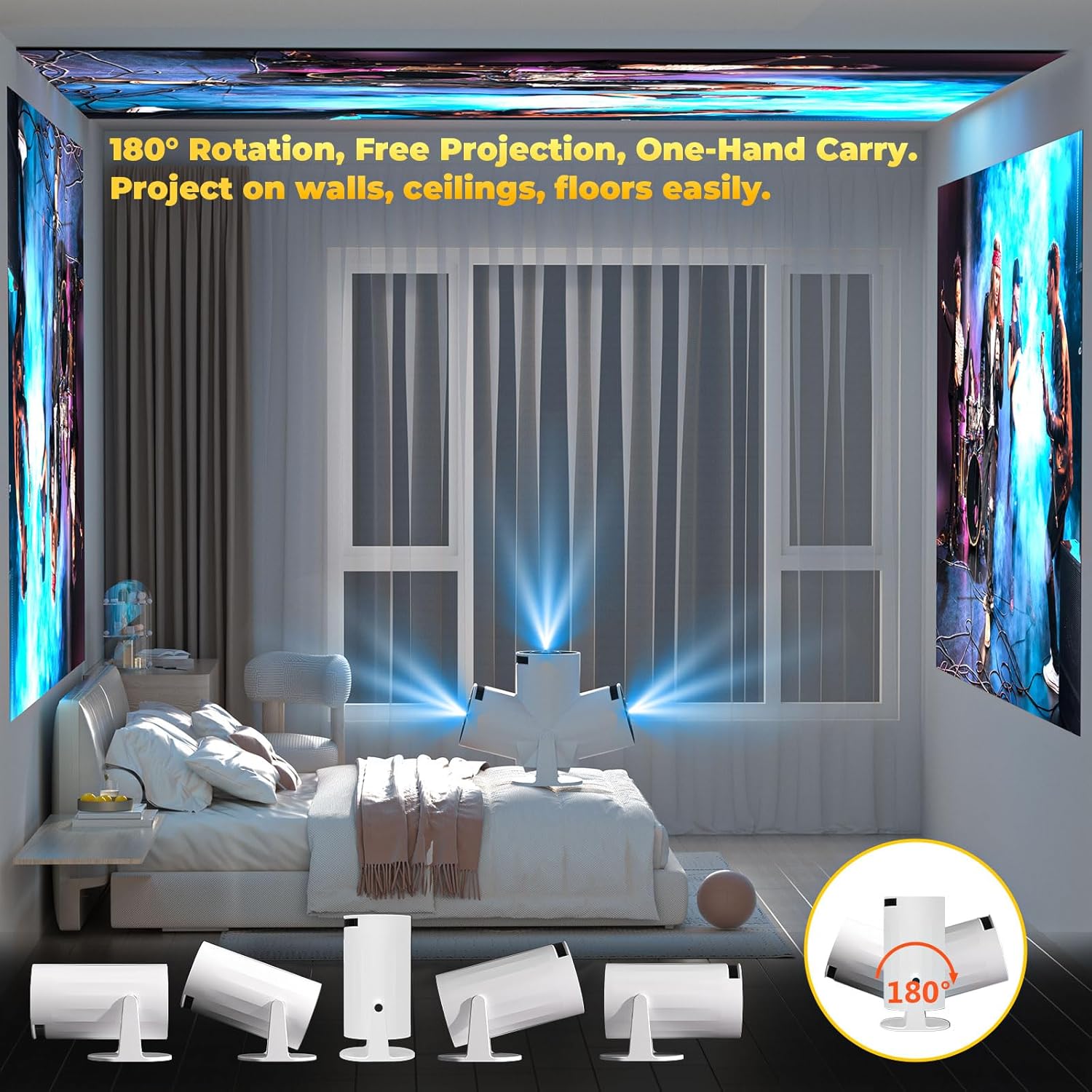
Figure 5: The projector's 180° rotatable design allows for flexible projection angles.
5. Operating Instructions
5.1 Using Built-in Apps (Android 11)
The projector runs on Android 11, providing access to a wide range of applications:
- From the home screen, navigate to 'My Apps' or 'App Store' to browse and install applications.
- Use the remote control to select and launch your desired streaming services (e.g., Netflix, YouTube, Disney+).
Video 3: Instructions on how to update applications on the XBJ Smart Projector.
5.2 Screen Mirroring
Mirror your smartphone, tablet, or laptop screen wirelessly to the projector:
- Ensure both your device and the projector are connected to the same 5G WiFi network.
- On the projector, select the 'Screen Mirroring' option (often found in 'My Apps' or as a dedicated button).
- On your mobile device, activate screen mirroring (e.g., AirPlay for iOS, Cast for Android) and select the projector from the list of available devices.
Video 4: A demonstration on how to connect to AirPlay for screen mirroring with the XBJ Portable Projector.
5.3 Bluetooth Connectivity
Connect Bluetooth 5.2 compatible HIFI speakers or headphones for an enhanced audio experience:
- Go to 'Settings' and select 'Bluetooth'.
- Enable Bluetooth on the projector and your audio device.
- Select your audio device from the list of available devices to pair.
Video 5: Instructions on how to connect a Bluetooth device to the XBJ movie projector.
5.4 Connecting External Devices
Use the HDMI and USB ports to connect various external devices:
- HDMI: Connect your laptop, TV stick, PS5/XBOX, or other HDMI-enabled devices. Select the HDMI input from the projector's source menu.
- USB: Insert a USB drive containing media files. The projector's media player will allow you to browse and play content.

Figure 6: Versatile connectivity options for various devices.
5.5 Projection Settings
Adjust projection size and aspect ratio for your viewing environment:
- Projection Ratio: 1.25:1, allowing for larger screens at shorter distances.
- Suggested Projection Distance: 1.2 - 4 meters (3.9 - 13.2 feet).
- Projection Sizes: 40 to 150 inches.
- Aspect Ratios: Supports 16:9 and 4:3.

Figure 7: Projection distance and screen size guidelines.
6. Specifications
| Feature | Specification |
|---|---|
| Brand | XBJ |
| Model Number | LXPT001 |
| Item Weight | 14.1 ounces |
| Product Dimensions | 4.06 x 3.62 x 6.89 inches |
| Display Resolution | 1280 x 720 (supports 4K decoding) |
| Connectivity Technology | 3.5mm Jack, Bluetooth 5.2, HDMI, USB, Wi-Fi 6 (5G + 2.4G) |
| Special Features | Built-In Cooling System, Built-In Speaker, Built-In Wi-Fi, Digital Keystone Correction, Portable, 180° Rotatable |
| Recommended Uses | Education, Gaming, Home Cinema |
7. Troubleshooting
If you encounter common problems, please refer to the following solutions:
- Signal, Sound, Bluetooth, or WiFi Connection Issues: Check the user manual for detailed instructions. Ensure all cables are securely connected and devices are within range. For WiFi, ensure you are connected to the correct network (5G recommended for mirroring).
- Item Damaged During Shipping: If the item received is broken or damaged, please contact the seller's official store for assistance.
Video 6: Instructions on how to restore the XBJ portable movie projector to factory settings.
8. Maintenance
To ensure the longevity and optimal performance of your projector, follow these maintenance guidelines:
- Cleaning: Use a soft, dry cloth to clean the exterior of the projector. For the lens, use a specialized lens cleaning cloth and solution.
- Cooling System: The projector has a built-in cooling system. Ensure that the ventilation vents are not blocked during operation to prevent overheating.
- Storage: When not in use, store the projector in a cool, dry place away from direct sunlight and extreme temperatures.
9. Warranty and Support
For technical support, warranty inquiries, or any issues you encounter with your product, please contact our customer support team. We are fully responsible for products sold via our official store.
Customer Support Email: ESzxkj@outlook.com
Additional protection plans are available for purchase:
- 2-Year Protection Plan
- 3-Year Protection Plan
- Complete Protect (monthly plan covering eligible past and future purchases)

