
1. Introduction
This manual provides detailed instructions for the ATMPC 10-inch Android 14 Tablet, Model IT-801B. It covers setup, operation, maintenance, and troubleshooting to ensure optimal use of your device. Please read this manual thoroughly before using your tablet.

Image 1.1: Front and back view of the ATMPC 10-inch Android 14 Tablet.
2. Package Contents
Verify that all items are present in the package:
- ATMPC 10-inch Android 14 Tablet (Model IT-801B)
- USB-C Cable
- User Manual (this document)
3. Device Layout
Familiarize yourself with the physical components and ports of your tablet:

Image 3.1: Diagram illustrating the location of the TF Card Slot, 3.5mm Headphone Jack, Power button, Volume buttons, USB-C port, Front Camera, Rear Camera, and Speakers on the ATMPC tablet.
- TF Card Slot: For inserting a microSD card to expand storage.
- 3.5mm Headphone Jack: For connecting wired headphones.
- Power Button: Press and hold to power on/off or restart. Press briefly to turn the screen on/off.
- Volume Buttons: Adjust the audio volume.
- USB-C Port: For charging the tablet and connecting to a computer.
- Front Camera: For video calls and selfies.
- Rear Camera: For taking photos and videos.
- Speakers: For audio output.
4. Setup
4.1 Charging the Tablet
Before first use, fully charge the tablet using the provided USB-C cable and a compatible power adapter (not included). The charging indicator will show the charging status.
4.2 Powering On/Off
- To Power On: Press and hold the Power button until the screen lights up.
- To Power Off: Press and hold the Power button until the power options appear, then select "Power Off."
- To Restart: Press and hold the Power button until the power options appear, then select "Restart."
4.3 Initial Setup
Upon first power-on, follow the on-screen prompts to configure your tablet:
- Select your preferred language.
- Connect to a Wi-Fi network.
- Sign in with your Google account or create a new one. This is necessary to access the Google Play Store and other Google services.
- Review and accept the terms and conditions.
- Set up screen lock (PIN, pattern, or password) for security.
4.4 Inserting a TF Card (MicroSD Card)
To expand the tablet's storage:
- Locate the TF card slot on the side of the tablet (refer to Image 3.1).
- Gently insert the TF card into the slot until it clicks into place.
- The tablet will detect the card and may prompt you to format it for internal or portable storage. Follow the on-screen instructions.
5. Operating Instructions
5.1 Basic Navigation
The tablet uses a multi-touch IPS display for interaction:
- Tap: Select an item or open an app.
- Swipe: Scroll through lists or switch between home screens.
- Pinch-to-Zoom: Zoom in or out on images and web pages.
- Long Press: Access contextual menus or move icons.
5.2 Connecting to Wi-Fi
Your tablet supports dual-band Wi-Fi 6 (2.4G/5G) for fast and stable internet connectivity.
- Go to Settings > Network & internet > Wi-Fi.
- Toggle Wi-Fi ON.
- Select your desired network from the list and enter the password if required.
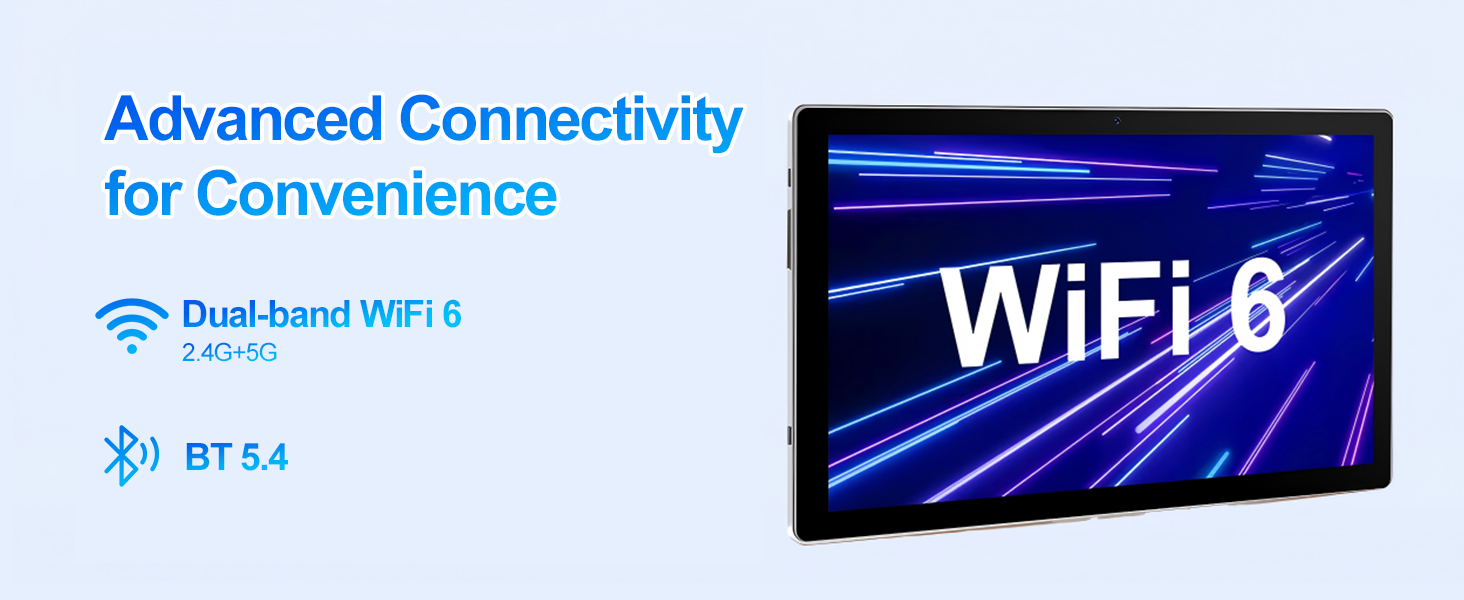
Image 5.1: Illustration of the tablet's advanced connectivity, highlighting Dual-band WiFi 6 and Bluetooth 5.4.
5.3 Bluetooth Pairing
The tablet features Bluetooth 5.4 for connecting wireless accessories.
- Go to Settings > Connected devices > Bluetooth.
- Toggle Bluetooth ON.
- Select the device you wish to pair from the list of available devices.
- Confirm the pairing code if prompted.
5.4 Using the Cameras
Your tablet is equipped with a 2MP front camera and a 5MP rear camera.
- Open the Camera app.
- Tap the shutter button to take a photo.
- Switch between front and rear cameras using the camera toggle icon.
- Select video mode to record videos.
5.5 Installing Applications
As a GMS-certified Android tablet, you can download and install millions of applications from the Google Play Store.
- Open the Play Store app.
- Search for the desired app.
- Tap Install to download and install the app.
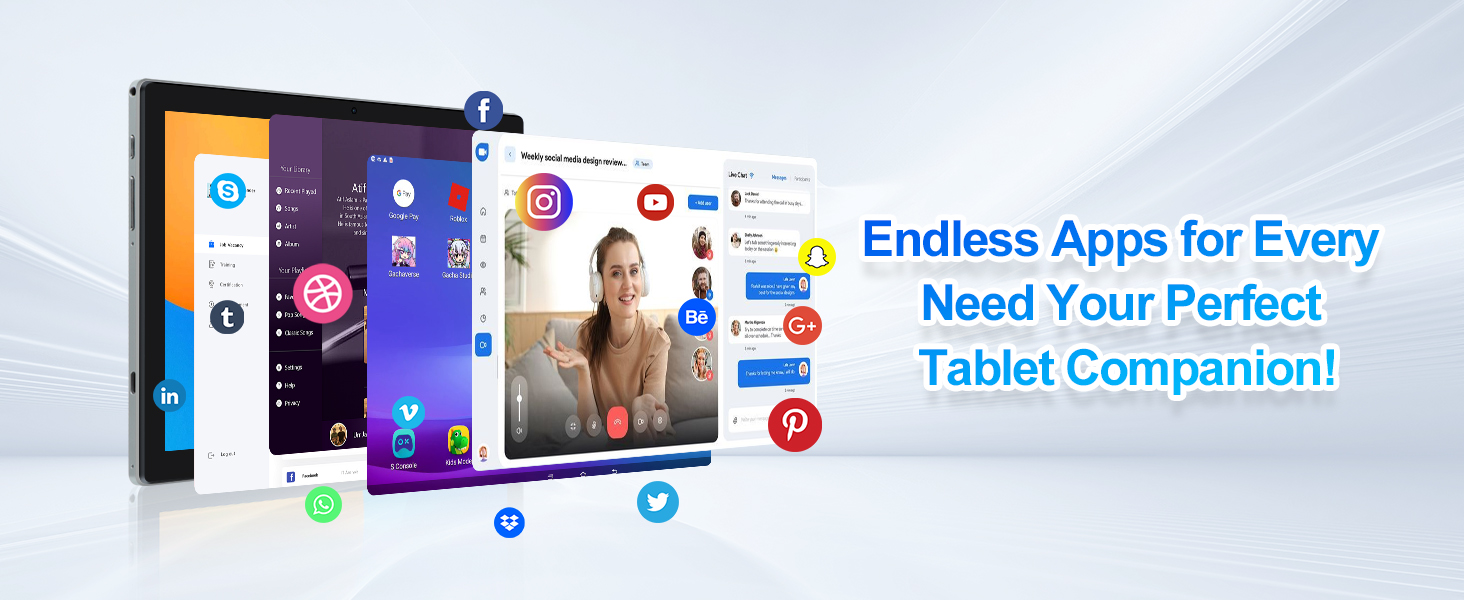
Image 5.2: The tablet interface showing various applications available through the Google Play Store.
5.6 Parental Controls
The tablet includes robust parental control features to manage screen time and content access.
- Navigate to Settings > Digital Wellbeing & parental controls.
- Set up a profile for your child and configure screen time limits, content restrictions, and safe search options.
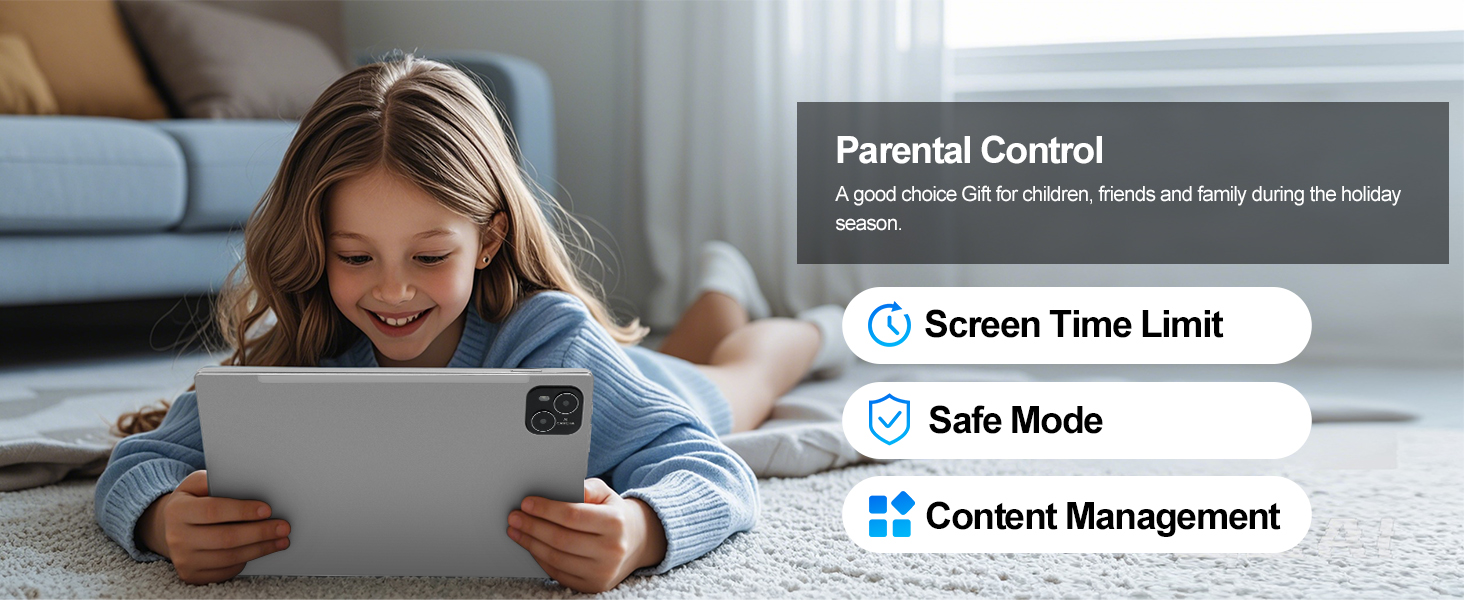
Image 5.3: A child using the tablet, illustrating the availability of parental control features such as Screen Time Limit, Safe Mode, and Content Management.
5.7 Split Screen Functionality
Android 14 allows for split-screen multitasking:
- Open an app.
- Swipe up from the bottom of the screen and hold to access recent apps.
- Tap the app icon at the top of the app's card and select "Split top."
- Choose a second app from the recent apps list or app drawer to use in the other half of the screen.
6. Maintenance
6.1 Battery Care
- Avoid extreme temperatures, which can degrade battery life.
- Do not leave the tablet fully charged or fully discharged for extended periods.
- Use only the provided USB-C cable for charging.
6.2 Cleaning the Device
- Use a soft, lint-free cloth to clean the screen and body.
- Avoid using harsh chemicals or abrasive materials.
- Ensure the tablet is powered off before cleaning.
6.3 Software Updates
Regularly check for and install software updates to ensure optimal performance and security.
- Go to Settings > System > System update.
- Follow the on-screen instructions to download and install any available updates.
6.4 Storage Management
To maintain performance, regularly manage your tablet's storage.
- Go to Settings > Storage to view storage usage.
- Uninstall unused apps, delete unnecessary files, or move large files to an inserted TF card.
7. Troubleshooting
If you encounter issues with your ATMPC tablet, refer to the following common solutions:
| Issue | Possible Solution |
|---|---|
| Tablet is unresponsive or frozen | Press and hold the Power button for approximately 10-15 seconds to force a restart. |
| Tablet is overheating | Close background applications, reduce screen brightness, or stop using the tablet for a short period to allow it to cool down. Avoid direct sunlight. |
| Battery drains quickly | Reduce screen brightness, disable Wi-Fi/Bluetooth when not in use, close background apps, and check for apps consuming excessive power in Battery settings. |
| Cannot connect to Wi-Fi | Ensure Wi-Fi is enabled in settings. Restart your router and the tablet. Forget the network and reconnect. |
| Apps are slow or crashing | Clear app cache (Settings > Apps > [App Name] > Storage > Clear cache). Ensure sufficient free storage space. Restart the tablet. |
| Touchscreen is unresponsive or inaccurate | Clean the screen. Restart the tablet. If the issue persists, a factory reset might be necessary (back up data first). |
8. Specifications
Key technical specifications for the ATMPC 10-inch Android 14 Tablet (Model IT-801B):
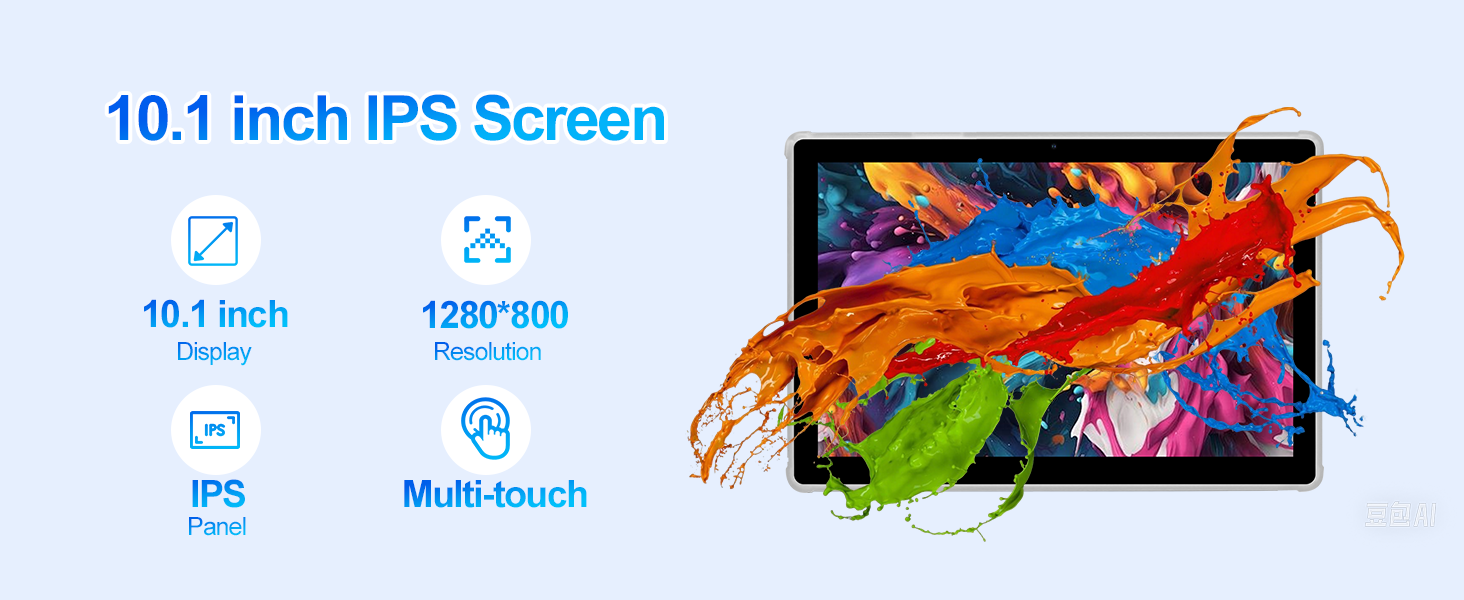
Image 8.1: Visual representation of the tablet's 10.1-inch HD IPS screen with 1280x800 resolution and multi-touch support.
- Model: IT-801B
- Operating System: Android 14
- Processor: Octa-Core (A523), 2 GHz
- RAM: 12GB (4GB + 8GB expansion)
- Internal Storage (ROM): 128GB
- Expandable Storage: Up to 1TB via TF Card (MicroSD)
- Display: 10.1-inch HD IPS Touchscreen, 1280 x 800 pixels
- Wireless Connectivity: Dual-band Wi-Fi 6 (802.11ax, 2.4G/5G), Bluetooth 5.4
- Cameras: Front 2MP, Rear 5MP
- Battery: 6000mAh (up to 10 hours average battery life)
- Ports: USB-C, 3.5mm Headphone Jack, TF Card Slot
- Dimensions (LxWxH): 9.6 x 6.4 x 0.37 inches
- Weight: Approximately 1 lb (0.45 kg)
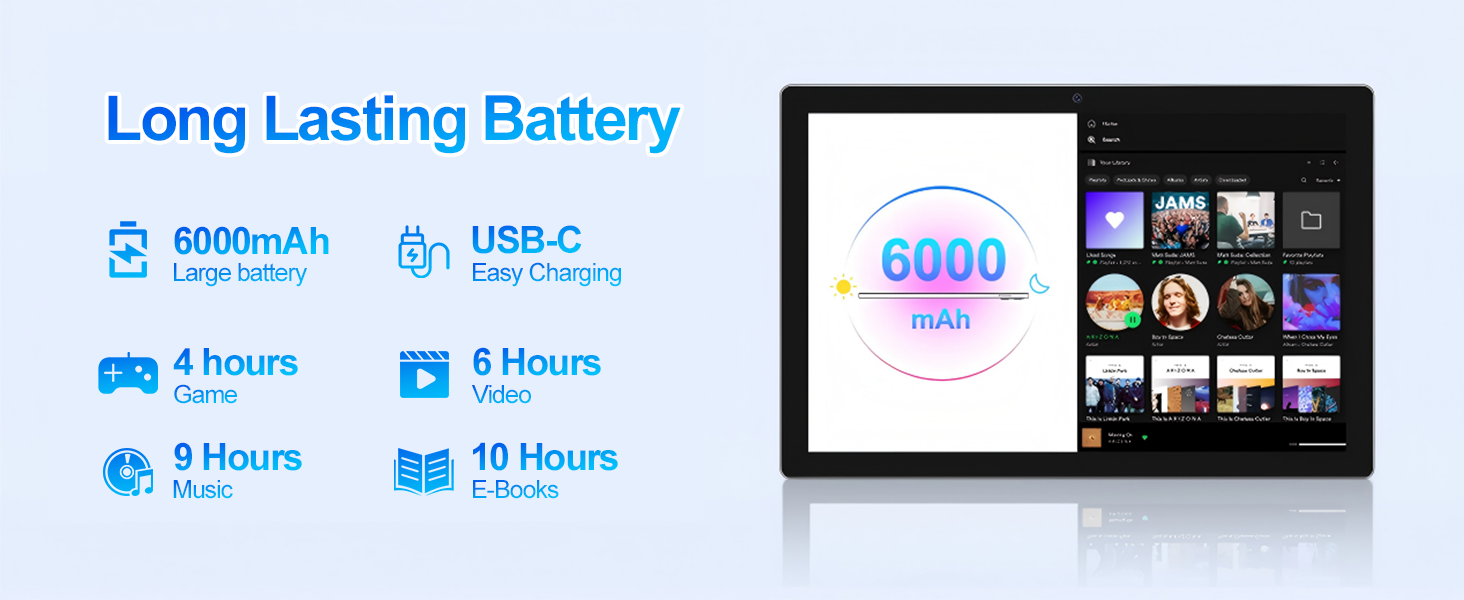
Image 8.2: Details on the tablet's 6000mAh long-lasting battery and USB-C charging, with estimated usage times for various activities.
9. Warranty and Support
ATMPC is committed to providing reliable products and customer service.
- Manufacturer Protection Plan: Your ATMPC tablet includes a 1-year manufacturer protection plan.
- Returns: Enjoy 30-day hassle-free returns.
- Customer Support: For any questions or assistance, please contact our support team.
How to Contact Support:
- Email: atmpcservice@163.com
- Online Service: Available 24/7 with replies typically within 24 hours.
- Via Amazon: Find your tablet order and click "Contact Seller."
