
1. Introduction
This manual provides essential information for setting up, operating, maintaining, and troubleshooting your Fujitsu D738/E94+ DTL desktop personal computer. Please read this manual carefully before using your new system to ensure proper functionality and longevity.
2. Product Overview
The Fujitsu D738/E94+ DTL is a compact and powerful desktop PC designed for various computing tasks. Below is an overview of the front panel features.
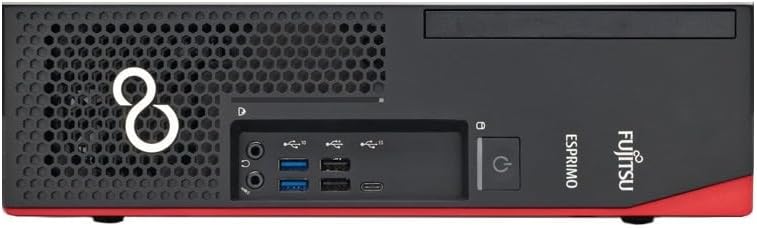
Image 1: Front Panel of Fujitsu D738/E94+ DTL Desktop PC
This image displays the front of the Fujitsu D738/E94+ DTL desktop computer. On the left, there is a ventilation grille with the Fujitsu logo. The central section features two 3.5mm audio jacks (headphone and microphone), two USB 2.0 ports, two blue USB 3.1 ports, and one USB-C 3.1 port. To the right of these ports, there is a large power button with an illuminated power symbol. At the top right, a slim optical drive bay is visible. The overall chassis is black with a red accent along the bottom front edge.
Front Panel Features:
- Power Button: Used to turn the computer on or off.
- USB 2.0 Ports (2x): For connecting standard USB devices.
- USB 3.1 Ports (2x, blue): For high-speed data transfer with compatible USB 3.1 devices.
- USB-C 3.1 Port (1x): Reversible connector for modern USB-C devices.
- Audio Jacks (Headphone/Microphone): For connecting headphones, speakers, or a microphone.
- Optical Drive Bay: For an optional optical drive (not included in this configuration).
3. Setup Instructions
- Unpack the System: Carefully remove the desktop PC, power cable, and WiFi adapter from their packaging.
- Connect Peripherals:
- Connect your monitor to one of the available DisplayPort or DVI ports on the rear of the PC.
- Connect your keyboard and mouse to any available USB ports (front or rear).
- If using wired internet, connect an Ethernet cable to the LAN port on the rear.
- Connect Power: Plug the provided power cable into the power input on the rear of the PC, then plug the other end into a wall outlet.
- Install WiFi Adapter: If your system includes an external USB WiFi adapter, plug it into an available USB port. Drivers for Windows 11 should install automatically.
- Initial Boot: Press the power button on the front panel. The system will boot into Microsoft Windows 11 Professional. Follow any on-screen prompts for initial setup.
4. Operating Instructions
4.1 Powering On/Off
- To Power On: Press the power button on the front panel.
- To Power Off:
- Click the Start button in Windows 11, then select Power > Shut down.
- Alternatively, press and hold the power button for 4 seconds to force a shutdown (use only if the system is unresponsive).
4.2 Network Connectivity
- Wired Connection: Ensure an Ethernet cable is connected from your router/modem to the LAN port on the PC. Windows 11 will automatically detect the connection.
- Wireless Connection:
- Ensure the WiFi adapter is installed.
- Click the Network icon in the Windows 11 taskbar.
- Select your desired WiFi network from the list and enter the password if prompted.
4.3 Using USB and Audio Ports
- USB Ports: Connect USB devices such as external hard drives, flash drives, printers, or other peripherals to any available USB port. For optimal performance with high-speed devices, use the blue USB 3.1 ports or the USB-C port.
- Audio Ports: Connect headphones or speakers to the headphone jack and a microphone to the microphone jack on the front panel. The rear panel also offers audio input/output options.
5. Specifications
Detailed technical specifications for the Fujitsu D738/E94+ DTL desktop PC:
| Component | Specification |
|---|---|
| Processor | Intel Core i5-8400 (2.80GHz base, up to 4.00GHz Turbo, 6 Cores, 6 Threads, 9MB Cache) |
| RAM | 8GB DDR4 DIMM (4 slots, max 64GB) |
| Storage | 240GB M.2 2280 SSD |
| Operating System | Microsoft Windows 11 Professional 64-bit |
| Optical Drive | None (Bay available) |
| Front USB Ports | 2x USB 2.0, 2x USB 3.1, 1x USB-C 3.1 |
| Rear USB Ports | 2x USB 2.0, 4x USB 3.0 |
| Video Outputs | 1x DVI, 2x DisplayPort |
| Audio Ports | 1x Combo (Rear), 1x Front (Headphone), 1x Front (Microphone), 1x Combo (Front) |
| Network | Intel I219V Gigabit Ethernet, WiFi (via included adapter) |
| Chipset | Intel Q370 |
| PCI-Express Slots | 1x PCI-Express x16, 1x PCI-Express x4, 1x PCI-Express x1 (Low Profile) |
| SATA Ports | 5 |
| PS/2 Ports | 2 |
| Power Supply | 250W (internal) |
| Dimensions (L x H x P) | 31.3 x 8.9 x 28.6 cm |
| Weight | 5 kg |
6. Maintenance
- Cleaning: Regularly clean the exterior of the PC with a soft, dry cloth. Use compressed air to clear dust from ventilation grilles to ensure proper airflow and prevent overheating.
- Software Updates: Keep your Windows 11 operating system and drivers updated. Windows Update can manage most system updates automatically.
- Data Backup: Regularly back up important data to an external drive or cloud storage to prevent data loss.
- Physical Inspection: Periodically check cable connections to ensure they are secure.
7. Troubleshooting
This section addresses common issues you might encounter.
- No Power:
- Ensure the power cable is securely connected to both the PC and the wall outlet.
- Verify the wall outlet is functional by plugging in another device.
- No Display:
- Check that the monitor is powered on and its video cable is securely connected to both the PC and the monitor.
- Ensure the correct input source is selected on your monitor.
- No Internet Connection:
- For wired connections, check the Ethernet cable and your router/modem.
- For wireless connections, ensure the WiFi adapter is properly installed and you are connected to the correct network with the correct password.
- Restart your router/modem and the PC.
- System Slowdown:
- Check for excessive background applications or processes.
- Ensure sufficient free space on the SSD.
- Run a virus/malware scan.
If you encounter issues not covered here or require further assistance, please refer to the Warranty and Support section.
8. Warranty and Support
Your Fujitsu D738/E94+ DTL desktop PC comes with a 2-year warranty. This warranty covers defects in materials and workmanship under normal use.
For technical support, warranty claims, or service inquiries, please contact your retailer or the Fujitsu support channels. Keep your proof of purchase handy when contacting support.
For more information, you may visit the official Fujitsu website.


