
1. Introduction
This manual provides detailed instructions for the installation, operation, and maintenance of your HCSTVCON DBT04RH 4-Channel HDMI Video Mixer Switcher. Please read this manual thoroughly before using the device to ensure proper functionality and to prevent damage.
1.1 Key Features
- Integrated 5.5-inch HD screen for live streaming and monitoring.
- T-shaped fader for video output control with 30 switching effects.
- Four HDMI input video sources and two PGM HDMI outputs.
- Supports up to 4 video inputs and 1080P60 image input.
- One channel UVC video signal output.
- Supports RTMP streaming media protocols for live streaming to two addresses simultaneously.
- Multiple Picture-in-Picture (PIP) and Picture-on-Picture (POP) layouts.
- Supports MP4 format video recording and saving to USB mobile hard disk.
- Powerful WEB control background for remote broadcasting and parameter configuration.
- Supports WEB equipment upgrades.

2. Safety Information
2.1 General Safety Precautions
- Do not expose the device to rain, moisture, or extreme temperatures.
- Avoid placing the device near heat sources or in direct sunlight.
- Ensure proper ventilation to prevent overheating.
- Do not open the device casing; refer all servicing to qualified personnel.
- Keep the device away from strong magnetic fields.
2.2 Electrical Safety
- Use only the provided power adapter.
- Ensure the power outlet voltage matches the device's requirements.
- Disconnect power during thunderstorms or when unused for extended periods.
- Do not overload electrical outlets or extension cords.
3. Package Contents
Verify that all items are present in the package:
- HCSTVCON DBT04RH Video Mixer Switcher
- Power Adapter
- User Manual (this document)
4. Product Overview
4.1 Front Panel Layout

The front panel provides access to all primary controls and monitoring functions:
- 5.5-inch HD Screen: Displays multi-view monitoring of inputs and program output.
- 4D Joystick: For precise Pan, Tilt, Zoom, and Focus control of connected PTZ cameras.
- Input Selection Buttons (CAM1-CAM4): Select video sources for preview and program.
- Transition Controls (WIPE, MIX, DIP): Choose between various transition effects.
- T-Bar Fader: Manual control for smooth transitions between video sources.
- White Balance & Exposure Knobs: Adjust camera settings directly from the switcher.
- Media Buttons: Access functions like STREAM, REC, AUDIO, SHOT, etc.
4.2 Rear Panel Connections

The rear panel houses all input and output ports:
- MIC1/MIC2 (3.5mm Stereo): Audio input ports.
- TALLY: TALLY extend port for external TALLY box.
- USB-A: For recording video with a USB disk, importing logos/pictures, and firmware updates.
- HDMI IN x 4: Connect up to four HDMI video sources.
- PGM1/PGM2 (HDMI Out): Two HDMI program outputs.
- UVC (USB Type-C): For UVC streaming output.
- LAN: Ethernet port for Web control and network streaming.
- DC 12V IN: Power input.
- Power Switch: On/Off switch for the device.
4.3 Display Interface

The built-in 5.5-inch HD screen displays a multi-view of all four HDMI inputs, the program output, and various operational parameters such as recording status, streaming status, time, and network information. It also allows access to the device's menu for configuration.
5. Setup
5.1 Connecting Power
Connect the provided 12V DC power adapter to the 'DC 12V IN' port on the rear panel. Ensure the connection is secure. Due to the weight of the DBT04RH, it is recommended to tighten the screws at the power interface to prevent the power cord from loosening during operation.
5.2 Connecting Video Inputs and Outputs
Connect your HDMI video sources (e.g., cameras, computers) to the 'HDMI IN 1' through 'HDMI IN 4' ports. Connect your display monitors or recording devices to the 'PGM1' and 'PGM2' HDMI output ports.

5.3 Connecting Audio
Connect external microphones or audio mixers to the 'MIC1' or 'MIC2' 3.5mm stereo audio input ports. The device also supports HDMI embedded audio and multi-channel external audio for comprehensive audio monitoring and mixing.

5.4 Network Configuration (IP Address Setup)
To enable network control and streaming, configure the IP addresses for the switcher and connected cameras. The switcher's IP address can be viewed and changed via the on-screen menu. Similarly, the IP addresses of connected cameras can be accessed and configured through the switcher's interface.
Video: Product Demonstration and Setup Guide. This video demonstrates the physical connections, IP address configuration for the switcher and cameras, and basic operation. Refer to the segment from 0:56 to 1:10 for detailed IP address setup instructions.
Steps for IP Configuration (refer to video segment 0:56-1:10):
- Open the menu on the switcher's display.
- Navigate to 'Settings' and then 'Network'.
- Select 'Manual' to view or change the IP address of the keyboard (switcher).
- To view camera IP addresses, press 'MENU' to return, then select the camera icon (second to last) and choose the desired camera (e.g., Cam1, Cam2, Cam3, Cam4) to see its IP.
6. Operation
6.1 Basic Video Switching
Use the PGM (Program) and PVW (Preview) buttons to select your desired video sources. The PGM row selects the active output, while the PVW row selects the next source to be transitioned to. Use the 'CUT' button for an instant switch or the 'AUTO' button/T-Bar for a smooth transition.
Video: Product Demonstration and Setup Guide. This video demonstrates the physical connections, IP address configuration for the switcher and cameras, and basic operation. Refer to the segment from 1:10 to 1:17 for basic video switching demonstrations.
6.2 PTZ Camera Control
The integrated 4D joystick allows for comprehensive control of up to four connected PTZ cameras. Select the corresponding camera (1, 2, 3, or 4) on the keyboard, then use the joystick to pan, tilt, and zoom. The focus knob adjusts camera focus. Preset positions can be saved and recalled using the POS1-POS4 buttons.
Video: Product Demonstration and Setup Guide. This video demonstrates the physical connections, IP address configuration for the switcher and cameras, and basic operation. Refer to the segment from 1:17 to 1:29 for PTZ camera control using the joystick.
6.3 Special Effects and Transitions
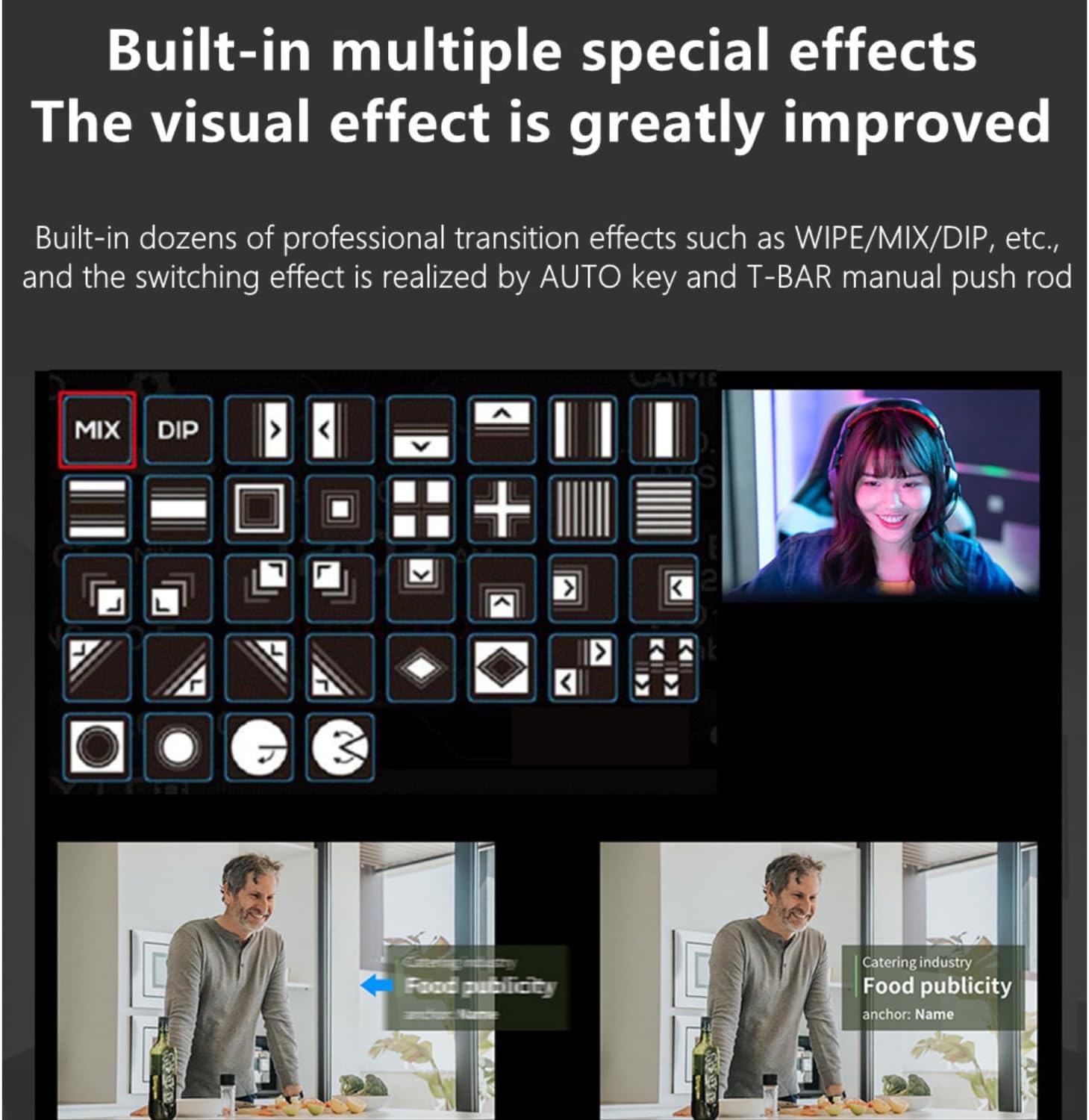
The DBT04RH offers a variety of professional transition effects including WIPE, MIX, and DIP. These effects can be applied using the dedicated buttons and the T-Bar fader for manual control. The device supports 30 different switching effects to enhance your production.

6.4 Picture-in-Picture (PIP) and Picture-on-Picture (POP)
The switcher supports multiple PIP and POP layouts, allowing you to display multiple video sources simultaneously on the program output. Consult the on-screen menu for configuration options and layout selections.
6.5 Recording and Storage
Connect a USB mobile hard disk or flash drive to the USB-A port on the rear panel to record your program output in MP4 format. This feature is convenient for long-term storage and reduces the need for extensive post-production editing.

6.6 Live Streaming
The DBT04RH supports RTMP streaming media protocols, enabling direct live streaming. You can set the stream size and stream to two different addresses simultaneously. The UVC (USB Type-C) output allows for lossless acquisition and compatibility with streaming software like OBS, PotPlayer, or vMix on a computer, supporting 60 frames and high chroma sampling.

6.7 Web Control
Utilize the powerful WEB control background by connecting the device to your network via the LAN port. This allows for remote control of broadcasting functions and parameter configuration through a web browser, offering flexibility in managing your live production.
7. Maintenance
7.1 Cleaning
Regularly clean the device with a soft, dry cloth. Do not use liquid or aerosol cleaners, as they may damage the casing or internal components. Keep the ventilation openings clear of dust.
7.2 Firmware Updates
The device supports firmware updates via its WEB interface or through the USB-A port. Periodically check the manufacturer's website for the latest firmware versions to ensure optimal performance and access to new features. Follow the provided instructions carefully during the update process.
8. Troubleshooting
This section addresses common issues you might encounter. If the problem persists, contact customer support.
- No Power: Ensure the power adapter is securely connected and the power switch is in the 'ON' position. Verify the power outlet is functional.
- No Video Input Signal: Check all HDMI cable connections. Ensure video sources are powered on and outputting a signal. Verify the input resolution and frame rate are supported by the switcher.
- No Video Output: Check HDMI cable connections to the display. Ensure the display is powered on and set to the correct input.
- Network Connection Issues: Verify the Ethernet cable is properly connected. Check IP address settings for both the switcher and your network. Ensure no IP conflicts exist.
- PTZ Camera Not Responding: Confirm the camera is powered on and properly connected. Check the camera's IP address and ensure it's correctly configured in the switcher's settings.
- Recording Failure: Ensure the USB storage device is properly formatted (e.g., FAT32 or NTFS) and has sufficient free space.
9. Specifications
| Feature | Detail |
|---|---|
| Model Number | HC-DBT04RH |
| Brand | HCSTVCON |
| Package Dimensions | 19.17 x 10.71 x 6.97 inches |
| Item Weight | 6.43 pounds |
| Color | Black |
| Connector Type | HDMI |
| Cable Type | HDMI |
| Compatible Devices | Camera, DVR, Monitor, Personal Computer, Television |

10. Warranty and Support
The HCSTVCON DBT04RH Video Mixer Switcher comes with a standard manufacturer's warranty. For specific warranty terms and conditions, please refer to the warranty card included in your package or visit the official HCSTVCON website. For technical support, troubleshooting assistance, or service inquiries, please contact HCSTVCON customer service through the contact information provided on their official website or your purchase platform.