
Introduction
This manual provides detailed instructions for the Reshow Portable Cassette Player and USB MP3 Converter, Model 235002. Designed for both nostalgia and practicality, this device allows you to play classic stereo cassettes, record audio, and convert your old tapes into digital MP3 format. Please read this manual thoroughly to ensure proper use and maintenance of your device.
Setup
What's in the Box
Please check the package contents to ensure all items are present:
- Reshow Portable Cassette Player (Model 235002)
- USB-C Power/Data Cable
- Earphones
- User Manual

Image showing the Reshow Portable Cassette Player, USB-C cable, earphones, and user manual included in the package.
Device Overview and Controls

Detailed view of the Reshow Portable Cassette Player, highlighting its various controls such as Play, Stop, Fast Forward, Rewind, Record, and ports including headphone jack, microphone input, AUX input, and USB-C port.
Powering the Device
Your Reshow Cassette Player can be powered in two ways:
- Battery Power: Insert two (2) AA batteries (not included) into the battery compartment located on the back of the device. Ensure correct polarity.
- USB Power: Connect the included USB-C cable to the device's USB-C port and to a 5V USB power adapter (not included) or a computer's USB port. USB power is recommended for stable performance, especially during MP3 conversion.

Back view of the Reshow Portable Cassette Player, illustrating the battery compartment for two AA batteries.

Side view of the Reshow Portable Cassette Player, highlighting the USB-C port for power and data transfer, and the 3.5mm headphone jack.
Operating Instructions
1. Cassette Playback
- Open the cassette compartment and insert a cassette tape. Close the compartment securely.
- Press the PLAY button to start playback.
- Adjust the volume using the volume control dial.
- To listen privately, connect the included headphones or any standard 3.5mm headphones to the headphone jack. The built-in speakers will automatically mute.
- Use the FAST FORWARD and REWIND buttons to navigate through the tape.
- Press the STOP button to end playback.
A person enjoying music through the Reshow Portable Cassette Player using headphones, demonstrating private listening.
2. Audio Recording
The device supports recording from its built-in microphone or an external AUX source onto a blank cassette tape.
- Insert a blank cassette tape into the compartment.
- For Microphone Recording: Ensure no external AUX cable is connected. The built-in microphone will automatically activate.
- For External AUX Recording: Connect an external audio source (e.g., smartphone, CD player) to the AUX input port using an appropriate audio cable (not included).
- Press the RECORD button. The device will start recording onto the cassette.
- Press the STOP button to end recording.
Note: Recording on pre-recorded cassettes will overwrite the original content. For important recordings, use new, blank cassettes.
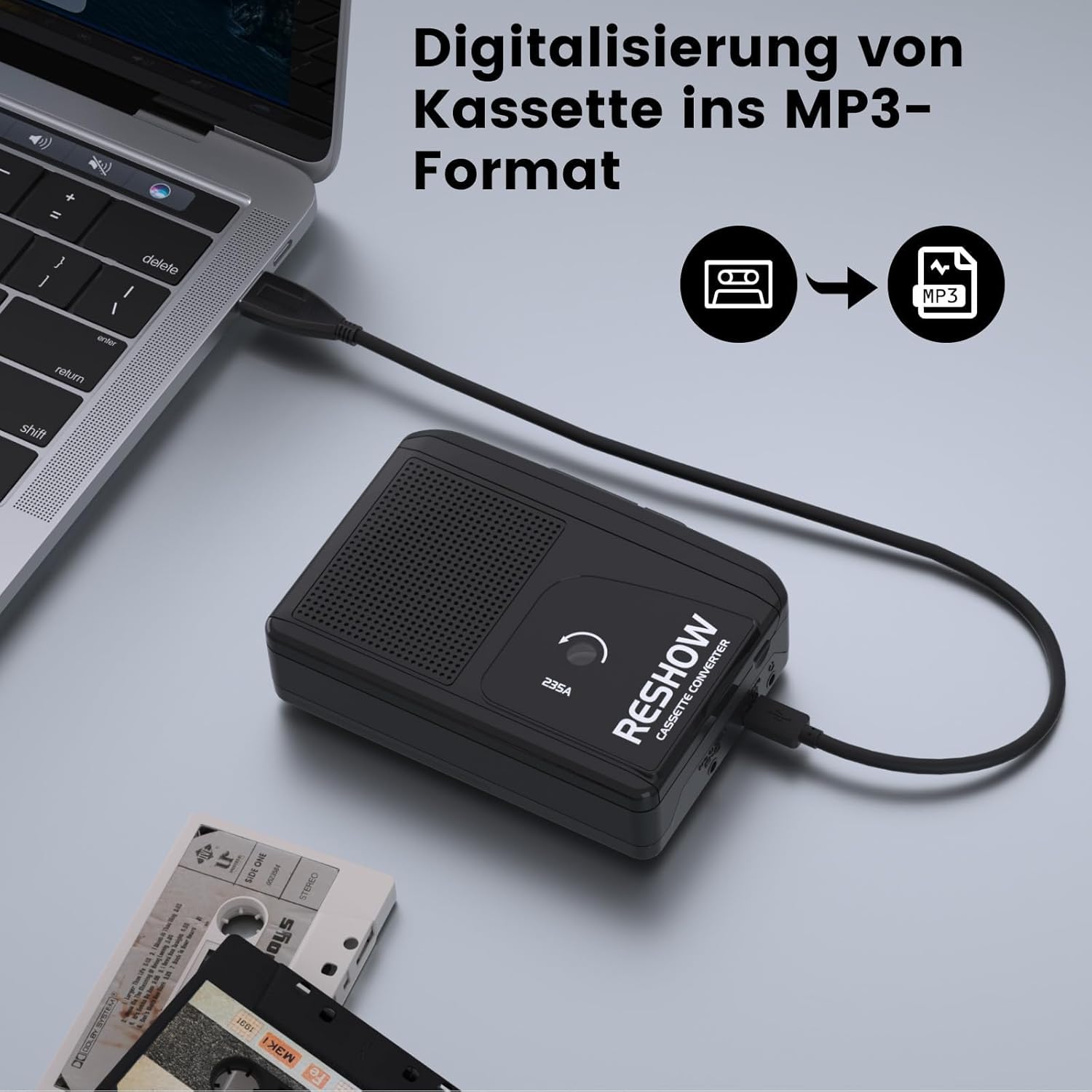
3. Cassette to MP3 Conversion
Convert your cassette tapes to digital MP3 files on your computer.
- Ensure the device is powered via the USB-C cable connected to your computer.
- Insert the cassette tape you wish to convert.
- Connect the Reshow Cassette Player to your computer using the provided USB-C cable. The device acts as an audio input for your computer.
- Open an audio recording software on your computer (e.g., Audacity, available for free online).
- In the software, select the Reshow Cassette Player as the audio input device.
- Start recording in the software, then press the PLAY button on the cassette player.
- Once the tape has finished playing, stop the recording in the software.
- Save the recorded audio as an MP3 file.

The Reshow Cassette Player connected to a laptop via USB-C cable, demonstrating the setup for converting cassette audio to MP3 format.
Maintenance
To ensure the longevity and optimal performance of your Reshow Cassette Player, follow these maintenance guidelines:
- Cleaning the Head: Regularly clean the tape head and pinch rollers using a specialized cassette head cleaner. This prevents audio degradation and tape jamming.
- Tape Condition: Always use clean, undamaged cassette tapes. Worn or dirty tapes can damage the player's internal mechanisms.
- Storage: Store the player in a cool, dry place away from direct sunlight and extreme temperatures.
- Battery Removal: If the device will not be used for an extended period, remove the AA batteries to prevent leakage.
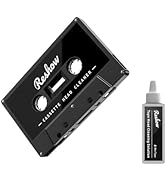
Image of a Reshow Audio Tape Head Cleaner kit, essential for maintaining the cassette player's performance and preventing tape damage.
Troubleshooting
| Problem | Possible Cause | Solution |
|---|---|---|
| No sound during playback. | Volume too low; headphones connected; tape not inserted correctly; damaged tape. | Increase volume; disconnect headphones if using speakers; re-insert tape correctly; try a different tape. |
| Distorted or poor audio quality. | Dirty tape head; worn-out tape; low battery power. | Clean the tape head; try a different tape; replace batteries or use USB power. |
| Tape jams or gets stuck. | Damaged or tangled tape; dirty pinch rollers. | Remove and inspect the tape; clean pinch rollers; avoid using damaged tapes. |
| MP3 conversion fails or is unstable. | Insufficient power; incorrect software settings. | Ensure device is powered via USB (not batteries) during conversion; verify audio input settings in your recording software. |
| Recording not working. | No blank tape; tape write-protect tab engaged; incorrect input source. | Insert a blank tape; ensure write-protect tab is not engaged; check microphone or AUX input connection. |
Specifications
- Model: 235002
- Dimensions: 9.20 cm (length) x 3.5 cm (width)
- Weight: 330 g
- Power Options: 2 x AA batteries (not included) or 5V USB-C power (cable included)
- Ports: 3.5mm Headphone Jack, Microphone Input, AUX Input, USB-C Port
- Functions: Play, Stop, Fast Forward, Rewind, Record, Cassette-to-MP3 Conversion
- Built-in Features: Microphone, Speakers
Warranty and Support
For any issues or questions regarding your Reshow Portable Cassette Player, please refer to the official Reshow support channels. While specific warranty details are not provided in this manual, Reshow is committed to product quality and customer satisfaction.
Please visit the Reshow Brand Store on Amazon for further information and support.