
1. Product Overview
The Ulefone Armor Mini 20 is a robust 4G rugged smartphone designed for durability and performance in challenging environments. It features a compact design, a powerful MediaTek Helio G99 processor, advanced camera systems, and a long-lasting battery. This manual provides essential information for setting up, operating, maintaining, and troubleshooting your device.

Image: Ulefone Armor Mini 20 Rugged Phone with its accompanying Armor Case.

Image: An overview of the Ulefone Armor Mini 20's key features, including its compact size, camera specifications, battery capacity, processor, and rugged certifications.
2. Package Contents
Ensure all items are present in the package:
- Ulefone Armor Mini 20 4G Rugged Phone
- Armor Case Kit
- USB Cable
- Power Adapter (33W Fast Charge compatible)
- SIM Ejector Tool
- User Manual (this document)
- Warranty Card

Image: Components of the Ulefone Armor Case, designed for enhanced protection and portability.
3. Setup
3.1. Installing SIM Card and MicroSD Card
- Locate the SIM card tray on the side of the phone.
- Insert the SIM ejector tool into the small hole next to the tray and push gently until the tray pops out.
- Place your Nano-SIM card(s) and/or MicroSD card (up to 2TB) into the designated slots on the tray, ensuring correct orientation.
- Carefully reinsert the tray into the phone until it is flush with the device body.
3.2. Initial Charging
Before first use, fully charge your Ulefone Armor Mini 20. Use the provided 33W fast charger and USB cable for optimal charging speed.
- Connect the USB cable to the phone's charging port.
- Connect the other end of the USB cable to the power adapter.
- Plug the power adapter into a wall outlet.
- The charging indicator will appear on the screen.
The device also supports 15W wireless charging.
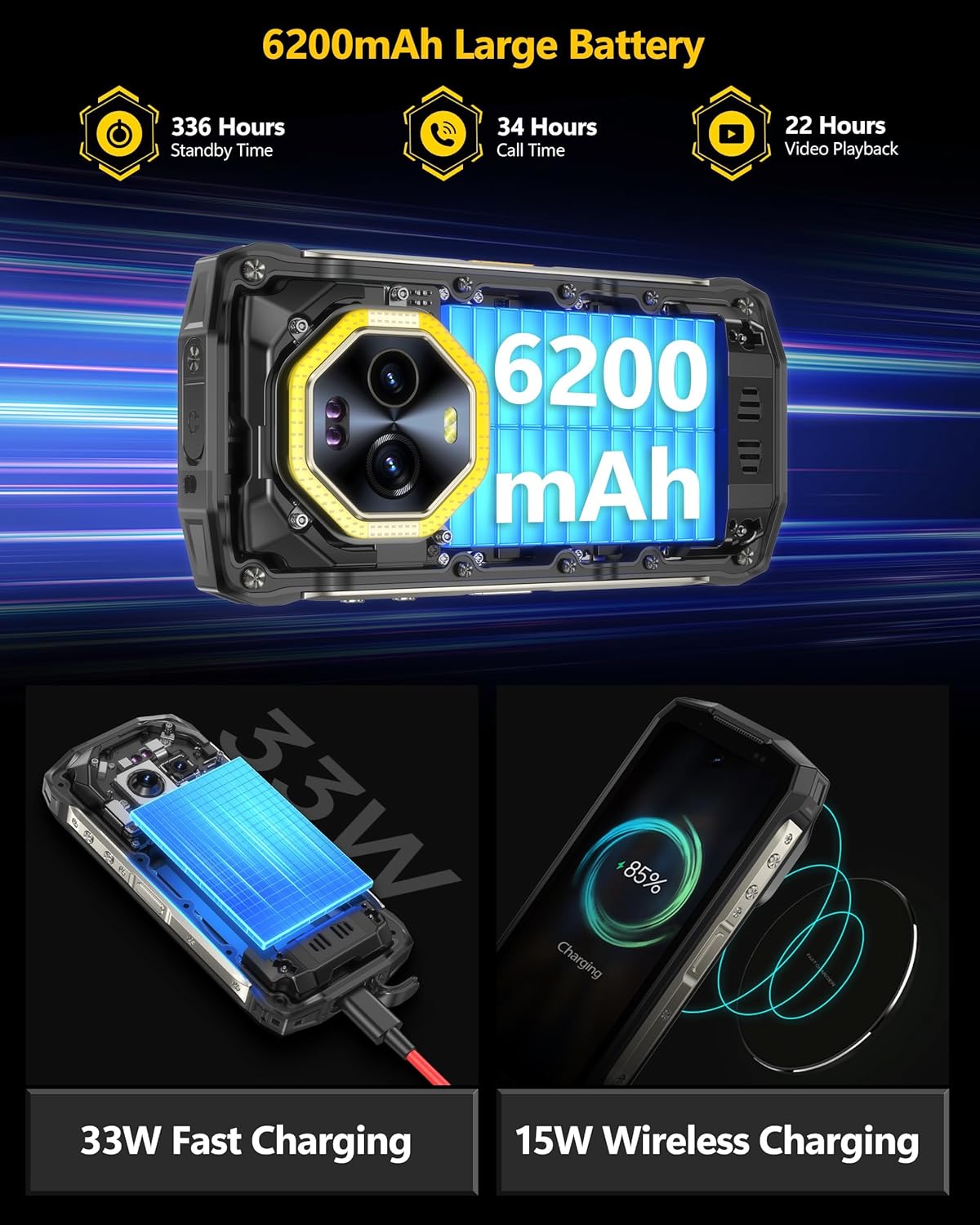
Image: Illustration of the Ulefone Armor Mini 20's 33W fast charging via cable and 15W wireless charging capabilities.
3.3. Attaching the Armor Case
The included Armor Case provides enhanced protection. Follow these steps to attach it:
- Align the phone with the case, ensuring all ports and buttons are correctly positioned.
- Gently press the phone into the case until it is securely seated.
- The case kit allows for secure mounting to various gear, providing shockproof and accidental drop protection.
4. Operating Instructions
4.1. Power On/Off and Restart
- Power On: Press and hold the Power button until the Ulefone logo appears.
- Power Off: Press and hold the Power button, then select "Power off" from the options.
- Restart: Press and hold the Power button, then select "Restart" from the options.
4.2. Display and Navigation
The Armor Mini 20 features a 4.7-inch HD+ Corning Gorilla Glass Victus display.
- Touch Gestures: Use tap, swipe, pinch-to-zoom for navigation and interaction.
- One-Handed Operation: The compact size (5.25 x 2.49 x 0.98 inches) allows for comfortable one-handed use.

Image: Visual representation of the Ulefone Armor Mini 20's 4.7-inch HD+ display, dimensions, and examples of one-handed usage.
4.3. Camera Usage
The device is equipped with a versatile camera system:
- 64MP Night Vision Camera: Utilizes OMNVISION'S OV64B sensor with two infrared LEDs and Ulefone NightElf Ultra 3.0 algorithm for clear images in low-light conditions.
- 50MP Main Camera: Features a 1/1.31" ultra-large Samsung ISOCELL GN1 sensor for high-resolution photos.
- 32MP Selfie Camera: Samsung GD1 Sensor with a 5P lens for clear self-portraits.
To access the camera, tap the Camera app icon on the home screen or app drawer. Select desired modes (Photo, Video, Night Vision, Portrait, etc.) and tap the shutter button to capture.
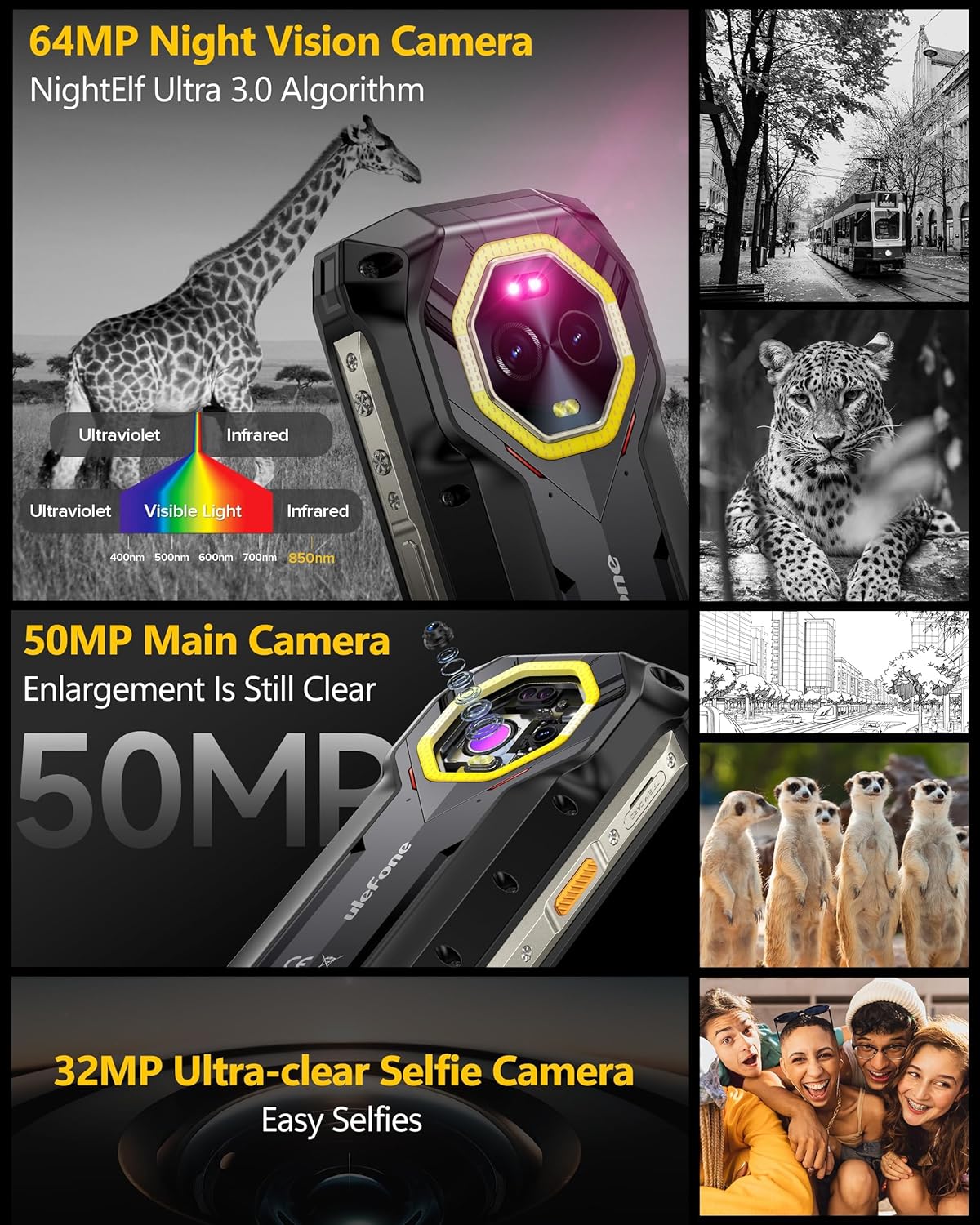
Image: Detailed view of the Ulefone Armor Mini 20's 64MP Night Vision, 50MP Main, and 32MP Selfie camera capabilities, including infrared and visible light spectrums.
4.4. Versatile LED Light and Emergency Warning Light
The device includes a powerful LED light for various uses and an emergency warning light function.
- Versatile LED Light: Can be used for camping, hiking, cycling, and general emergency lighting. Access via quick settings or a dedicated app.
- Emergency Warning Light: Provides blue and red flashing lights for signaling or warning.

Image: Demonstrates the versatile LED light for outdoor activities and the emergency warning light, alongside the phone's IP68/IP69K and MIL-STD-810H rugged certifications.
4.5. Android 14 Features
The Ulefone Armor Mini 20 runs on Android 14, offering enhanced personalization, protection, and accessibility features.
- Privacy Dashboard: Monitor and manage app permissions, including location access.
- Personalization: Customize themes, icons, and widgets.
- Security: Utilize Face Unlock and Fingerprint ID for secure access.

Image: Screenshots illustrating new features in Android 14 on the Ulefone Armor Mini 20, such as privacy controls, Google Lens integration, and screen time management.
5. Maintenance and Care
To ensure the longevity and optimal performance of your Ulefone Armor Mini 20, follow these maintenance guidelines:
- Cleaning: Use a soft, lint-free cloth to clean the screen and body. Avoid abrasive cleaners or solvents.
- Water and Dust Resistance: The phone is IP68/IP69K rated for water and dust resistance and MIL-STD-810H certified for ruggedness. Ensure all port covers are securely closed before exposure to water or dust.
- Temperature: Operate the device within recommended temperature ranges. The sub-zero solid-state battery is designed to function in extreme cold down to -20 degrees Celsius.
- Storage: Store the device in a cool, dry place when not in use.
- Software Updates: Regularly check for and install software updates to ensure optimal performance and security.
6. Troubleshooting
| Problem | Possible Cause | Solution |
|---|---|---|
| Phone does not power on | Low battery; Software crash | Charge the phone for at least 30 minutes. Press and hold the Power button for 10-15 seconds to force restart. |
| Cannot connect to Wi-Fi | Incorrect password; Router issue; Phone Wi-Fi disabled | Verify Wi-Fi password. Restart router. Toggle Wi-Fi off and on in phone settings. |
| Apps are slow or crashing | Too many apps running; Low storage; App bug | Close background apps. Clear app cache. Free up storage. Update or reinstall the app. |
| Poor camera quality | Dirty lens; Low light conditions; Incorrect settings | Clean the camera lens with a soft cloth. Use Night Vision mode in low light. Adjust camera settings. |
| Battery drains quickly | High screen brightness; Background apps; Network issues | Reduce screen brightness. Close unnecessary background apps. Enable power saving mode. |
7. Specifications
| Feature | Detail |
|---|---|
| Model | Ulefone Armor Mini 20 |
| Processor | MediaTek Helio G99, 2.2GHz 8-core CPU, 6nm Soc |
| RAM | 8GB (up to 8GB virtual RAM, total 16GB) |
| Internal Storage | 256GB |
| Expandable Storage | TF card up to 2TB |
| Display | 4.7" HD+ Corning Gorilla Glass Victus, 720 x 1600 Resolution, 373 PPI, 700 nits Max Brightness, 90Hz Refresh Rate |
| Main Camera | 50MP Samsung ISOCELL GN1 (1/1.31", F/1.95 aperture) |
| Night Vision Camera | 64MP OMNVISION OV64B with two infrared LEDs |
| Front Camera | 32MP Samsung GD1 Sensor, 5P lens, 80.4° FOV |
| Battery Capacity | 6200mAh (Sub-zero solid-state battery) |
| Charging | 33W Fast Charge, 15W Wireless Charging, Reverse Charging |
| Operating System | Android 14 |
| Durability | IP68/IP69K Waterproof & Dustproof, MIL-STD-810H Certified Drop Resistance (up to 2M) |
| Dimensions | 5.25 x 2.49 x 0.98 inches (133.3 x 63.3 x 24.9 mm) |
| Weight | 10.6 ounces (300g approx.) |

Image: Details on the MediaTek Helio G99 processor, RAM, and ROM configurations of the Ulefone Armor Mini 20.
8. Warranty and Support
Ulefone provides a standard warranty for the Armor Mini 20. Please refer to the warranty card included in your package for specific terms and conditions.
For technical support, troubleshooting assistance, or warranty claims, please contact Ulefone customer service through their official website or the retailer where you purchased the device.
Keep your purchase receipt as proof of purchase for warranty purposes.