
1. Introduction
This manual provides detailed instructions for the setup, operation, and maintenance of your LYNCAST HY300pro+ Mini Projector. Designed for versatility and ease of use, this portable projector features built-in Android 11, Wi-Fi 6, Bluetooth 5.4, and automatic keystone correction, making it suitable for various indoor and outdoor viewing environments.
2. What's in the Box
- LYNCAST HY300pro+ Mini Projector
- HDMI Cable
- User Manual
- Power Adapter
- Remote Control
3. Product Overview & Key Features
The LYNCAST HY300pro+ is a compact and powerful mini projector designed for flexible entertainment. Key features include:
- Mini Size & Enhanced Brightness: Weighing just 350g, this ultra-portable projector offers 300 ANSI brightness for clear visuals.
- Integrated Smart System: Runs on Android 11 with pre-installed apps and access to the App Store for seamless streaming.
- Advanced Wireless Connectivity: Features Wi-Fi 6 for fast streaming and Bluetooth 5.4 for low-latency audio connections.
- Flexible Projection: 180° rotatable stand allows for versatile projection angles, including ceiling, rear, and front projection.
- Automatic Adjustments: Auto focus and automatic keystone correction provide a clear, square picture in seconds.
- Immersive Audio: Upgraded 5W built-in speaker delivers crisp sound.
- Eye Protection: Three optical glass lenses filter harmful blue light.
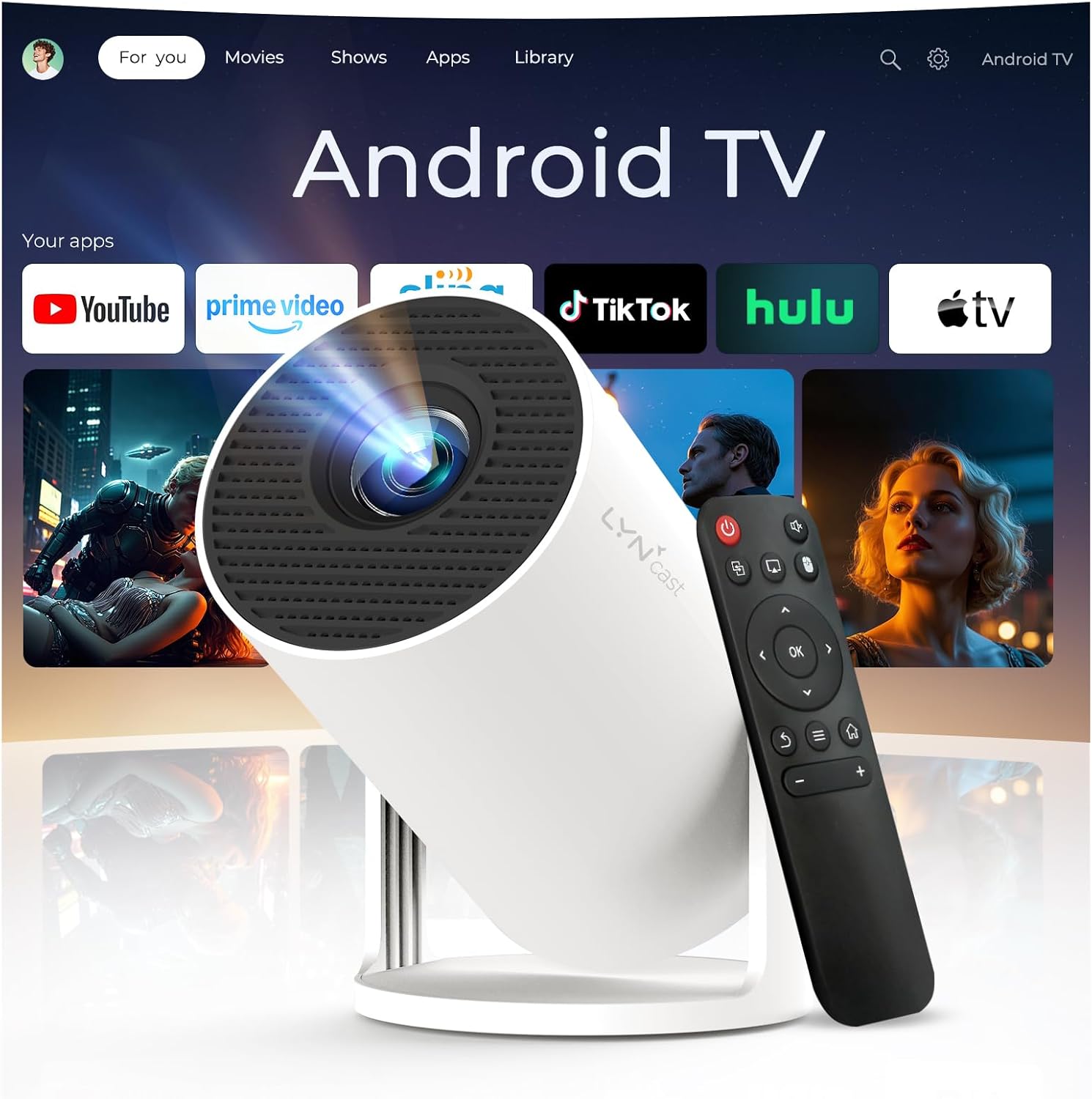
Figure 1: LYNCAST HY300pro+ Mini Projector showcasing its Android TV interface and included remote control.

Figure 2: The projector's versatility in different environments, from outdoor movie nights to cozy bedroom setups.
4. Setup Guide
4.1 Physical Setup
- Placement: Position the projector on a stable surface. Its 180° rotatable stand allows for flexible placement, including tabletop, tripod mount, or ceiling projection.
- Adjust Angle: Gently rotate the projector body on its stand to achieve the desired projection angle.
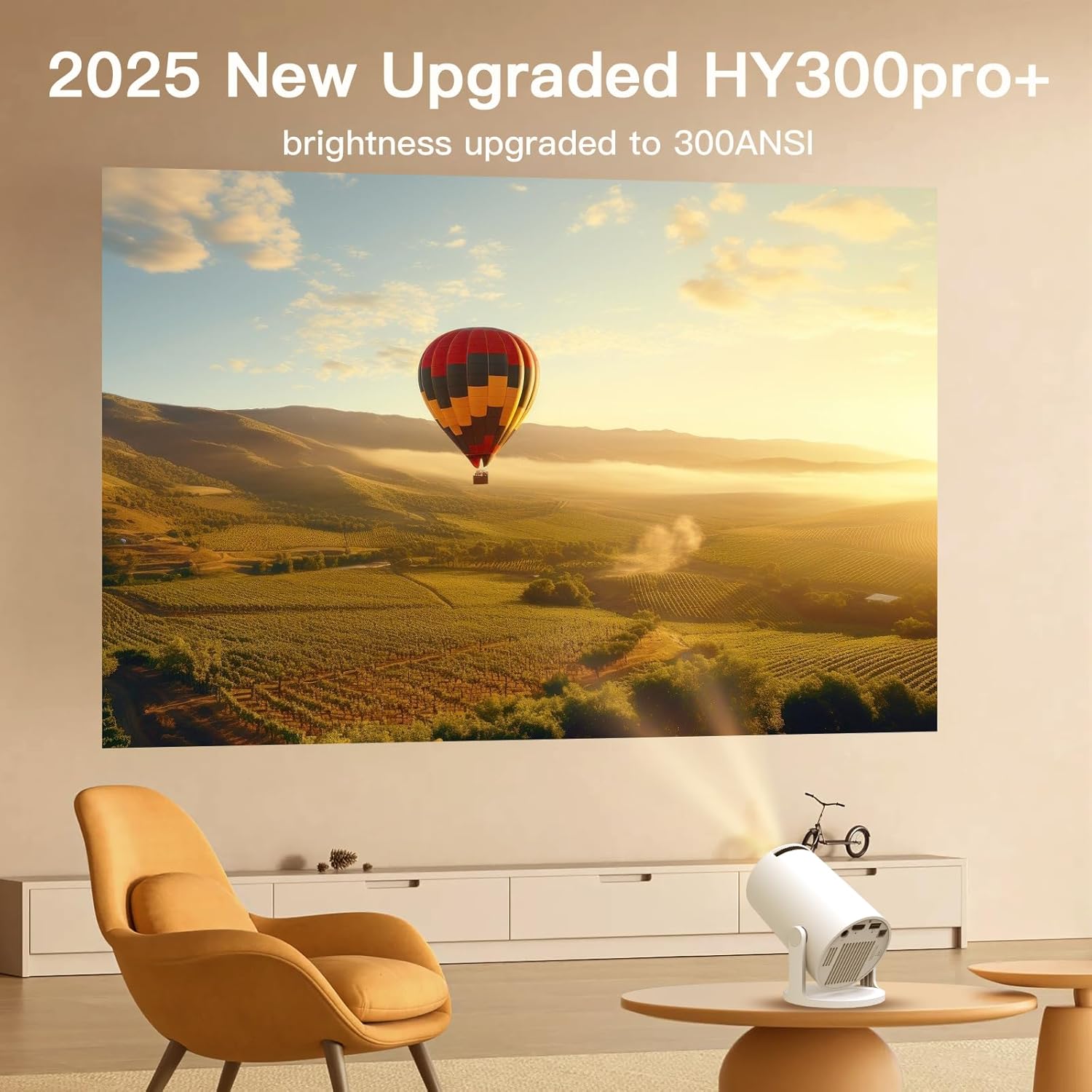
Figure 3: The projector's 180° adjustable stand allows for versatile projection angles.
4.2 Power Connection
- Connect the provided power adapter to the DC port on the projector.
- Plug the adapter into a power outlet. The projector will power on automatically or can be turned on using the power button on the device or remote.
4.3 Initial Configuration
- Wi-Fi Connection: Navigate to 'Settings' > 'Networking Setting' and select your Wi-Fi network. Enter the password to connect.
- Bluetooth Pairing: Go to 'Settings' > 'Bluetooth Setting' to pair with external Bluetooth speakers or headphones.
- Language & Time: Adjust language, date, and time settings in the 'Settings' menu.
4.4 Focus and Keystone Correction
The projector features both automatic and manual adjustments for a clear image:
- Auto Focus: The projector automatically adjusts focus upon startup or movement.
- Automatic Keystone Correction: The device automatically corrects the image to be rectangular, even if projected at an angle.
- Manual Focus: For fine-tuning, use the focus dial on the projector or the remote control to achieve optimal clarity.

Figure 4: Visual representation of auto keystone correction and manual focus capabilities.
5. Operating Instructions
5.1 Navigation
Use the included remote control to navigate the Android 11 interface. The remote allows you to select applications, adjust settings, and control media playback.
5.2 App Usage
The projector comes with pre-installed applications like Netflix and YouTube. Access the 'App Store' or 'Google Play' to download additional streaming services, games, and utilities.

Figure 5: The Android 11 OS provides access to a wide range of applications.
5.3 Connectivity
- HDMI: Connect laptops, gaming consoles, or other HDMI-enabled devices using the HDMI port.
- USB: Use the USB port for media playback from USB drives or to connect peripherals.
- Wi-Fi 6: Enjoy stable and fast internet connectivity for streaming.
- Bluetooth 5.4: Connect wirelessly to external audio devices.
- Screen Mirroring: Mirror content from your smartphone (iOS/Android) or computer (Macbook/Windows) directly to the projector.
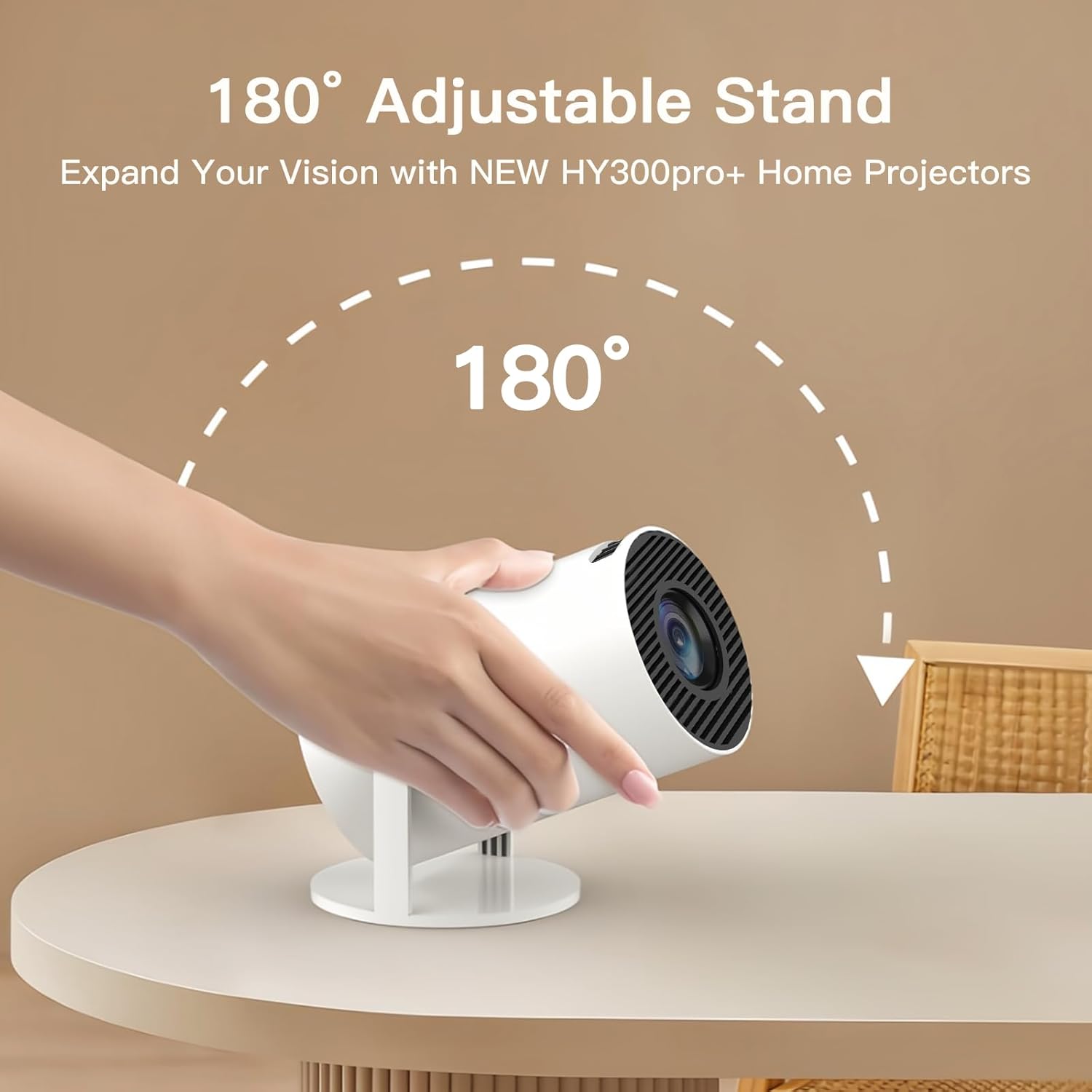
Figure 6: The projector offers multiple connectivity options for various devices.

Figure 7: Easily mirror content from your mobile devices or computer.
5.4 Audio Settings
The projector includes an upgraded 5W speaker. For enhanced audio, connect external speakers or headphones via Bluetooth 5.4 or the audio output port.

Figure 8: The projector's Bluetooth capabilities allow for flexible audio setups.
5.5 Projection Modes
The 180° rotatable stand supports various projection modes:
- Front Projection: Standard projection from in front of the screen/wall.
- Rear Projection: Projection from behind a translucent screen.
- Ceiling Projection: Project onto the ceiling for comfortable viewing while lying down.

Figure 9: Different projection setups for optimal viewing in any space.
6. Maintenance
To ensure the longevity and optimal performance of your LYNCAST HY300pro+ Mini Projector, follow these maintenance guidelines:
- Cleaning the Lens: Use a soft, lint-free cloth specifically designed for optical lenses. Avoid abrasive materials or harsh chemicals.
- Cleaning the Exterior: Wipe the projector's exterior with a soft, dry cloth. Do not use liquid cleaners directly on the device.
- Ventilation: Ensure the projector's ventilation openings are clear and unobstructed to prevent overheating.
- Storage: When not in use, store the projector in a cool, dry place away from direct sunlight and extreme temperatures.
7. Troubleshooting
If you encounter issues with your projector, refer to the following common troubleshooting steps:
- No Picture: Check power connection, input source selection (HDMI, USB, etc.), and ensure the lens cap is removed.
- Blurry Image: Adjust the focus using the manual dial or remote. Ensure the projector is within the recommended projection distance.
- No Sound: Verify volume settings on the projector and connected devices. Check Bluetooth connection for external speakers or headphones.
- Connectivity Issues: For Wi-Fi, ensure the network is stable and the password is correct. For screen mirroring, ensure both devices are on the same network.
- Overheating: Ensure ventilation vents are clear. Turn off the projector and allow it to cool down if it feels excessively hot.
8. Specifications
| Feature | Detail |
|---|---|
| Brand | LYNCAST |
| Model Number | X1BQ |
| Item Weight | 12.3 ounces |
| Product Dimensions | 3.54 x 3.54 x 6.14 inches |
| Operating System | Android 11 |
| Connectivity Technology | Bluetooth, HDMI, USB, Wi-Fi 6 |
| Display Resolution | 1280 x 720 (Native), 4K Support |
| Special Features | Short Throw, Speakers, Portable, Built-In Speaker, Auto Keystone, 180° Rotatable Stand |
9. Warranty and Support
LYNCAST is dedicated to delivering exceptional service. Your HY300pro+ Mini Projector comes with a 2-year reliability period to ensure your purchase is worry-free. For technical support, warranty claims, or any inquiries, please refer to the contact information provided in the packaging or visit the official LYNCAST website.
10. Official Product Videos
Video 1: Overview of the LYNCAST Mini Projector with WiFi and Bluetooth, highlighting its built-in Android 11 features.
Video 2: Demonstration of the LYNCAST Mini Projector's portable design and wireless capabilities.


