
1. Introduction
This manual provides detailed instructions for the setup, operation, and maintenance of your UPERFECT Portable Monitor 23.8" 2.5K 180Hz. Please read this manual thoroughly before using the product to ensure proper functionality and to prevent damage.
The UPERFECT 23.8-inch portable monitor offers a 2.5K QHD resolution with a 180Hz refresh rate, designed for both productivity and gaming. It features 500 nits brightness, 0.1ms response time, FreeSync technology, and versatile connectivity options including USB-C and HDMI. Its integrated kickstand and VESA mount compatibility provide flexible placement options.

Image 1.1: UPERFECT Portable Monitor 23.8" 2.5K 180Hz.
2. Package Contents
Verify that all items listed below are included in your package. If any items are missing or damaged, please contact customer support.
- 23.8" 2.5K 180Hz Monitor
- HDMI to HDMI Cable
- Type-C to Type-C Cable (x2)
- PD 45W Power Adapter
- User Manual
- 24" Monitor Case

Image 2.1: Included accessories with the UPERFECT Portable Monitor.
3. Setup
3.1 Connecting to a Device
The monitor supports connections via USB-C (full-featured) and HDMI. Ensure your device supports video output over the chosen port.
- USB-C Connection:
- Connect one end of the provided Type-C to Type-C cable to the monitor's USB-C port.
- Connect the other end to a full-featured USB-C port on your laptop, smartphone, or game console.
- If your device's USB-C port does not provide sufficient power, connect the PD 45W power adapter to the monitor's other USB-C port for power.
- HDMI Connection:
- Connect one end of the provided HDMI to HDMI cable to the monitor's HDMI port.
- Connect the other end to the HDMI output port on your laptop, computer, or game console.
- For power, connect the PD 45W power adapter to one of the monitor's USB-C ports.

Image 3.1: Monitor interfaces and controls.
3.2 Powering On
After connecting the monitor to your device and power source (if necessary), press the Power/Back button located on the side of the monitor to turn it on. The monitor should automatically detect the input signal.

Image 3.2: Power Delivery (PD) 45W charging support.
4. Operating Instructions
4.1 On-Screen Display (OSD) Menu
The OSD menu allows you to adjust various display settings. Use the pulley button (joystick) on the side of the monitor to navigate and select options.
- Press the pulley button: Opens the OSD menu.
- Move the pulley button Up/Down: Navigates through menu options.
- Move the pulley button Left/Right: Adjusts values or enters sub-menus.
- Press the Power/Back button: Exits the current menu or goes back to the previous level.
4.2 Key Settings
- Brightness/Contrast: Adjust these settings to optimize visual comfort and image clarity. The monitor features 500 nits brightness for clear visibility in various lighting conditions.
- Color Settings: Fine-tune color temperature, hue, and saturation. The 2.5K QHD resolution and 125% sRGB color gamut ensure accurate and vivid color reproduction.
- Refresh Rate: The monitor supports up to 180Hz. Ensure your connected device is configured to output at this refresh rate for the smoothest experience, especially in gaming.
- FreeSync: Enable FreeSync (Adaptive Sync) in the OSD menu and on your compatible graphics card settings to eliminate screen tearing and stuttering during gaming.
- Input Source: Manually select between USB-C and HDMI input if auto-detection does not work as expected.
- Eye Care Features: The monitor includes Low Blue Light and Anti-Flicker technologies to reduce eye strain during prolonged use. These can typically be adjusted or enabled within the OSD menu.

Image 4.1: Eye Care features for reduced eye strain.
5. Features Overview
5.1 High Resolution and Refresh Rate
Experience sharp visuals with the 2.5K QHD (2560x1440) resolution and ultra-smooth motion thanks to the 180Hz refresh rate and 0.1ms response time. This combination is ideal for fast-paced gaming and high-definition media consumption.
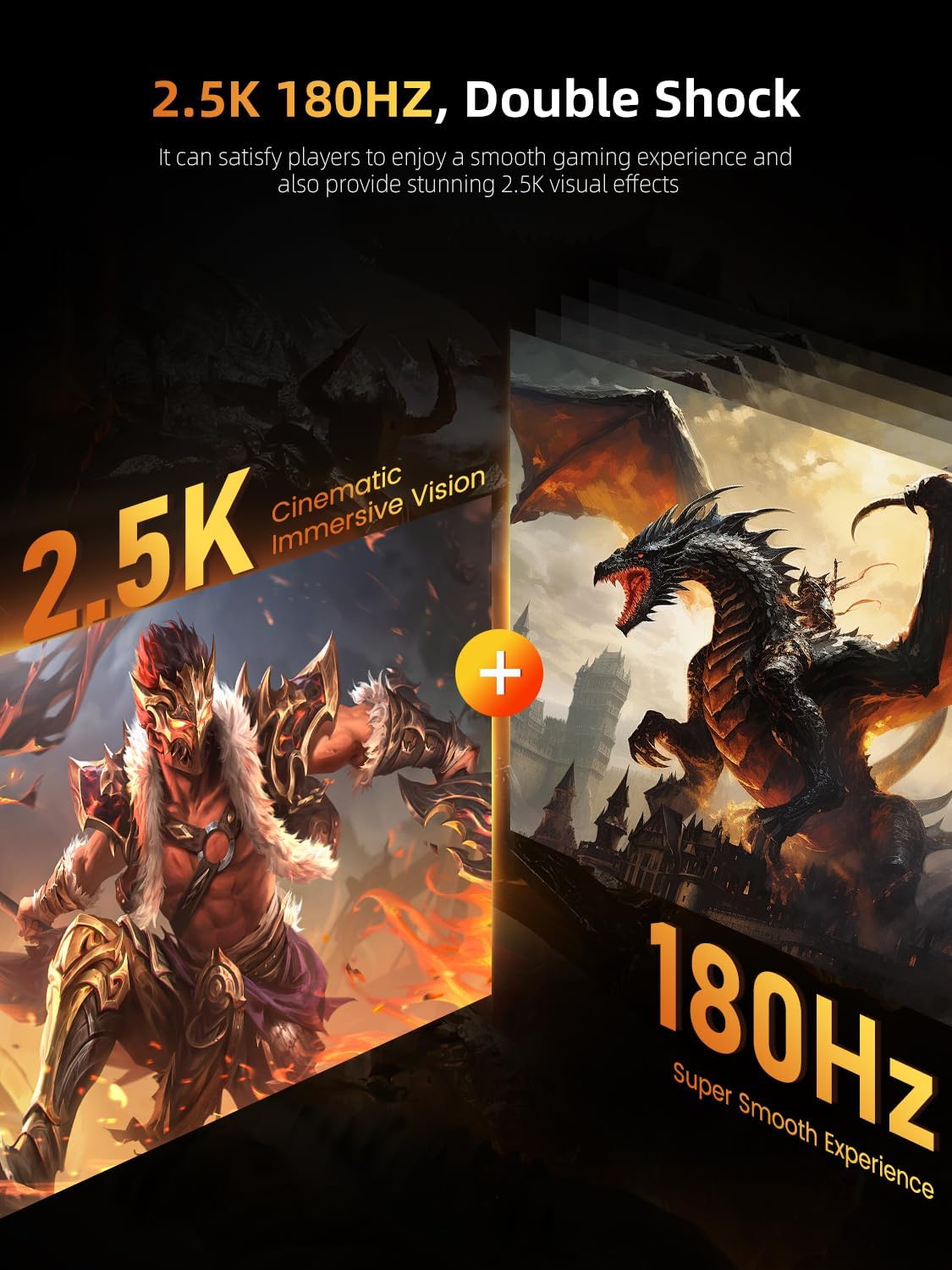
Image 5.1: 2.5K QHD resolution and 180Hz refresh rate for enhanced visuals.
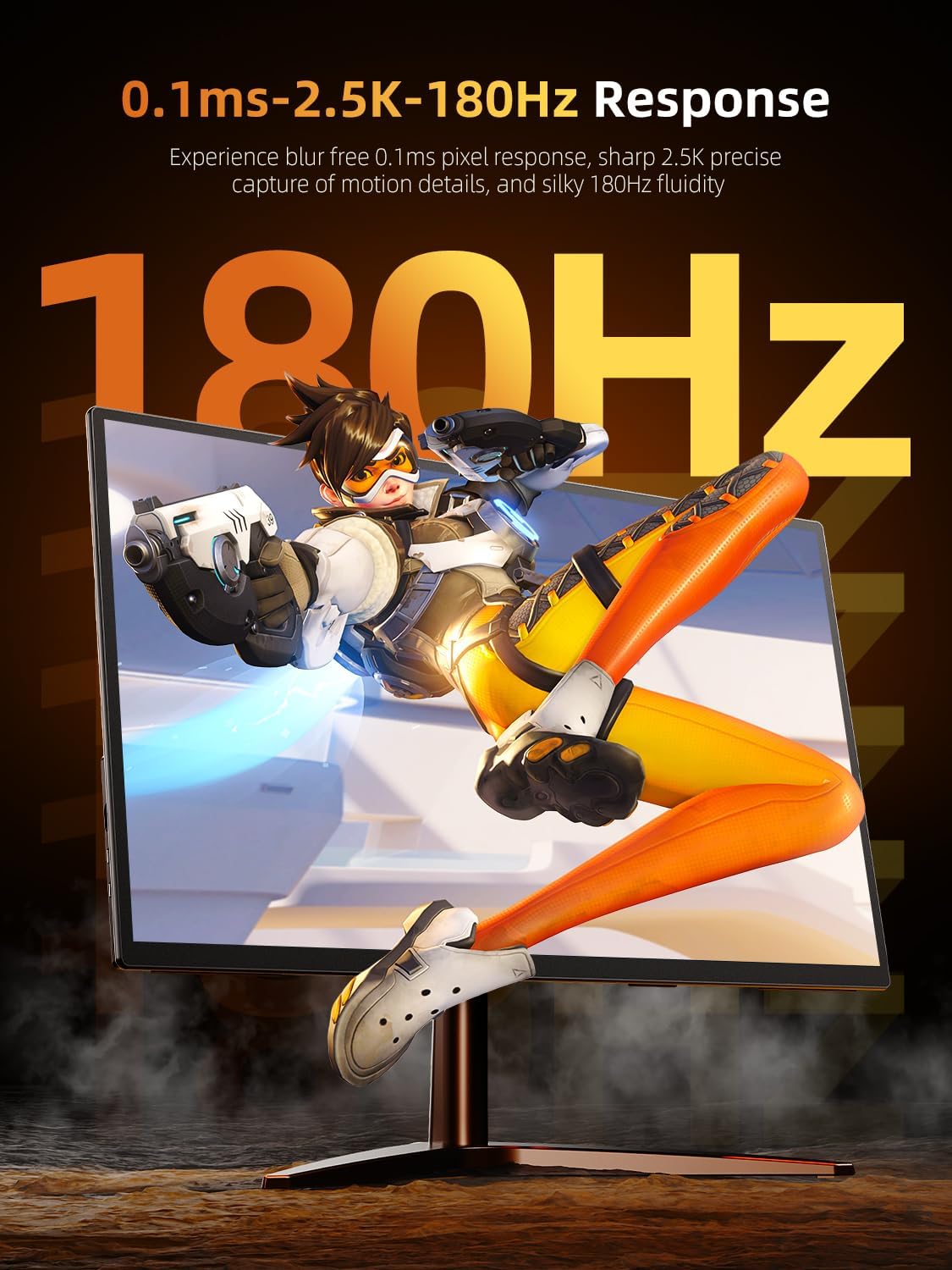
Image 5.2: 0.1ms response time for precise motion detail.
5.2 Brightness and Color Accuracy
With 500 nits of brightness, the monitor delivers vibrant images and strong contrasts, performing well in various lighting conditions. The 125% sRGB color gamut ensures accurate and true-to-life colors for professional and entertainment use.

Image 5.3: 500 nits brightness for cinematic vision.
5.3 FreeSync Technology
Integrated FreeSync technology synchronizes the monitor's refresh rate with your graphics card's frame rate, eliminating screen tearing and stuttering for a smoother gaming experience.

Image 5.4: FreeSync for quick response and no delay.
5.4 Dual Speakers
The monitor includes built-in dual speakers for audio output, suitable for general use. For optimal audio quality, especially in gaming or professional applications, external headphones or speakers are recommended.

Image 5.5: Dual speakers for integrated audio.
5.5 Durable Design
The monitor features an all-aluminum alloy design, providing durability and a premium feel. This construction also aids in heat dissipation, contributing to the monitor's longevity.

Image 5.6: All-aluminum alloy design for durability and heat dissipation.
6. Mounting Options
6.1 Integrated Kickstand
The monitor features a built-in 180° adjustable kickstand, allowing you to easily set the monitor at various viewing angles for ergonomic comfort. This makes it convenient for desktop use without additional accessories.

Image 6.1: Monitor utilizing its integrated kickstand.
6.2 VESA Mount Compatibility
For more permanent installations or to save desk space, the monitor is equipped with VESA (75x75@M4) mounting holes on the back. This allows it to be installed on compatible wall mounts or desktop monitor arms.

Image 6.2: Monitor mounted on a VESA arm.
7. Maintenance
Proper maintenance ensures the longevity and optimal performance of your monitor.
- Cleaning the Screen:
- Turn off the monitor and disconnect all cables.
- Gently wipe the screen with a soft, lint-free cloth.
- For stubborn marks, lightly dampen the cloth with water or a screen-specific cleaning solution. Do not spray liquid directly onto the screen.
- Avoid using alcohol, ammonia, or abrasive cleaners, as these can damage the screen surface.
- Cleaning the Casing:
- Wipe the monitor casing with a soft, dry cloth.
- The aluminum alloy design is durable and resistant to fingerprints.
- Storage:
- When not in use, especially during travel, store the monitor in the provided monitor case to protect it from dust and scratches.
- Avoid placing heavy objects on the monitor.

Image 7.1: Storing the monitor in its protective case.
8. Troubleshooting
If you encounter issues with your monitor, refer to the following common solutions:
| Problem | Possible Solution |
|---|---|
| No signal / Black screen |
|
| No power / Monitor does not turn on |
|
| Image is blurry or distorted |
|
| No audio |
|
| FreeSync not working |
|
9. Specifications
| Feature | Detail |
|---|---|
| Model Number | 2382180 |
| Screen Size | 23.8 Inches |
| Resolution | 2560 x 1440 Pixels (QHD Wide 1440p) |
| Refresh Rate | 180Hz |
| Response Time | 0.1ms |
| Image Brightness | 500 Candela (Nits) |
| Aspect Ratio | 16:9 |
| Screen Surface | Matte |
| Connectivity | 2x USB-C (Full-featured), 1x HDMI, 1x 3.5mm Audio Port |
| VESA Mount | 75x75mm (M4) |
| Product Dimensions | 3.2 x 21.3 x 12.76 inches |
| Item Weight | 6.6 pounds |
| Manufacturer | UPERFECT |
10. Warranty and Support
For warranty information and technical support, please refer to the official UPERFECT website or contact their customer service directly. Keep your purchase receipt for warranty claims.
For further assistance, you may visit the UPERFECT Store on Amazon.


