
1. Introduction
This manual provides essential information for the safe and efficient use of your GTPLAYER Electric Standing Desk. This desk features an electric height adjustment system, integrated storage, and ergonomic accessories designed for a comfortable workspace. Please read this manual thoroughly before assembly and operation.
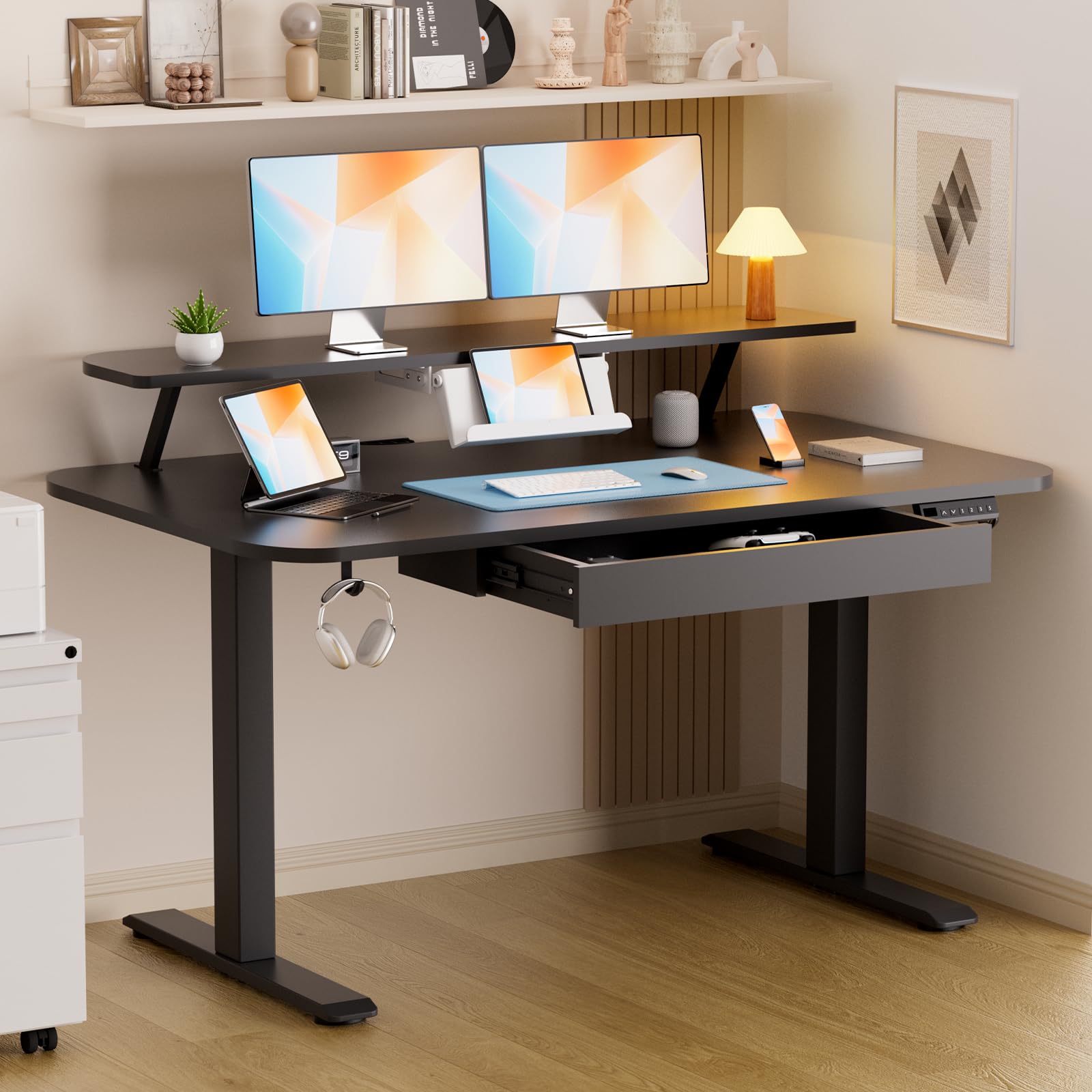
Image 1.1: GTPLAYER Electric Standing Desk (Black, 48 x 24 Inches)
2. Safety Information
To ensure safe operation and prevent damage, observe the following guidelines:
- Do not exceed the maximum weight recommendation of 176 pounds (80 kg).
- Ensure the desk is stable and properly assembled before use.
- Follow the provided assembly instructions carefully to avoid any potential hazards.
- Keep children and pets away from the desk during height adjustments.
- Do not place liquids directly on the control panel or near electrical components.
- Disconnect power before cleaning or maintenance.
3. Package Contents
Verify that all components are present before beginning assembly. If any parts are missing or damaged, please contact customer support.
- Desktop Surface (48 x 24 Inches)
- Electric Lift System Frame
- Monitor Stand
- Laptop Stand
- Integrated Drawer
- Control Panel
- Side Hooks (2)
- Assembly Hardware and Tools
- User Manual
4. Setup and Assembly
The desk includes clear instructions, necessary tools, and an installation video to facilitate easy assembly. Please follow the step-by-step guide provided in the separate assembly manual included with your product.
General Assembly Steps:
- Unpack all components and verify against the package contents list.
- Assemble the electric lift system frame according to the instructions.
- Attach the desktop surface to the assembled frame.
- Install the monitor stand, laptop stand, and integrated drawer.
- Mount the control panel and connect all necessary cables.
- Attach the side hooks to the desired locations.
- Perform initial calibration as described in the operating instructions.
For visual guidance, refer to the installation video provided by the manufacturer.
5. Operating Instructions
5.1. Electric Height Adjustment
Your GTPLAYER Electric Standing Desk features a smooth and quiet electric lift system, allowing you to adjust the desk height from 28.3 inches to 48 inches. The motor operates at under 55dB, ensuring minimal disturbance.

Image 5.1: Desk height adjustment in use.
5.2. Control Panel
The intuitive LED control panel allows for precise height adjustments and memory presets.
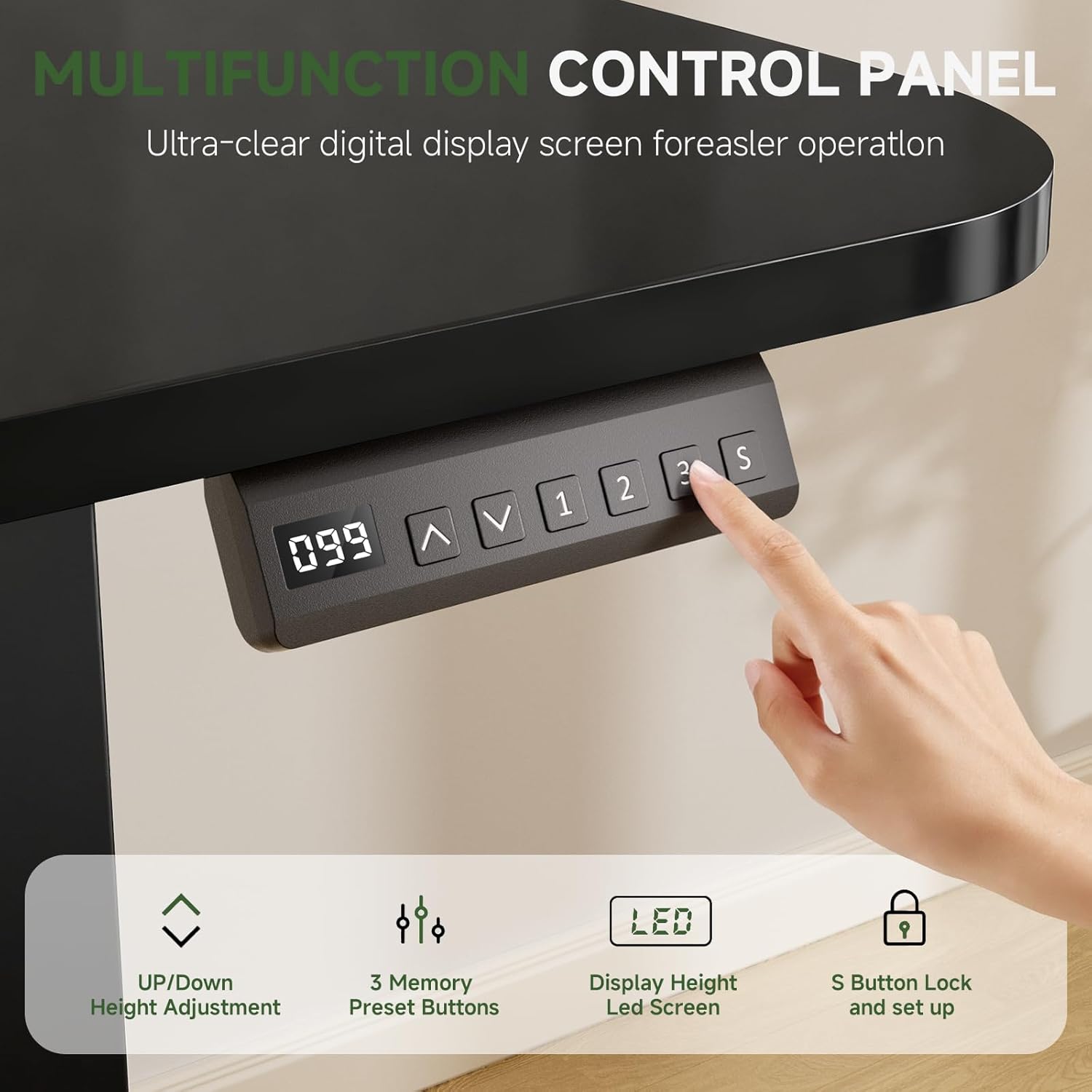
Image 5.2: Control Panel with LED Display
- Up/Down Arrows (▲ / ▼): Press and hold to manually adjust the desk height.
- LED Display: Shows the current desk height in inches.
- Memory Presets (1, 2, 3): Store and recall preferred desk heights.
- 'S' Button: Used to save memory presets and potentially lock the panel (refer to detailed assembly manual for specific lock/setup functions).
5.3. Setting Memory Presets
- Adjust the desk to your desired height using the Up/Down arrows.
- Press the 'S' button. The LED display may flash or show 'S'.
- Within 3 seconds, press the desired memory button (1, 2, or 3) to save the current height. The display will confirm the setting.
- To recall a saved height, simply press the corresponding memory button (1, 2, or 3). The desk will automatically move to the saved position.
5.4. Video Demonstration
Video 5.1: Demonstration of Height Adjustable Standing Desk for Home & Office.

Image 5.3: Ultra Quiet Design (under 55dB).
6. Key Features
6.1. Ergonomic Monitor Stand
The built-in monitor stand elevates your screen to an ergonomic viewing height, reducing neck and back strain.

Image 6.1: Built-in Monitor Stand for Ergonomic Posture.
6.2. Adjustable Laptop/Tablet/Book Stand
A versatile stand is included, suitable for holding laptops, tablets, or books at an optimal viewing angle.

Image 6.2: Multi-functional Stand for Devices and Books.
6.3. Integrated Drawer and Mousepad
A spacious integrated drawer provides convenient storage for desktop essentials, helping to keep your workspace organized. A large mousepad is also included.

Image 6.3: Integrated Drawer for Storage.
6.4. Side Hooks and Cable Management
Two side hooks offer additional storage for headphones, bags, or other accessories. The desk also incorporates features for organized cable management.

Image 6.4: Side Hook and Cable Management.
6.5. Feature Overview Video
Video 6.1: Overview of Electric Standing Desk with Drawers.
7. Maintenance
Regular maintenance helps ensure the longevity and optimal performance of your desk.
- Cleaning: Wipe the desk surface and frame with a soft, damp cloth. Avoid abrasive cleaners or harsh chemicals.
- Inspections: Periodically check all screws and connections to ensure they are secure. Tighten if necessary.
- Cable Management: Ensure cables are neatly organized and not pinched or strained during height adjustments.
- Weight Limit: Always adhere to the maximum weight capacity of 176 lbs.
8. Troubleshooting
If you encounter issues with your GTPLAYER Electric Standing Desk, refer to the following common solutions:
| Problem | Possible Cause | Solution |
|---|---|---|
| Desk does not move | Power cable disconnected; Motor overload; Control panel error. | Check power connection. Unplug and replug the power cable. Wait 20 minutes for motor to cool if continuously used. Refer to the detailed manual for control panel reset procedures. |
| Uneven height adjustment | Calibration issue. | Perform a calibration reset. Typically involves lowering the desk to its lowest point and holding the down button for several seconds until it resets. Refer to the detailed manual for specific steps. |
| Unusual noise during operation | Loose components; Obstruction; Motor issue. | Check for any obstructions under the desk. Ensure all assembly screws are tightened. If the noise persists, contact customer support. |
| Memory presets not working | Incorrect saving procedure. | Re-follow the steps for setting memory presets (Section 5.3). Ensure the 'S' button is pressed before the memory button. |
For issues not covered here or if problems persist, please contact GTPLAYER customer support.
9. Specifications

Image 9.1: Product Dimensions.
| Feature | Detail |
|---|---|
| Brand | GTPLAYER |
| Model Number | DTS118-NEW |
| Product Dimensions (D x W x H) | 24"D x 48"W x 28"H |
| Height Adjustment Range | 28.3 inches to 48 inches |
| Maximum Weight Capacity | 176 pounds (80 kg) |
| Material (Top) | Wood (FSC-Certified) |
| Material (Frame/Base) | Alloy Steel / Stainless Steel |
| Color | Black |
| Number of Drawers | 1 |
| Item Weight | 57.3 pounds |
| Motor Noise Level | Under 55dB |
| Special Features | Adjustable Height, Electric, Monitor Stand, Laptop Stand, Integrated Drawer, Side Hooks, Cable Management |
10. Warranty Information
For detailed warranty information regarding your GTPLAYER Electric Standing Desk, please refer to the warranty card included in your product packaging or visit the official GTPLAYER website. Warranty terms and conditions may vary by region and retailer.
11. Customer Support
If you require assistance with assembly, operation, troubleshooting, or have any questions about your GTPLAYER Electric Standing Desk, please contact GTPLAYER customer support.
- Online Support: Visit the official GTPLAYER website for FAQs, support resources, and contact forms.
- Retailer Support: For purchases made through a specific retailer, you may also contact their customer service department for assistance.