Introduction
This manual provides detailed instructions for the CMSTEDCD USB C KVM Docking Station, Model SW524. This device allows you to control two computers and two monitors using a single set of keyboard and mouse, enhancing workspace efficiency. It supports dual 4K@60Hz display output and offers various connectivity options including Ethernet, USB, and card readers.
Package Contents
Verify that all items are present in the package:
- CMSTEDCD USB C KVM Docking Station (Model SW524)
- DC12V Power Adapter
- USB-C to USB-C Cable (x1)
- Desktop Controller (Remote Switch)
- User's Manual
Product Overview
Familiarize yourself with the ports and indicators on the docking station.
Front Panel

Image: Front panel layout of the KVM docking station.
- USB-A 3.2 Ports (x2): For connecting high-speed USB devices.
- USB-C 3.2 Port (x1): Data transfer only. Does not support Power Delivery (PD) charging or video transmission.
- SD/MicroSD Card Slots: For reading and transferring data from memory cards.
- Switch Button (PC1-PC2): Press to switch between connected computers.
- Input Channel (LED): Indicates which computer (PC1 or PC2) is currently active.
- Extend Control Port: For connecting the included desktop controller.
Rear Panel

Image: Rear panel layout of the KVM docking station.
- Power Switch (ON/OFF): Controls the power to the docking station.
- Power Port (DC12V): Connect the provided power adapter.
- 1G Ethernet Port (LAN IN): Connect to your network for wired internet access.
- USB-A 3.0 Ports (x2): For connecting additional USB devices.
- USB-C Input Ports (PC1 IN, PC2 IN): Connect to your computers' USB-C ports. These ports must support video transmission (DP Alt Mode or Thunderbolt 3/4/5). They do not provide PD charging.
- HDMI OUT Ports (OUT A, OUT B): Connect to your monitors. Supports up to 4K@60Hz.
Compatibility
This docking station requires your laptop's USB-C port to support DisplayPort Alternate Mode (DP Alt Mode) or be a Thunderbolt 3/4/5 port. Examples of compatible laptop series include:
- HP Laptops: EliteBook 700/800, Omen, Elite Dragonfly, Elitebook Ultra series.
- Dell Laptops: XPS, Latitude, Precision, Pro series.
- Lenovo Laptops: ThinkPad, Yoga, ThinkBook, X1 series.
- Acer Laptops: Swift, Concept D, Neo 2023+ series.
- Asus Laptops: ROG, ProArt series.
For specific models or other brands, verify that the USB-C port supports video output.
Note for macOS Users: macOS only supports mirroring mode for dual displays. Extended display (MST) is not supported via the USB-C port on MacBooks.
Setup Instructions
Follow these steps to set up your KVM docking station:
- Connect Power: Plug the DC12V Power Adapter into the Power Port on the rear panel of the docking station, then connect it to a power outlet. Turn on the power switch.
- Connect Monitors: Connect your two monitors to the HDMI OUT A and HDMI OUT B ports on the rear panel using HDMI cables (not included).
- Connect Computers: Use the provided USB-C to USB-C cable (and an additional one if needed) to connect your two computers to the PC1 IN and PC2 IN USB-C ports on the rear panel. Ensure your computer's USB-C port supports video output.
- Connect Peripherals: Connect your keyboard, mouse, and other USB devices to the USB-A ports on the front or rear panel.
- Connect Network (Optional): Connect an Ethernet cable from your router or modem to the 1G Ethernet Port on the rear panel.
- Connect Desktop Controller (Optional): Plug the desktop controller into the Extend Control Port on the front panel for convenient switching.

Image: Example setup with two laptops, two monitors, and peripherals connected to the docking station.
Operating Instructions
The KVM docking station offers two methods for switching between connected computers:
- Front Panel Button: Press the 'Select' button on the front panel of the docking station to switch between PC1 and PC2. The LED indicator will show the active computer.
- Desktop Controller: Use the external desktop controller to switch between PC1 and PC2. This allows for switching even if the docking station is placed out of reach.
Note: Keyboard shortcuts (hotkeys) are not supported for switching with this model.
Network Switching: The 1G Ethernet port follows the current channel switch. It cannot be used by two computers simultaneously.
Display Modes
The docking station supports various display configurations up to 4K@60Hz.
Windows Operating System
For Windows, the docking station supports both dual screen docking (extended display) and dual screen mirroring modes. You can configure your display settings within the Windows operating system.
macOS Operating System
For macOS, only mirroring mode is supported. The USB-C port on MacBooks does not support Multi-Stream Transport (MST) for extended display through this device.
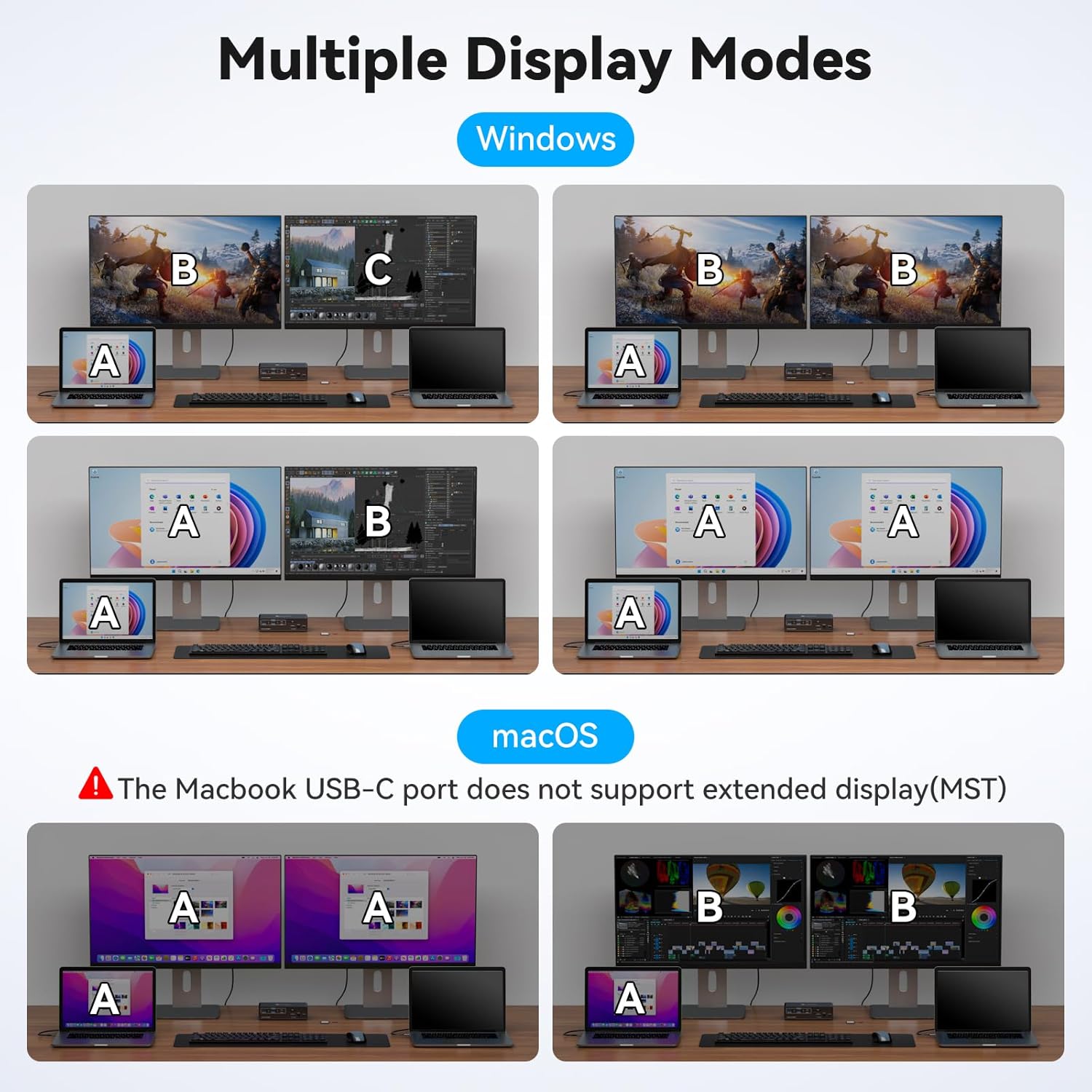
Image: Visual representation of various display configurations for Windows and macOS.
EDID Emulation
The docking station features EDID emulation, which helps maintain consistent display settings when switching between computers. This prevents resolution changes and icon rearrangement on your desktop, simplifying your workflow.

Image: Demonstration of EDID emulation maintaining desktop layout.
Maintenance
To ensure optimal performance and longevity of your docking station:
- Keep the device in a clean, dry environment, away from direct sunlight and extreme temperatures.
- Clean the exterior with a soft, dry cloth. Avoid using liquid cleaners or solvents.
- Ensure proper ventilation around the device to prevent overheating.
- Avoid placing heavy objects on top of the docking station.
Troubleshooting
If you encounter issues, refer to the following common solutions:
- No Display Output:
- Ensure the docking station is powered on.
- Verify that the USB-C input cables from your computers are securely connected to the PC1 IN/PC2 IN ports.
- Confirm that your computer's USB-C port supports video transmission (DP Alt Mode or Thunderbolt).
- Check HDMI cable connections to monitors.
- Try restarting the docking station and your computers.
- USB Devices Not Working:
- Ensure USB devices are properly connected to the docking station's USB ports.
- Verify the active computer channel.
- Note that the front USB-C port is for data only and does not support PD charging.
- Network Connectivity Issues:
- Ensure the Ethernet cable is securely connected to the LAN IN port and your network source.
- Remember that the network connection follows the active computer channel and cannot be used by both computers simultaneously.
- Desktop Icons Rearrange After Switching:
- The EDID emulation feature is designed to prevent this. If it occurs, ensure all connections are stable and try restarting the connected computers.
- macOS Display Limitations:
- Remember that macOS only supports mirroring mode for dual displays through this docking station. Extended display is not available for macOS.
Video: Detailed guide on setting up and troubleshooting the KVM docking station.
Specifications
| Model Number | SW524 |
| Brand | CMSTEDCD |
| Connectivity | USB-C (Input x2), HDMI (Output x2), USB-A 3.2 (x2), USB-A 3.0 (x2), USB-C 3.2 (Data only x1), 1G Ethernet (x1), SD/MicroSD Card Slots (x1 each) |
| Video Resolution | Up to 4K@60Hz |
| Switching Method | Push Button (Front Panel), External Desktop Controller |
| EDID Emulation | Yes |
| Power Supply | DC12V Power Adapter |
| Item Weight | 580 g |
| Dimensions | 20 x 14.6 x 5.6 cm (Parcel Dimensions) |
Warranty and Support
This product comes with a 24-month warranty from the date of purchase. If you encounter any issues or require technical assistance, please contact CMSTEDCD customer support. We provide technical support, product replacement, or refund services as applicable within the warranty period.
Please refer to the contact information provided with your product packaging or on the official CMSTEDCD website for support.