
Introduction
This manual provides essential instructions for the setup, operation, and maintenance of your UYXOERA 4710 in 1 SAGA DX Plus Multi-Game System Arcade Jamma Board. This system offers an extensive library of 4710 classic games, including 3D and 4-player titles, designed for an immersive retro gaming experience.
Key features include:
- High-Definition 1280x720P resolution output via HDMI or VGA.
- Support for 3D, 3-player, and 4-player games.
- Multiplayer gaming with external USB controller compatibility.
- Advanced game management features: Pause/Exit, Hide Games, Favorite Game List, Search Games, Recent Games, Game Classification.
- Customizable buttons and image enhancement capabilities.
- Compact design with an integrated cooling fan for reliable performance.
Setup Instructions
Follow these steps to properly set up your SAGA DX Plus Jamma Board.
1. Board Overview and Connections

Image: Overview of the SAGA DX Plus Jamma Board showing various input/output ports. From left to right: DC12V 5A power input, HDMI output, VGA output, 3.5mm AUX audio output, Volume control, Setting button, and a USB port for joystick input or adding games via U disk.

Image: Rear view of the SAGA DX Plus Jamma Board highlighting the 40-pin connector, power switch, speaker output, 12V 5A DC power supply input, and USB Gamepad port. A diagram illustrates connecting the power switch and button light lamps.
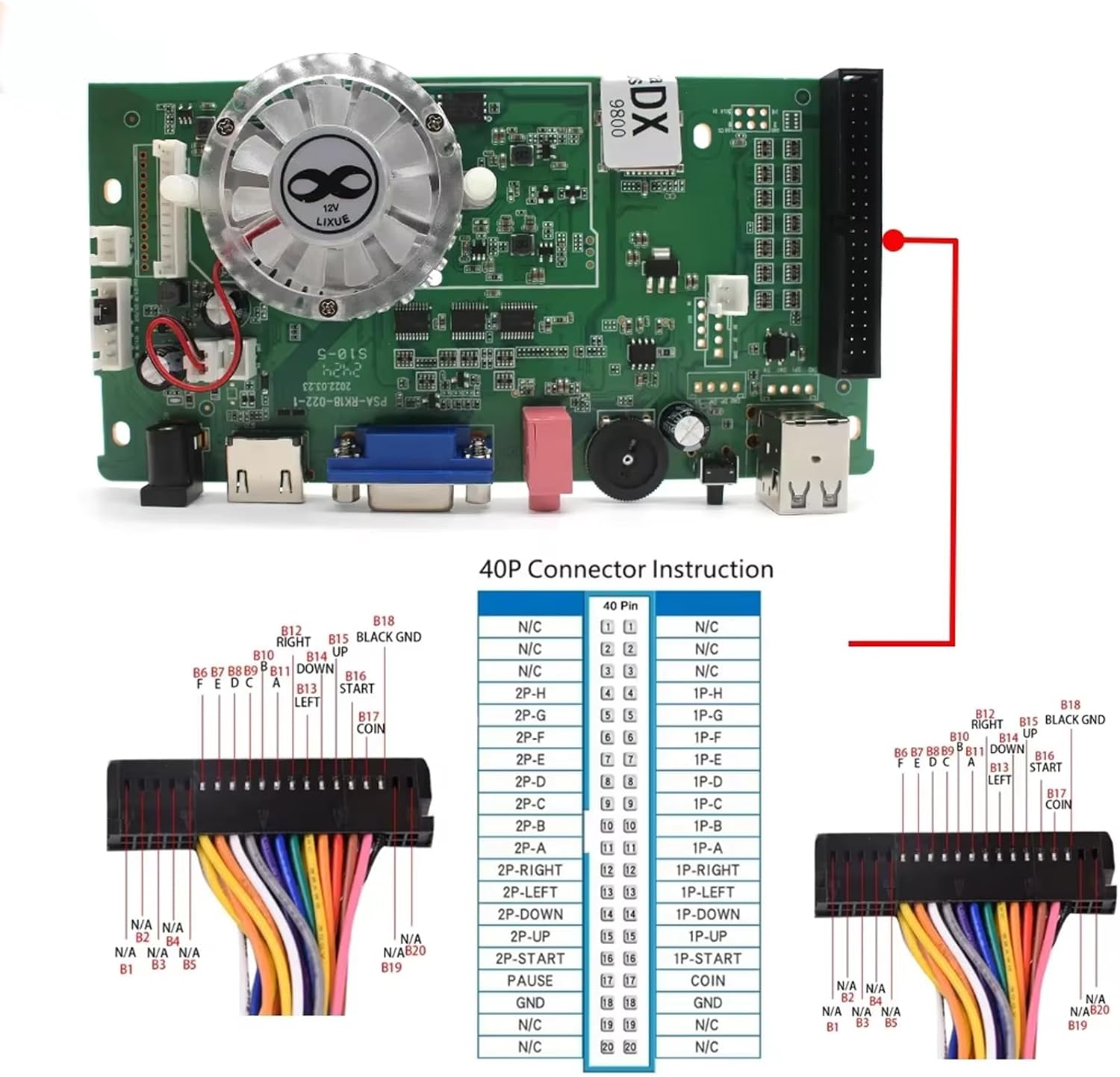
Image: Detailed diagram for the 40-pin connector, providing pin assignments for various functions including player controls (UP, DOWN, LEFT, RIGHT, START, COIN, A, B, C, D, E, F), GND, and N/C (Not Connected) pins. This is crucial for integrating the board into an arcade cabinet or custom setup.
2. Power Connection
- Connect the provided 12V 5A DC power supply to the "DC12V 5A" input port on the board.
- Ensure the power switch is correctly wired and connected as shown in the provided diagram (refer to the image above showing the rear view). The power switch must be connected for the unit to power on.
3. Video Output Connection
- For high-definition output, connect an HDMI cable from the board's HDMI port to your display (monitor, TV, or projector).
- Alternatively, use a VGA cable to connect the board's VGA port to a compatible display. The system supports 1280x720P resolution.
4. Audio Output Connection
- Connect external speakers or an audio system to the 3.5mm AUX audio output port for sound.
- The board also has a dedicated speaker output connection point (refer to the rear view image), typically used for internal arcade cabinet speakers.
5. Controller Connection
- For arcade cabinet integration, connect your joysticks and buttons to the 40-pin GPIO connector according to the detailed pinout diagram provided.
- For external controllers, connect USB gamepads to the USB port labeled "Joystick Input" or "USB Gamepad". The system supports up to 4 players.
Operating Instructions
This section details how to navigate and utilize the features of your SAGA DX Plus Multi-Game System.
1. Powering On and Initial Boot
- After all connections are secure, flip the power switch to the ON position.
- The system will boot up and display the main game selection menu.
2. Game Selection and Navigation
- Use the joystick or D-pad on your controller to navigate through the game list.
- Press the designated "Select" or "A" button to choose a game and start it.
- The system supports game classification, allowing you to browse games by genre or type.
3. In-Game Functions
- Pause/Exit: During gameplay, press the designated "Pause" button to temporarily stop the game. Press it again to resume. To exit a game, follow the on-screen prompts or press a specific combination of buttons (refer to the system's on-screen help if available).
- Volume Control: Adjust the audio output using the physical volume knob on the board or through the system's settings menu.
4. Advanced Features
- Favorite Game List: Mark your preferred games to quickly access them from a dedicated favorites list.
- Search Games: Use the search function to find specific titles within the extensive game library.
- Hide Games: Games can be hidden from the main list if desired.
- Recent Games: Access a list of recently played games for quick re-selection.
- Image Enhancement: The system includes features to improve the visual quality of games. Access these options through the system settings.
- Adding Games: Games can be added via a U disk connected to the USB port. Refer to the system's internal instructions for the specific file format and directory structure required. The internal TF card (visible in the internal view image) contains the pre-loaded games.
Maintenance
Proper maintenance ensures the longevity and optimal performance of your SAGA DX Plus Jamma Board.

Image: Internal view of the SAGA DX Plus Jamma Board, highlighting the cooling fan for efficient heat dissipation and the TF card which stores the game library.
- Ventilation and Heat Dissipation: The board features an integrated cooling fan. Ensure that the fan and ventilation openings are not obstructed. Operate the board in a well-ventilated area to prevent overheating.
- Cleaning: Regularly clean the exterior of the board with a soft, dry cloth. Avoid using liquid cleaners or abrasive materials. If dust accumulates on the cooling fan, use compressed air to gently clear it.
- Storage: When not in use for extended periods, store the board in a cool, dry place away from direct sunlight and extreme temperatures.
Troubleshooting
This section addresses common issues you might encounter.
No Power
- Ensure the 12V 5A DC power adapter is securely connected to both the board and a working power outlet.
- Verify that the power switch is correctly wired and in the ON position.
No Video Output
- Check that the HDMI or VGA cable is securely connected to both the board and your display.
- Ensure your display is set to the correct input source (HDMI or VGA).
- Test with a different cable or display if possible.
No Audio Output
- Verify that speakers or an audio system are correctly connected to the 3.5mm AUX port or speaker output.
- Check the volume level on the board using the physical knob and on your connected audio device.
- Ensure the audio settings within the system menu are configured correctly.
Controller Not Responding
- For 40-pin connections, double-check all wiring against the pinout diagram.
- For USB controllers, ensure they are properly plugged into the USB port. Try a different USB port or controller if available.
- Restart the system to re-initialize controller detection.
Specifications
| Feature | Detail |
|---|---|
| Model Number | 4710 IN 1 |
| Game Count | 4710 (including 3D and 4-player games) |
| Video Output | HDMI, VGA (1280x720P HD) |
| Audio Output | 3.5mm AUX, Speaker Output |
| Controller Support | 40-pin Jamma, USB Gamepad (up to 4 players) |
| Power Input | DC 12V 5A |
| Product Dimensions | 6 x 6.5 x 7 inches |
| Item Weight | 12 ounces |
| Manufacturer | UYXOERA |
Warranty Information
Specific warranty details for the UYXOERA 4710 in 1 SAGA DX Plus Multi-Game System Arcade Jamma Board are not provided in this manual. Please refer to the product packaging or contact your retailer for warranty terms and conditions.
Customer Support
For further assistance, technical support, or installation video tutorials, please contact UYXOERA customer service. You may also visit the official UYXOERA store on Amazon for additional resources.
Online Store: UYXOERA Amazon Store