
1. Introduction
Thank you for purchasing the FYDEE A9 Record Player. This manual provides essential information for the safe and efficient operation of your new device. Please read these instructions thoroughly before use and retain them for future reference.
2. Safety Information
- Power Source: Use only the provided AC adapter. Ensure the voltage matches your local power supply.
- Water and Moisture: Do not expose the unit to rain, moisture, or liquids. Avoid placing objects filled with liquids, such as vases, on the unit.
- Heat: Keep the unit away from heat sources such as radiators, heat registers, stoves, or other apparatus (including amplifiers) that produce heat.
- Ventilation: Ensure proper ventilation. Do not block any ventilation openings.
- Cleaning: Unplug the unit from the wall outlet before cleaning. Use a soft, dry cloth only.
- Servicing: Do not attempt to service the unit yourself. Refer all servicing to qualified service personnel.
- Placement: Place the unit on a stable, flat surface to prevent damage from falling.
3. Package Contents
- FYDEE A9 Record Player
- AC Adapter
- Transparent Acrylic Dust Cover
- RCA Cable
- Instruction Manual
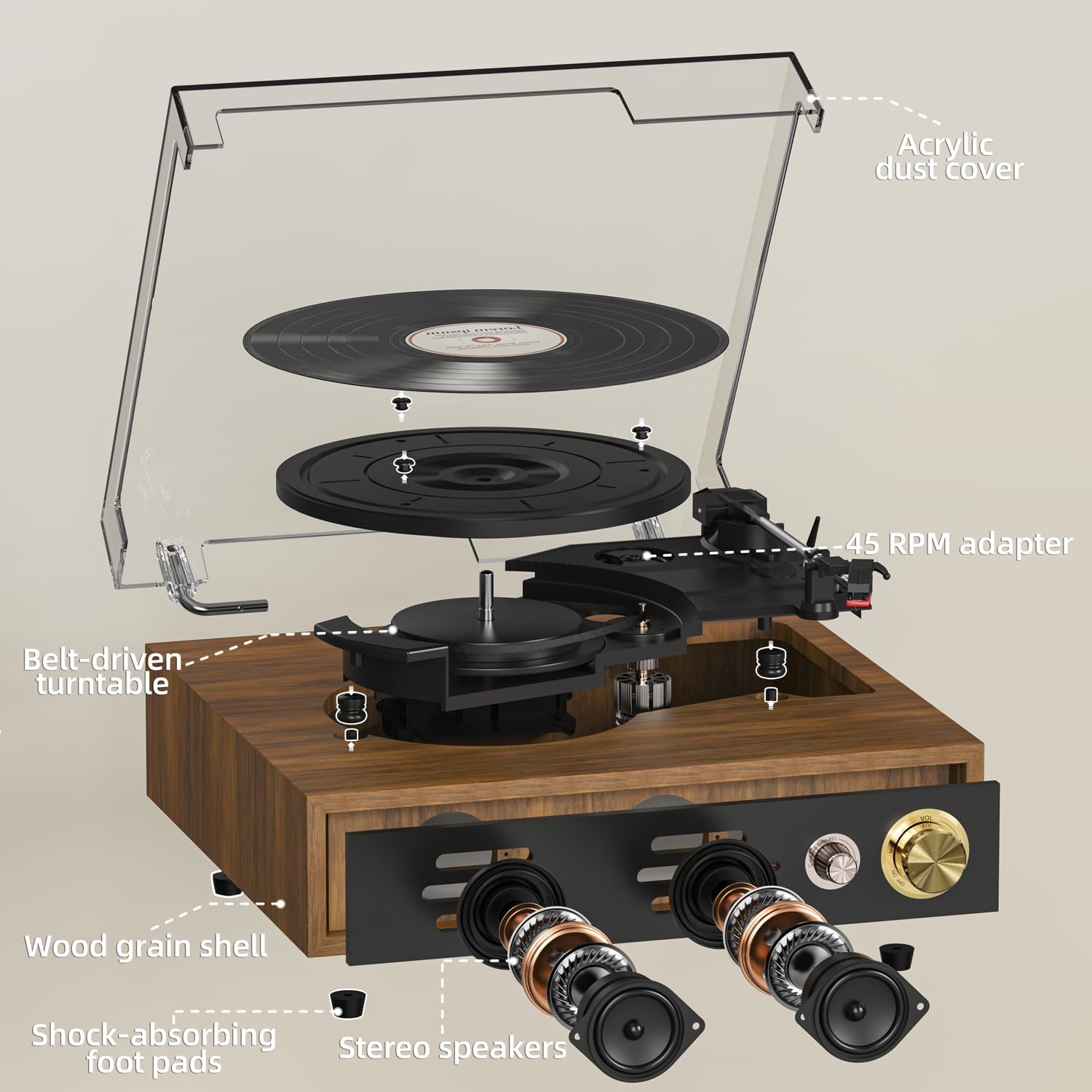
- 45 RPM Adapter
4. Product Overview
Familiarize yourself with the main components of your FYDEE A9 Record Player.
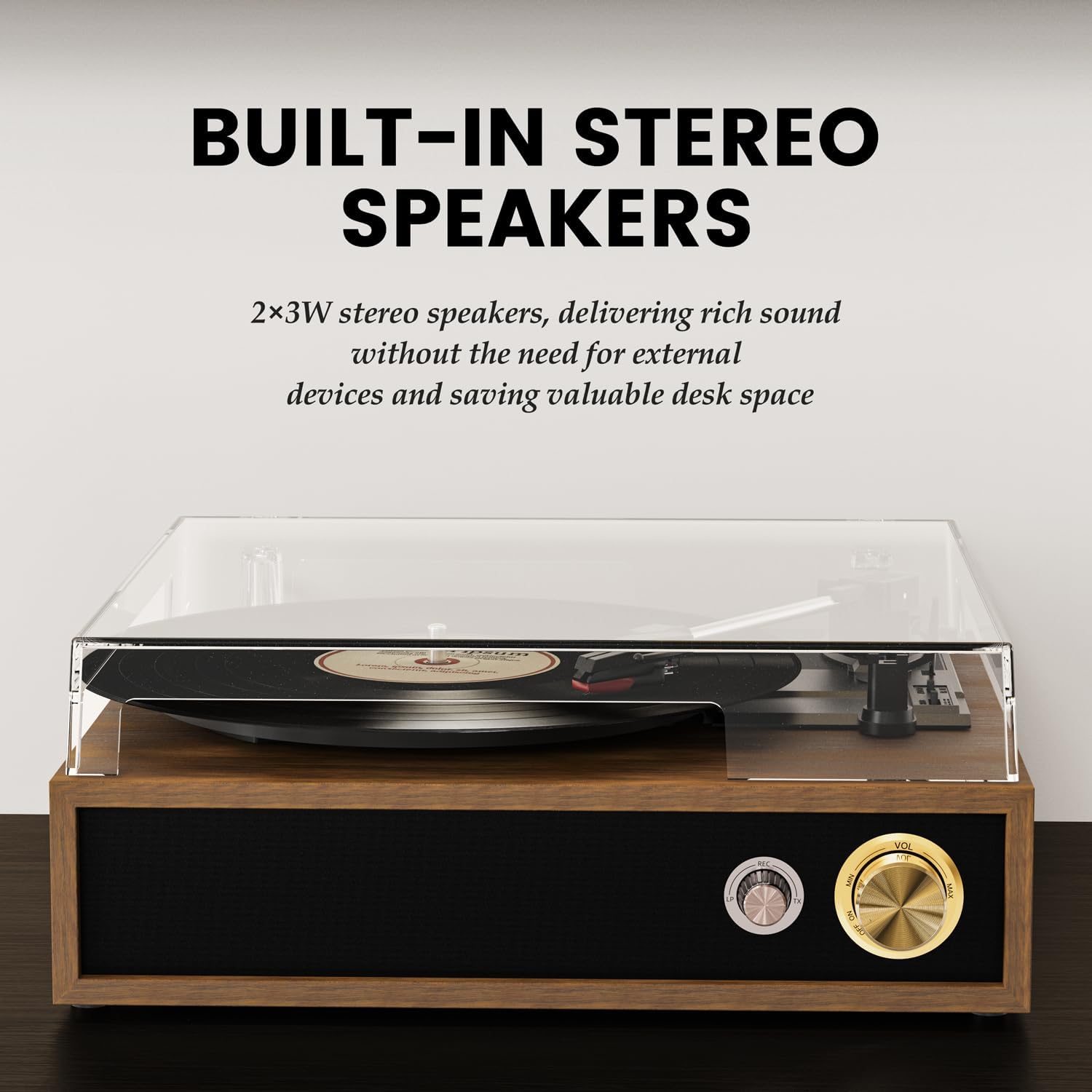
- Turntable Platter: Where vinyl records are placed for playback.
- Tonearm: Holds the stylus and tracks the record grooves.
- Stylus (Needle): Reads the audio information from the record.
- Dust Cover: Protects the turntable and records from dust.
- Speed Selector: Allows selection of 33, 45, or 78 RPM.
- Auto-Stop Switch: Enables or disables automatic stopping of the platter at the end of a record.
- Power/Volume Knob: Turns the unit on/off and adjusts the volume.
- Mode Knob: Selects between LP (Vinyl), Bluetooth Receiving (BT RX), Bluetooth Transmission (BT TX), and USB modes.
- Headphone Jack: For private listening with headphones.
- USB Port: For USB playback and recording.
- RCA Output: For connecting to external speakers or an amplifier.
- DC 5V Input: Power connection port.
5. Setup
- Unpacking: Carefully remove all components from the packaging. Retain packaging for future transport or storage.
- Dust Cover Installation: Align the hinges of the transparent acrylic dust cover with the slots on the back of the record player and gently slide it into place. This cover protects the turntable and records from dust when not in use.
- Power Connection: Connect the provided AC adapter to the DC 5V input port on the back of the record player and then plug it into a wall outlet.
- Stylus Protection: Remove the clear plastic stylus protective cap from the stylus assembly before playing any record.
- Optional: External Speaker Connection: If you wish to connect external speakers or an amplifier, use the provided RCA cable. Connect the red plug to the 'R' (Right) output and the white plug to the 'L' (Left) output on the record player. Connect the other end to the corresponding input on your external audio system.
For a visual guide on setting up the dust cover and initial connections, please refer to the video below:
Video 1: Unboxing and initial setup of the FYDEE Record Player, including dust cover installation and cable connections.
6. Operating
6.1 Playing Vinyl Records
- Power On: Turn the Power/Volume knob clockwise to turn on the record player. The indicator light will illuminate.
- Select LP Mode: Turn the Mode knob to 'LP' for vinyl playback.
- Place Record: Place a vinyl record on the turntable platter. If playing a 45 RPM single, use the included 45 RPM adapter.
- Select Speed: Adjust the speed selector switch (located near the tonearm) to match the record's speed (33, 45, or 78 RPM).
- Enable/Disable Auto-Stop: Set the Auto-Stop switch to 'ON' if you want the platter to stop spinning automatically at the end of the record. Set to 'OFF' for continuous play or if your record has a non-standard run-out groove.
- Position Tonearm: Gently lift the tonearm using the cueing lever. Move the tonearm over the desired starting track of the record.
- Lower Tonearm: Slowly lower the tonearm onto the record using the cueing lever. The music will begin to play.
- Adjust Volume: Adjust the volume using the Power/Volume knob.

See the record player in action, including playing a vinyl record:
Video 2: Demonstration of the FYDEE Turntable playing a 3-speed vinyl record, showcasing its operation and sound output.
6.2 Bluetooth Functionality (Bidirectional)
The FYDEE A9 supports Bluetooth 5.4 for both receiving and transmitting audio.
6.2.1 Bluetooth Receiving Mode (Turntable as Speaker)
- Power On: Turn the Power/Volume knob clockwise to turn on the record player.
- Select BT RX Mode: Turn the Mode knob to 'BT RX'. The blue indicator light will flash, indicating it's ready for pairing.
- Pair Device: On your smartphone or other Bluetooth device, enable Bluetooth and search for 'A9'. Select it to pair. Once connected, the blue indicator light will stop flashing and remain solid.
- Play Audio: Play music from your connected device. The audio will play through the record player's built-in speakers.
- Adjust Volume: Control the volume using the Power/Volume knob on the record player or from your connected device.
6.2.2 Bluetooth Transmission Mode (Turntable to External Bluetooth Speaker)
- Power On: Turn the Power/Volume knob clockwise to turn on the record player.
- Select BT TX Mode: Turn the Mode knob to 'BT TX'. The red indicator light will flash, indicating it's searching for an external Bluetooth speaker.
- Activate External Speaker: Put your external Bluetooth speaker or headphones into pairing mode.
- Automatic Connection: The record player will automatically connect to the nearest discoverable Bluetooth speaker. Once connected, the red indicator light will stop flashing and remain solid.
- Play Vinyl: Play a vinyl record as described in section 6.1. The audio will be transmitted wirelessly to your external Bluetooth speaker.
- Adjust Volume: Control the volume primarily from your external Bluetooth speaker.
For a detailed guide on Bluetooth setup, watch this video:
Video 3: A quick guide to setting up Bluetooth on the FYDEE Turntable, demonstrating both receiving and transmission modes.
6.3 USB Playback and Recording
The USB port allows for both playing digital audio files and recording your vinyl collection.
6.3.1 USB Playback
- Insert USB Drive: Insert a USB flash drive containing MP3 audio files into the USB port.
- Select USB Mode: Turn the Mode knob to 'USB'. The unit will automatically detect and begin playing MP3 files from the USB drive.
- Adjust Volume: Adjust the volume using the Power/Volume knob.
6.3.2 USB Recording (Vinyl to MP3)
- Insert USB Drive: Insert a USB flash drive into the USB port.
- Select LP Mode: Turn the Mode knob to 'LP'.
- Start Recording: While a record is playing, press and hold the 'MODE' knob for a few seconds until the indicator light changes (refer to product specific light indicators for recording). The record player will begin recording the audio from the vinyl to the USB drive as MP3 files.
- Stop Recording: Press the 'MODE' knob again to stop recording. The recorded files will be saved on the USB drive.

7. Maintenance
7.1 Cleaning
- Dust Cover: Wipe the dust cover gently with a soft, dry cloth. Do not use abrasive cleaners or solvents.
- Stylus: Use a soft brush (not included) to gently clean the stylus from back to front. Do not brush from side to side.
- Records: Keep your records clean by wiping them with an anti-static record brush (not included) before each play.
- Unit Exterior: Wipe the exterior of the unit with a soft, dry cloth.
7.2 Stylus Replacement
The stylus is a consumable part and should be replaced after approximately 300-500 hours of use to maintain optimal sound quality and prevent damage to your records. Contact FYDEE customer support for replacement stylus information.
8. Troubleshooting
| Issue | Possible Cause | Solution |
|---|---|---|
| No power | Power adapter not connected; Power outlet not active; Unit not turned on. | Ensure AC adapter is securely connected and plugged into a live outlet. Turn the Power/Volume knob clockwise to power on. |
| No sound from speakers | Volume too low; Incorrect mode selected; Stylus protective cap still on. | Increase volume. Ensure 'LP' mode is selected for vinyl. Remove stylus cap. |
| Sound distortion or skipping | Record is dirty or damaged; Stylus is worn or dirty; Incorrect speed selected; Unit not on a stable surface. | Clean record. Clean or replace stylus. Select correct RPM. Place unit on a stable, level surface. |
| Bluetooth pairing issues | Incorrect Bluetooth mode; Device too far; Interference. | Ensure correct BT mode (RX or TX) is selected. Keep devices within range (approx. 10m). Reduce interference from other electronic devices. |
| USB not playing/recording | Incorrect mode; USB drive not formatted correctly or unsupported file type; USB drive faulty. | Ensure 'USB' mode is selected. Use FAT32 formatted USB drives with MP3 files. Try a different USB drive. |
9. Specifications
| Feature | Detail |
|---|---|
| Brand | FYDEE |
| Model | A9 |
| Speeds Supported | 33 1/3, 45, 78 RPM |
| Drive Type | Belt-driven |
| Connectivity | Bidirectional Bluetooth 5.4, USB, RCA Output, Headphone Jack |
| Speakers | Built-in Stereo Speakers (2x3W) |
| Special Features | USB Recording (Vinyl to MP3), USB Playback, Auto-Stop Function, Acrylic Dust Cover |
| Power Source | AC Adapter (DC 5V) |
| Dimensions | 32 x 29 x 13 cm (12.6 x 11.4 x 5.1 inches) |
| Weight | 2.62 kg (5.78 lbs) |
| Material | Acrylic, Engineered Wood, Metal |
10. Warranty and Support
FYDEE is committed to providing quality products and customer satisfaction. Your FYDEE A9 Record Player comes with a standard manufacturer's warranty. For specific warranty details, please refer to the warranty card included in your package or contact our customer support.
Our dedicated support team is available to assist you with any setup, operational, or troubleshooting questions you may have. We also offer repair and replacement services as needed.
For assistance, please visit our official website or contact us via the email address provided in your product documentation.

