1. Introduction
The Amazfit Helio Strap is a cutting-edge fitness tracker wristband designed for individuals who prioritize precise training and effective recovery. It offers industry-leading accuracy, extended battery life, and a lightweight, comfortable fit. This manual provides comprehensive instructions for setting up, operating, maintaining, and troubleshooting your Helio Strap, ensuring you get the most out of its advanced features.

An athlete wearing the Helio Strap during a workout, emphasizing its integration into an active lifestyle. The image highlights the strap's comfortable fit and discreet profile.
2. What's in the Box
Please verify that all items are present in your package:
- Amazfit Helio Strap Fitness Tracker Wristband
- Magnetic Charging Base (USB Type-C cable not included)
- User Manual (this document)

A close-up view of the Amazfit Helio Strap, showcasing its sleek black design and the main tracking module.
3. Setup
3.1 Initial Charging
Before first use, fully charge your Amazfit Helio Strap. Connect the magnetic charging base to a USB power source (e.g., computer USB port or a USB wall adapter). Align the charging pins of the strap with the magnetic contacts on the base until it snaps into place. The strap will indicate charging status.
3.2 Downloading the Zepp App
The Amazfit Helio Strap requires the Zepp App for full functionality and data synchronization. Download the Zepp App from your device's app store:
- For iOS devices: Search for "Zepp" in the Apple App Store.
- For Android devices: Search for "Zepp" in the Google Play Store.

A smartphone displaying the Zepp App interface, showing various health and fitness metrics. This image illustrates how the app provides detailed insights and control over the Helio Strap.
3.3 Pairing Your Device
Open the Zepp App and follow the on-screen instructions to create an account or log in. Select "Add Device" and choose "Helio Strap" from the list. The app will guide you through the pairing process via Bluetooth. Ensure your phone's Bluetooth is enabled and the Helio Strap is sufficiently charged and nearby.
4. Operating Instructions
4.1 24/7 Health Monitoring
The Helio Strap continuously monitors key health metrics throughout the day and night:
- Heart Rate: Provides accurate heart rate data during workouts and rest.
- Blood-Oxygen (SpO2): Measures blood oxygen saturation levels.
- Stress: Tracks your stress levels and provides insights into your mental well-being.
- Sleep Quality: Monitors sleep stages (light, deep, REM) and provides a comprehensive sleep analysis.
All data is synchronized with the Zepp App for detailed analysis and historical tracking.

An image depicting the 24/7 health monitoring capabilities of the Helio Strap, including icons for heart rate, blood-oxygen, sleep quality, and stress tracking, alongside a person wearing the strap.
4.2 BioCharge Energy Monitoring
The BioCharge feature tracks and adapts your energy score throughout the day based on your sleep, workouts, activities, stress, and rest. This provides a holistic view of your recovery status and helps you optimize your training schedule.
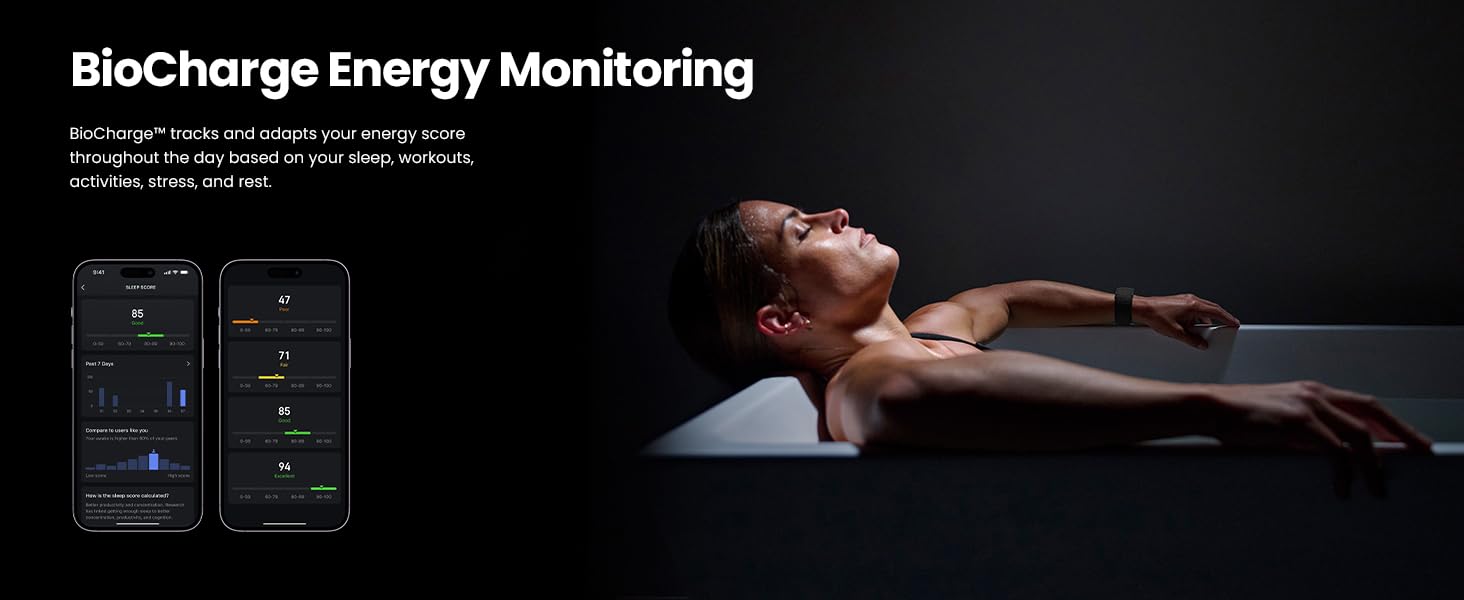
A visual representation of the BioCharge energy monitoring feature, showing a person relaxing in a bath while the Zepp App displays energy scores, indicating how the strap tracks recovery.
4.3 Sports Modes & Training
The Helio Strap supports 27 sports modes, including specialized tracking for strength training and an exclusive HYROX Race mode. It accurately tracks reps, sets, and rest periods in the gym, and offers tailored support for race preparation.
- Strength Training: Track your gym sessions with precision.
- HYROX Race Mode: Optimized for HYROX training and competition.
- 27 Sports Modes: Unlock sport-specific tracking and performance analysis.
Post-workout insights include VO₂ max, training load, effect, and recovery time, all accessible through the Zepp App.

An athlete performing a strength training exercise while wearing the Helio Strap, with on-screen metrics like VO2max and workout duration, highlighting the device's specialized modes for intense training.
4.4 Zepp App & Third-Party Integration
The Zepp App is your central hub for all data from the Helio Strap. It allows you to sync, analyze, and optimize everything from nutrition to recovery, providing AI-driven insights. The Zepp App also supports seamless integration with popular third-party platforms such as Strava, TrainingPeaks, adidas Running, and Komoot, allowing you to streamline your fitness ecosystem.

An image showing the Amazfit Helio Strap's compatibility with popular third-party fitness platforms like TrainingPeaks, adidas Running, Komoot, and Strava, with an athlete lifting weights in the background.
4.5 Battery Life
The Amazfit Helio Strap offers up to 10 days of battery life on a single charge, ensuring lasting performance for continuous tracking of your training and recovery, day and night.

A visual representation of the Helio Strap's extended battery life, indicating up to 10 days of usage on a single charge, with a close-up of the charging contacts.
4.6 Ecosystem Integration
The Helio Strap seamlessly integrates with Amazfit smartwatches and the Amazfit Helio Ring. When worn together, these devices work in conjunction with the Zepp App to capture uninterrupted data, whether you are wearing both or one at a time, providing a complete training system.

An image illustrating the integrated recovery tracking within the Amazfit ecosystem, showing the Helio Strap, an Amazfit smartwatch, and the Zepp App displaying recovery metrics, emphasizing seamless data collection.
5. Maintenance
5.1 Cleaning the Strap
Regularly clean your Helio Strap to ensure hygiene and prolong its lifespan. Use a soft, damp cloth to wipe the strap and the main module. Avoid using harsh chemicals or abrasive materials, as these can damage the device.
5.2 Charging Care
Keep the charging contacts on both the strap and the magnetic base clean and dry. Dust or moisture can interfere with charging. Do not force the strap onto the charging base; it should snap into place magnetically.
5.3 Storage
When not in use for extended periods, store the Helio Strap in a cool, dry place away from direct sunlight and extreme temperatures. Ensure it has a partial charge (around 50%) before storing to maintain battery health.
6. Troubleshooting
6.1 Device Not Powering On
- Ensure the device is fully charged. Connect it to the charging base and a power source for at least 30 minutes.
- Check if the charging contacts are clean and free of debris.
6.2 Unable to Pair with Zepp App
- Ensure Bluetooth is enabled on your smartphone.
- Make sure the Helio Strap is close to your smartphone during pairing.
- Restart both your smartphone and the Helio Strap.
- If pairing fails, try resetting the Helio Strap (refer to Zepp App settings for reset option).
6.3 Inaccurate Readings
- Ensure the strap is worn correctly, snug but not too tight, on your wrist.
- Clean the sensor area on the back of the strap.
- Update the Zepp App and the Helio Strap firmware to the latest versions.
6.4 Battery Draining Quickly
- Frequent use of certain features (e.g., continuous heart rate monitoring, intense workouts) can consume more battery.
- Ensure the device is not constantly searching for a Bluetooth connection if disconnected from the phone.
- Check for firmware updates, as these often include battery optimizations.
7. Specifications
| Feature | Detail |
|---|---|
| Model | Helio Strap |
| Brand | Amazfit |
| ASIN | B0F9J3TFMB |
| Item Weight | 0.64 ounces |
| Operating System | Zepp OS |
| Connectivity | Bluetooth |
| GPS | Built-in GPS |
| Battery Life | Up to 10 Days |
| Special Features | Multisport Tracker, Text Messaging, Activity Tracker, GPS, Notifications |
| Color | Black |
| Manufacturer | Amazfit |
| Country of Origin | China |
8. Warranty and Support
8.1 Warranty Information
For detailed warranty information, please refer to the warranty card included with your product or visit the official Amazfit website. Keep your purchase receipt as proof of purchase for warranty claims.
8.2 Customer Support
If you encounter any issues not covered in this manual or require further assistance, please contact Amazfit customer support. You can find contact information on the official Amazfit website or through the Zepp App.
For additional resources, you may refer to the official PDF user manual: Download User Manual (PDF)
Visit the official Amazfit Store for more products and information: Amazfit Store


