
A4TECH KR-3330S
A4TECH KR-3330S USB Keyboard and Mouse User Manual
Model: KR-3330S
1. Introduction
This manual provides instructions for the proper setup, operation, and maintenance of your A4TECH KR-3330S USB Keyboard and Mouse combo. This product is designed for general-purpose computing tasks, offering a reliable and ergonomic input solution for personal computers and laptops.
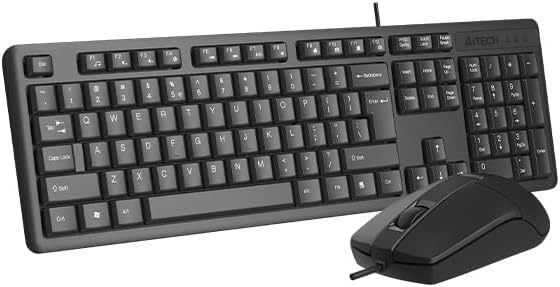
Image 1.1: The A4TECH KR-3330S USB Keyboard and Mouse combo. This image displays the full-size keyboard with a numeric keypad and the accompanying wired mouse, both in black.
2. Setup Instructions
The A4TECH KR-3330S keyboard and mouse are designed for simple plug-and-play installation. No additional drivers are typically required for basic functionality.
- Unpack the Devices: Carefully remove the keyboard and mouse from their packaging.
- Connect the Keyboard: Locate an available USB port on your computer (desktop PC or laptop). Insert the USB connector of the keyboard firmly into the USB port.
- Connect the Mouse: Locate another available USB port on your computer. Insert the USB connector of the mouse firmly into the USB port.
- System Recognition: Your operating system should automatically detect and install the necessary drivers. This process may take a few moments.
- Test Functionality: Once installed, test the keyboard by typing in a text editor and test the mouse by moving the cursor and clicking.

Image 2.1: The A4TECH KR-3330S keyboard and mouse, showcasing their wired USB connectivity. Both devices are black and feature a standard layout.
3. Operating Instructions
3.1 Keyboard Usage
- Standard Typing: Use the alphanumeric keys for text input.
- Function Keys (F1-F12): These keys perform various functions depending on the application or operating system.
- Numeric Keypad: The dedicated numeric keypad on the right provides efficient data entry. Ensure "Num Lock" is active.
- Hot Keys: The keyboard features 10 hot keys for quick access to common functions. Refer to your operating system or application documentation for specific hot key assignments.
- Ergonomic Design: The keyboard is designed for comfortable use during extended periods. Adjust your seating and desk height for optimal posture.
3.2 Mouse Usage
- Movement: Move the mouse across a flat surface to control the cursor on your screen. The optical sensor provides precise tracking.
- Left Click: Used for selecting items, opening files, and activating functions.
- Right Click: Opens context-sensitive menus.
- Scroll Wheel: Scroll up or down through documents and web pages. The scroll wheel can also function as a middle click button.
- Silent Click: The mouse features silent click buttons, reducing audible click noise during use.
- DPI: The mouse operates at 1200 DPI (Dots Per Inch), providing a balance of speed and precision for general use.
4. Maintenance
Proper maintenance ensures the longevity and optimal performance of your A4TECH KR-3330S keyboard and mouse.
- Cleaning the Keyboard:
- Disconnect the keyboard from your computer before cleaning.
- Use a soft, lint-free cloth slightly dampened with water or a mild cleaning solution to wipe the keycaps and surface.
- Avoid spraying liquids directly onto the keyboard.
- Use compressed air to remove dust and debris from between the keys.
- Cleaning the Mouse:
- Disconnect the mouse from your computer before cleaning.
- Wipe the surface of the mouse with a soft, lint-free cloth.
- Ensure the optical sensor on the underside of the mouse is clean and free of obstructions for accurate tracking.
- Storage: When not in use for extended periods, store the devices in a clean, dry environment away from extreme temperatures.
5. Troubleshooting
If you encounter issues with your A4TECH KR-3330S keyboard and mouse, refer to the following common troubleshooting steps:
- Device Not Recognized:
- Ensure the USB cables are securely plugged into the computer's USB ports.
- Try connecting the devices to different USB ports on your computer.
- Restart your computer.
- Test the devices on another computer to determine if the issue is with the devices or your computer's ports.
- Keys Not Responding / Mouse Not Moving:
- Check for any physical obstructions under the keys or around the mouse sensor.
- Ensure the keyboard and mouse are properly connected to the USB ports.
- Restart your computer.
- For the mouse, ensure the optical sensor is clean and not obstructed.
- Intermittent Functionality:
- Ensure USB connections are stable and not loose.
- Avoid using the devices on uneven or highly reflective surfaces (for the mouse).
6. Specifications
| Feature | Detail |
|---|---|
| Brand | A4TECH (also listed as Generic) |
| Model Number | KR-3330S (also referred to as KK-3330) |
| Connectivity Technology | USB Wired |
| Color | Black |
| Keyboard Description | Wired keyboard with soft touch keys, 10 hot keys, ergonomic design. |
| Mouse Movement Detection | Optical |
| Mouse DPI | 1200 Dpi |
| Special Features | Ergonomic design, Silent Click Mouse |
| Compatible Devices | Laptop, Personal Computer |
| Item Weight | 0.7 Kilograms |
| Package Dimensions | 53.3 x 15.8 x 4.5 cm |
| Batteries Required | No |
| Country of Origin | China |
7. Warranty and Support
For warranty information and technical support, please refer to the documentation provided with your purchase or contact the retailer/manufacturer directly. Keep your proof of purchase for warranty claims.
Related documentsKR-3330S


Ask a question about this manual
Ask about setup, troubleshooting, compatibility, parts, safety, or missing instructions. Manuals+ will review the question and use this page’s manual context to help answer it.