
EWEADN V96
EWEADN V96 Wireless Keyboard and Mouse Combo User Manual
Model: V96
Introduction
Thank you for choosing the EWEADN V96 Wireless Keyboard and Mouse Combo. This full-sized retro typewriter-style keyboard with round keycaps and a quiet mouse offers a comfortable and efficient typing experience. This manual provides detailed instructions on setting up, operating, maintaining, and troubleshooting your new device.

Image: The EWEADN V96 Wireless Keyboard and Mouse Combo, featuring a green full-sized keyboard with round keycaps and a matching wireless mouse, alongside the USB receiver.
Package Contents
Please ensure all items are present in your package:
- 1 x EWEADN V96 Wireless Keyboard
- 1 x EWEADN Wireless Mouse
- 1 x 2.4GHz USB Receiver (located in the keyboard's battery compartment)
- 1 x User Manual (this document)
Setup
1. Battery Installation
The keyboard requires two AAA batteries, and the mouse requires one AA battery (batteries are not included).
- Open the battery compartment on the back of the keyboard. Insert two AAA batteries, ensuring correct polarity (+/-).
- Open the battery compartment on the bottom of the mouse. Insert one AA battery, ensuring correct polarity (+/-).
- Close both battery compartments securely.

Image: Diagram showing battery compartments for the keyboard (2x AAA) and mouse (1x AA), indicating that batteries are not included. Also shows standby time of 180 days and auto-sleep after 10 minutes.
2. Connecting the USB Receiver
The 2.4GHz USB receiver is stored in the battery compartment of the keyboard.
- Remove the USB receiver from the keyboard's battery compartment.
- Plug the USB receiver into an available USB port on your computer (desktop, laptop, Chromebook, etc.).
- The keyboard and mouse will automatically connect to your computer. No drivers are required for installation.
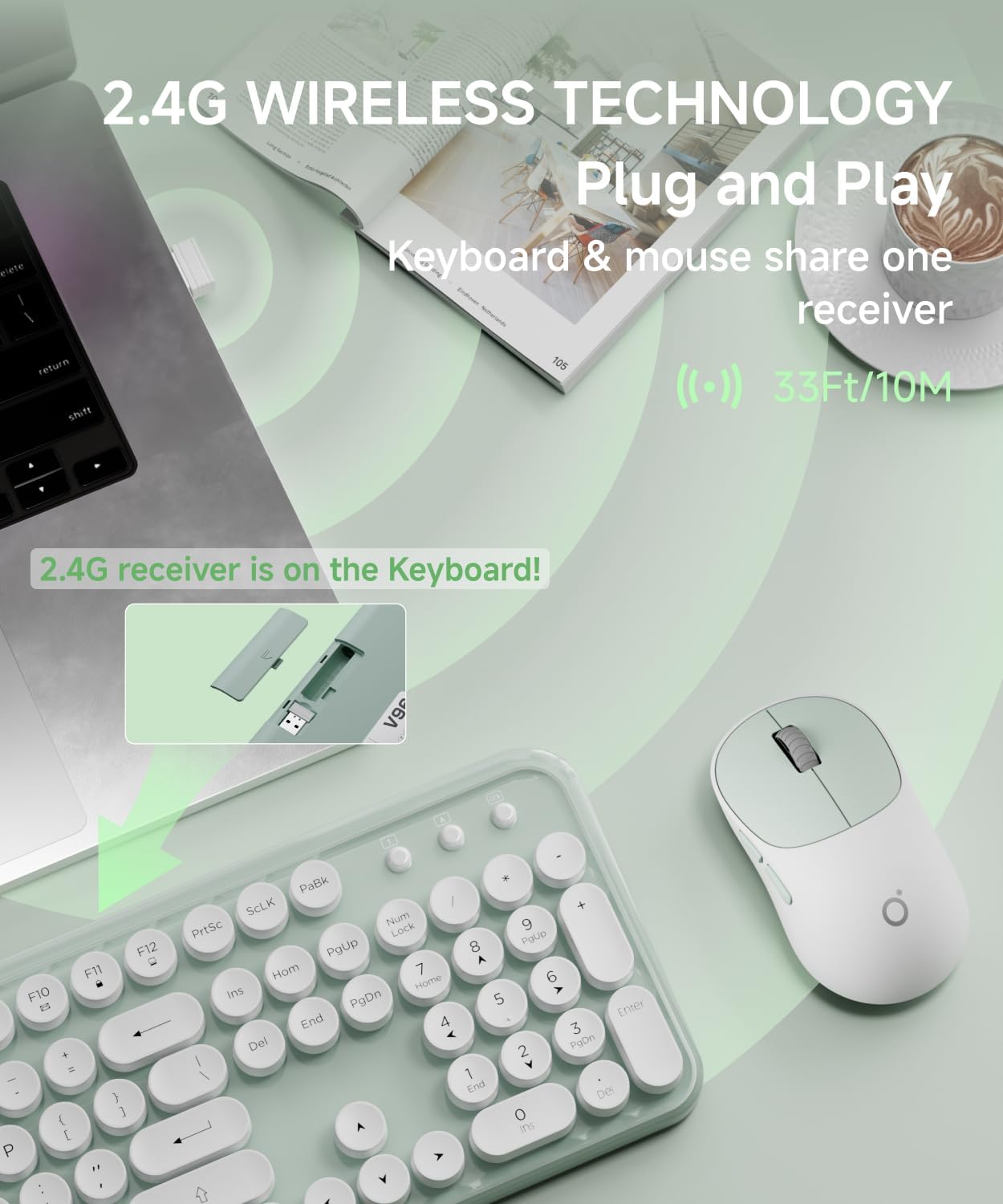
Image: Illustration showing the USB receiver being removed from the keyboard's battery compartment and then plugged into a computer's USB port, highlighting the 2.4G wireless plug-and-play technology with a 33ft/10m range.
Operating Instructions
Keyboard Features
The V96 keyboard is a full-sized 104-key layout with vintage round keycaps.
Multimedia Shortcut Keys
The keyboard includes 13 easy-to-reach function keys (F1-F12) that provide shortcuts when pressed in combination with the Fn key.
- Fn + F1: Music Player
- Fn + F2: Play/Pause
- Fn + F3: Previous Track
- Fn + F4: Next Track
- Fn + F5: Volume Down
- Fn + F6: Volume Up
- Fn + F7: Mute
- Fn + F8: Web Browser
- Fn + F9: Search
- Fn + F10: Favorites
- Fn + F11: Email
- Fn + F12: Lock Screen / My Computer

Image: Diagram illustrating the multimedia shortcut keys (F1-F12) on the keyboard, showing their functions when used with the Fn key.
Mouse Features
The wireless mouse features a quiet clicking mechanism and an ergonomic design for comfortable use.
DPI Adjustment
The mouse's sensitivity (DPI) can be adjusted to suit your preference. Press the DPI button on the top of the mouse to cycle through the following settings:
- 800 DPI
- 1200 DPI (Default)
- 1600 DPI

Image: Close-up of the wireless mouse, highlighting its quiet operation and the DPI adjustment button. Text indicates DPI settings of 800-1200-1600.
Automatic Sleep Mode
Both the keyboard and mouse are designed with an automatic power-saving sleep mode. After 5 seconds of inactivity, the devices will enter sleep mode to conserve battery life. To wake them up, simply click any key on the keyboard or move/click the mouse.
Maintenance
Cleaning
- To clean the keyboard and mouse, use a soft, dry cloth.
- For stubborn dirt, slightly dampen the cloth with water or a mild, non-abrasive cleaner. Do not spray liquids directly onto the devices.
- Avoid using harsh chemicals, solvents, or abrasive cleaners, as these may damage the surface.
- For cleaning between keycaps, use compressed air or a small brush.
Battery Replacement
When the battery is low, the low battery indication light on the top right corner of the keyboard will illuminate. Replace the batteries as described in the "Battery Installation" section under Setup.
Storage
When not in use for extended periods, it is recommended to remove the batteries from both the keyboard and mouse to prevent leakage. Store the devices in a cool, dry place.
Troubleshooting
| Problem | Possible Cause | Solution |
|---|---|---|
| Keyboard or mouse not responding. | Low or dead batteries. | Replace batteries in both keyboard (2x AAA) and mouse (1x AA). |
| Keyboard or mouse not responding. | USB receiver not properly connected. | Ensure the USB receiver is firmly plugged into a working USB port. Try a different USB port. |
| Keyboard or mouse not responding. | Devices are too far from the receiver or signal interference. | Move the keyboard and mouse closer to the USB receiver. Avoid placing the receiver near large metal objects or other wireless devices that may cause interference. The effective range is up to 33ft (10m). |
| Lag or delayed response. | Low battery or interference. | Replace batteries. Reduce interference by moving other wireless devices or the receiver. |
| Mouse cursor erratic or not moving smoothly. | Dirty optical sensor or unsuitable surface. | Clean the optical sensor on the bottom of the mouse. Use the mouse on a clean, non-reflective, opaque surface or a mouse pad. |
| Keyboard keys are sticky or unresponsive. | Dirt or debris under the keycaps. | Clean the keyboard using compressed air or a small brush. |
Specifications
| Feature | Detail |
|---|---|
| Brand | EWEADN |
| Model | V96 |
| Color | Green |
| Connectivity Technology | 2.4GHz Wireless |
| Keyboard Layout | 104 Keys, Full-Sized |
| Keycap Style | Retro Round Keycaps |
| Mouse DPI Settings | 800 / 1200 / 1600 DPI |
| Wireless Range | Up to 33 feet (10 meters) |
| Keyboard Battery | 2 x AAA batteries (not included) |
| Mouse Battery | 1 x AA battery (not included) |
| Auto-Sleep Function | Yes, after 5 seconds of inactivity |
| Compatible Devices | Desktops, Chromebooks, PC, Laptops, Computers |
| Operating Systems | Windows 10 / 8 / 7 / XP / Vista, Mac OS |
Warranty and Support
EWEADN products are designed for reliability and performance. For warranty information or technical support, please refer to the contact details provided with your purchase or visit the official EWEADN website.
Customer Support: Please contact your retailer or the manufacturer directly for assistance.
Ask a question about this manual
Ask about setup, troubleshooting, compatibility, parts, safety, or missing instructions. Manuals+ will review the question and use this page’s manual context to help answer it.