
Introduction
The SENCKIT Smart Air Conditioner Controller is a WiFi-enabled thermostat designed to integrate your existing air conditioning units or heat pumps into a smart home system. It features a large LCD touch screen display for easy readability and cleaning, and includes a child lock function to prevent unintended adjustments. This device allows for remote control and automation, enhancing comfort and energy efficiency.
What's in the Box
- 1x Wireless Programmable Thermostat
- 1x English User Manual
Specifications
| Feature | Detail |
|---|---|
| Power Supply | DC 5V/1A |
| WiFi Type | 2.4GHz (IEEE 802.11b/g/n) |
| Wireless Range | 45m |
| Working Current | 550mA |
| Standby Current | 25mA |
| Temperature Detection Range | -10-60℃ |
| Humidity Detection Range | 0-90% RH |
| Temperature Detection Accuracy | ±0.3℃ |
| Humidity Detection Accuracy | ±5% RH |
| Controller Type | App control |
| Control Method | App, Voice |
| Dimensions | 3.3 x 3.3 x 1.2 inches |
| Weight | 3.52 ounces |
The device is compatible with 229+ major AC brands and over 8,000 models, including window, mini-split, and portable air conditioners or heat pump systems.
Setup Guide
1. Powering the Device
Connect the Smart Air Conditioner Controller to a DC 5V/1A power source using the provided cable. Ensure the device powers on and the display activates.
2. App Installation
Download the Tuya Smart or Smart Life app from your mobile device's app store (available on iOS and Android). Create an account or log in if you already have one.
3. Connecting to WiFi
- Open the Tuya Smart or Smart Life app.
- Tap 'Add Device' or the '+' icon.
- Select 'IR Remote Control' or 'Universal Remote Control' from the device list.
- Follow the on-screen instructions to connect the controller to your 2.4GHz WiFi network. Ensure your phone is connected to the same 2.4GHz network during setup.

Image: The SENCKIT Smart Air Conditioner Controller displayed next to a smartphone showing the companion app interface, illustrating the device's connectivity.
4. Pairing with Your AC Unit
Once the controller is connected to WiFi, you will need to pair it with your air conditioner or heat pump. The app will guide you through a process to identify your AC unit's remote control signals. This typically involves selecting your AC brand and model, or using an IR learning function where you point your original AC remote at the SENCKIT controller to teach it the commands.

Image: An illustration of a smart home environment where the SENCKIT controller is centrally located, managing an air conditioner and interacting with other smart devices, demonstrating its integration capabilities.
Operating Instructions
Basic Controls
The device features an LCD color screen with sensitive touch buttons for direct control:
- Power Button: Turns the AC unit on or off.
- Mode Button: Cycles through AC modes (e.g., Cool, Heat, Fan, Dry, Auto).
- Up/Down Arrows: Adjusts the target temperature.
- Fan Speed Button: Adjusts the fan speed.

Image: A close-up view of the SENCKIT controller's LCD color screen, highlighting the sensitive touch buttons for power, mode, and temperature adjustment.
Child Lock Function
To prevent accidental changes, the controller includes a child lock. This feature can be activated or deactivated via the device's interface or through the companion app. When active, the physical buttons on the device will not respond to touches.
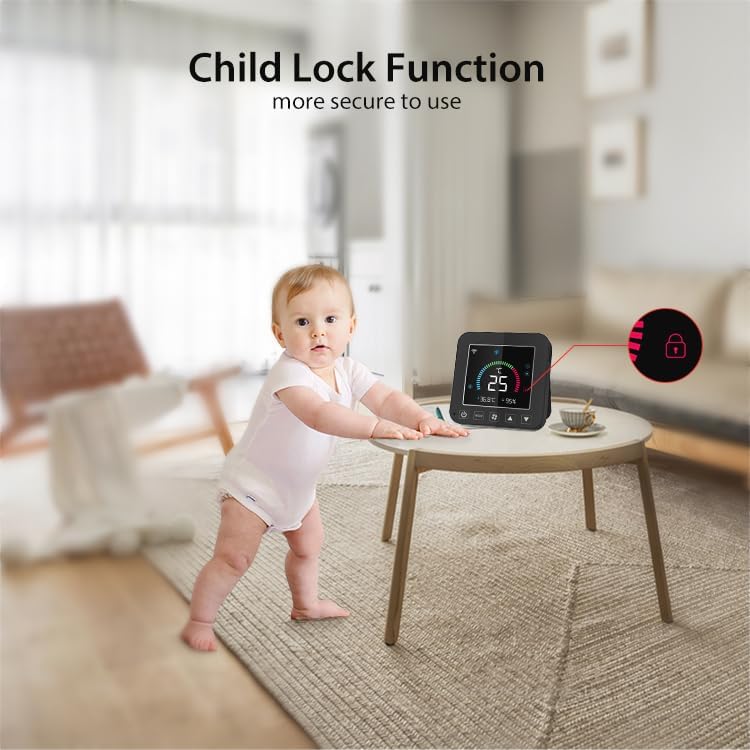
Image: A baby reaching towards the SENCKIT controller, with an icon indicating the child lock function is active, demonstrating enhanced safety.
Remote Control via App
Use the Tuya Smart or Smart Life app to control your AC unit from anywhere. The app provides a full interface mirroring your AC remote, allowing you to adjust settings, change modes, and monitor the environment remotely.
Voice Control Integration
The SENCKIT controller is compatible with Alexa and Google Home. Once integrated, you can use voice commands for hands-free operation. For example, say "Alexa, turn on the AC" or "Hey Google, set the temperature to 72°F."
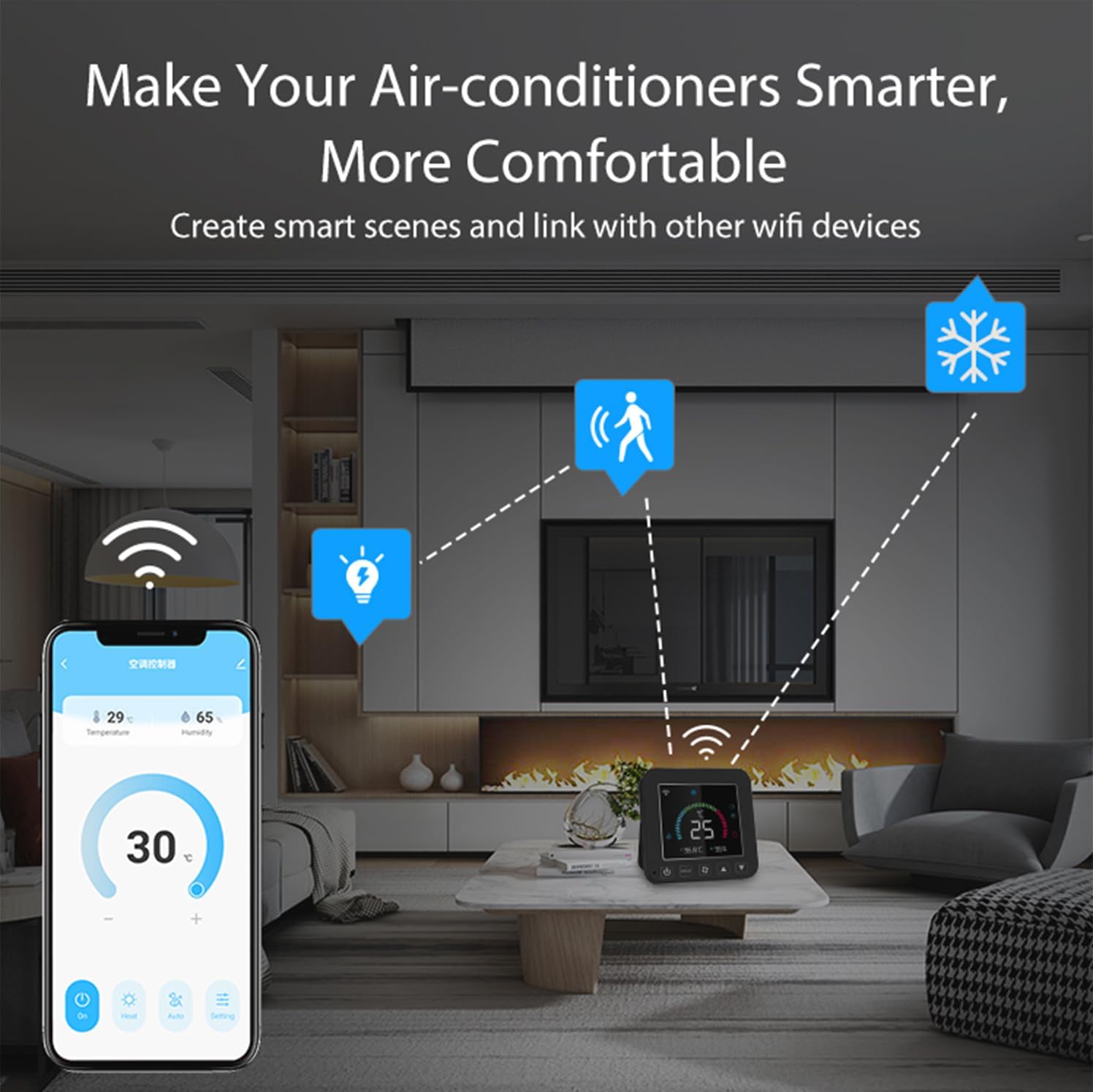
Image: The SENCKIT Smart Air Conditioner Controller positioned next to an Amazon Echo device, illustrating its compatibility with voice control systems like Amazon Alexa and Google Home.
Smart Scheduling and Automation
Set daily schedules within the app to automatically adjust your AC. For instance, program it to cool your home before you arrive or turn off when you leave. This feature helps optimize energy consumption.

Image: A person using a smartphone to set scheduled tasks for the SENCKIT controller, showing the app interface for programming automated climate control.
Temperature and Humidity Monitoring
The built-in temperature and humidity sensors provide real-time environmental data. This information is displayed on the device and in the app, allowing for intelligent control based on current conditions. The sensors offer an accuracy of ±0.3℃ for temperature and ±5% RH for humidity.

Image: The SENCKIT controller's screen showing precise temperature and humidity readings, emphasizing its accurate measurement capabilities.
Group Control and Smart Scenes
Integrate the SENCKIT controller with other smart devices (e.g., lights, fans) within the Tuya Smart/Smart Life ecosystem. Create custom smart scenes, such as a "Goodnight Mode" that turns off the AC, dims lights, and locks doors simultaneously.
Maintenance
To ensure optimal performance and longevity of your SENCKIT Smart Air Conditioner Controller, follow these maintenance guidelines:
- Cleaning: Wipe the device with a soft, dry cloth. Avoid using abrasive cleaners, solvents, or harsh chemicals, as these can damage the screen and casing.
- Placement: Place the controller in a central location within the room, away from direct sunlight, heat sources, or drafts, to ensure accurate temperature and humidity readings. Ensure it has a clear line of sight to your AC unit for optimal infrared signal transmission.
- Power Supply: Use only the specified DC 5V/1A power adapter to prevent damage to the device.
- Software Updates: Periodically check the Tuya Smart/Smart Life app for firmware updates for the controller. Keeping the software updated ensures access to the latest features and performance improvements.
Troubleshooting
If you encounter issues with your SENCKIT Smart Air Conditioner Controller, refer to the following common problems and solutions:
- Device not powering on:
Ensure the power cable is securely connected to both the device and a working power outlet. Verify the power adapter meets the DC 5V/1A specification. - Unable to connect to WiFi:
Confirm your WiFi network is 2.4GHz. The device does not support 5GHz networks. Ensure your mobile device is connected to the same 2.4GHz network during setup. Check that the WiFi password is entered correctly. Move the controller closer to your WiFi router. - AC unit not responding to commands:
Verify that the controller has a clear line of sight to your AC unit's infrared receiver. Ensure the AC unit is powered on. Re-check the pairing process in the app to confirm the correct AC brand and model were selected, or re-perform the IR learning function. Some AC units may require specific remote codes; consult your AC manual if issues persist. - Inaccurate temperature/humidity readings:
Ensure the controller is not placed near heat sources (e.g., direct sunlight, lamps, appliances) or in direct drafts, which can affect sensor accuracy. Allow the device some time to stabilize after placement. - Voice control not working:
Confirm that the SENCKIT controller is successfully linked to your Alexa or Google Home account within the respective voice assistant app. Ensure your voice commands are clear and match the device names set in the Tuya Smart/Smart Life app. - Child lock cannot be deactivated:
Attempt to deactivate the child lock through the Tuya Smart/Smart Life app. If using the device buttons, ensure you are performing the correct sequence or long-press action as indicated in the app or quick start guide.
If these steps do not resolve your issue, please contact SENCKIT customer support for further assistance.
Warranty and Support
SENCKIT products are designed for reliability and performance. For warranty information, please refer to the documentation included with your purchase or visit the official SENCKIT website. For technical support, troubleshooting assistance, or general inquiries, please contact SENCKIT customer service through the contact information provided on our website or within the Tuya Smart/Smart Life application.