
1. Introduction
Thank you for choosing the Cuifati Portable 4G 5G WiFi Hotspot Device. This manual provides essential information for setting up, operating, and maintaining your device. This mobile hotspot allows you to create a fast 300Mbps network, connecting up to 10 devices simultaneously, ensuring you stay connected wherever you go. It features a built-in 2100mAh battery and uses a Type-C port for charging.

Figure 1.1: Front view of the Cuifati Portable WiFi Hotspot Device.
2. Safety Information
- Do not expose the device to extreme temperatures, direct sunlight, or high humidity.
- Avoid dropping or subjecting the device to strong impacts.
- Do not attempt to disassemble or repair the device yourself. Refer to qualified service personnel.
- Use only the provided or approved charging cable.
- Keep the device away from water and other liquids.
- Ensure proper ventilation when using the device to prevent overheating.
3. Package Contents
Please check the package for the following items:
- 1 x Portable WiFi Hotspot Device
- 1 x USB Type-C Charging Cable
- 1 x User Manual (this document)

Figure 3.1: Included items: Hotspot device and USB Type-C cable.
4. Product Overview
Familiarize yourself with the device's components:
- Power Button: Used to turn the device on/off.
- LED Indicators: Display network signal strength, battery status, and message notifications.
- SIM Card Slot: For inserting your 4G/5G SIM card.
- Type-C Port: For charging the device.

Figure 4.1: The hotspot device positioned on a desk, ready for use with other devices.
5. Setup
5.1. Inserting the SIM Card
- Ensure the device is powered off.
- Locate the SIM card slot on the device. This is typically found by removing the back cover.
- Carefully insert your standard-sized SIM card into the slot with the gold contacts facing down, until it clicks into place.
- Replace the back cover if removed.

Figure 5.1: View of the SIM card slot, showing where to insert the SIM card.
5.2. Charging the Device
- Connect the provided USB Type-C cable to the Type-C port on the device.
- Connect the other end of the USB cable to a USB power adapter (not included), a computer USB port, or a car USB charger.
- The battery indicator LED will show charging status. A full charge ensures over 10 hours of stable connectivity.

Figure 5.2: Detailed view of the Type-C charging port.
6. Operating Instructions
6.1. Powering On/Off
- To Power On: Press and hold the Power button for a few seconds until the indicator lights illuminate.
- To Power Off: Press and hold the Power button again until the indicator lights turn off.
6.2. Connecting Devices to the Hotspot
Once the hotspot is powered on and has established a network connection (indicated by the signal LED), you can connect your devices:
- On your Wi-Fi enabled device (smartphone, tablet, laptop), go to the Wi-Fi settings.
- Search for available Wi-Fi networks. The hotspot's SSID (network name) and password are usually found on a sticker inside the battery compartment or on the device packaging.
- Select the hotspot's SSID from the list.
- Enter the Wi-Fi password when prompted.
- Your device should now be connected to the internet via the hotspot. The hotspot supports simultaneous connection of up to 10 devices.

Figure 6.1: Easy setup and connection with a laptop, highlighting the plug-and-play functionality.

Figure 6.2: The hotspot providing convenient connectivity for a user working on a laptop.
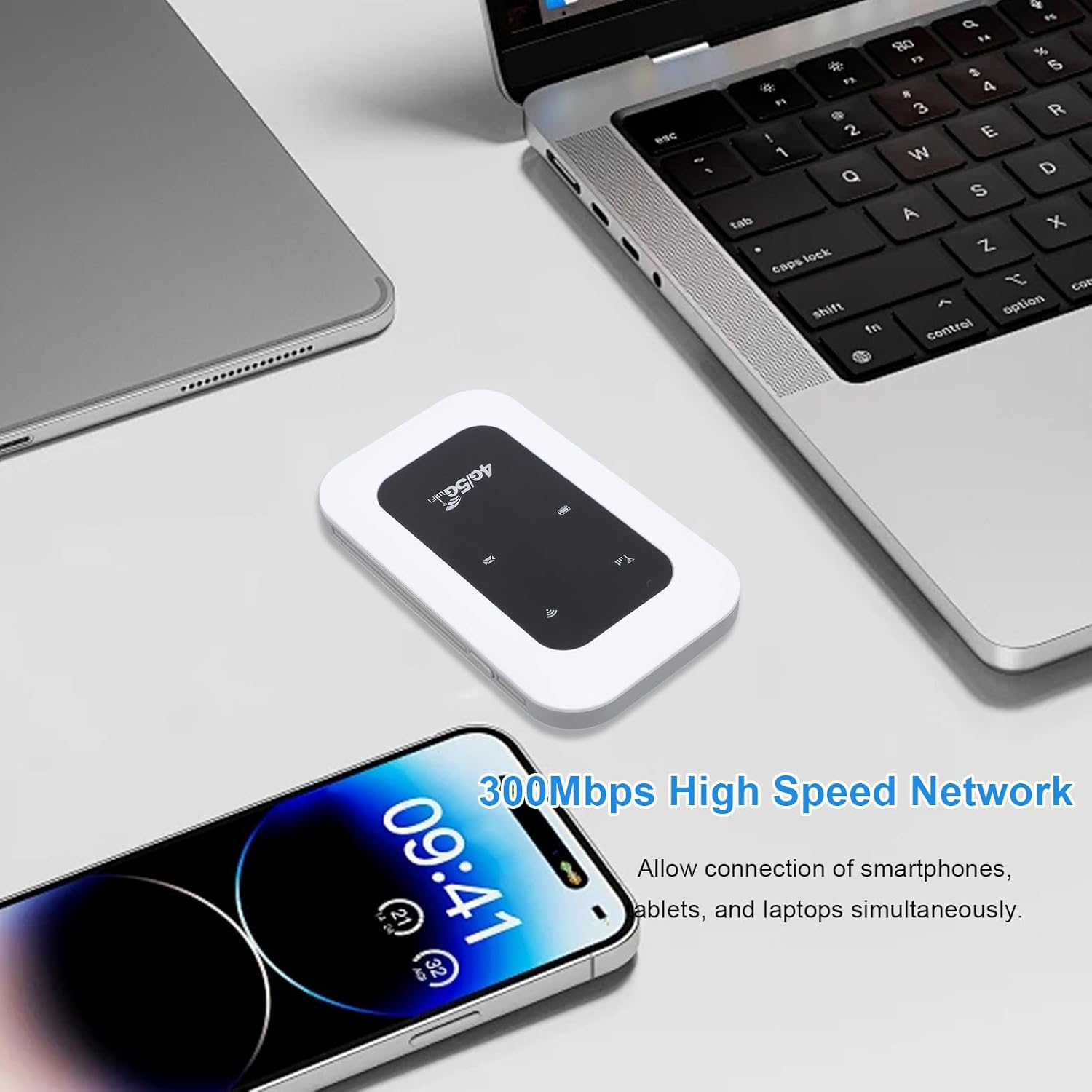
Figure 6.3: The hotspot enabling high-speed network access for multiple devices like smartphones and laptops.
7. Maintenance
- Clean the device with a soft, dry cloth. Do not use liquid cleaners or aerosols.
- Store the device in a cool, dry place when not in use.
- Avoid blocking the ventilation holes to ensure proper heat dissipation.
- Regularly check for firmware updates (if applicable) through the manufacturer's website for optimal performance.

Figure 7.1: The portable design allows for easy transport and use on the go, supported by its long battery life.
8. Troubleshooting
| Problem | Possible Cause | Solution |
|---|---|---|
| No network signal | SIM card not inserted correctly; No network coverage; SIM card not activated. | Reinsert SIM card; Move to an area with better coverage; Contact your service provider. |
| Cannot connect to Wi-Fi | Incorrect Wi-Fi password; Device too far from hotspot; Hotspot not powered on. | Verify password; Move closer to hotspot; Power on the hotspot. |
| Slow network speed | Too many connected devices; Weak signal; Network congestion. | Disconnect some devices; Move to an area with stronger signal; Try again later. |
| Device not charging | Faulty cable or adapter; Loose connection. | Try a different cable/adapter; Ensure cable is securely connected. |
9. Specifications
| Feature | Detail |
|---|---|
| Item Type | Portable 4G 5G WiFi Hotspot |
| Network Frequency | LTE: Band 1/Band 3/Band 5/Band 40, WCDMA: Band 1 |
| WIFI Support | 802.11 b/g/n |
| Wireless Network Transmission Frequency | Up to 300Mbps |
| Card Slot | 1 x SIM Card (not included) |
| Battery Type | Built-in 2100mAh Battery |
| Connectivity | Connects up to 10 devices simultaneously |
| Charging Port | Type-C |
| Model Number | Cuifatizyd6i8p4gm |
| Dimensions | 11 x 7 x 4 cm |
| Weight | 101 g |
10. Warranty and Support
For warranty information and technical support, please refer to the warranty card included with your product or visit the official Cuifati website. If you encounter any issues not covered in this manual, please contact Cuifati customer service for assistance.
Online Support: Please visit www.cuifati.com (Note: This is a placeholder URL, please refer to actual product documentation for correct support links.)