
1. Introduction
This manual provides detailed instructions for the setup, operation, and maintenance of your SUPVAN E11 Label Maker. Please read this manual thoroughly before using the device to ensure proper function and longevity.
Package Contents:
- 1 x SUPVAN E11 Label Maker
- 2 x Rolls White Continuous Label
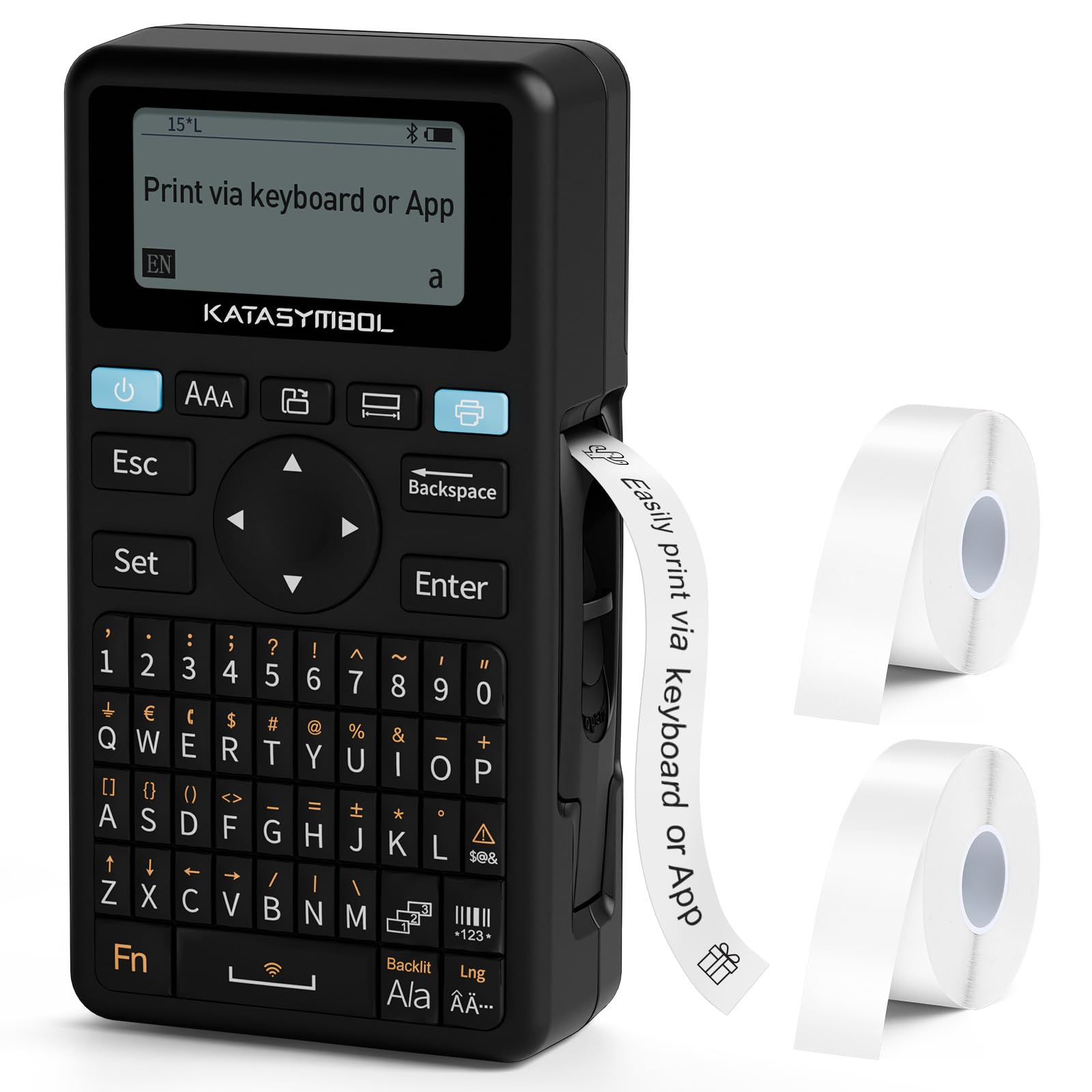
Image: The SUPVAN E11 Label Maker with its included label rolls.
2. Setup
2.1 Powering the Device
The SUPVAN E11 Label Maker features a built-in rechargeable battery with a 1200 mAh capacity, offering approximately one month of standby time. To charge the device, connect it to a power source using the provided USB cable.

Image: The label maker highlighting its built-in rechargeable battery for cost-effective and environmentally friendly use.
2.2 Loading Labels
The E11 Label Maker uses thermal paper and does not require ink or toner. Open the label compartment, insert the label roll with the printing surface facing up, and ensure it is properly aligned. The smart RFID auto-detection feature will instantly recognize and detect the label size, reducing misalignment errors and minimizing waste.

Image: Demonstrating the process of loading thermal paper into the label maker.
3. Operating Instructions
3.1 Printing via Keyboard
The E11 Label Maker features an integrated QWERTY keyboard for direct text input. Turn on the device, type your desired text using the keyboard, and press the 'Print' button. The device will print the label, which can then be cut to your preferred length.
3.2 Printing via Bluetooth App
For enhanced customization and design options, connect your E11 Label Maker to your smartphone or tablet via Bluetooth. Download the official SUPVAN app, pair your device, and use the app's editing functions to create labels. The app offers over 40 fonts, 450 icons, and 50 frames to personalize your labels.

Image: Comparison of printing directly using the keyboard for fast printing versus using the app for creative designs.

Image: The app's editing functions, showcasing a wide range of fonts, icons, and frames available for label customization.
4. Features
- Smart RFID Auto-Detection: Automatically recognizes label size, reducing errors and waste.
- Cost-Effective & Long-Lasting: Designed for efficient label usage.
- BPA-free & High Safety: Labels comply with BPA-free standards, suitable for food, cosmetics, and consumables.
- Versatile Label Support: Compatible with continuous, die-cut, round, and cable labels.

Image: Illustrating the E11's ability to print with less margin, reducing label waste.

Image: Demonstrating the wide range of label styles and applications supported by the E11 Label Maker.
5. Maintenance
The SUPVAN E11 Label Maker is a thermal printer, meaning it does not require ink or toner cartridges. This simplifies maintenance significantly. To ensure optimal performance, regularly clean the print head and the label path with a soft, lint-free cloth. Avoid using harsh chemicals or abrasive materials.
6. Troubleshooting
- Device not turning on: Ensure the battery is charged. Connect the device to a power source and try again.
- Label not printing: Check if the label roll is correctly installed and the printing surface is facing up. Ensure there is sufficient label material.
- Poor print quality: Clean the print head. Ensure the label roll is not old or damaged.
- Bluetooth connection issues: Ensure Bluetooth is enabled on your mobile device and the label maker is within range. Restart both devices and try pairing again.
- App not detecting label size: Ensure the label roll is properly seated and the RFID chip (if applicable) is clean and unobstructed.
7. Specifications
| Model | E11 |
| Brand | SUPVAN |
| Printing Technology | Thermal Printing (No Ink/Toner) |
| Connectivity | Keyboard, Bluetooth App |
| Battery | Built-in Rechargeable (1200 mAh) |
| Label Detection | Smart RFID Auto-Detection |
| ASIN | B0F9FDYSVG |
| Date First Available | March 4, 2025 |
8. Warranty and Support
For warranty information, technical support, or to purchase additional label supplies, please visit the official SUPVAN website or contact their customer service. Refer to the product packaging for specific contact details and warranty terms.
Official SUPVAN Store: SUPVAN Store on Amazon


