
Introduction
This manual provides essential information for the safe and efficient use of your SUPVAN T50M Pro Label Maker. Please read these instructions carefully before operating the device and retain them for future reference.
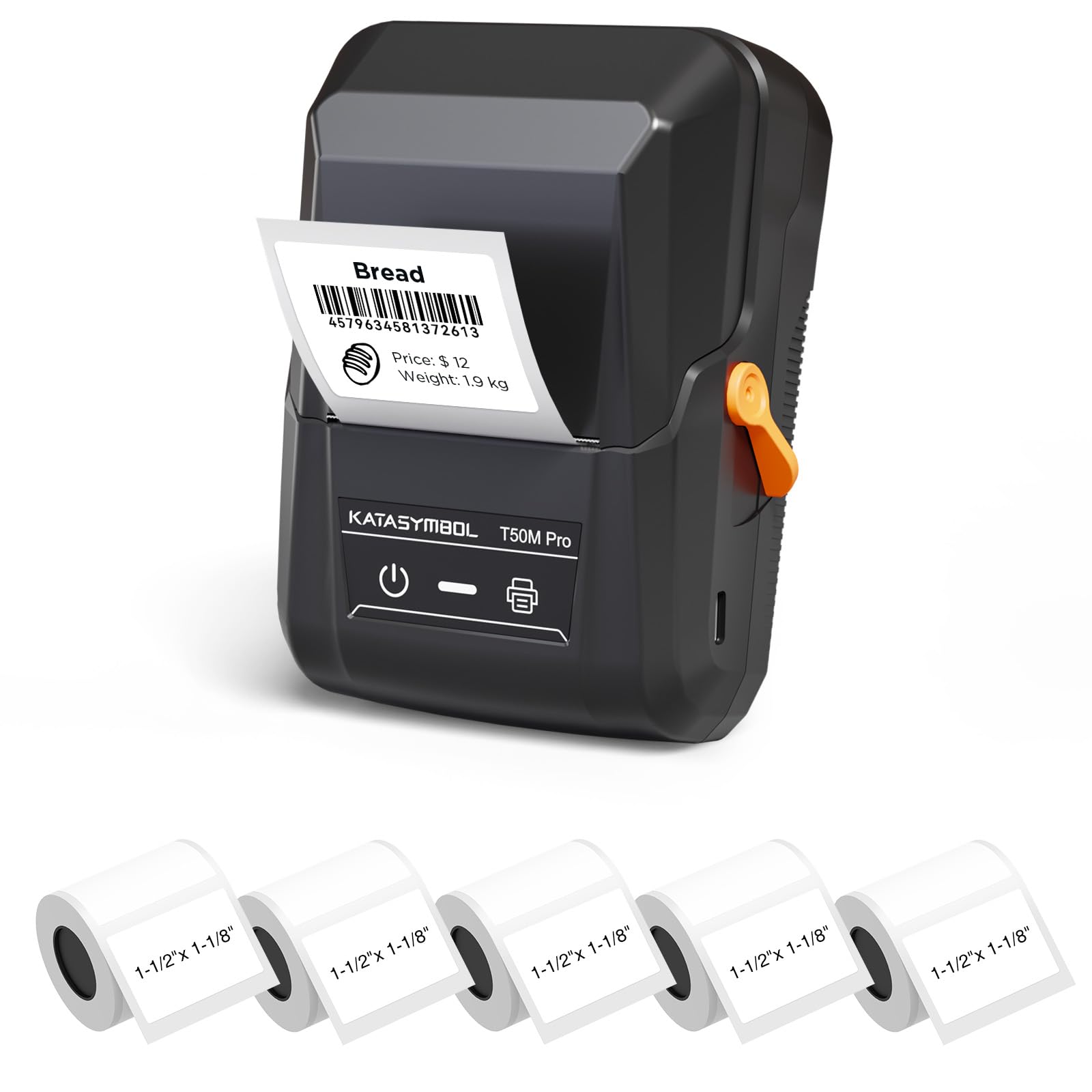
Image: The SUPVAN T50M Pro Label Maker, a compact thermal printer.
Package Contents
Verify that all items are present in your package:
- SUPVAN T50M Pro Label Maker
- 5 rolls of 1.57'' × 1.18'' (40mm × 30mm) white labels (250 labels/roll)
- USB Cable (for charging and connectivity)
- User Manual (this document)
Setup Guide
1. Charging the Device
Before first use, fully charge the label maker using the provided USB cable. The device features a 1200 mAh built-in rechargeable battery, offering extended use on a single charge.
2. Installing the Label Roll
The T50M Pro uses thermal paper, eliminating the need for ink or toner. Follow these steps to install a label roll:
- Open the label compartment cover.
- Insert the label roll with the printing surface facing upwards.
- Ensure the label edge is aligned with the printer's feed mechanism.
- Close the cover. The device's Smart RFID Auto-Detection will recognize the label size automatically.

Image: Illustration of loading thermal paper into the label maker. The device uses thermal printing technology, requiring no ink or toner.
3. App Installation and Connection
Download the official SUPVAN app from your device's app store. The app provides all editing functions and is free to use.
- Turn on the label maker.
- Open the SUPVAN app on your smartphone or tablet.
- Follow the in-app instructions to connect to your T50M Pro via Bluetooth or USB.
Operating Instructions
1. Creating Labels with the App
The SUPVAN app offers a comprehensive suite of editing tools:
- Text Editing: Choose from over 40 fonts.
- Image & Picture Integration: Add custom images and logos.
- Templates: Access over 140 free, constantly updated templates for various uses.
- Auto Label Size Recognition: The app automatically detects the loaded label size, reducing errors.

Image: The SUPVAN app's editing interface, demonstrating font choices, image integration, and automatic label size detection.

Image: A selection of over 140 free templates available within the SUPVAN app, suitable for diverse labeling needs.
2. Printing Labels
After designing your label in the app, select the "Print" option. Ensure the label maker is connected and has sufficient battery. The T50M Pro supports various label styles and sizes, printing 3/4 to 2-inch wide labels.

Image: Examples of labels created with the T50M Pro, including address labels, price tags, and decorative labels, demonstrating support for various styles.

Image: A visual comparison highlighting the high-quality image output from the SUPVAN T50M Pro's app compared to other label makers.
3. Common Applications
The SUPVAN T50M Pro is suitable for a wide range of labeling tasks:
- Small Business: Shipping addresses, product information, QR codes, brand logos.
- Office & School: Name tags, folder labels, documentation, asset tagging.
- Home Organization: Pantry labels, storage bins, personal items.

Image: Demonstrates diverse uses for the label maker, such as labeling containers in a pantry, creating product labels, printing shipping labels, and organizing school supplies.
Maintenance
1. Cleaning the Print Head
To ensure optimal print quality, periodically clean the thermal print head. Use a soft, lint-free cloth lightly dampened with isopropyl alcohol. Do not use abrasive cleaners or sharp objects.
2. Battery Care
Recharge the device when the battery indicator is low. Avoid fully discharging the battery frequently to prolong its lifespan. Store the device in a cool, dry place when not in use for extended periods.
3. Label Storage
Store label rolls in a cool, dry place away from direct sunlight and heat to prevent degradation of the thermal material.
Troubleshooting
1. Device Not Turning On
- Ensure the device is fully charged. Connect it to a power source using the USB cable.
- Press and hold the power button for a few seconds.
2. Printing Issues (Blank or Faint Prints)
- Check if the label roll is installed correctly with the printing surface facing up.
- Ensure the label roll is not empty.
- Clean the print head as described in the Maintenance section.
- Verify that the label type is compatible with the T50M Pro.
3. App Connectivity Problems
- Ensure Bluetooth is enabled on your mobile device.
- Make sure the label maker is turned on and within range.
- Restart both the label maker and the app.
- If issues persist, try reinstalling the app.
4. Label Misalignment
- Ensure the label roll is properly seated and aligned in the compartment.
- The Smart RFID Auto-Detection should prevent most misalignment issues; if not, try re-seating the roll.
Specifications
| Feature | Detail |
|---|---|
| Model Name | T50M Pro |
| Brand | SUPVAN |
| Printing Technology | Thermal |
| Connectivity Technology | USB, Bluetooth |
| Hardware Interface | USB |
| Printer Output | Monochrome (Black Ink Color) |
| Maximum Media Size | 1.57'' × 1.18'' (40mm × 30mm) - 3/4 to 2-inch wide labels supported |
| Special Feature | Portable, Smart RFID Auto-Detection, BPA-free labels |
| Battery | 1200 mAh built-in rechargeable battery |
| Dimensions | Approx. 5" x 3.7" x 2.3" |
| Weight | Approx. 0.6 lb |
| Included Components | Label Maker, Labels, USB Cable |

Image: The compact design of the T50M Pro, highlighting its portability, lightweight nature, and 1200 mAh rechargeable battery.
Warranty and Support
Warranty Information
For detailed warranty information, please refer to the warranty card included with your product or visit the official SUPVAN website. Warranty terms and conditions may vary by region and retailer.
Customer Support
If you encounter any issues or have questions regarding your SUPVAN T50M Pro Label Maker, please contact SUPVAN customer support through their official website or the retailer where the product was purchased.
You can also visit the SUPVAN Store on Amazon for additional product information and support resources.


