
1. Product Overview
The DBEIXIWEI WiFi 6E PCIE Network Card is an advanced wireless adapter designed for desktop PCs, offering high-speed, tri-band connectivity and Bluetooth 5.2 capabilities. It supports the latest IEEE 802.11ax (WiFi 6E) protocol, providing superior network performance with speeds up to 5400Mbps (theoretical combined speed). This card is ideal for demanding network needs, including online gaming, 4K streaming, and large file transfers, ensuring stable and uninterrupted connectivity across 2.4GHz, 5GHz, and 6GHz frequency bands.

Image: DBEIXIWEI WiFi 6E PCIE Network Card with two external antennas.
2. What's Included
Please verify that all items are present in the package:
- 1x Wireless network card
- 1x Bluetooth cable
- 2x Screws
- 1x Instruction manual
3. Key Features
- High-Speed Transmission: Achieves a theoretical combined transmission rate of 5400Mbps, providing blazing-fast data transfer speeds for demanding network tasks.
- Tri-Band Connectivity: Operates concurrently on 2.4GHz, 5GHz, and 6GHz bands, ensuring smooth and uninterrupted connectivity across various frequencies.
- Bluetooth 5.2: Features Bluetooth 5.2 with backward compatibility to V5.0/4.2/4.0, allowing connection to a wide range of Bluetooth devices.
- Efficient Heat Dissipation: Equipped with a dispersed alloy heat sink to maintain stable connections and prevent performance degradation due to overheating.
- Enhanced Signal Stability: Includes external 5dBi high-gain dual antennas for improved signal reception, transmission, stability, and coverage.
- WiFi 6E Standard: Adopts the latest IEEE 802.11ax protocol for superior network performance and efficiency.
- MU-MIMO Support: Increases network efficiency by enabling multiple devices to connect and communicate simultaneously without significant speed reduction.
- AP Hotspot Functionality: Supports both WiFi reception and AP hotspot transmission, allowing the card to extend your wireless network coverage.

Image: A graphic explaining the tri-band capabilities of the WiFi 6E card, showing speeds for 2.4GHz, 5GHz, and 6GHz bands.
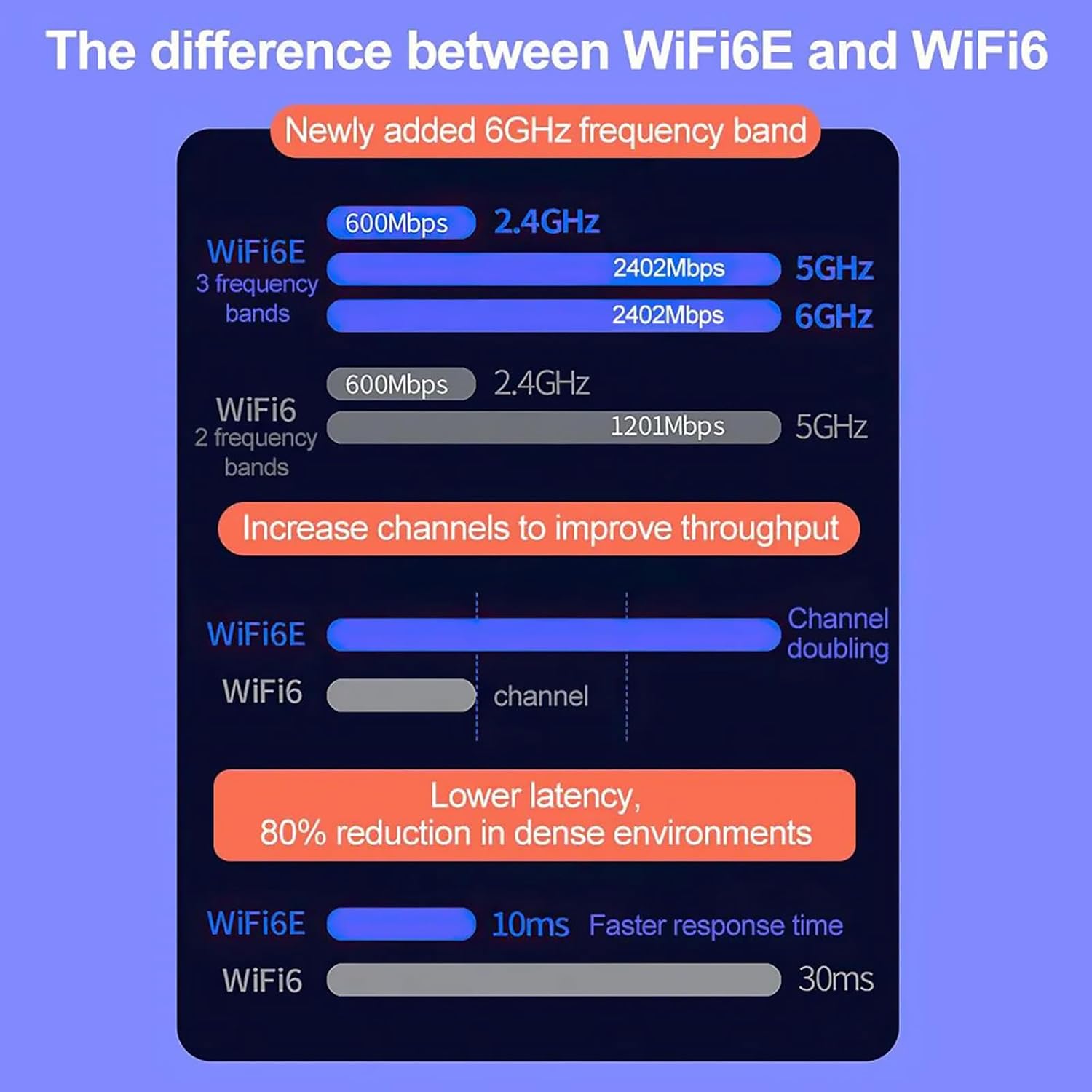
Image: A comparison chart detailing the differences between WiFi 6E and WiFi 6, focusing on frequency bands, throughput, and latency.

Image: Close-up views of key components of the network card, including the anti-deformation baffle, gold-plated PCIe fingers, gold-plated antenna interface, and efficient heat sink.
4. Technical Specifications
| Specification | Detail |
|---|---|
| Chipset | MT7922 |
| Wireless Standard | WiFi 6E (IEEE 802.11ax) |
| Bluetooth Version | Bluetooth 5.2 (backward compatible with V5.0/4.2/4.0) |
| Frequency Bands | 2.4GHz, 5GHz, 6GHz |
| Max. Data Transfer Rate | Up to 2402Mbps (5G/6G), 574Mbps (2.4G) - Theoretical combined 5400Mbps |
| Broadband Channel | 160MHz |
| Antennas | External 5dBi Dual Antennas |
| Interface | PCIe |
| Supported OS | Windows 10 / 11 (64-bit) |
| Encryption Support | WPA2/WPA3 |
| Product Dimensions | 11.4 x 4.7 x 1.2 inches (approx.) |
| Item Weight | 7.4 ounces |

Image: Diagram illustrating the dimensions of the WiFi 6E PCIE Network Card, showing measurements for length, width, and antenna height.
5. Installation Guide
Follow these steps to install your WiFi 6E PCIE Network Card:
- Prepare Your Computer:
- Turn off your computer and unplug the power cord.
- Open the computer case. Refer to your computer's manual for instructions on how to safely open the case.
- Locate a PCIe Slot:
- Identify an available PCIe slot on your motherboard. This card is compatible with PCIe x1, x4, x8, or x16 slots.
- Remove the metal bracket cover from the chosen slot on the back of your computer case.

Image: A detailed view of the DBEIXIWEI WiFi 6E PCIE Network Card, highlighting the heat sink and PCIe connector.
- Install the Network Card:
- Carefully align the gold-plated PCIe connector of the network card with the chosen PCIe slot.
- Press down firmly and evenly until the card is securely seated in the slot. Ensure the bracket is flush with the back of the case.
- Secure the card with the provided screws to the computer case.
- Connect the Bluetooth Cable:
- Locate the USB 2.0 header on your motherboard (usually a 9-pin or 10-pin connector).
- Connect one end of the provided Bluetooth cable to the Bluetooth header on the network card.
- Connect the other end of the Bluetooth cable to the USB 2.0 header on your motherboard. This connection is essential for Bluetooth functionality.
- Attach Antennas:
- Screw the two external antennas onto the connectors on the back of the network card. Tighten them finger-tight.
- Adjust the antennas for optimal signal reception.
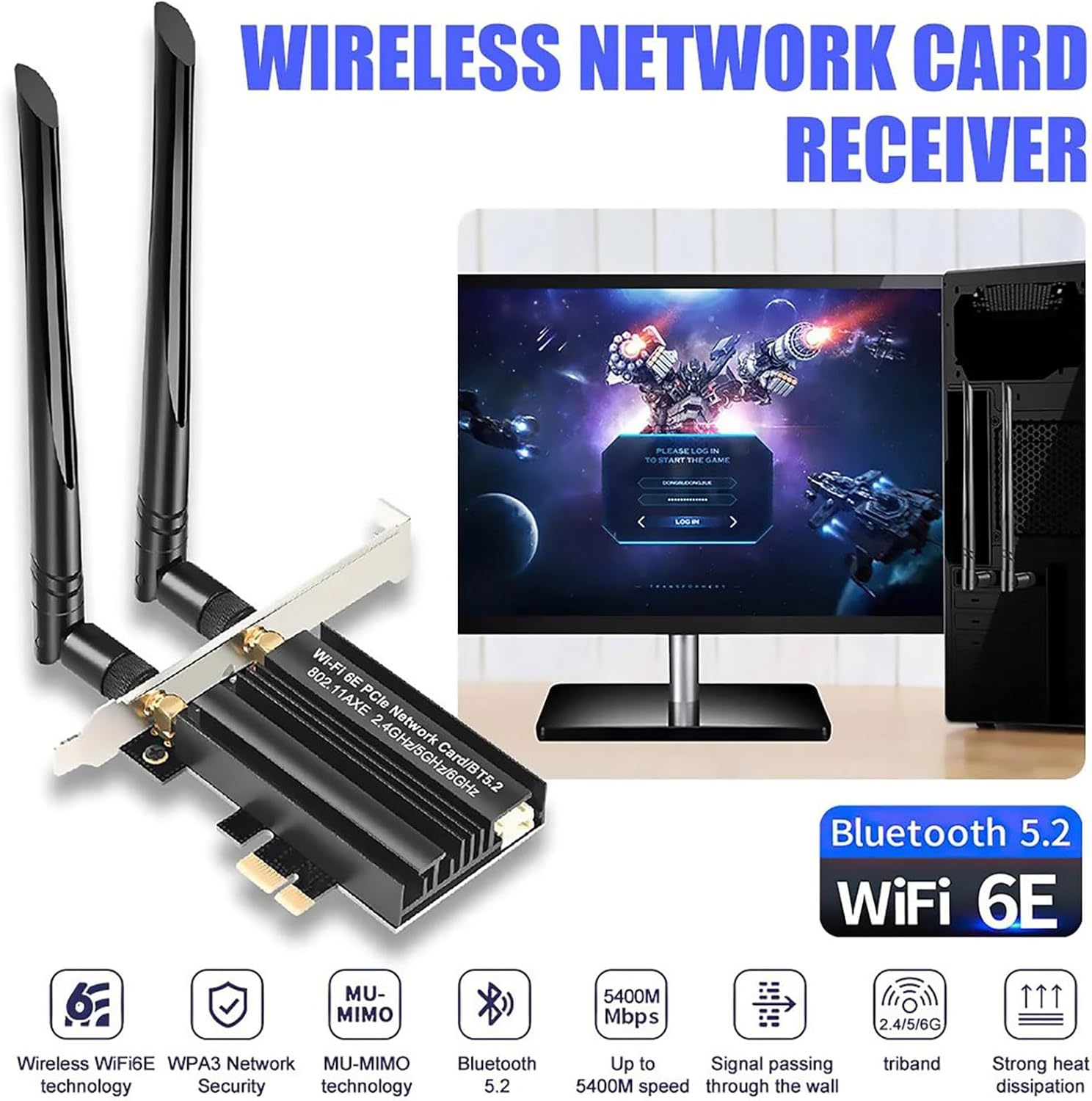
Image: The WiFi 6E PCIE Network Card installed in a desktop computer, demonstrating its use with a monitor and keyboard.
- Close Case and Power On:
- Close your computer case and reconnect the power cord and other peripherals.
- Power on your computer.
- Driver Installation:
- For Windows 10/11 (64-bit), the operating system may automatically detect and install the necessary drivers.
- If drivers are not automatically installed, or if you experience issues, please refer to the included driver CD (if applicable) or download the latest drivers from the manufacturer's official website.
- After driver installation, restart your computer.
6. Operation
Once the network card is successfully installed and drivers are in place, you can begin using its wireless and Bluetooth functionalities.
- Connecting to Wi-Fi:
- Click on the Wi-Fi icon in your system tray (usually in the bottom right corner of your screen).
- Select your desired Wi-Fi network from the list.
- Enter the network password if prompted and click 'Connect'.
- Using Bluetooth:
- Go to 'Settings' > 'Devices' > 'Bluetooth & other devices' (Windows 10/11).
- Ensure Bluetooth is turned 'On'.
- Click 'Add Bluetooth or other device' and follow the on-screen instructions to pair with your Bluetooth devices.
- AP Hotspot Function (Optional):
- Your network card can function as a Wi-Fi hotspot. This feature allows other devices to connect to your computer's internet connection.
- In Windows 10/11, go to 'Settings' > 'Network & Internet' > 'Mobile hotspot' to configure and enable this feature.
7. Maintenance
To ensure optimal performance and longevity of your network card:
- Keep Drivers Updated: Regularly check the manufacturer's website for the latest driver updates. Updated drivers can improve performance, stability, and security.
- Ensure Proper Ventilation: Make sure your computer case has adequate airflow to prevent the network card from overheating, especially during prolonged use. The integrated heat sink helps, but good case ventilation is crucial.
- Clean Dust: Periodically clean dust from inside your computer case, especially around the network card and its heat sink, to maintain efficient cooling.
8. Troubleshooting
If you encounter issues with your network card, refer to the following common problems and solutions:
| Problem | Possible Cause | Solution |
|---|---|---|
| No Wi-Fi connection | Drivers not installed or corrupted; Card not seated properly; Antennas loose. | Reinstall drivers; Reseat the card in the PCIe slot; Ensure antennas are securely attached. |
| No Bluetooth functionality | Bluetooth cable not connected to motherboard USB header; Bluetooth disabled in OS. | Ensure the Bluetooth cable is correctly connected to both the card and the motherboard's USB 2.0 header; Enable Bluetooth in Windows settings. |
| Slow Wi-Fi speeds | Interference; Outdated drivers; Router not supporting WiFi 6E/AX; Distance from router. | Update drivers; Ensure your router supports WiFi 6E/AX for optimal speeds; Reduce distance to router or remove obstructions; Check for other devices causing interference. |
| Frequent disconnections | Weak signal; Driver issues; Overheating. | Adjust antenna position; Update or reinstall drivers; Ensure proper ventilation and cooling. |
| Card not detected by OS | Card not fully seated; Faulty PCIe slot. | Reseat the card firmly; Try a different PCIe slot if available. |
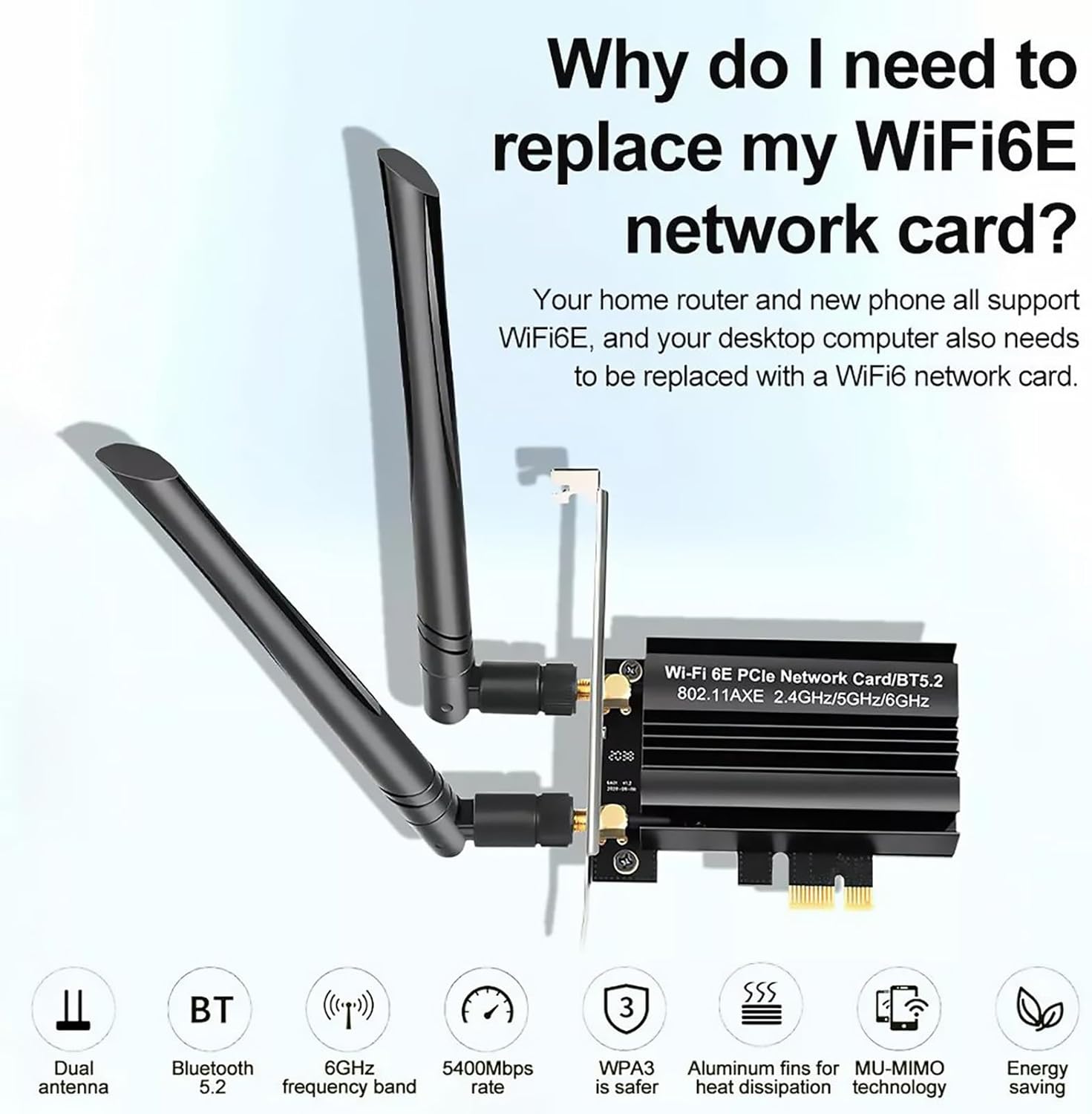
Image: An infographic explaining the benefits of upgrading to a WiFi 6E network card, emphasizing compatibility with newer routers and devices.
9. Support & Warranty
For technical support or warranty inquiries, please contact the retailer or manufacturer directly. Keep your purchase receipt as proof of purchase for warranty claims. The product typically comes with a standard manufacturer's warranty covering defects in materials and workmanship.