
1. Introduction
This manual provides detailed instructions for the operation and maintenance of your CCYLEZ 5K 75MP Digital Camera. Please read this manual thoroughly before using the camera to ensure proper function and to maximize your photographic experience. This camera is designed to capture high-resolution 75MP images and record vibrant 5K HD video, featuring an 18X digital zoom, a 3.0-inch 180-degree flip screen, macro auto-focus capabilities, and integrated Wi-Fi for easy sharing.
2. What's in the Box
Upon opening your package, please verify that all the following items are included:
- CCYLEZ 5K 75MP Digital Camera Body
- Rechargeable Lithium-Ion Battery (BL-5C)
- USB Charging Cable
- Wrist Strap
- Cleaning Cloth
- User Manual

Image: Contents of the camera package, showing the camera, battery, USB cable, wrist strap, and cleaning cloth.
3. Setup
3.1. Battery Installation
- Locate the battery compartment cover on the side of the camera.
- Slide the cover open.
- Insert the BL-5C lithium-ion battery into the compartment, ensuring the contacts align correctly.
- Close the battery compartment cover until it clicks securely.
3.2. Memory Card Installation
This camera supports TF (MicroSD) cards. A memory card is required to save photos and videos.
- Open the battery compartment cover.
- Locate the TF card slot next to the battery.
- Insert the TF card with the gold contacts facing down until it clicks into place.
- Close the battery compartment cover.
3.3. Charging the Battery
Before first use, fully charge the battery.
- Connect the small end of the USB charging cable to the camera's USB port (located near the battery compartment).
- Connect the other end of the USB cable to a USB power adapter (not included) or a computer's USB port.
- The charging indicator light will illuminate. It will turn off or change color once charging is complete.
3.4. Powering On/Off
- To power on: Press and hold the Power button (usually located on the top or side) until the screen illuminates.
- To power off: Press and hold the Power button again until the screen turns off.
3.5. Adjusting the Flip Screen
The 3.0-inch HD screen can be flipped 180 degrees for various shooting angles, including selfies.
- Gently pull the screen upwards from the top edge.
- Rotate the screen to your desired angle. For selfies, flip it 180 degrees forward.
- To close, gently fold the screen back into its original position until it sits flush with the camera body.
Video: Demonstrates unboxing, battery and memory card installation, and the flip screen mechanism of the camera.

Image: The camera with its flip screen open, ideal for taking selfies or vlogging.
4. Operating Instructions
4.1. Basic Photography
To take a photo:
- Ensure the camera is powered on.
- Select your desired shooting mode using the mode dial (e.g., Automatic, Scenery, Portrait).
- Frame your shot using the flip screen.
- Press the shutter button halfway to activate auto-focus. The focus indicator will turn green when focus is achieved.
- Press the shutter button fully to capture the image.
4.2. Digital Zoom
The camera features an 18X digital zoom to bring distant subjects closer.
- Use the 'W' (Wide) and 'T' (Telephoto) buttons, typically located near the screen, to zoom in and out.
- Note that digital zoom may reduce image quality compared to optical zoom.
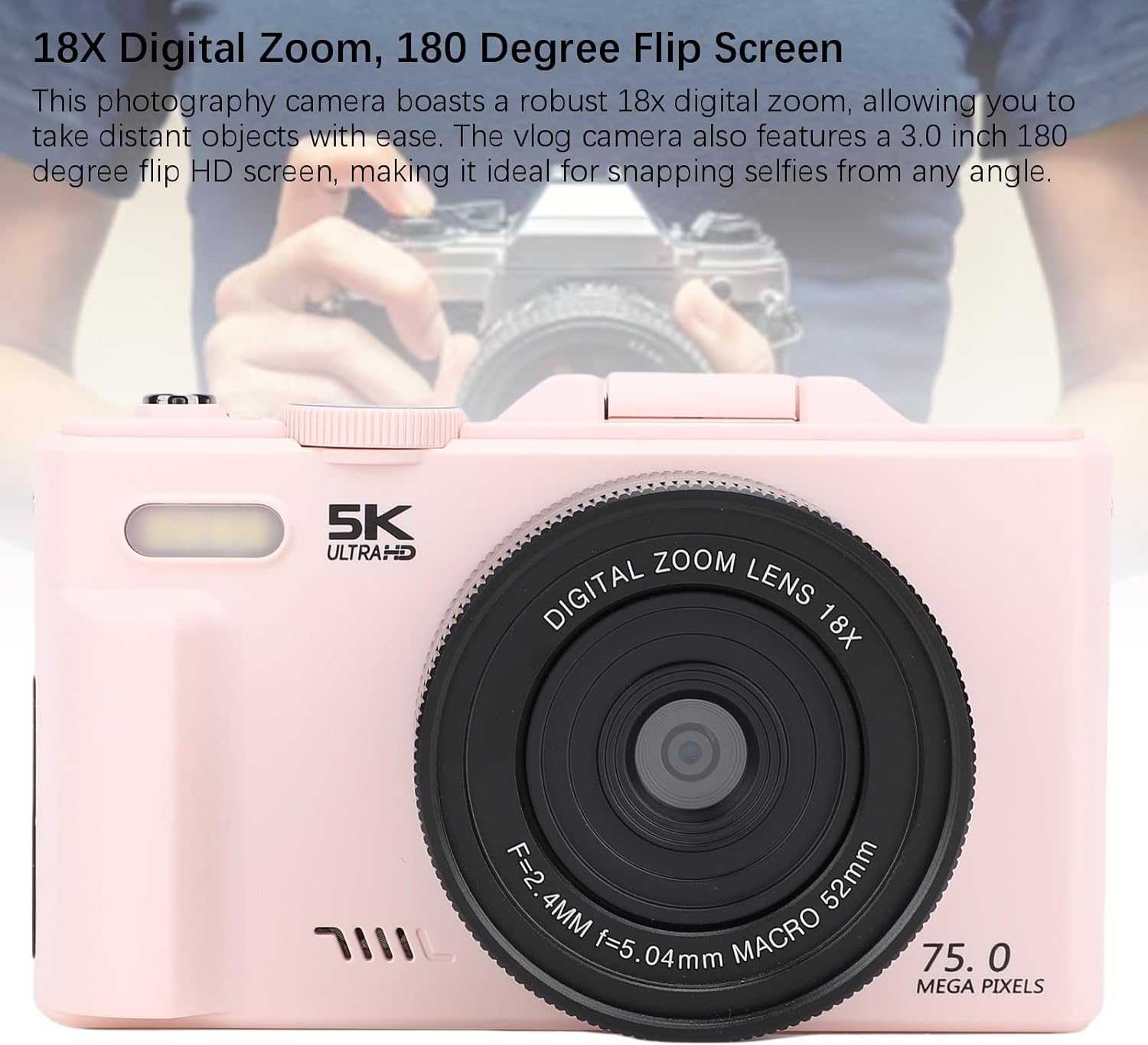
Image: The camera lens, indicating its 18X digital zoom feature.
4.3. Macro Photography
For detailed close-up shots of small objects like flowers or insects, use the macro mode.
- Select the macro mode from the mode dial or menu.
- Position the camera close to your subject. The camera's F/3.2 large aperture and 7.36mm macro lens will assist in capturing fine details.
- Press the shutter button halfway for auto-focus, then fully to capture.

Image: The camera focusing on a small subject, illustrating macro photography.
4.4. Video Recording
To record a video:
- Switch the mode dial to video recording mode.
- Press the shutter button to start recording. A red indicator or timer will appear on the screen.
- Press the shutter button again to stop recording.
4.5. WiFi Instant Sharing
The camera features built-in Wi-Fi for wireless transfer of photos and videos to your smartphone or tablet.
- Enable Wi-Fi on your camera through the menu settings.
- Download the dedicated camera app (refer to the camera's on-screen instructions or manual for app name) on your smartphone/tablet.
- Connect your smartphone/tablet to the camera's Wi-Fi network (SSID and password will be displayed on the camera screen).
- Use the app to browse, download, and share your media.

Image: Camera connected to a smartphone via Wi-Fi, demonstrating wireless sharing.
4.6. Using the Built-in Flash
The built-in flash assists in low-light conditions.
- The flash typically operates in automatic mode, firing when light conditions are insufficient.
- You can manually control flash settings (e.g., On, Off, Red-eye Reduction) through the camera's menu.

Image: Depiction of the camera's flash function in a dark environment.
4.7. Shooting Modes
The camera offers various shooting modes to suit different scenarios. Rotate the mode dial to select:
- Ordinary & Daily Photography: Standard mode for everyday shots.
- Automatic Photography: Camera automatically adjusts settings.
- Camera Timer: For delayed shots (e.g., 2s, 5s, 10s).
- Scenery: Optimizes settings for landscapes.
- Portrait: Enhances skin tones and blurs backgrounds for portraits.
- Continuous Shooting: Captures multiple photos in quick succession.
- Slow Photography: For slow-motion effects.
- Time-Lapse Recording: Captures images over time to create a time-lapse video.
- Loop Recording: Continuously records video, overwriting older footage.
- Video Recording Photography: Dedicated video mode.
- Night View: Optimizes for low-light night scenes.
- Party: Settings optimized for indoor party environments.

Image: The camera's mode dial illustrating different available shooting modes.
5. Maintenance
5.1. Cleaning the Camera
- Use the provided cleaning cloth or a soft, lint-free cloth to gently wipe the camera body and screen.
- For stubborn smudges on the lens, use a specialized lens cleaning solution and cloth. Avoid harsh chemicals.
- Do not use excessive force when cleaning the flip screen.
5.2. Storage
- Store the camera in a cool, dry place away from direct sunlight and extreme temperatures.
- If storing for an extended period, remove the battery to prevent leakage.
- Keep the camera in its protective pouch (if included) to prevent scratches.
5.3. Battery Care
- Avoid fully discharging the battery frequently.
- Charge the battery regularly, even if not in use, to maintain its lifespan.
- Dispose of old batteries responsibly according to local regulations.
6. Troubleshooting
If you encounter issues with your camera, please refer to the following common solutions:
| Problem | Possible Cause / Solution |
|---|---|
| Camera does not power on. | Battery is depleted or incorrectly inserted. Ensure battery is charged and properly seated. |
| Cannot take photos/videos. | Memory card is full, not inserted, or corrupted. Check card status, replace if necessary. Ensure correct shooting mode is selected. |
| Images are blurry. | Camera not focused. Ensure auto-focus engages (half-press shutter). Check for smudges on the lens. Ensure sufficient lighting. |
| Wi-Fi connection issues. | Ensure Wi-Fi is enabled on camera and smart device. Verify correct network name (SSID) and password. Restart both devices. |
| Flash not firing. | Check flash settings in the menu. Ensure camera is in a mode that allows flash. |
| Screen is blank or frozen. | Try removing and reinserting the battery. If issue persists, contact customer support. |
7. Specifications
Detailed technical specifications for the CCYLEZ 5K 75MP Digital Camera:
- Model Name: CCYLEZz4wsnqrma7
- Photo Sensor Technology: CMOS
- Maximum Webcam Image Resolution: 75 MP
- Effective Still Resolution: 75 MP
- Video Capture Format: MP4 (5K HD)
- Optical Zoom: 18x (Digital Zoom)
- Lens Type: Macro
- Minimum Focal Length: 7.36 Millimeters
- Maximum Focal Length: 7.36 Millimeters
- Aperture Modes: F3.2
- Screen Size: 3 Inches (180-degree Flip HD Screen)
- Display Type: LCD
- Focus Type: Auto Focus (Continuous-Servo AF)
- Exposure Control Type: Automatic, Manual
- Light Sensitivity: ISO 100-3200
- White Balance Settings: Auto, Cloudy, Fluorescent, Incandescent
- Camera Flash: Built-In (Automatic modes)
- Connectivity Technology: Wi-Fi, Ethernet (for data transfer/streaming)
- Battery Type: Lithium Ion (BL-5C)
- Battery Capacity: 1150 Milliamp Hours
- Water Resistance Level: Not Water Resistant
- Compatible Devices: Smartphones, Tablets, TVs, Computers
- Specific Uses For Product: Vlogging
8. Warranty and Support
8.1. Warranty Information
Your CCYLEZ 5K 75MP Digital Camera comes with a standard manufacturer's warranty. Please refer to the warranty card included in your package for specific terms, conditions, and duration. This warranty typically covers defects in materials and workmanship under normal use.
8.2. Customer Support
For technical assistance, troubleshooting beyond this manual, or warranty claims, please contact CCYLEZ customer support. Contact information can usually be found on the product packaging, the official CCYLEZ website, or through your retailer.
When contacting support, please have your camera model number (CCYLEZz4wsnqrma7) and purchase details readily available.