
1. Introduction
Thank you for choosing the Newsoul 4K Portable Monitor M1620. This 16-inch portable display offers a 4K UHD (3840 x 2400) resolution with up to 1200 nits peak brightness and a 2000:1 contrast ratio, providing a clear and vibrant visual experience. Designed for versatility, it features USB-C and Mini HDMI connectivity, VESA mount compatibility, and a matte IPS screen for reduced glare. This manual provides essential information for setting up, operating, and maintaining your monitor.
2. Package Contents
Please check the package contents to ensure all items are present:
- Newsoul 4K Portable Monitor M1620
- 2 x USB Type-C cables
- 1 x Mini HDMI Cable
- 1 x 30W Power Adapter
- Protective Cover (doubles as a stand)
- VESA Mounting Screws (M4*4mm)
- User Manual
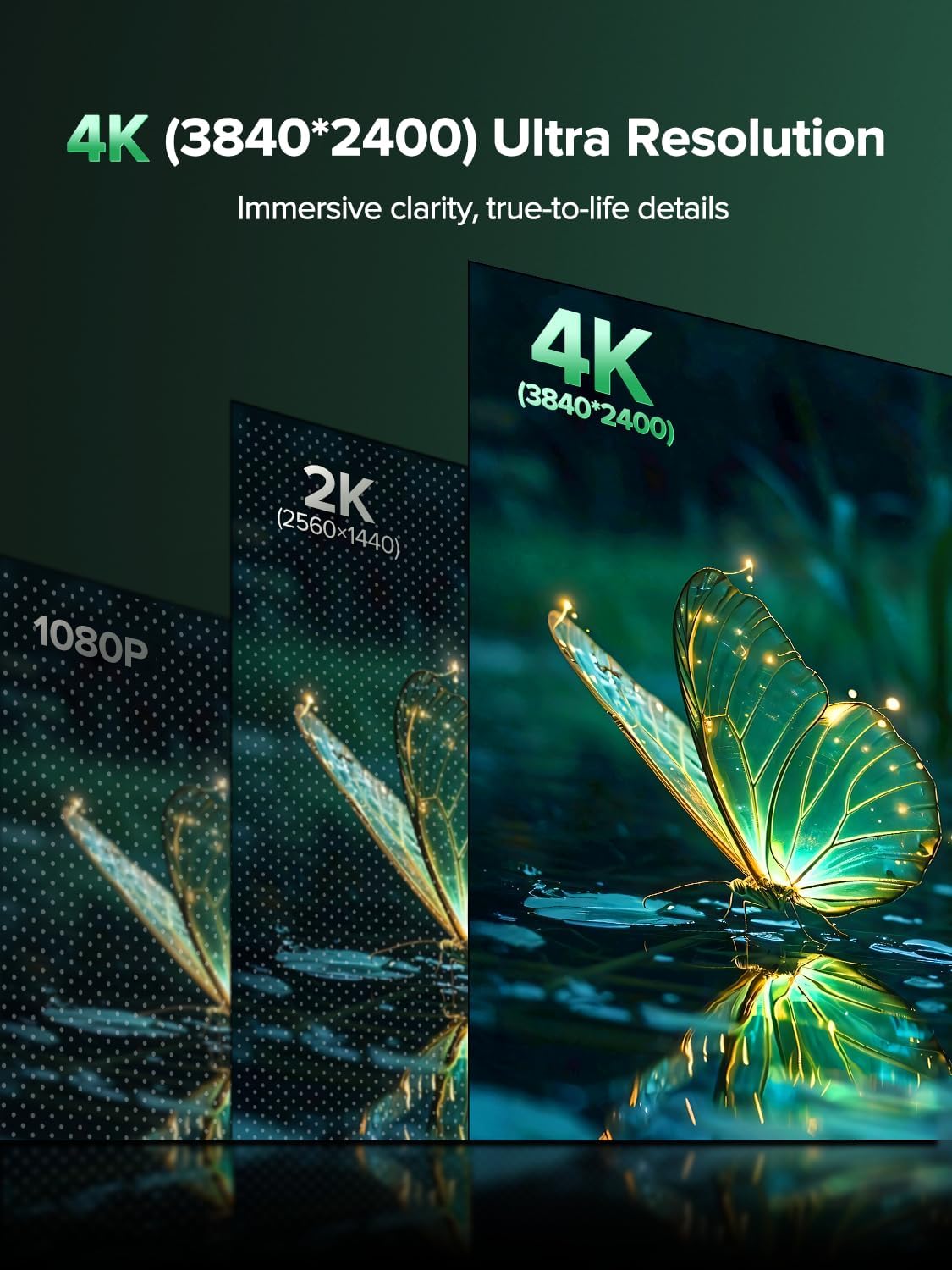
Image: Newsoul Portable Monitor M1620 and its accessories, including cables, power adapter, and protective cover, neatly arranged in the product packaging.
3. Product Overview and Features
The Newsoul M1620 portable monitor is designed for enhanced productivity and immersive entertainment. Key features include:
- Ultra-High Brightness & Contrast: 1200 Nits peak brightness and 2000:1 contrast ratio for vivid and clear visuals, even in bright environments.
- Superior 4K Visual Experience: 4K UHD (3840 x 2400) resolution for sharp, detailed images. Features FreeSync technology for smooth motion.
- IPS Matte Screen with Excellent Color Performance: 100% sRGB wide color gamut for accurate and vibrant colors. The matte screen reduces reflections and eye strain.
- VESA Mountable & Protective Cover: Equipped with VESA holes (75x75mm, M4*4mm) for flexible mounting options. The magnetic PU protective case shields the screen and functions as an adjustable stand.
- Slim & Lightweight Design: Constructed with an aluminum alloy shell for durability, efficient heat dissipation, and a portable profile (1.8 lbs, 0.35 inches thin).
- Plug & Play, Wide Compatibility: No drivers required. Features 2 USB Type-C ports and 1 Mini HDMI port for easy connection to laptops, phones, game consoles (PS4/5, Xbox, Switch), PCs, and tablets.

Image: Side view of the Newsoul Portable Monitor M1620, highlighting its slim profile and connectivity ports including two USB-C ports and one Mini HDMI port.
4. Setup Guide
4.1. Connecting to Devices
The Newsoul M1620 monitor supports various connection methods:
- USB Type-C Connection (Full-featured USB-C):
If your device (laptop, phone, tablet) has a full-featured USB-C port (supporting video output and power delivery), you can connect it to the monitor using a single USB-C to USB-C cable. This cable will transmit both video signal and power. For optimal brightness and performance, especially with 4K resolution, it is recommended to connect the monitor to an external power source using the provided 30W power adapter and a second USB-C cable.
- Mini HDMI Connection:
Connect the monitor to devices like PCs, game consoles (PS4/5, Xbox), or cameras using the Mini HDMI to HDMI cable. When using HDMI, you must also connect the monitor to an external power source via one of the USB-C ports using the provided 30W power adapter and a USB-C cable.
4.2. Powering the Monitor
Always ensure the monitor receives adequate power. For the best user experience and to achieve peak brightness, connect the monitor to the provided 30W power adapter using a USB-C cable, even if your device supports power delivery via a single USB-C connection.
4.3. Using the Protective Cover as a Stand
The included magnetic protective cover can be folded to create a stable stand for your monitor. Adjust the folds to achieve your desired viewing angle in either landscape or portrait mode.
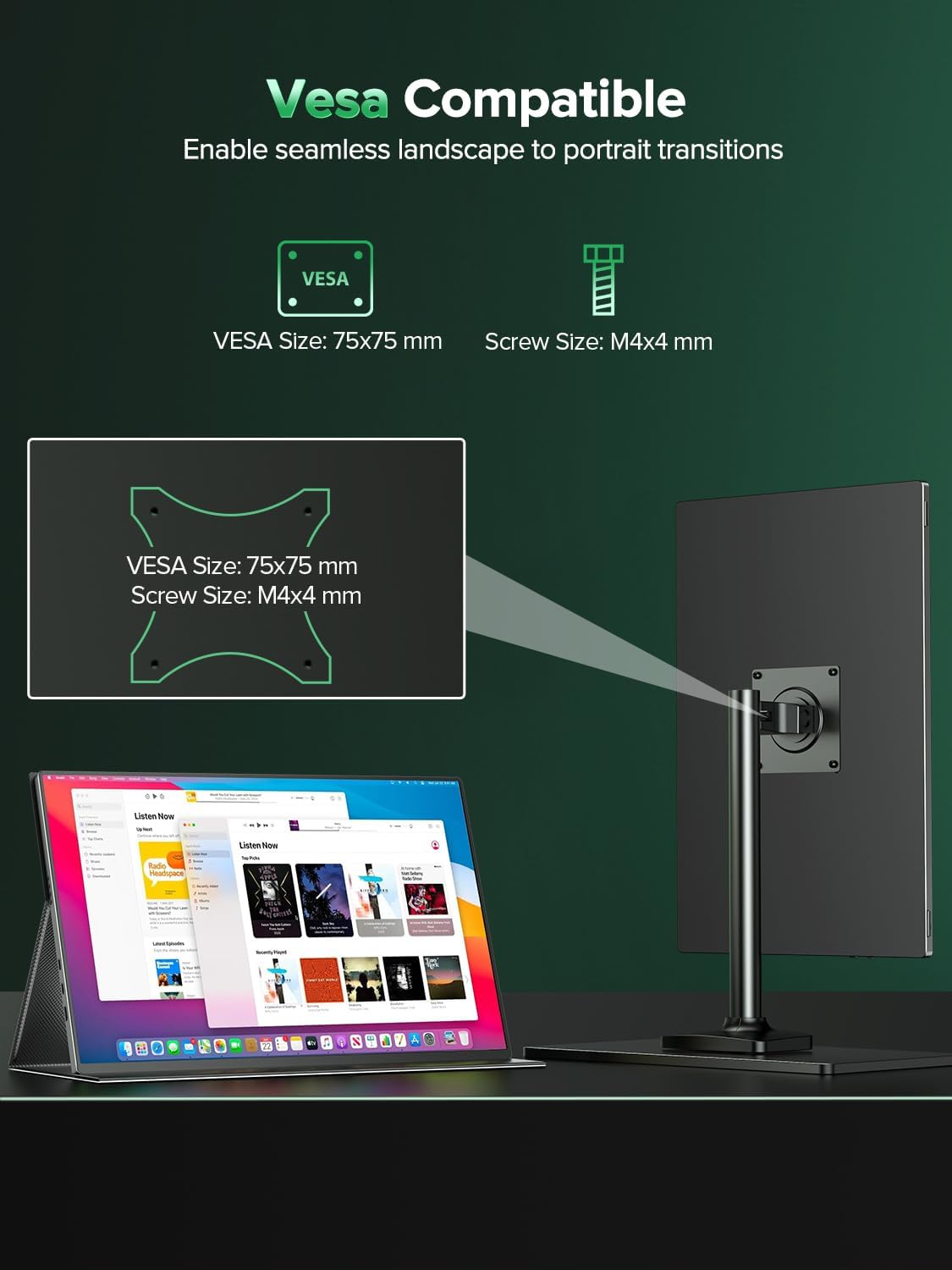
Image: The Newsoul Portable Monitor M1620 positioned on a desk, utilizing its magnetic protective cover as a stand for optimal viewing.
4.4. VESA Mounting
The monitor features VESA mounting holes (75x75mm, M4*4mm) on the back. This allows you to attach it to compatible VESA arms or wall mounts for a customized setup. Use the provided M4*4mm screws for secure mounting.

Image: The Newsoul Portable Monitor M1620 shown mounted on a VESA-compatible desk arm, demonstrating its flexibility for various setups.
5. Operating the Monitor
5.1. Power On/Off
Locate the power button on the side of the monitor. Press and hold to power on or off. A short press may activate the OSD menu or confirm selections, depending on the context.
5.2. On-Screen Display (OSD) Menu
The monitor features an intuitive OSD menu for adjusting various settings. Typically, a joystick or a combination of buttons is used to navigate and select options. Refer to the detailed instructions in the included User Manual for specific button functions.
5.3. Adjusting Display Settings
Through the OSD menu, you can adjust:
- Brightness & Contrast: Fine-tune the display's luminance and contrast levels.
- Color Settings: Adjust color temperature, hue, saturation, and gamma for optimal color accuracy.
- HDR Mode: Enable or disable HDR (High Dynamic Range) for enhanced visual depth and color.
- FreeSync: Activate FreeSync technology to synchronize the monitor's refresh rate with your device's GPU, reducing screen tearing and stuttering during gaming.
- Eye Protection: Utilize features like low blue light mode to reduce eye strain during prolonged use.
- Orientation: Switch between landscape and portrait display modes as needed.
6. Maintenance
- Cleaning: Use a soft, lint-free cloth to gently wipe the screen. For stubborn marks, slightly dampen the cloth with water or a screen-cleaning solution. Avoid harsh chemicals or abrasive materials.
- Storage: When not in use, store the monitor in its protective cover to prevent scratches and dust accumulation.
- Handling: Handle the monitor with care to avoid dropping or impacting it, which could damage the screen or internal components.
- Temperature: Avoid exposing the monitor to extreme temperatures or direct sunlight for extended periods.
7. Troubleshooting
- No Signal:
- Ensure all cables (USB-C or HDMI) are securely connected to both the monitor and the source device.
- Verify that the source device is powered on and configured to output video to an external display.
- If using HDMI, ensure the monitor is also connected to external power.
- Try a different cable or port on your device.
- No Power:
- Confirm the power adapter is correctly plugged into a working outlet and the monitor's USB-C power input.
- If using a single USB-C cable for power and video, ensure your device's USB-C port supports power delivery.
- Dim Display:
- Adjust the brightness setting via the OSD menu.
- Ensure the monitor is receiving sufficient power, especially if using a single USB-C cable. Connecting the dedicated power adapter is recommended for full brightness.
- Screen Flickering/Tearing:
- Check cable connections.
- Enable FreeSync in the OSD menu if your source device supports it.
- Adjust the refresh rate in your device's display settings.
- No Sound:
- Check the volume settings on both the monitor (via OSD) and your source device.
- Ensure the correct audio output device is selected on your source.
- If using headphones, ensure they are properly plugged into the monitor's audio jack.
8. Specifications
| Feature | Detail |
|---|---|
| Model Number | M1620 |
| Screen Size | 16 Inches |
| Resolution | 3840 x 2400 Pixels (4K UHD) |
| Aspect Ratio | 16:10 |
| Image Brightness | 1200 Candela (Nits Peak Brightness) |
| Contrast Ratio | 2000:1 |
| Screen Surface | Matte IPS |
| Color Gamut | 100% sRGB |
| Connectivity | 2 x USB Type-C, 1 x Mini HDMI |
| VESA Mount | 75x75mm, M4*4mm |
| Item Weight | 1.8 pounds |
| Product Dimensions | 0.35 x 13.9 x 9 inches |
9. Warranty and Support
For warranty information and technical support, please refer to the official Newsoul website or contact their customer service directly. Keep your purchase receipt as proof of purchase for warranty claims.

