
1. Introduction
The Qubo X232 is a 4G mobile phone designed for simplicity and reliability, particularly suitable for seniors or users who prefer a straightforward device for calls, messages, and daily use without complications. It features a large display, big buttons, and an emergency SOS function for enhanced safety and ease of communication.
2. Product Overview
The Qubo X232 offers a user-friendly design with essential features for clear communication.
2.1 Key Features
- Large 2.3-inch Display: Provides clear visibility with larger text and icons for easy reading.
- Big Buttons & Backlit Keypad: Physical keys are large for comfortable dialing, and the backlit keypad aids use in low-light conditions. Voice announcement of keys pressed is also included.
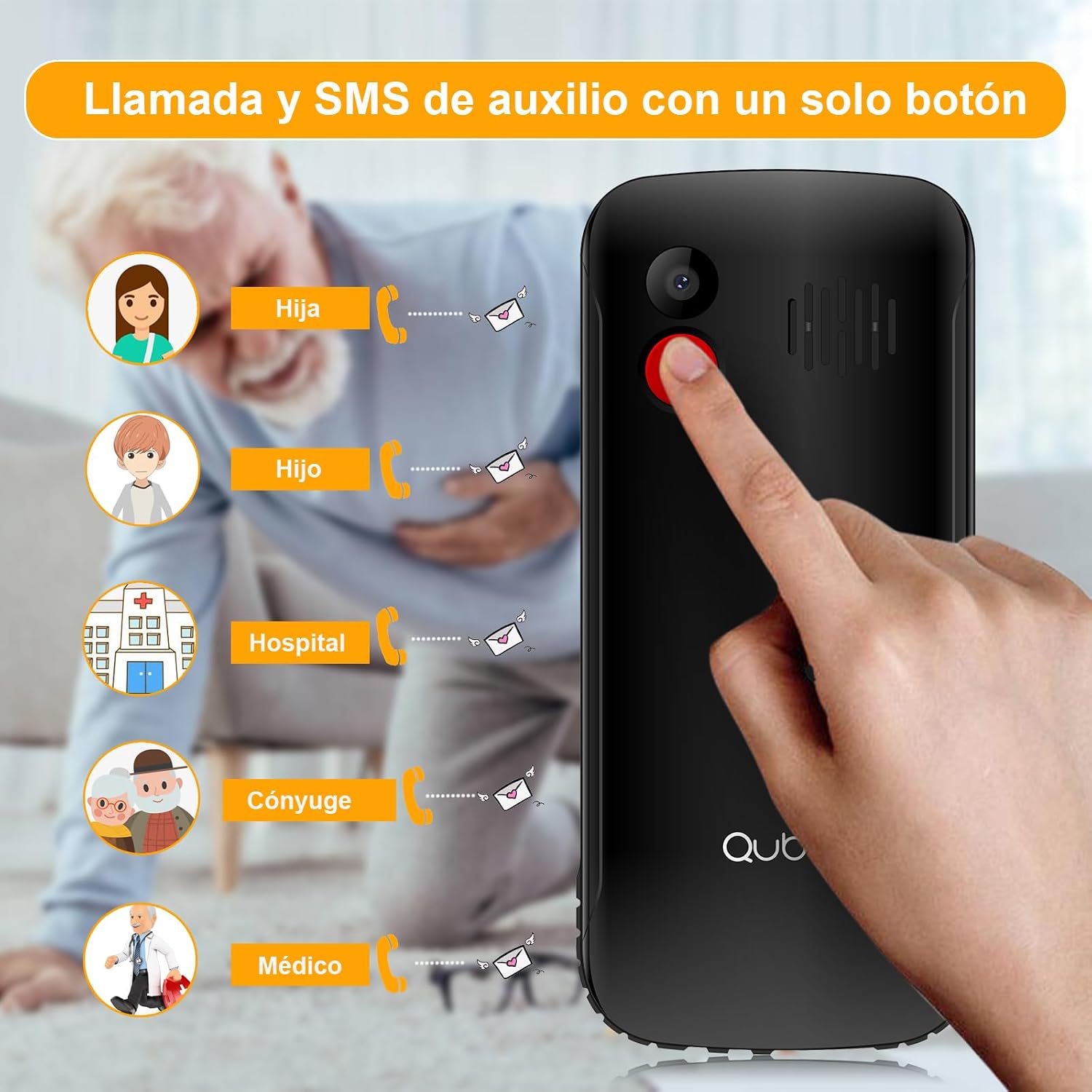
- SOS Emergency Button: A dedicated button for emergencies, allowing automatic calls and SMS to up to 5 pre-set contacts.
- Loud Audio: High volume for calls and ringtones, beneficial for users with hearing difficulties or in noisy environments.
- Long-lasting 1700mAh Battery: Offers extended standby time, reducing the frequency of charging.
- Unlocked & Wide Compatibility: Compatible with various network operators (Telcel, AT&T, Movistar, BAIT, CFE, Altan) and supports 4G/3G/2G networks.
- Convenient USB Type-C Charging: Modern and reversible charging port for easy connection.
- Integrated Flashlight: Quick access to a powerful flashlight for convenience and emergencies.
- Additional Functions: Includes FM radio, camera, music/video player, alarm, calendar, Bluetooth, microSD slot, and 3.5mm headphone jack.
2.2 Phone Components




3. Setup
3.1 SIM Card and Battery Installation
- Remove Back Cover: Gently remove the back cover of the phone.
- Insert SIM Card(s): Locate the SIM card slot(s). The Qubo X232 supports Dual SIM. Insert your SIM card(s) into the designated slots, ensuring proper orientation as indicated on the phone.
- Insert MicroSD Card (Optional): If you wish to expand storage, insert a microSD card into its dedicated slot.
- Insert Battery: Place the 1700mAh battery into the battery compartment, aligning the contacts correctly.
- Replace Back Cover: Securely reattach the back cover.
3.2 Charging the Phone
Connect the provided USB Type-C cable to the phone's charging port and the other end to a power adapter. Plug the adapter into a wall outlet. The battery indicator on the screen will show charging status. Ensure the phone is fully charged before first use.
3.3 Power On/Off
To power on, press and hold the Power button (usually red) until the screen lights up. To power off, press and hold the Power button, then select 'Power Off' from the options.
4. Basic Operations
4.1 Making Calls
- Dialing: Enter the phone number using the keypad.
- Initiate Call: Press the green Call button to make the call.
- End Call: Press the red End Call button to hang up.
4.2 Receiving Calls
When a call comes in, press the green Call button to answer. Press the red End Call button to reject or end the call.
4.3 Sending Messages (SMS)
- Navigate to the 'Messages' menu.
- Select 'New Message' or 'Create SMS'.
- Enter the recipient's phone number or select from contacts.
- Type your message using the keypad.
- Press 'Send'.
4.4 Managing Contacts
Access the 'Contacts' menu to add, edit, or delete contacts. You can assign speed dial numbers (M1, M2, M3) for quick access to important contacts. The phone also supports contacts with photos for easier identification.
5. Special Features
5.1 SOS Emergency Button
The dedicated SOS button on the back of the phone is for emergencies. When pressed and held, it will automatically call up to 5 pre-set emergency contacts and send an emergency SMS message to them simultaneously. Ensure emergency contacts are properly configured in the phone settings.
5.2 Flashlight
The Qubo X232 includes a powerful flashlight. To activate or deactivate it, use the dedicated side button or navigate through the phone's menu options.
5.3 FM Radio
The phone features a built-in FM radio. Access it through the multimedia menu. No headphones are required to listen to the radio.
5.4 Volume Control
Adjust call and ringtone volume using the dedicated side buttons. The phone is designed to provide loud and clear audio.
6. Specifications
| Feature | Specification |
|---|---|
| Brand | Qubo |
| Model Name | Qubo-X232 |
| Operating System | Nucleus OS |
| Screen Size | 2.3 inches |
| Battery Capacity | 1700 mAh |
| Cellular Technology | 4G (compatible with 5G SIMs at 4G speed) |
| Wireless Carrier Compatibility | All carriers (Telcel, AT&T, Movistar, BAIT, CFE, Altan) |
| SIM Card Count | Dual SIM |
| RAM | 48 MB |
| CPU Model | 6X86 |
| CPU Speed | 2 GHz |
| Charging Port | USB Type-C |
| Headphone Jack | 3.5 mm |
| Dimensions | 132.1 x 58.2 x 14.1 mm |
| Weight | Approx. 110 g |
| Color | Black |
7. Troubleshooting
- Phone does not turn on: Ensure the battery is correctly inserted and charged. Connect the charger and try again.
- No signal: Check if the SIM card is properly inserted. Ensure you are in an area with network coverage.
- Cannot make/receive calls: Verify SIM card activation with your carrier. Check if the number is blocked or if call barring is active.
- Charging issues: Ensure the USB Type-C cable and adapter are securely connected and undamaged. Try a different power outlet.
- SOS button not working: Confirm that emergency contacts are correctly set up in the SOS settings menu.
8. Safety Information
Read all safety information before using your phone to ensure safe and proper use. Keep the phone away from water and extreme temperatures. Use only approved accessories. Do not attempt to disassemble or repair the phone yourself.
9. Warranty and Support
The manufacturer offers a 30-day warranty for this product. For any issues or support inquiries beyond this period, please contact your retailer or the seller directly. Keep your purchase receipt as proof of purchase.
