
1. Introduction
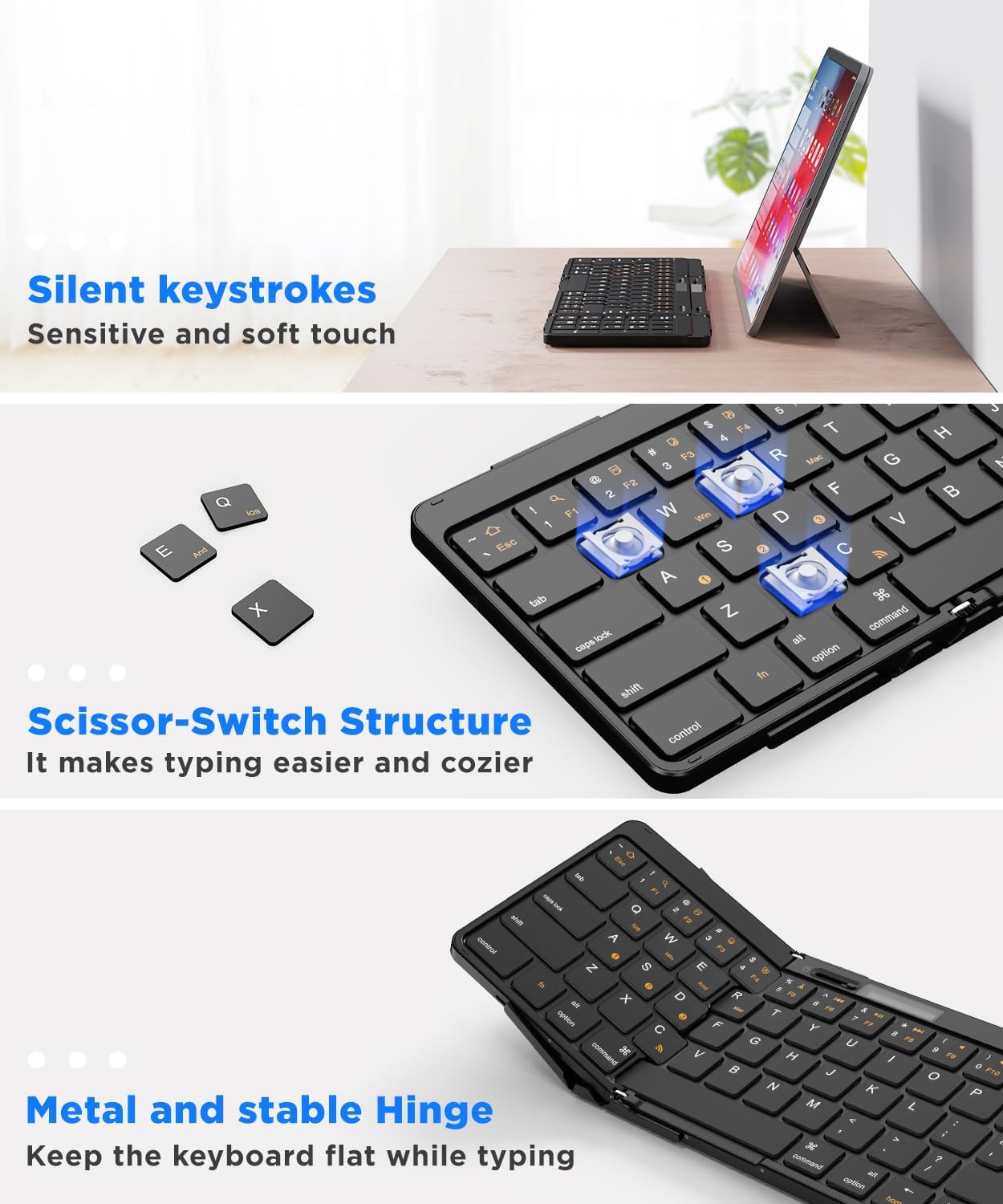
This manual provides instructions for the Omikamo Foldable Bluetooth Keyboard, a full-size wireless keyboard designed for portability and multi-device compatibility. It features an 82-key layout with an integrated numeric keypad, quiet scissor-switch keys, and a stable folding mechanism.


2. Setup and Connection
2.1 Powering On/Off
To power on the keyboard, unfold it completely. The LED display will activate. To power off, fold the keyboard. The keyboard automatically enters sleep mode after a period of inactivity.
2.2 Bluetooth Pairing
- Ensure the keyboard is unfolded and powered on.
- Simultaneously press Fn + C. The Bluetooth indicator light on the LED display will flash, indicating it is in pairing mode.
- On your device (smartphone, tablet, PC, laptop), navigate to Bluetooth settings and search for available devices.
- Select "Omikamo Keyboard" (or similar name) from the list to connect.
- Once connected, the Bluetooth indicator light will stop flashing.
2.3 Multi-Device Connection (Up to 3 Devices)
The keyboard supports connecting to up to three devices simultaneously. Use the following key combinations to switch between paired devices:
- Fn + A: Switch to Device 1
- Fn + S: Switch to Device 2
- Fn + D: Switch to Device 3
To pair additional devices, press Fn + A/S/D to select an unused channel, then repeat the Bluetooth pairing steps (2.2) for the new device.
2.4 System Switching
Optimize keyboard functionality for your operating system by pressing the corresponding key combination:
- Fn + Q: iOS
- Fn + W: Windows
- Fn + E: Android
- Fn + R: Mac OS

3. Operating Instructions
3.1 Folding Mechanism and Stability Lock
The keyboard features a foldable design for portability. To ensure stability during use, slide the lock switch located on the side of the keyboard to the "on" position after unfolding. This prevents accidental folding and maintains a flat, rigid typing surface, even when used on your lap.

3.2 LED Power Display
The integrated LED display provides real-time information:
- Battery Level: Shows the remaining battery percentage.
- Bluetooth Status: Indicates connection status (flashing for pairing, solid for connected).
- Caps Lock Indicator: Lights up when Caps Lock is active.
- Charging Indicator: A breathing light indicates charging in progress.
3.3 Multimedia and Function Keys
The keyboard includes dedicated function keys and multimedia controls. Press the Fn key in combination with the corresponding F-keys (F1-F12) to access these functions:
- Fn + F1: Search
- Fn + F2: Select
- …and other standard multimedia controls like Play/Pause, Volume Up/Down, etc.

3.4 Numeric Keypad
The integrated 10-key numeric keypad provides convenience for data entry and calculations.

3.5 Typing Experience
The keyboard utilizes quiet scissor-switch keys, designed for a smooth and responsive typing experience with minimal noise. The metal hinge ensures the keyboard remains flat and stable during use.
4. Maintenance
4.1 Charging the Keyboard
The keyboard is equipped with a built-in 500 mAh rechargeable battery. Use the provided Type-C charging cable to charge the device. A full charge typically takes approximately 2 hours and provides up to 5 months of standby time.

4.2 Cleaning
To clean the keyboard, gently wipe the surface with a soft, dry cloth. For stubborn dirt, slightly dampen the cloth with water or a mild, non-abrasive cleaner. Avoid excessive moisture and do not immerse the keyboard in liquid.
5. Troubleshooting
- Keyboard not connecting via Bluetooth:
- Ensure the keyboard is fully charged and powered on.
- Verify Bluetooth is enabled on your device.
- Make sure the keyboard is in pairing mode (Bluetooth indicator flashing).
- Forget the device from your device's Bluetooth settings and attempt to re-pair.
- Try connecting to a different device to rule out device-specific issues.
- Keys not responding:
- Check the battery level on the LED display. Recharge if low.
- Ensure the keyboard is properly connected to your device.
- Verify the correct operating system mode is selected (Fn + Q/W/E/R).
- Keyboard folds unexpectedly during use:
- Ensure the stability lock switch is in the "on" position after unfolding the keyboard.
6. Specifications
| Model | 15.2 inch Numberpad |
| Dimensions (Unfolded) | 15.2 x 4.7 inches |
| Dimensions (Folded) | 8.46 x 4.68 x 0.78 inches |
| Item Weight | 14.9 ounces |
| Connectivity Technology | Bluetooth |
| Compatible Devices | Laptop, PC, Smartphone, Tablet (iOS, Windows, Android, Mac OS) |
| Battery | 1 Lithium Polymer (500 mAh) |
| Charging Port | Type-C |
| Keyboard Layout | QWERTY |
| Special Features | Ergonomic, Foldable, Lightweight, Rechargeable, Quiet Keys, Numeric Keypad, Multi-device support |

7. Warranty and Support
For warranty information or technical support, please refer to the product packaging or contact Omikamo customer service directly. Contact details can typically be found on the official Omikamo website or through your purchase platform.