
ClokoWe HY300PRO+
CLOKOWE Mini Projector User Manual
Model: HY300PRO+
Introduction
This manual provides detailed instructions for the safe and efficient operation of your CLOKOWE Mini Projector. Please read this manual thoroughly before using the product and retain it for future reference. The CLOKOWE Mini Projector is a portable device designed for versatile projection, featuring built-in streaming apps, Wi-Fi 6, Bluetooth 5.2, 180° rotation, and automatic keystone correction.

Image: The CLOKOWE Mini Projector, a compact white cylindrical device with a lens, shown projecting content onto a curved screen displaying various streaming app logos and a movie scene.
What's in the Box
Verify that all items are present upon unpacking:
- CLOKOWE Mini Projector (Model: HY300PRO+)
- Power Cord
- HDMI Cable
- Remote Control
- User Manual (this document)
Product Features
The CLOKOWE Mini Projector offers a range of features for enhanced viewing experiences:
- Built-in Streaming Apps: Access platforms like YouTube, Disney+, and more directly via Wi-Fi.
- Versatile Connectivity: Supports wireless mirroring (iPhone, Android, tablet, laptop) and wired connections (HDMI, USB).
- 180° Rotatable Projection: The projector body can rotate 180° for flexible projection angles, including ceiling projection.
- Automatic Keystone Correction: Ensures aligned visuals automatically.
- Manual Focus: Allows for fine-tuning image clarity.
- Wi-Fi 6 & Bluetooth 5.2: Provides fast, stable wireless streaming and audio pairing with external speakers.
- Ultra-Portable Design: Compact size (3.73 × 3.73 × 6.17 inches) and lightweight (0.77 lb).
- High Clarity Display: 8000 Lux brightness, supports 1080P display, with a 0.9:1 short throw ratio.
- Customizable Wallpapers: Upload personal background images via USB.
- Automatic Shut-off Timer: Set a timer for controlled usage.

Image: A visual representation of the projector's built-in app store, showing various streaming service icons like Netflix, YouTube, Spotify, and Prime Video on a projected screen.

Image: A family watching a movie projected onto the ceiling of a bedroom, demonstrating the 180° rotation feature for ceiling projection.
Setup Guide
1. Initial Placement and Power
- Place the projector on a stable, flat surface.
- Connect the power cord to the projector and then to a power outlet.
- Press the power button on the projector or remote control to turn it on.
2. Adjusting Projection Angle (180° Rotation)
The projector features a 180° rotatable body, allowing projection onto walls, screens, or ceilings without needing a tripod.
- Gently rotate the projector body to achieve the desired projection angle.
- Ensure the lens is facing the intended projection surface.
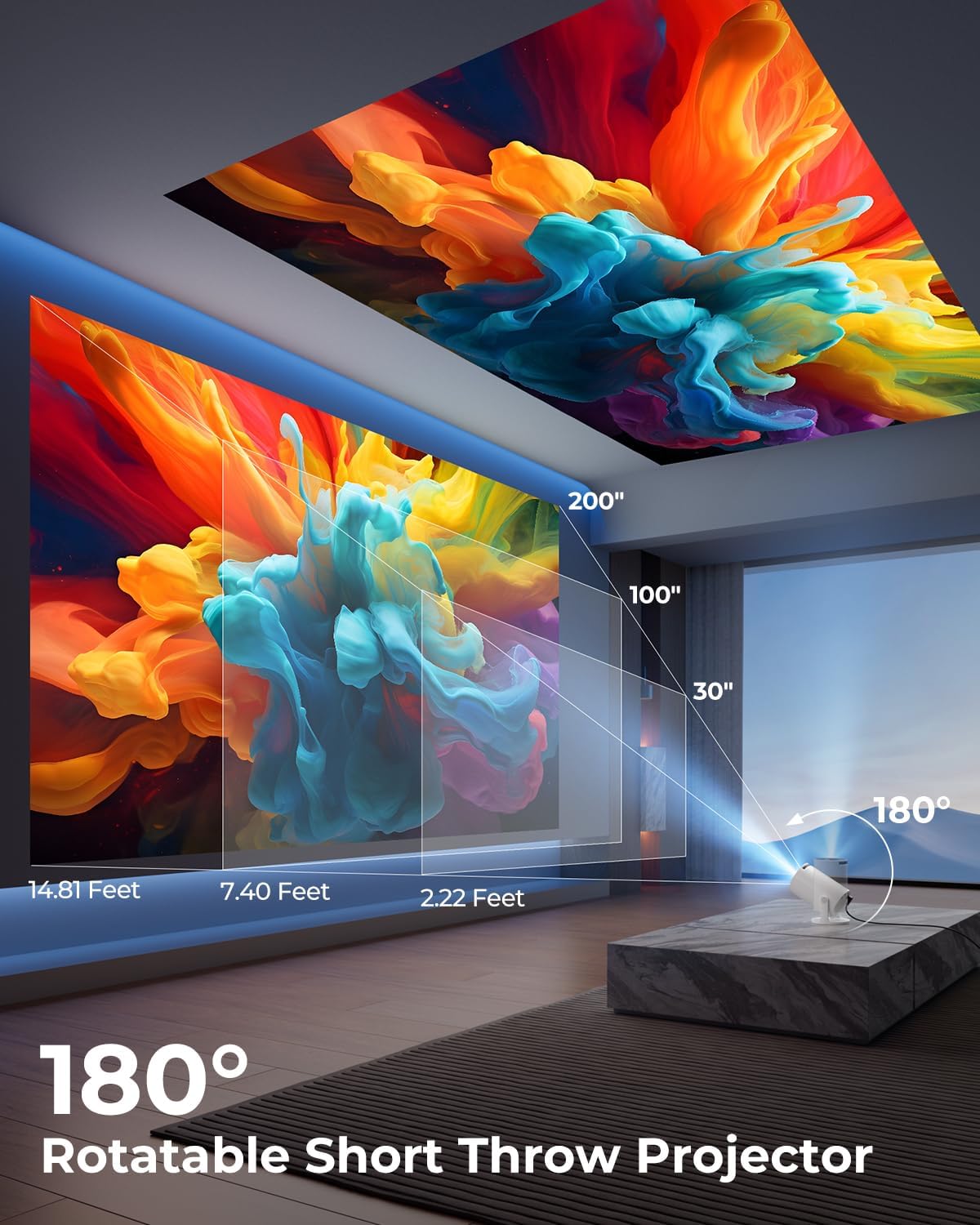
Image: A diagram illustrating the 180° rotation capability of the projector and various projection distances (30", 100", 200") with corresponding throw distances in feet.
3. Focus and Keystone Correction
- Automatic Keystone Correction: The projector will automatically adjust the image to be rectangular. If further adjustment is needed, navigate to the settings menu.
- Manual Focus: Rotate the focus ring around the lens until the image appears sharp and clear.

Image: A projected image on a wall demonstrating automatic keystone correction and manual focus adjustments, with icons for ±45° Auto Keystone, Manual Focus, and 50%-100% Zoom.
4. Network and Bluetooth Connection
- Wi-Fi Connection:
- Navigate to the "Settings" menu on the projector.
- Select "Network" or "Wi-Fi Settings".
- Choose your Wi-Fi network from the list and enter the password. The projector supports Wi-Fi 6 (2.4G and 5G).
- Bluetooth Connection:
- Go to "Settings" and select "Bluetooth".
- Enable Bluetooth and search for available devices.
- Select your Bluetooth speaker or headphones from the list to pair.

Image: A projected image showing Wi-Fi 6 and Bluetooth 5.2 connectivity, with a smartphone mirroring content to the projector and a soundbar connected via Bluetooth.
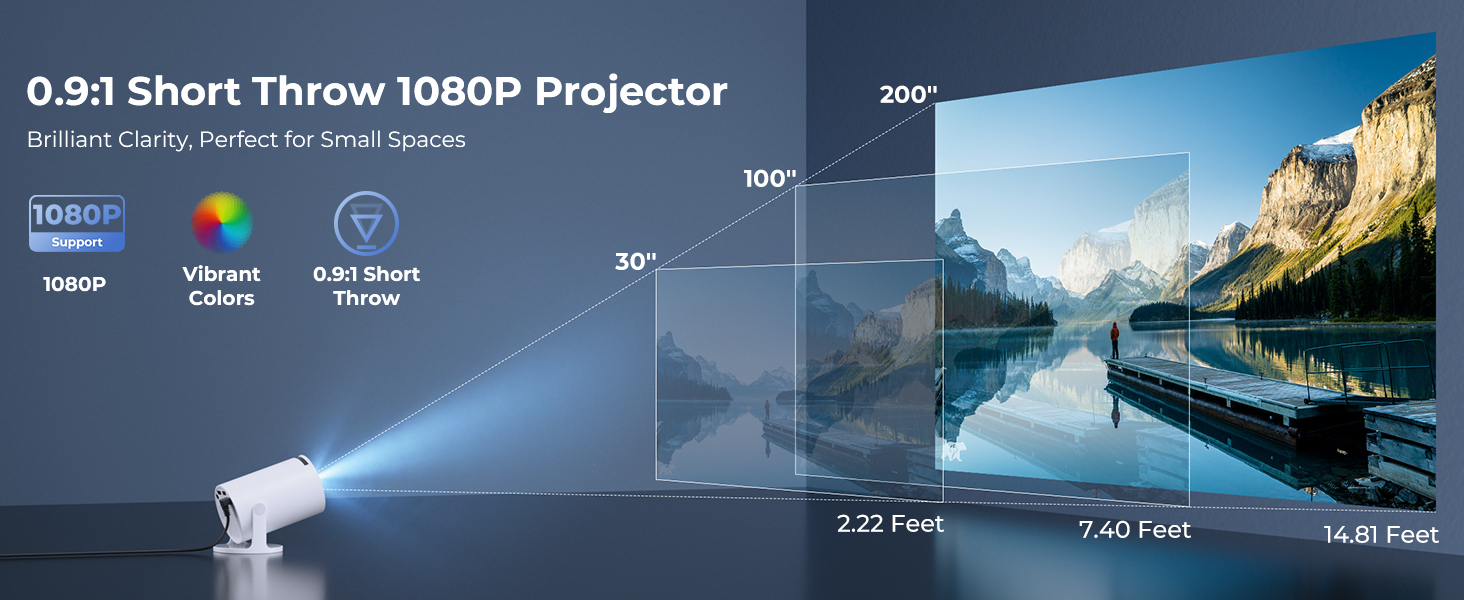
Image: A visual demonstrating Bluetooth 5.2 audio connection, showing the projector wirelessly paired with headphones and a portable speaker.
Operating Instructions
1. Navigating the Interface
- Use the provided remote control to navigate through menus and select options.
- Basic navigation buttons are also available on the projector unit.
2. Using Built-in Apps
- Once connected to Wi-Fi, access the main interface to find pre-installed streaming applications.
- Select an app (e.g., YouTube, Disney+) and log in with your credentials to start streaming.
3. Screen Mirroring
The projector supports wireless mirroring from compatible smartphones, tablets, and laptops.
- Ensure your device and the projector are connected to the same Wi-Fi network.
- Select the "Screen Mirroring" or "Wireless Display" option on the projector's menu.
- On your mobile device, activate its screen mirroring feature (e.g., AirPlay for iOS, Smart View for Android) and select the projector from the list of available devices.
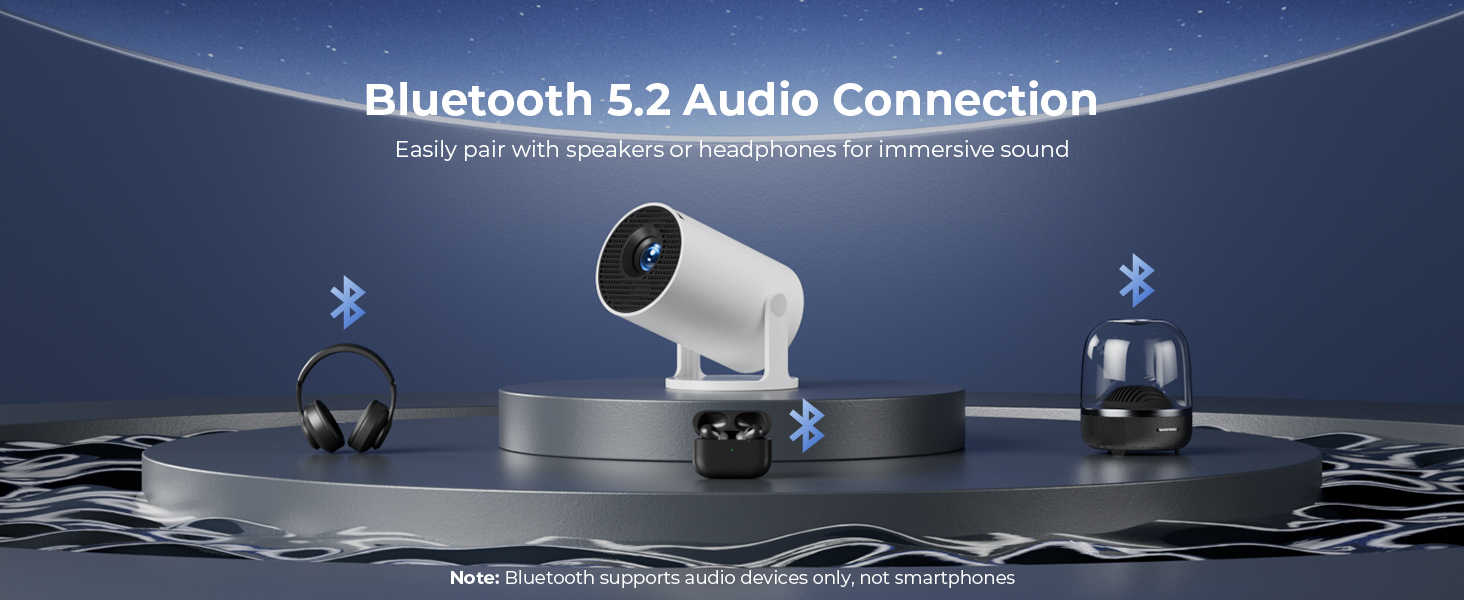
Image: A diagram illustrating Dual-Band Wi-Fi 6 connection for faster, smoother screen mirroring from various devices like smartphones, tablets, and laptops to the projector.
4. Wired Connections (HDMI/USB)
- Connect devices like game consoles, TV sticks, or computers using the HDMI port.
- Use the USB port to play media files directly from a USB drive or to upload custom wallpapers.
- To select the input source, press the "Source" button on the remote control and choose HDMI or USB.
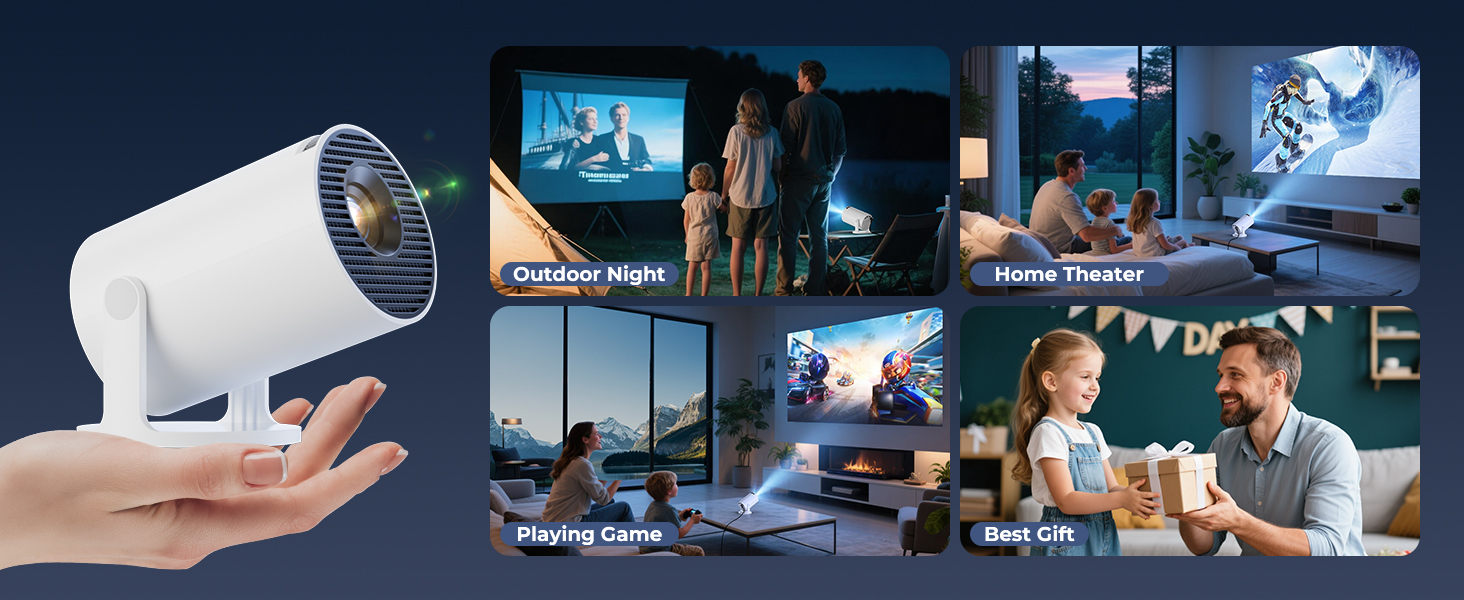
Image: A close-up view of the projector's rear panel, highlighting the HDMI, USB, and power ports, along with an ON/OFF switch and manual focus ring.
5. Custom Wallpapers and Timer
- Custom Wallpapers: Insert a USB drive containing your desired background images. Navigate to the settings to select and apply them.
- Automatic Shut-off Timer: Access the system settings to set a timer for the projector to automatically power off after a specified duration.
Maintenance
- Cleaning the Lens: Use a soft, lint-free cloth specifically designed for optical lenses. Do not use abrasive cleaners or solvents.
- Cleaning the Exterior: Wipe the projector's exterior with a soft, dry cloth. For stubborn marks, lightly dampen the cloth with water.
- Ventilation: Ensure the projector's ventilation openings are not blocked to prevent overheating.
- Storage: When not in use for extended periods, store the projector in a cool, dry place, away from direct sunlight and extreme temperatures.
Troubleshooting
| Problem | Possible Cause | Solution |
|---|---|---|
| No image or blurry image | Incorrect focus; lens cap on; input source not selected; projector too far/close. | Adjust manual focus; remove lens cap; select correct input source; adjust projection distance. |
| Image is trapezoidal or distorted | Projector not perpendicular to screen. | Utilize automatic keystone correction or manually adjust in settings. Ensure projector is on a level surface. |
| No sound or low volume | Volume too low; external audio device not connected/paired; projector's internal speaker off. | Increase volume on projector/source device; ensure Bluetooth speaker is paired; check audio settings. |
| Remote control unresponsive | Batteries low/dead; obstruction between remote and projector; remote sensor blocked. | Replace batteries; ensure clear line of sight to projector's IR sensor. |
| Wi-Fi connection issues | Incorrect password; out of range; network interference. | Re-enter password; move projector closer to router; restart router and projector. |
Specifications
| Feature | Detail |
|---|---|
| Model Number | HY300PRO+ |
| Brand | ClokoWe |
| Product Dimensions | 3.73 x 6.17 x 3.73 inches |
| Item Weight | 1.61 pounds (0.73 kg) |
| Display Resolution | 1280 x 720 (Supports 1080P) |
| Brightness | 8000 Lux |
| Connectivity Technology | Bluetooth 5.2, HDMI, USB, Wi-Fi 6 (2.4G & 5G) |
| Special Features | Built-in Apps, Digital Keystone Correction, Short Throw (0.9:1), 50%-100% Zoom, 180° Rotatable Projection, Mini Portable Design |
| Recommended Uses | Home Cinema, Gaming, Business, Education |
Warranty and Support
The CLOKOWE Mini Projector includes 2-years factory support. For technical assistance, troubleshooting, or warranty claims, please contact ClokoWe customer support through the retailer where the product was purchased or visit the official ClokoWe website for contact information.
Please retain your proof of purchase for warranty validation.
Ask a question about this manual
Ask about setup, troubleshooting, compatibility, parts, safety, or missing instructions. Manuals+ will review the question and use this page’s manual context to help answer it.