1. Introduction
This manual provides essential instructions for the safe and efficient operation of your Qubo X247 4G Flip Phone. Designed with seniors in mind, this device features large buttons, a clear display, loud volume, and an emergency SOS function. Please read this manual thoroughly before using your phone.

Image 1.1: The Qubo X247 flip phone in its open position, displaying the large, easy-to-read keypad and the main color screen. The phone features a simple interface designed for ease of use.
2. Product Overview
2.1 Package Contents
- Qubo X247 Flip Phone
- USB-C Cable
- Power Adapter
- User Manual
2.2 Key Features
- Automatic Answer: Answer calls by simply opening the flip.
- Large Buttons & Clear Display: Easy to see and press for comfortable use.
- Loud Volume: Ensures calls and notifications are heard clearly.
- SOS Emergency Button: Quickly contact pre-set emergency contacts.
- Voice Annunciation: Numbers pressed are announced aloud to prevent dialing errors.
- USB-C Charging: Modern and convenient charging port.
- Essential Functions: Includes flashlight, FM radio, alarm, calculator, and calendar.
- 4G Network Compatibility: Supports various mobile networks.

Image 2.1: An overview of the Qubo X247's functional applications, including messaging, calendar, FM radio, camera, flashlight, speed dial, music/video player, alarm, Bluetooth, and calculator, all accessible through the phone's interface.
3. Setup
3.1 Installing the SIM Card and Battery
- Remove the Back Cover: Gently pry open the back cover of the phone using the notch provided.
- Insert SIM Card(s): Locate the SIM card slot(s). This phone supports Dual SIM. Carefully insert your 4G compatible SIM card(s) into the designated slot(s) with the gold contacts facing down, ensuring it clicks into place.
- Insert Battery: Place the battery into the battery compartment, aligning the gold contacts on the battery with the contacts in the phone.
- Replace Back Cover: Align the back cover and press firmly until it snaps securely into place.
3.2 Initial Charging
Before first use, fully charge the phone battery. Use only the provided USB-C cable and power adapter.
- Connect the USB-C cable to the charging port at the bottom of the phone.
- Connect the other end of the USB-C cable to the power adapter.
- Plug the power adapter into a wall outlet.
- The charging indicator on the screen will show the charging status. Allow the phone to charge until the battery icon indicates a full charge.

Image 3.1: The Qubo X247 phone connected to a USB-C charger, illustrating its modern charging port and emphasizing its extended battery life of over 7 days on a single charge.
4. Operating Instructions
4.1 Power On/Off
- To Power On: Press and hold the red 'End Call' button (power button) until the screen lights up.
- To Power Off: Press and hold the red 'End Call' button until the power-off options appear, then select 'Power Off'.
4.2 Making Calls
- Open the phone's flip.
- Use the large numeric keypad to dial the desired phone number. Each number pressed will be announced aloud for confirmation.
- Press the green 'Call' button to initiate the call.
- To end the call, press the red 'End Call' button or close the phone's flip.
4.3 Answering Calls
When an incoming call is received:
- Simply open the phone's flip to automatically answer the call.
- Alternatively, press the green 'Call' button to answer.
- To end the call, close the phone's flip or press the red 'End Call' button.

Image 4.1: The Qubo X247 phone illustrating its intuitive call management: simply open the flip to answer an incoming call and close it to end the call. This feature is tested for durability with 100,000 open/close cycles.
4.4 SOS Emergency Function
The SOS button is located on the back of the phone and is designed for quick access in emergencies.
- Setting Up SOS Contacts: Navigate to the 'SOS Settings' in the phone's menu to add up to 5 emergency contacts. These contacts will receive an emergency SMS and be called in sequence when the SOS button is activated.
- Activating SOS: Press and hold the red SOS button on the back of the phone for a few seconds. The phone will automatically send an emergency SMS to your pre-set contacts and then begin dialing them one by one until a connection is made.

Image 4.2: A hand pressing the red SOS button on the back of the Qubo X247 phone. This feature allows users to quickly call and send emergency messages to pre-set contacts.
4.5 Other Functions
- Flashlight: Activate the built-in LED flashlight via a dedicated button or menu option for illumination in dark environments.
- FM Radio: Access the FM radio feature to listen to local stations. Headphones may be required for optimal reception.
- Camera: The phone includes a 0.3MP camera for simple photo capture. Access it through the main menu.
- Speed Dial/Photo Contacts: Assign frequently called numbers to speed dial keys (M1, M2, M3) or set up photo contacts for easy recognition and dialing.
- Volume Control: Adjust the call and ringtone volume using the dedicated side buttons or through the settings menu. The phone is designed with a loud ringtone for clear audibility.
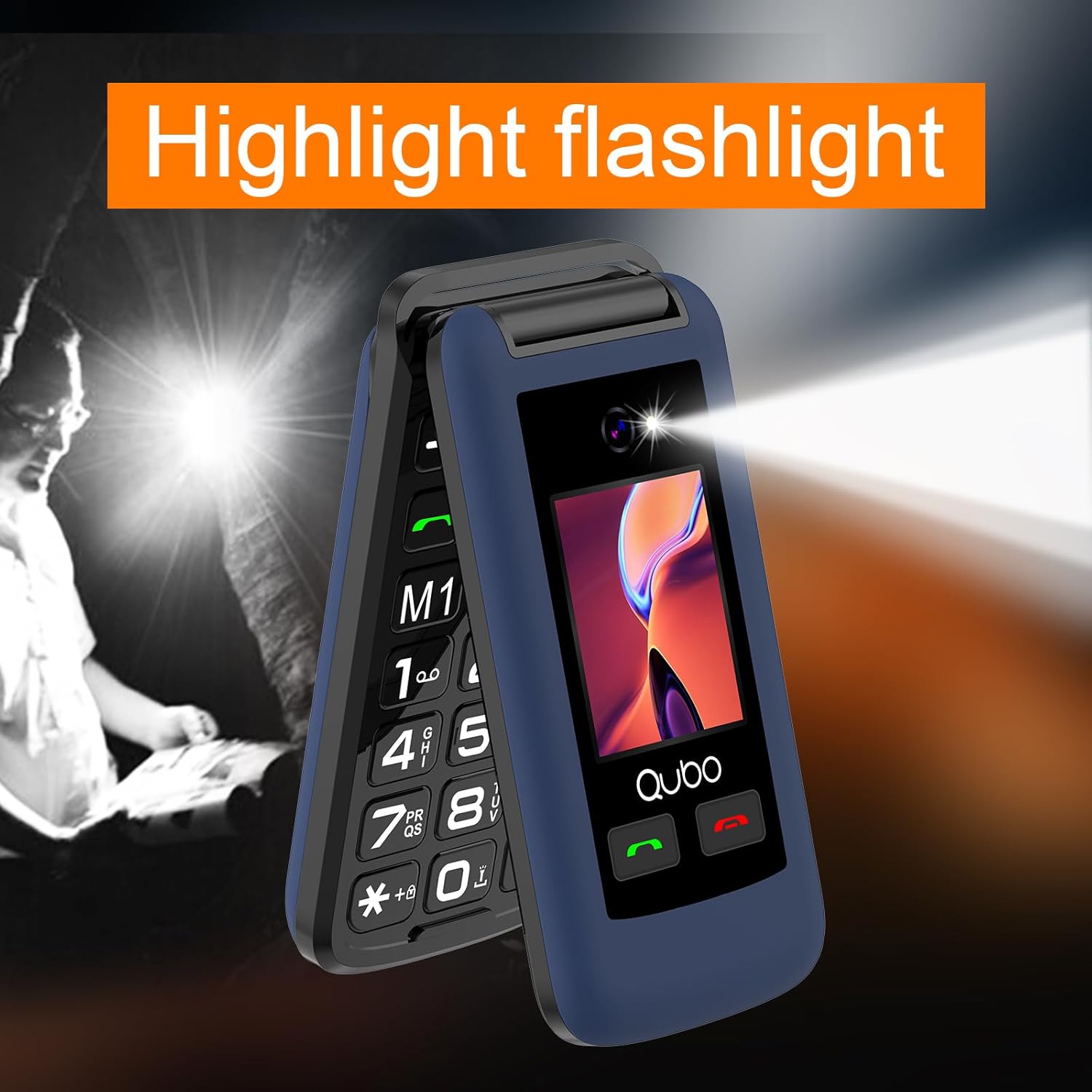
Image 4.3: The Qubo X247 phone with its built-in LED flashlight illuminated, demonstrating its utility in low-light conditions.

Image 4.4: The Qubo X247 phone illustrating its loud ringtone capability, designed to ensure calls are not missed, especially for users with hearing difficulties.
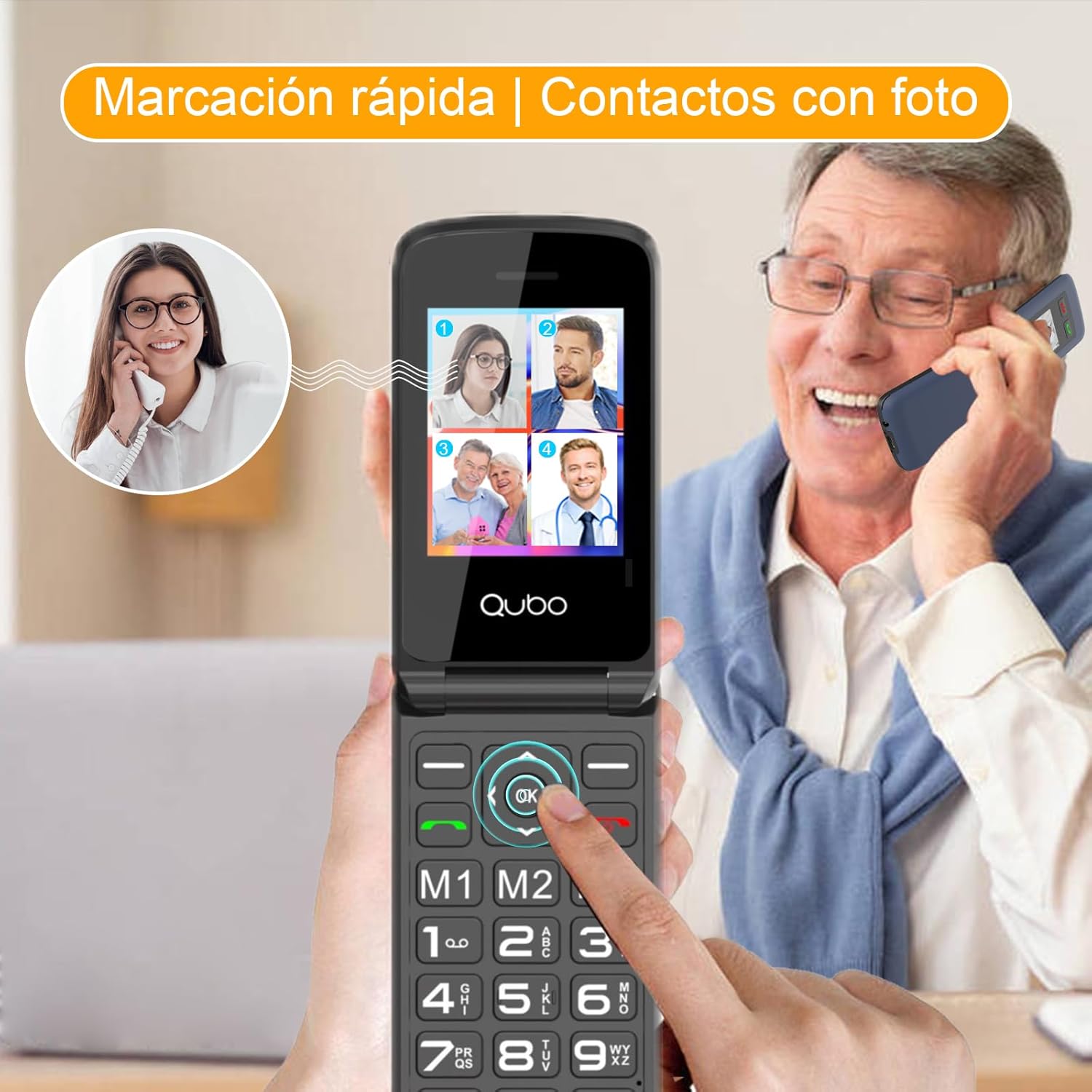
Image 4.5: A senior user interacting with the Qubo X247 phone, which displays photo contacts for easy speed dialing, simplifying the process of connecting with loved ones.

Image 4.6: The Qubo X247 phone highlighting its integrated camera and clear HD screen, capable of displaying photos and providing a good visual experience.
5. Maintenance
5.1 Cleaning
- Use a soft, dry cloth to clean the phone's exterior.
- Avoid using liquid cleaners, aerosols, or harsh chemicals, as these can damage the phone.
5.2 Battery Care
- Do not expose the battery to extreme temperatures.
- Avoid puncturing or damaging the battery.
- If the battery appears swollen or damaged, discontinue use and replace it with an authorized Qubo battery.
- For optimal battery life, avoid frequently draining the battery completely before recharging.
6. Troubleshooting
| Problem | Possible Cause | Solution |
|---|---|---|
| Phone does not power on | Low battery; Battery not inserted correctly; Power button not pressed long enough. | Charge the phone; Reinsert the battery; Press and hold the power button for several seconds. |
| Cannot make or receive calls | No SIM card; SIM card not inserted correctly; No network signal; SIM card not activated. | Insert SIM card; Reinsert SIM card; Move to an area with better signal; Contact your service provider to activate SIM. |
| Poor call quality | Weak network signal; Obstructions. | Move to an area with better signal; Avoid using in enclosed spaces. |
| SOS button not working | SOS contacts not set up; Button not pressed long enough. | Set up emergency contacts in SOS settings; Press and hold the SOS button for several seconds. |
| Phone not charging | Cable or adapter faulty; Charging port dirty; Loose connection. | Try a different USB-C cable/adapter; Clean the charging port gently; Ensure cable is firmly connected. |
7. Specifications
| Feature | Specification |
|---|---|
| Brand | Qubo |
| Model Name | QB-X247 |
| Operating System | RTOS |
| Cellular Technology | 4G |
| Display Type | LCD |
| Battery Capacity | 1000 mAh (Lithium Ion) |
| Processor Speed | 1300 MHz |
| RAM | 48 MB |
| Digital Storage Capacity | 128 MB |
| SIM Card Slots | Dual SIM |
| Form Factor | Flip Phone |
| Color | Blue |
| Dimensions | 13.4 x 7.8 x 6.1 cm; 190 g (Package) |
8. Warranty and Support
8.1 Warranty Information
Your Qubo X247 Flip Phone comes with a standard manufacturer's warranty. Please refer to the warranty card included in your package for specific terms and conditions, including coverage duration and claim procedures. Keep your proof of purchase for warranty claims.
8.2 Customer Support
For technical assistance, troubleshooting beyond this manual, or warranty inquiries, please contact Qubo customer support. Contact details can typically be found on the Qubo official website or on the packaging of your product.


