
1. Introduction and Overview
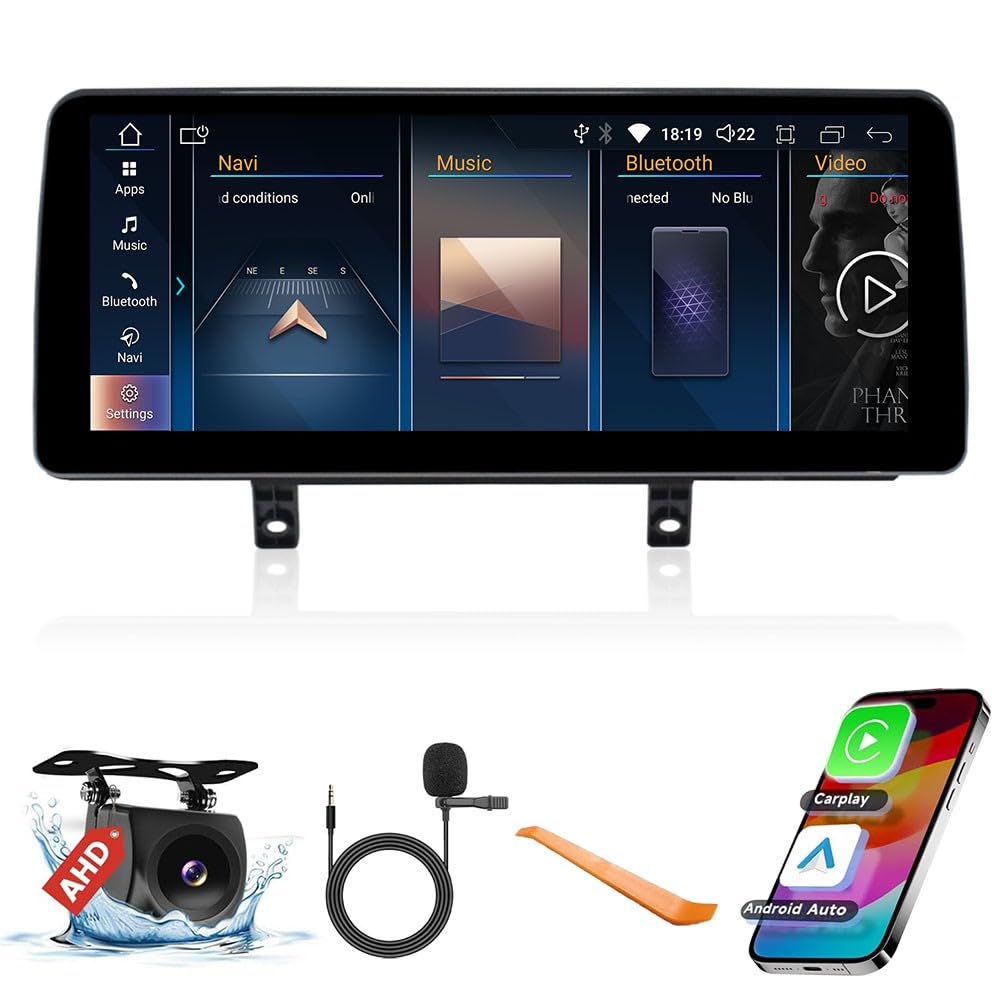
This manual provides comprehensive instructions for the KUNFINE 12.3" Octa Core 8G+64G Car Stereo. This advanced Android-based head unit is designed to enhance your driving experience with integrated navigation, multimedia, and connectivity features. It is specifically compatible with BMW 3 and 4 Series models (F30, F31, F32, F33, F34, F36) manufactured between 2013 and 2017.
Key features include:
- CarPlay/Android Auto: Seamless integration with iOS and Android devices for navigation, music, and communication. Voice assistant functionality is supported for safe operation.
- Navigation: Supports various navigation applications.
- Multimedia: Video and music playback in multiple formats.
- Connectivity: Internal Bluetooth for stereo music and calls, internal Wi-Fi for internet access and hotspot sharing, USB input.
- Display: 12.3-inch multi-touch IPS full HD screen.
- Vehicle Integration: Supports original steering wheel controls and car rear view camera (aftermarket RCA type).
- Operating System: Android System with Octa Core CPU, 8GB RAM, and 64GB ROM.
- Multi-language Support: OSD language options include English, French, German, Spanish, Italian, and over 20 other languages.
2. Package Contents
Verify that all components are present in the package:
- 1x Car Android Head Unit with Mask
- 1x GPS Antenna
- 1x Power Cable (Plug & Play)
- 2x USB Port Cable
- 1x RCA Expand Cable
- 1x RCA Connector for Reverse Camera
- 1x Install Kit
- 1x External Mic
- 1x AHD 720 Reverse Camera
3. Specifications
| Display Size | 12.3 Inches |
| Operating System | Android |
| CPU | Octa Core |
| RAM | 8GB |
| ROM | 64GB |
| Connectivity Technology | USB, Bluetooth, Wi-Fi |
| Special Features | CarPlay/Android Auto Integration, Voice Recognition, Real-time Traffic Updates, Third-party App Integration |
| Mounting Type | Dashboard Mount |
| Map Type | North America (pre-installed) |
4. Setup and Installation
Before installation, ensure your vehicle is compatible with the head unit. This unit is designed for BMW 3 and 4 Series F30-F36 models from 2013-2017.
4.1 Confirming Your Car System
It is crucial to confirm your car's original system (CCC/CIC/NBT/EVO) to ensure proper functionality. Refer to the image below for visual guidance on system differentiation.

The image illustrates the visual differences between CCC, CIC, NBT, and EVO systems, indicating which systems are compatible ('Fit') and which are not ('Not Fit'). Pay attention to the LVDS plug types (e.g., 10PIN, 4PIN, 6PIN) as they are key indicators.
4.2 Fiber Optic Cable Check and Adaptation
During installation, check if your OEM ISO harness contains a fiber optic cable. If present, you will need to adapt it to the provided PE ISO harness. This involves carefully removing the fiber optic cable from the OEM harness and inserting it into the designated slot on the PE ISO harness.
This video demonstrates how to check for and adapt the fiber optic cable in the OEM ISO harness to the PE ISO harness. It shows the process of carefully removing the fiber optic cable and re-inserting it into the new harness.
4.3 Power Cable and LVDS Connection Check
Ensure that the power cable and LVDS connections on the back of the head unit are securely plugged in. If any connections appear loose, re-plug them firmly to establish a stable connection.

This image provides a visual comparison of the car's dashboard before and after the installation of the KUNFINE head unit, demonstrating the integrated appearance.
5. Operating Instructions
5.1 Android System Overview
The head unit operates on an Android system, providing access to various applications and functionalities. The main interface allows you to navigate between OEM car information, CarPlay, Android Auto, and other installed apps.
This image displays the Android system interface with various popular applications, indicating the versatility of the head unit.
5.2 Wireless CarPlay and Android Auto
The head unit supports both wireless and wired CarPlay and Android Auto. To connect:
- For CarPlay: Establish a Bluetooth connection between your car stereo and iPhone. Then, open the 'Zlink5' app on the car stereo to enjoy wireless Apple CarPlay.
- For Android Auto: Download the Android Auto app on your phone. Establish a Bluetooth connection between your car stereo and Android phone. Open the 'Zlink5' app on the car stereo to enjoy wireless Android Auto (Note: Not all Android phones support wireless Android Auto).

This image visually explains the steps for connecting both Wireless CarPlay and Android Auto, detailing the Bluetooth connection and app usage.
5.3 Using OEM Bluetooth for Calls
To ensure proper audio for calls through your original car's Bluetooth system while using CarPlay/Android Auto:
- Go to Settings > System on the head unit.
- Enable the "Use Car's BT Channel" option.
- Scroll down to Car Settings and turn off the "Auto Switch to AUX" option.
- Navigate to "OEM Car Info" and connect your phone to the original car's Bluetooth system.
- After a successful connection, change the multimedia mode to the Bluetooth input you just connected to.
- The head unit will automatically enter the CarPlay interface after successful connection. The Linux Bluetooth will automatically disconnect, and the OEM Bluetooth will remain connected for calls.
This video provides a step-by-step guide on how to configure the head unit to use the original car's Bluetooth for phone calls while CarPlay is active, ensuring normal audio functionality.
5.4 Navigation and Other Functions
The head unit supports various navigation apps. You can use voice commands for navigation and other functions, enhancing safety by minimizing driver distraction.

This image illustrates the navigation interface with multiple supported navigation applications and the use of voice commands for directions and music playback.
5.5 Original Car Settings and Features
The head unit is designed to integrate seamlessly with your car's existing systems, supporting original vehicle steering wheel controls (SWC), the original audio system, and other factory functions and media buttons.

This image highlights the compatibility of the head unit with the original car's features, including steering wheel controls, audio system, and factory buttons.
5.6 Optional 360 Rear View Camera
The system supports an optional 360 rear view camera for enhanced parking and maneuvering. This feature provides a comprehensive view around your vehicle.

This image illustrates the concept of a 360-degree rear view camera system, showing how multiple camera angles provide a complete view around the vehicle.
6. Troubleshooting
6.1 Resolving Splash Screen / Display Issues
If your screen displays a splash screen or other abnormal visual artifacts:
- Open Settings > Car Settings on the head unit.
- Navigate to "Original Car's Screen Resolution".
- Slide through the available resolutions to find the one suitable for your car's original interface.
- Select the correct resolution. The interface display should return to normal.
- If the screen remains abnormal after adjusting settings, press the FM/AM button on your car's original radio. If there is still no sound from the radio, please contact customer service with a detailed explanation of the situation.
This video demonstrates how to resolve OEM resolution issues, including splash screens, by adjusting the screen resolution settings within the car settings menu.
6.2 General Troubleshooting Tips
- No Power: Check all power connections and fuses. Ensure the power cable is securely plugged into the head unit and the vehicle's power source.
- No Sound: Verify that the audio cables are correctly connected. Check the volume settings on both the head unit and your original car stereo. Ensure the correct audio input (e.g., AUX) is selected.
- Bluetooth Connection Issues: Ensure Bluetooth is enabled on both your phone and the head unit. Try unpairing and re-pairing the devices.
- GPS Signal Loss: Ensure the GPS antenna is properly installed and has a clear line of sight to the sky.
7. Warranty and Support
The KUNFINE 12.3" Octa Core 8G+64G Car Stereo comes with a one-year warranty covering non-human damage. After-sales support is guaranteed. If you encounter any questions or issues, please contact the seller for assistance. Your consultation is always welcomed.