
1. Introduction
This manual provides detailed instructions for the installation, operation, and maintenance of your AINAVI 9-inch Android 12 Car Stereo. Please read this manual thoroughly before using the product to ensure proper function and safety. This car stereo is designed to enhance your driving experience with advanced features such as wireless CarPlay, Android Auto, GPS navigation, and high-quality audio processing.

Figure 1.1: AINAVI 9-inch Android 12 Car Stereo with its user interface displayed.
2. Product Compatibility
This car stereo system is specifically designed for Dodge Ram 1500, 2500, and 3500 models manufactured between 2013 and 2018. It includes a plug-and-play wiring harness, CANbus decoder, and a frame panel customized for these vehicles. It supports most original vehicle functions, including steering wheel controls and reverse signals.
Important Note: This unit is compatible with vehicles equipped with manual air conditioning controls. It is not compatible with vehicles that have automatic air conditioning controls.

Figure 2.1: Visual guide for vehicle compatibility, indicating fit for manual AC and non-fit for automatic AC.
3. What's Included
The package contains the following components:
- 1x Android Car Stereo Head Unit
- Wiring Harness Power Cable
- CANbus Decoder
- 1x Radio Antenna Adaptor
- 1x Speaker
- 1x RCA Cable
- 2x USB Cables
- 1x GPS Antenna
- 1x Rear View Camera
- 1x Microphone
- User Manual (this document)
- Frame Removal Tool

Figure 3.1: Overview of all components included in the product package.
4. Setup and Installation
The AINAVI car stereo is designed for plug-and-play installation, minimizing the need for complex wiring modifications. However, professional installation is recommended to ensure correct setup and to avoid damage to your vehicle's electrical system.
4.1. Pre-Installation Checks
- Verify vehicle compatibility (manual AC models only).
- Ensure all components listed in Section 3 are present.
- Disconnect the vehicle's battery before beginning installation.
4.2. Installation Steps (General Overview)
- Carefully remove the original car stereo and dashboard trim using appropriate tools.
- Connect the provided wiring harness and CANbus decoder to the vehicle's existing wiring.
- Connect the GPS antenna, USB cables, and any other accessories (e.g., rearview camera, microphone) to the new head unit.
- Mount the AINAVI head unit into the dashboard opening, ensuring all connections are secure.
- Reinstall the dashboard trim.
- Reconnect the vehicle's battery and test the system.
For detailed, step-by-step installation instructions, please refer to the dedicated installation guide provided with your product or consult a qualified automotive technician.
Figure 4.1: The AINAVI car stereo seamlessly integrated into a Dodge Ram dashboard after installation.
5. Operating Instructions
5.1. Basic Operation
- Power On/Off: Press and hold the power button on the unit or use the vehicle's ignition.
- Volume Control: Adjust using the physical buttons on the unit or via steering wheel controls.
- Touchscreen Interface: Navigate the Android 12 operating system by tapping, swiping, and pinching on the 9-inch QLED display. The screen features 1280x720 resolution and a 178° full-viewing angle.
5.2. Wireless CarPlay & Android Auto
The unit supports both wired and wireless Apple CarPlay and Android Auto. This allows seamless integration of your smartphone for navigation, calls, messages, and music playback.
- Connection: Connect your smartphone via USB for wired connection or pair via Bluetooth for wireless functionality.
- Voice Commands: Access voice assistants like Siri or Google Assistant directly from the head unit by saying "Hey Siri" or "Hey Google".

Figure 5.1: Demonstrating the Apple CarPlay and Android Auto interfaces on the stereo screen.
5.3. GPS Navigation
The stereo has built-in GPS navigation capabilities.
- Online Navigation: Connect to a network via WiFi to receive real-time traffic information.
- Offline Maps: Download offline maps for navigation without an internet connection.

Figure 5.2: The car stereo displaying a GPS navigation map with various applications.
5.4. Connectivity (WiFi & Bluetooth)
- WiFi: Supports dual-band 2.4GHz & 5GHz WiFi for high-speed internet access. Connect to a mobile hotspot or public WiFi.
- Bluetooth 5.0: Enables hands-free calling, music streaming, and phonebook synchronization.

Figure 5.3: Visual representation of WiFi and Bluetooth 5.0 connectivity options.
5.5. Digital Sound Processor (DSP) & Equalizer (EQ)
The built-in DSP with Time Correction and a 48-band EQ allows for precise audio customization.
- Time Correction: Adjust the sound output timing for each speaker to optimize the sound field position.
- 48-band EQ: Fine-tune audio frequencies to match your preferences and vehicle acoustics.

Figure 5.4: The user interface for adjusting DSP and 48-band equalizer settings.
5.6. Split Screen Mode
Utilize the split-screen feature to run two applications simultaneously on the display, such as navigation and music playback.
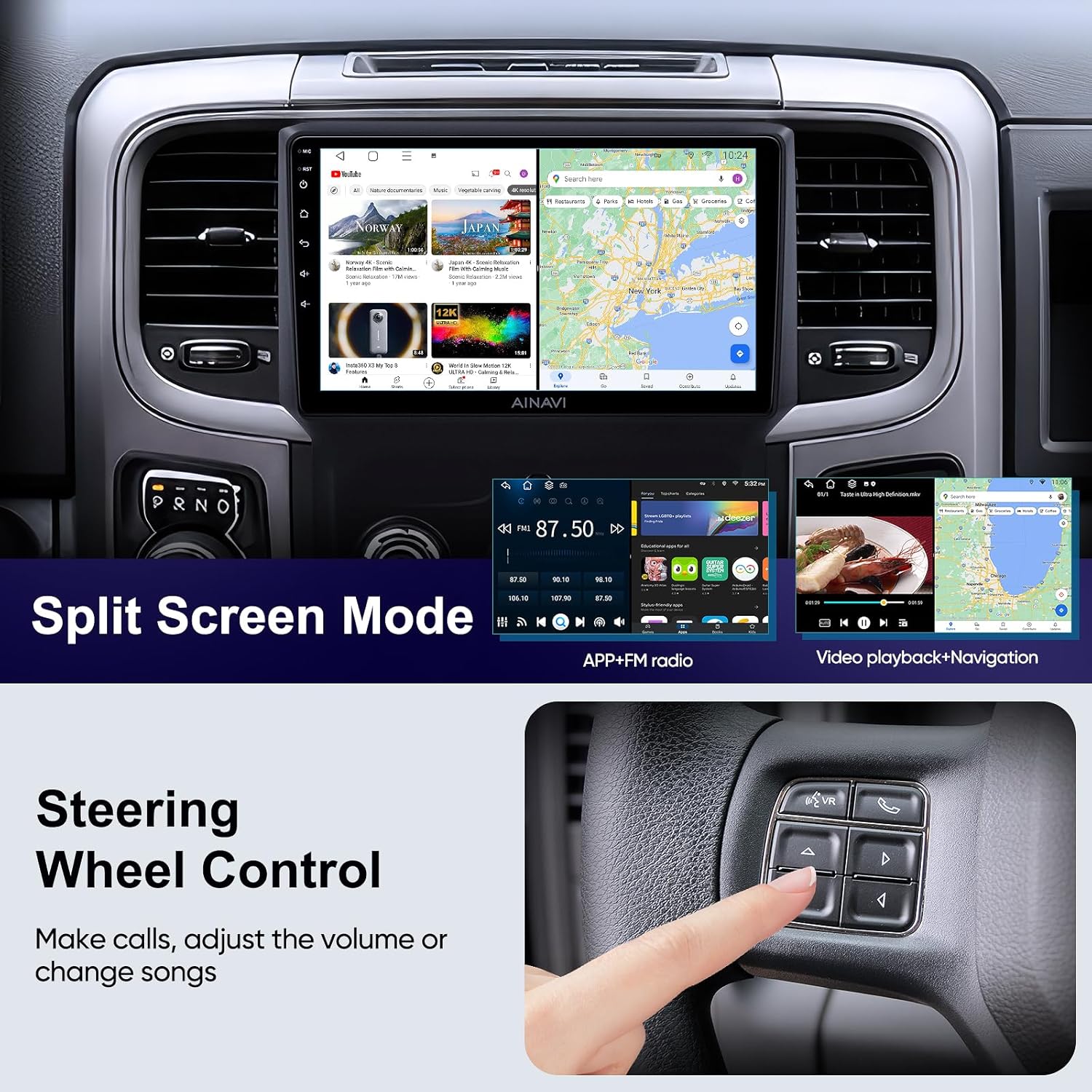
Figure 5.5: The car stereo displaying two applications simultaneously in split-screen mode.
5.7. Steering Wheel Control
The unit supports your vehicle's original steering wheel controls, allowing you to manage calls, adjust volume, and change songs without taking your hands off the wheel.

Figure 5.6: Demonstrating the use of steering wheel controls to operate the car stereo.
6. Maintenance
To ensure the longevity and optimal performance of your AINAVI car stereo, follow these maintenance guidelines:
- Cleaning: Use a soft, dry cloth to clean the screen and unit. For stubborn smudges, slightly dampen the cloth with water or a screen-safe cleaner. Avoid abrasive materials or harsh chemicals.
- Temperature: Avoid exposing the unit to extreme temperatures, both hot and cold, for extended periods.
- Software Updates: Periodically check for and install software updates to ensure the system runs efficiently and has the latest features and security patches.
- Connections: Ensure all cables and connections remain secure. Avoid pulling on cables forcefully.
7. Troubleshooting
This section addresses common issues you might encounter with your car stereo. If the problem persists, please contact customer support.
| Problem | Possible Cause | Solution |
|---|---|---|
| Unit does not power on. | Loose power connection, blown fuse, vehicle battery issue. | Check power cables, inspect vehicle fuses, ensure battery is charged. |
| No sound output. | Volume too low, incorrect audio source, speaker wiring issue. | Increase volume, select correct audio source, check speaker connections. |
| GPS not acquiring signal. | GPS antenna not properly connected or obstructed. | Ensure GPS antenna is securely connected and has a clear view of the sky. |
| Bluetooth pairing issues. | Bluetooth not enabled on device, device too far, interference. | Ensure Bluetooth is on for both devices, bring devices closer, restart both devices. |
| CarPlay/Android Auto not connecting. | Incorrect USB cable, software glitch, phone settings. | Use original or certified USB cable, restart phone and stereo, check phone's CarPlay/Android Auto settings. |
8. Specifications
| Feature | Specification |
|---|---|
| Operating System | Android 12 |
| Processor | ARM Cortex A55 8-Core |
| RAM | 2GB |
| Internal Storage | 32GB |
| Display Size | 9 Inches |
| Display Type | QLED, G+G Full Lamination |
| Resolution | 1280x720 |
| Viewing Angle | 178° |
| Audio Output Power | Max. 4*45W |
| DSP | Built-in with Time Correction & 48-band EQ |
| Bluetooth Version | 5.0 |
| WiFi Support | Dual band 2.4GHz & 5GHz |
| GPS | Built-in Navigation (supports online/offline maps) |
| CarPlay / Android Auto | Wired & Wireless Support |
| Item Weight | 4.51 pounds |
| Package Dimensions | 14.06 x 9.76 x 5.2 inches |
9. Warranty and Support
AINAVI provides comprehensive product care for your car stereo.
- Warranty: The product comes with a default 12-month manufacturer guarantee.
- Extended Product Care: You can extend your product care for an additional 6 months, totaling 18 months, by contacting AINAVI via Amazon email.
- Technical Support: Professional technical support is available to assist with any issues or questions you may have.
9.1. How to Contact Support
For assistance with installation or any other product-related inquiries, please reach out to the seller, HomeCar, through your Amazon order center. Look for the 'Ask a question' button on the seller's page or within your order details.

Figure 9.1: Guide on how to contact the seller for installation support via Amazon.
Alternatively, you may contact AINAVI customer service directly:
- Hotline: +1 (833) 858-5016
- Working Hours: 01:00 PM to 00:00 AM PST
- Email: info@ainavi.com

Figure 9.2: AINAVI customer service contact details.
10. Important Notes
No official product videos were available for embedding based on the provided product data.