
Introduction
This manual provides essential information for setting up, operating, maintaining, and troubleshooting your Thermaltake LCGS View i1470-170 Gaming Desktop. The View series combines high performance with a distinctive design, featuring an Intel Core i7-14700F CPU, NVIDIA GeForce RTX 5070 graphics card, 32GB DDR5 memory, and a 1TB NVMe M.2 SSD, all housed within a chassis with edge-to-edge tempered glass panels.
Please read this manual thoroughly before using your new desktop to ensure proper installation and optimal performance.

Image: The Thermaltake View i1470-170 Gaming Desktop, showcasing its internal components through tempered glass panels.
1. Setup
1.1 Unpacking and Placement
- Carefully remove the desktop from its packaging. Retain all packaging materials for future transport or service.
- Place the desktop on a stable, flat surface with adequate ventilation. Ensure there is clear space around the air intake and exhaust vents.
1.2 Connecting Peripherals
Connect your monitor, keyboard, mouse, and other peripherals to the appropriate ports on the rear and top of the desktop.
- Monitor: Connect your monitor using a DisplayPort or HDMI cable to the graphics card ports (typically located lower on the rear panel).
- Keyboard and Mouse: Connect to any available USB ports.
- Audio: Use the headphone/line out and microphone/line in jacks on the top panel for audio devices.
- Network: For wired internet, connect an Ethernet cable to the LAN port on the rear. For wireless, ensure the Wi-Fi antennas are connected (if external) or that the internal Wi-Fi is enabled.
- Power: Connect the power cable to the desktop's power supply unit (PSU) and then to a grounded electrical outlet.

Image: Front view of the Thermaltake View i1470-170 Gaming Desktop, showing the tempered glass panel.
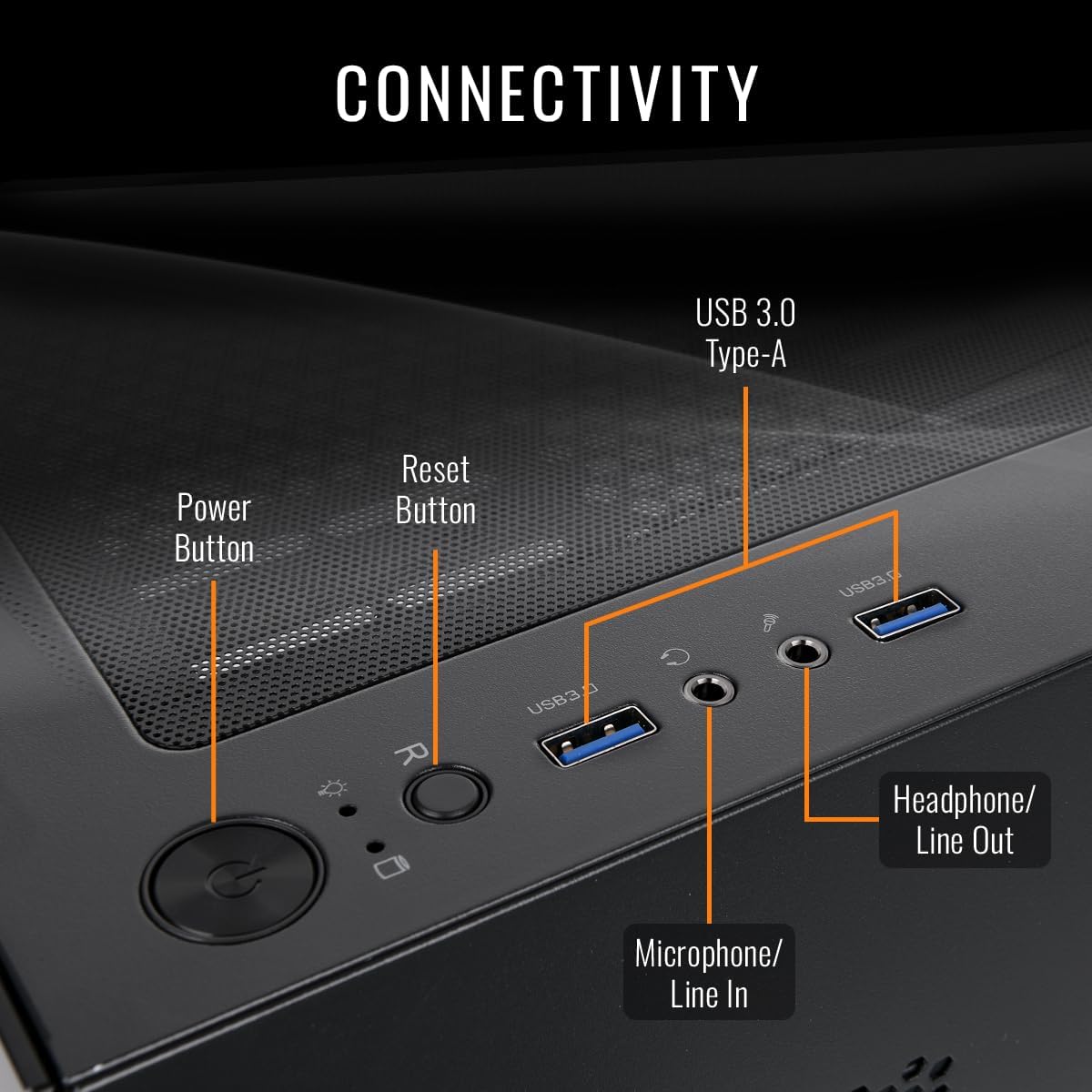
Image: Rear view of the desktop, illustrating the various connectivity ports for peripherals.

Image: Detail of the top panel connectivity, showing USB 3.0 ports, headphone, and microphone jacks, along with power and reset buttons.
1.3 Initial Power On
- Press the power button located on the top panel of the desktop.
- Follow the on-screen instructions to complete the Windows 11 setup process. This may include setting up your user account, network connection, and privacy settings.
2. Operating Instructions
2.1 Windows 11 Basics
Your desktop comes pre-installed with Windows 11. Familiarize yourself with the operating system's interface, Start Menu, taskbar, and settings. Microsoft provides extensive online documentation for Windows 11 usage.
2.2 System Performance
The Thermaltake LCGS View i1470-170 is equipped with high-performance components designed for demanding tasks and gaming:
- Processor: Intel Core i7-14700F for powerful multi-tasking and processing.
- Graphics Card: NVIDIA GeForce RTX 5070 for high-fidelity gaming and content creation.
- Memory: 32GB DDR5 6000MT/s RGB RAM for smooth performance and responsiveness.
- Storage: 1TB NVMe M.2 SSD for rapid boot times and fast application loading.

Image: A close-up view of the internal RGB fans and RAM modules, highlighting the customizable lighting.
2.3 RGB Lighting Control
Your desktop features customizable RGB lighting for the fans and memory modules. Refer to the pre-installed Thermaltake software or motherboard utility for controlling and synchronizing lighting effects. This software typically allows you to choose from various colors, patterns, and modes.
3. Maintenance
3.1 Cleaning
- Exterior: Use a soft, damp cloth to clean the exterior surfaces. Avoid abrasive cleaners or solvents.
- Dust: Regularly clean dust from the air vents and fan blades using compressed air. Ensure the system is powered off and unplugged before cleaning.

Image: An illustration demonstrating the optimized airflow design within the PC case, crucial for maintaining system temperature.

Image: Internal view of the desktop highlighting the clean cable management, which aids in airflow and aesthetics.
3.2 Software Updates
- Operating System: Regularly check for and install Windows Updates to ensure system stability and security.
- Drivers: Keep your graphics card drivers (NVIDIA GeForce Experience) and other component drivers updated for optimal performance and compatibility.
3.3 System Backups
Regularly back up your important data to an external drive or cloud storage to prevent data loss.
4. Troubleshooting
4.1 No Power
- Ensure the power cable is securely connected to both the desktop and the electrical outlet.
- Verify the power switch on the PSU (located at the rear of the desktop) is in the 'ON' position.
- Test the outlet with another device to confirm it has power.
4.2 No Display
- Check that the monitor is powered on and the video cable (DisplayPort/HDMI) is securely connected to both the graphics card and the monitor.
- Ensure the monitor input source is set correctly (e.g., HDMI 1, DisplayPort).
- If you have multiple video outputs, try connecting to a different port on the graphics card.
4.3 System Slowdown or Freezing
- Close unnecessary applications running in the background.
- Check Task Manager (Ctrl+Shift+Esc) for high CPU, RAM, or disk usage.
- Ensure your system drivers and Windows are up to date.
- Run a virus and malware scan.
- Monitor system temperatures using monitoring software; overheating can cause performance issues.
5. Specifications

Image: An overview of the key specifications including CPU, GPU, Memory, and Storage.
| Feature | Detail |
|---|---|
| Model Name | View i1470-170 |
| Model Number | V17B-B760-570-LCS |
| Processor | Intel Core™ i7-14700F (2.1 GHz) |
| Graphics Card | NVIDIA® GeForce RTX™ 5070 (12 GB GDDR7) |
| Memory | 32GB DDR5 6000MT/s RGB (2 slots available, Max 128GB) |
| Storage | 1TB NVMe M.2 SSD |
| Operating System | Windows 11 |
| Motherboard Chipset | B760 |
| Cooling | ARGB Tower Air Cooler, 4x 120mm ARGB Fans |
| Front I/O Ports | 2x USB 3.0, 1x Headphone, 1x Mic |
| Video Output | DisplayPort, HDMI |
| Connectivity | WiFi, Ethernet |
| Case Design | Panoramic Viewing with Front and Side Tempered Glass Panels |
| Dimensions (W x D x H) | 8.35" (212mm) x 14.86" (377.5mm) x 17.24" (438mm) |

Image: A visual representation of the desktop's case dimensions (width, depth, height).
6. Warranty Information
The Thermaltake LCGS View i1470-170 Gaming Desktop comes with a 1-Year Warranty. This warranty covers defects in materials and workmanship under normal use. For detailed terms, conditions, and to register your product, please visit the official Thermaltake website.
Keep your proof of purchase for warranty claims.
7. Support
For technical support, driver downloads, FAQs, or further assistance, please visit the official Thermaltake support website:
You may also find helpful resources and community forums on the Thermaltake website.


