Introduction
This manual provides comprehensive instructions for the MSI X870E Gaming Plus WiFi Motherboard, designed for AMD Ryzen 9000, 8000, and 7000 series processors on the AM5 platform. It covers setup, operation, maintenance, and troubleshooting for optimal performance with DDR5 memory, PCIe 5.0, M.2 Gen5 storage, Wi-Fi 7, and 5G LAN connectivity. Please read this manual thoroughly before installation and use to ensure proper functionality and safety.

Figure 1: MSI X870E Gaming Plus WiFi Motherboard and Retail Packaging
Setup
Follow these steps for initial setup and component installation.
1. CPU Installation
The MSI X870E Gaming Plus WiFi Motherboard supports AMD Ryzen 9000, 8000, and 7000 series processors on the AM5 socket. Ensure the CPU is correctly oriented before placing it into the socket.

Figure 2: Top-down view of the motherboard, highlighting the AM5 CPU socket.
2. Memory Installation
This motherboard features 4 x DDR5 DIMM SMT slots, supporting memory speeds up to 8200+ MT/s (OC). Install DDR5 memory modules into the designated slots, ensuring they are fully seated.
3. Storage Installation
The motherboard offers extensive storage options, including 1 x M.2 Gen5 x4 128Gbps slot with EZ M.2 Shield Frozr II and 2 x M.2 Gen4 x4 64Gbps slots. Install M.2 SSDs into these slots, utilizing the EZ M.2 Shield Frozr II for thermal management.

Figure 3: Angled view of the motherboard, showing the M.2 slots with heatsinks.
4. Graphics Card Installation
The motherboard includes premium GPU support with a PCIe 5.0 x16 SMT slot (128GB/s) with Steel Armor. Insert your graphics card into this slot, ensuring it is securely latched.
5. Power Connections
To power the latest Ryzen 9000 processors, the X870E GAMING PLUS WIFI is equipped with a 14 Duet Rail Power System (60A, SPS) VRM for the CPU and dual 8-pin CPU power connectors. Connect the 24-pin ATX power connector and the 8-pin CPU power connectors from your power supply to the motherboard.
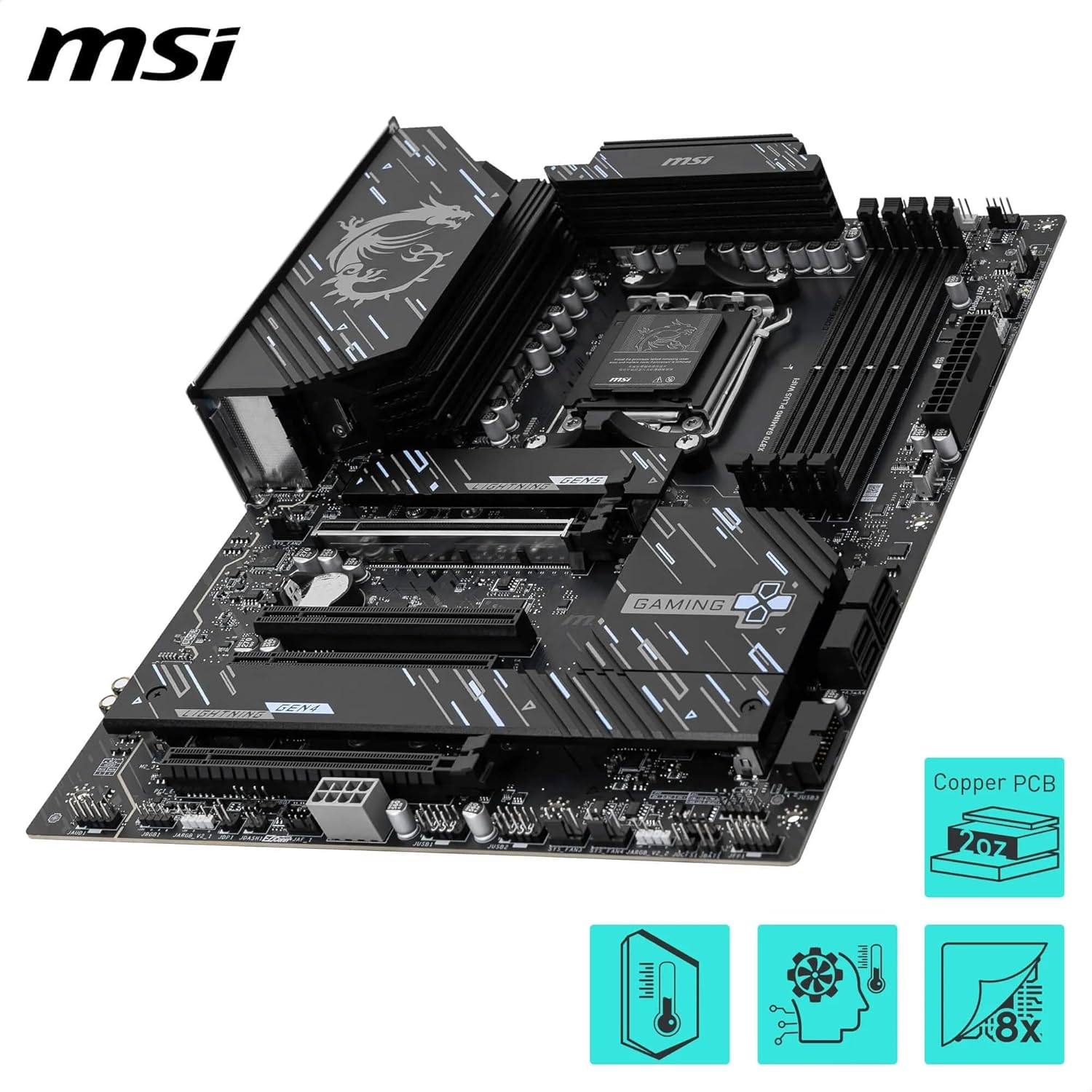
Figure 4: Close-up of the motherboard's VRM heatsinks, indicating robust power delivery.
6. Connectivity
Connect your peripherals and network cables to the rear I/O ports. This includes full-speed Wi-Fi 7 and Bluetooth 5.4 technology, Realtek 5G LAN, USB4 Type-C (40Gbps) with 4K/120Hz display support, and 7.1 HD audio.

Figure 5: Detailed view of the motherboard's rear input/output ports.
Operating Instructions
1. Initial Boot and BIOS Setup
Upon first boot, enter the BIOS setup to configure system settings, including memory profiles (EXPO/XMP), boot order, and fan curves. Refer to the on-screen instructions or the full user manual for detailed BIOS navigation.
2. Driver Installation
After installing your operating system, install the necessary drivers for the chipset, LAN, Wi-Fi, Bluetooth, and audio from the MSI support website or the included driver disk/USB drive.
3. BIOS Update
Regularly check the MSI support website for the latest BIOS updates to ensure optimal performance, compatibility, and security. Follow the instructions provided by MSI for the specific BIOS update method (e.g., M-Flash, Flash BIOS Button).
Video 1: Unboxing the MSI X870E Motherboard. This video provides a visual overview of the motherboard and its components.
Maintenance
Proper maintenance ensures the longevity and stable performance of your motherboard.
- Cooling System: The motherboard features multiple passive cooling features, including an Extended Heatsink, chipset heatsink, and EZ M.2 Shield Frozr II. Ensure proper airflow within your PC case to maximize cooling efficiency.
- Cleaning: Periodically clean dust from the motherboard and components using compressed air. Avoid using liquids directly on the motherboard.
- Firmware Updates: Keep all drivers and BIOS firmware updated to the latest versions available from the MSI official website.
Troubleshooting
If you encounter issues, refer to the following common troubleshooting steps:
- No Power: Ensure all power cables (24-pin ATX, 8-pin CPU) are securely connected. Check your power supply unit.
- No Display: Verify that your graphics card is properly seated and connected to the monitor. Check RAM module installation.
- System Instability: Reset BIOS settings to default. Ensure RAM is compatible and installed correctly. Check CPU and GPU temperatures.
- Network Issues: Verify LAN cable connection or Wi-Fi antenna installation. Update network drivers.
- BIOS Debug LEDs: The motherboard may feature debug LEDs that indicate the status of CPU, DRAM, VGA, and BOOT during startup. Consult the full manual for specific LED codes.
Specifications
| Feature | Detail |
|---|---|
| Brand | msi |
| Series | MSI X870E GAMING PLUS WIFI |
| Model Name | MSI X870E GAMING PLUS WIFI |
| Item Model Number | X870E Gaming Plus WiFi |
| CPU Socket | Socket AM5 |
| Compatible Processors | Supports AMD Ryzen 9000/7000 Series Desktop Processor |
| Chipset Type | AMD X870E |
| RAM Memory Technology | DDR5 |
| RAM | DDR5 |
| Main Power Connector Type | 24-Pin |
| Platform | Windows 11 |
| Item Weight | 4.4 pounds |
| Product Dimensions | 11.7 x 7.4 x 2.1 inches |
Warranty and Support
For warranty information, technical support, or to download the latest drivers and utilities, please visit the official MSI website. You can also find additional support resources and FAQs there.
MSI Official Website: www.msi.com


