
1. Introduction
This manual provides comprehensive instructions for the Serounder 6 Key One-Handed Programmable Keypad. This compact mechanical keypad offers versatile functionality with three connection modes: Bluetooth, 2.4G wireless, and USB wired. It is designed for various applications, including gaming, programming, and office tasks, allowing users to customize keys and create macros using the ElfKey software.
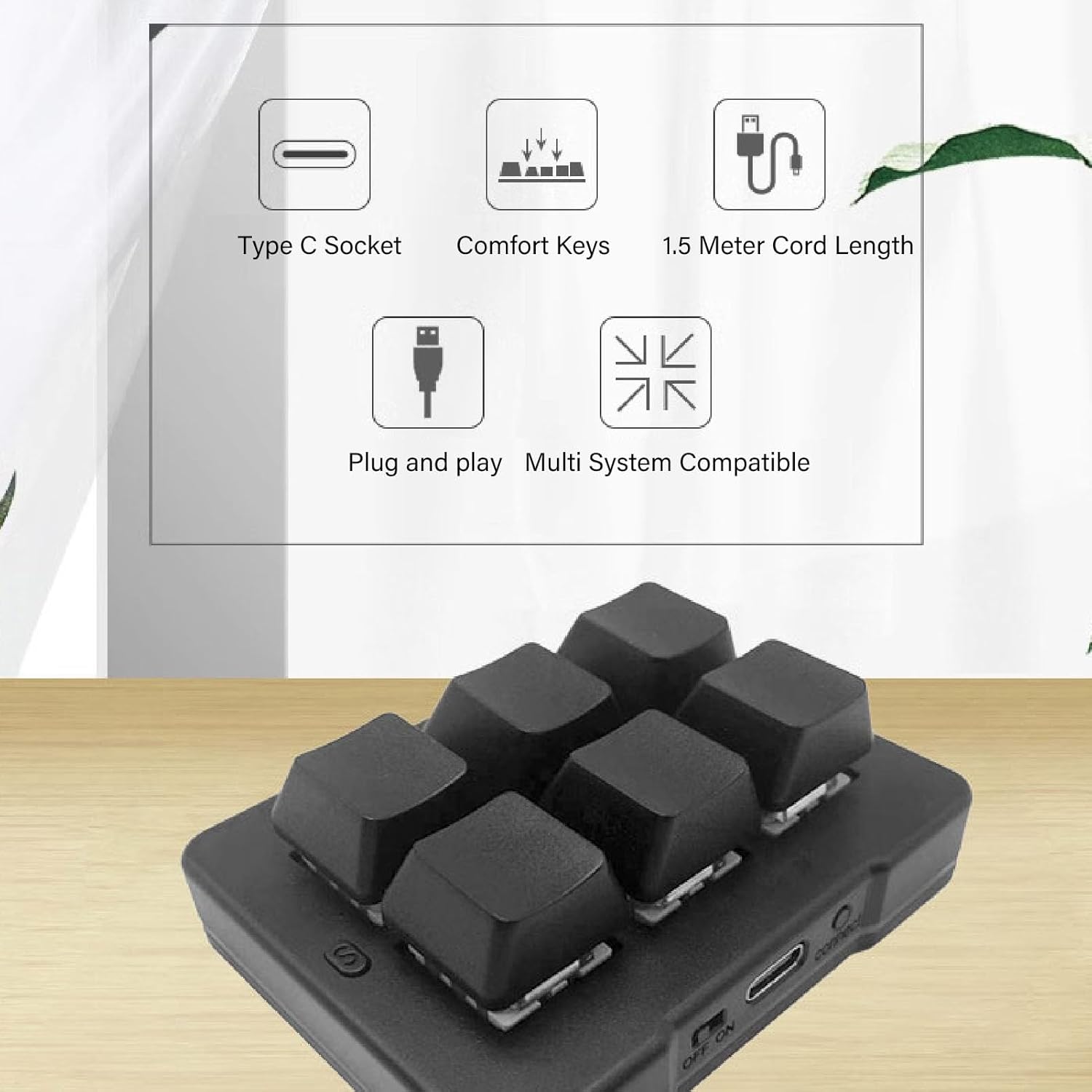
Figure 1: A general view of the Serounder 6 Key One-Handed Programmable Keypad, showcasing its compact design and six mechanical keys.
2. Package Contents
Please check the package for the following items:
- Serounder 6 Key One-Handed Programmable Keypad
- USB Charging Cable
- 2.4G Wireless Receiver
- User Manual (this document)
3. Product Overview
The Serounder 6 Key Keypad features durable blue mechanical switches for tactile feedback. It includes a power switch, a USB Type-C port for charging and wired connection, and a 'connect' button for pairing in wireless modes. The keypad also has indicator LEDs for connection status and key groups.

Figure 2: A comprehensive diagram of the customized 6-key keyboard, labeling its components and explaining their functions.
- OFF/ON Switch: Power switch for Bluetooth and 2.4G wireless modes.
- USB Port: Type-C cable connection for charging and wired mode. When connected via USB, the LED flashes during charging.
- Connect Mode Button: Press to cycle between USB, Bluetooth, and 2.4G connection modes.
- Connect Mode LED: Indicates the current connection mode (Red for Bluetooth, Green for 2.4G, Blue for USB).
- Button Lights: Indicate the active key group (1 group, 2 groups, 3 groups).
- Shortcut Keys: Keys whose functions are set via USB connection using the ElfKey software.
- S Key: Used to switch between different key groups. Each group can have a different set of key values.

Figure 3: Detailed view of the keypad's side, featuring the power switch, USB Type-C port, and 'connect' button.
4. Setup and Connection
4.1 Charging the Keypad
Connect the keypad to a USB power source using the provided USB Type-C cable. The LED indicator will flash during charging.
4.2 Connection Modes
The keypad supports three connection modes: Bluetooth, 2.4G wireless, and USB wired. Use the 'Connect Mode Button' (3) to switch between them.

Figure 4: Visual guide explaining the steps for connecting the keypad via Bluetooth, 2.4G wireless, and USB wired modes.
4.2.1 Bluetooth Pairing Mode
- Turn on the power switch (1).
- Press the 'Connect Mode Button' (3) until the 'Connect Mode LED' (4) turns Red.
- On your computer or device, search for Bluetooth devices and select the customized keyboard to complete the connection.
4.2.2 2.4G Wireless Mode
- Turn on the power switch (1).
- Press the 'Connect Mode Button' (3) until the 'Connect Mode LED' (4) turns Green.
- Plug the 2.4G wireless receiver into a USB port on your computer. The connection will be established automatically.
4.2.3 USB Wired Mode
- Connect the keypad to your computer using the USB Type-C cable.
- Press the 'Connect Mode Button' (3) until the 'Connect Mode LED' (4) turns Blue.
- The computer will automatically recognize the device. No driver installation is required for basic functionality.

Figure 5: The 6-key keypad connected to a laptop, illustrating its ease of use with plug-and-play functionality and the ElfKey software interface on screen.
5. Operating Instructions
5.1 Key Customization with ElfKey Software
The Serounder keypad is fully programmable using the intuitive ElfKey software. This software allows you to assign various functions to each of the six keys, create complex macros, and adjust input strings.

Figure 6: Illustration detailing the five primary function types that can be assigned to each key using the ElfKey software.
The ElfKey software supports the following function types:
- Mouse Function: Assign mouse clicks, scroll, or movement.
- Keyboard Function: Assign single key presses or combinations (e.g., Ctrl+C).
- Macro Definition Function: Record and assign a sequence of keystrokes and mouse actions.
- Combo Function: Assign predefined key combinations.
- Multimedia Function: Control media playback (e.g., play/pause, volume up/down).
To customize keys:
- Download and install the ElfKey software from the official Serounder website.
- Connect the keypad to your computer via USB wired mode.
- Launch the ElfKey software.
- Select the key you wish to program and choose the desired function type.
- Configure the function (e.g., record a macro, select a key combination).
- Save your settings to the keypad. The changes will be stored on the keypad's internal memory and will work across all connection modes.
5.2 Switching Key Groups
The keypad supports multiple key groups, allowing you to have different functions assigned to the same physical keys. Use the 'S' key (7) to cycle through these groups. The 'Button Lights' (5) will indicate which group is currently active.

Figure 7: This image emphasizes the keypad's macro programming capabilities and features a close-up of the blue mechanical switch, known for its crisp sound and comfortable feel.

Figure 8: An image showcasing the keypad's features including Type-C connectivity, blue mechanical switches, 1.5-meter cord length, plug-and-play functionality, and compatibility across laptops, PCs, tablets, and phones.
6. Specifications
| Feature | Specification |
|---|---|
| Brand | Serounder |
| Model Number | Serounderth6gxzei8k |
| Number of Keys | 6 |
| Switch Type | Blue Mechanical Switches (Clicky) |
| Connectivity Technology | Bluetooth, 2.4GHz Wireless, USB Wired |
| Compatible Devices | Laptop, PC, Tablet, Phone (MacOS compatible) |
| Product Dimensions (L x W x H) | 2.95" x 2.95" x 0.98" (75mm x 70mm x 25mm) |
| Item Weight | 105 Grams |
| Material | Acrylonitrile Butadiene Styrene (ABS) |
| Power Source | Battery Powered, USB Powered |
| Included Components | Charging Cable, 2.4G Receiver |
7. Troubleshooting
If you encounter issues with your Serounder 6 Key Keypad, please refer to the following common solutions:
- Keypad not responding:
- Ensure the keypad is charged. Connect it via USB cable to charge.
- Check the power switch (1) is in the 'ON' position for wireless modes.
- Verify the correct connection mode is selected (Bluetooth, 2.4G, or USB) using the 'Connect Mode Button' (3) and observing the 'Connect Mode LED' (4).
- For 2.4G mode, ensure the receiver is securely plugged into a USB port.
- For Bluetooth mode, ensure the keypad is paired correctly in your device's Bluetooth settings.
- Customized functions not working:
- Ensure the keypad was connected via USB when programming with ElfKey software.
- Verify that the settings were saved to the keypad after customization.
- Check if you are in the correct key group using the 'S' key (7).
- Intermittent connection:
- Move the keypad closer to your device or 2.4G receiver to reduce interference.
- Ensure there are no large metal objects or other wireless devices causing interference.
- Try connecting via USB wired mode to rule out wireless issues.
8. Maintenance
To ensure the longevity and optimal performance of your Serounder 6 Key Keypad, follow these maintenance guidelines:
- Cleaning: Use a soft, dry cloth to wipe the surface of the keypad. For stubborn dirt, a slightly damp cloth can be used, but ensure no moisture enters the key switches or ports.
- Avoid Liquids: Do not expose the keypad to water or other liquids. Liquid damage is not covered under warranty.
- Storage: Store the keypad in a cool, dry place away from direct sunlight and extreme temperatures.
- Handling: Avoid dropping the keypad or subjecting it to strong impacts, as this can damage internal components or mechanical switches.
9. Warranty and Support
The Serounder 6 Key One-Handed Programmable Keypad comes with a 90-day manufacturer warranty from the date of purchase. This warranty covers defects in materials and workmanship under normal use.
The warranty does not cover:
- Damage caused by accident, abuse, misuse, flood, fire, earthquake, or other external causes.
- Damage caused by operating the product outside the permitted or intended uses described by Serounder.
- Damage caused by service (including upgrades and expansions) performed by anyone who is not a representative of Serounder.
For warranty claims or technical support, please contact Serounder customer service through the retailer where the product was purchased or visit the official Serounder website for contact information.