
iSinbox YG381
iSinbox YG381 4K Smart Outdoor Projector User Manual
Model: YG381 | Brand: iSinbox
1. Introduction
This manual provides essential information for the safe and efficient operation of your iSinbox YG381 4K Smart Outdoor Projector. Please read it thoroughly before using the device and retain it for future reference.
Safety Information
- Do not look directly into the projector lens when the lamp is on.
- Ensure proper ventilation around the projector to prevent overheating.
- Keep the projector away from water or other liquids.
- Use only the power adapter supplied with the device.
- Do not attempt to disassemble or repair the projector yourself. Contact customer support for assistance.
2. Package Contents
Verify that all items are present in the package:
- iSinbox YG381 Projector
- Remote Control (AAA batteries not included)
- Power Adapter
- User Manual

Image 2.1: iSinbox YG381 Projector with its main components and projected screen showing various streaming apps.
3. Product Overview
The iSinbox YG381 projector is designed for versatile use, featuring a compact form factor and a 360° adjustable stand. It integrates a Smart Pro OS for direct access to streaming applications.
Key Features:
- Display: Native 1080p resolution, 4K support, HDR10+, 1200 ANSI lumens.
- Audio: Dolby-certified HiFi stereo speakers, DTS decoding, eARC support, Bidirectional Bluetooth 5.3.
- Smart Features: Smart TV Pro OS, built-in Netflix, YouTube, Prime Video, Disney+, AI autofocus, 6D keystone correction, automatic obstacle avoidance, automatic screen alignment.
- Connectivity: Wi-Fi 6, HDMI, USB.
- Design: 360° adjustable stand, lightweight and portable.
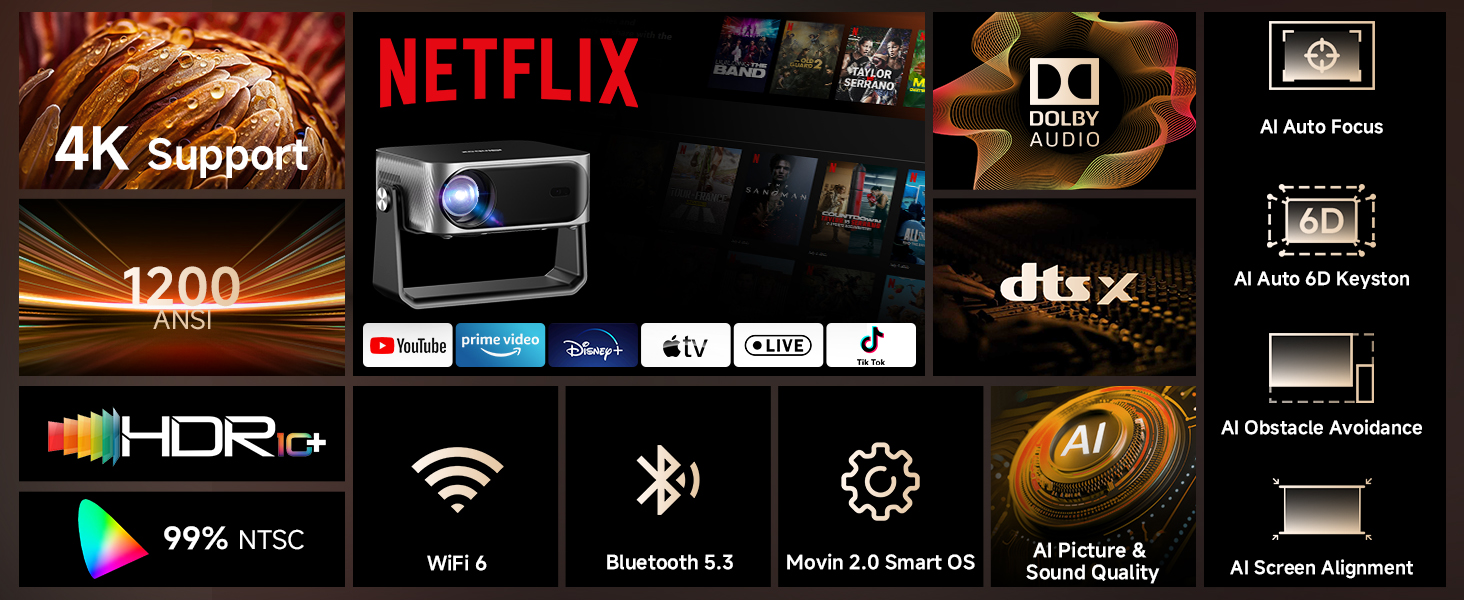
Image 3.1: Overview of the iSinbox YG381 projector's main features, including 4K support, 1200 ANSI, HDR10+, Dolby Audio, and AI auto-adjustments.
4. Setup
4.1 Initial Power-On
- Connect the power adapter to the projector and a power outlet.
- Press the power button on the projector or remote control to turn it on.
- Follow the on-screen prompts to select your language and complete the initial setup.
4.2 Network Connection
- Navigate to the 'Settings' menu on the projector.
- Select 'Network' or 'Wi-Fi'.
- Choose your Wi-Fi network from the list and enter the password. The projector supports Wi-Fi 6 for faster connection speeds.
4.3 Positioning and Image Adjustment
The projector features intelligent auto-adjustment capabilities:
- AI Autofocus: The projector automatically adjusts the image clarity.
- 6D Keystone Correction: Automatically corrects image distortion from angled projections.
- Automatic Obstacle Avoidance: Detects and adjusts the image to avoid objects on the projection surface.
- Automatic Screen Alignment: Optimizes the image to fit the screen area.
These adjustments occur automatically within approximately 3 seconds when the projector is moved or repositioned. A digital zoom function (50-100%) allows for screen size adjustment without moving the unit.
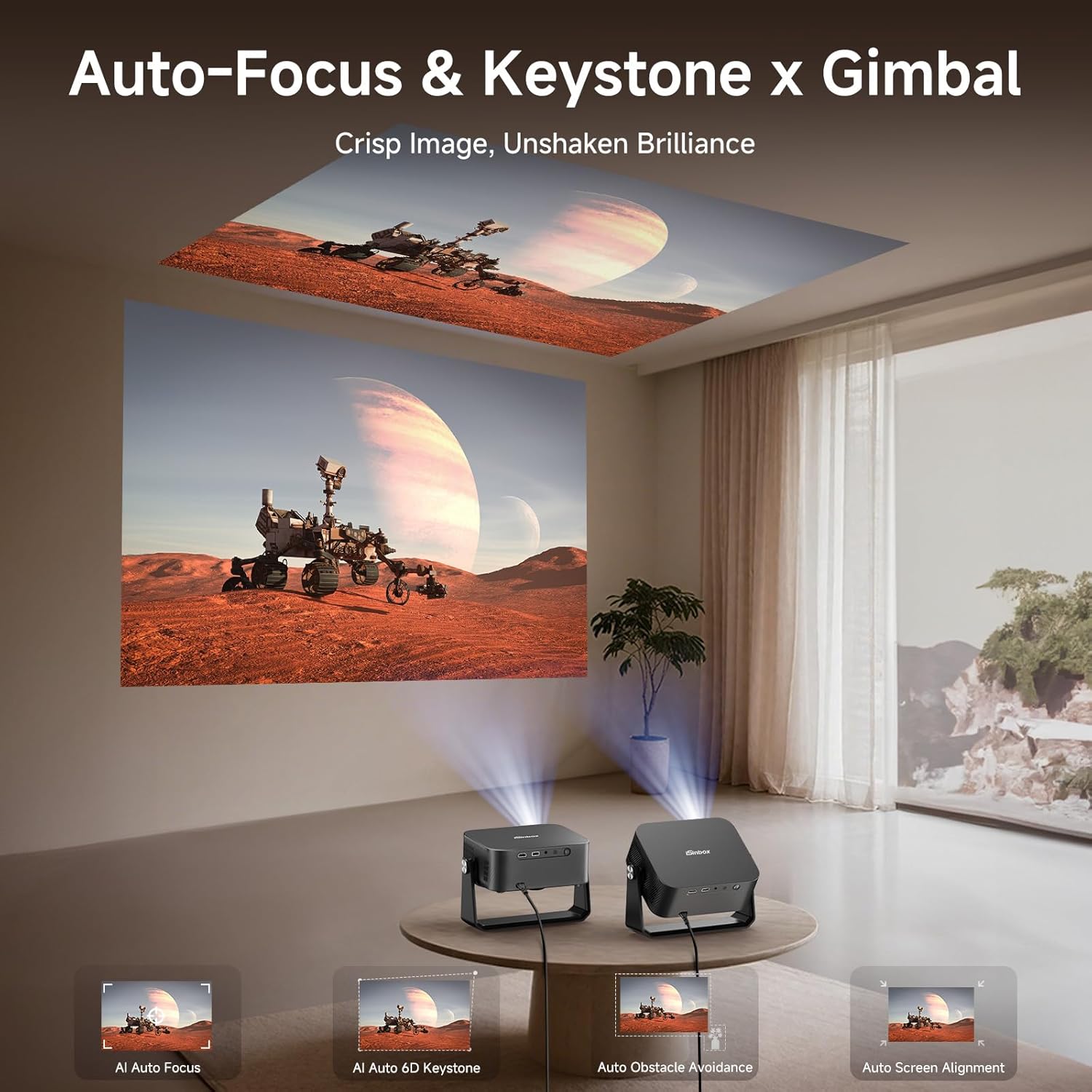
Image 4.1: The projector automatically adjusting focus and keystone for both wall and ceiling projections.
5. Operating the Projector
5.1 Smart TV Pro OS and Built-in Applications
The iSinbox YG381 operates on an upgraded Smart Pro OS, providing direct access to popular streaming services without external devices.
- From the home screen, select the desired application (e.g., Netflix, YouTube, Prime Video, Disney+).
- Log in with your account credentials.
- Begin streaming content.
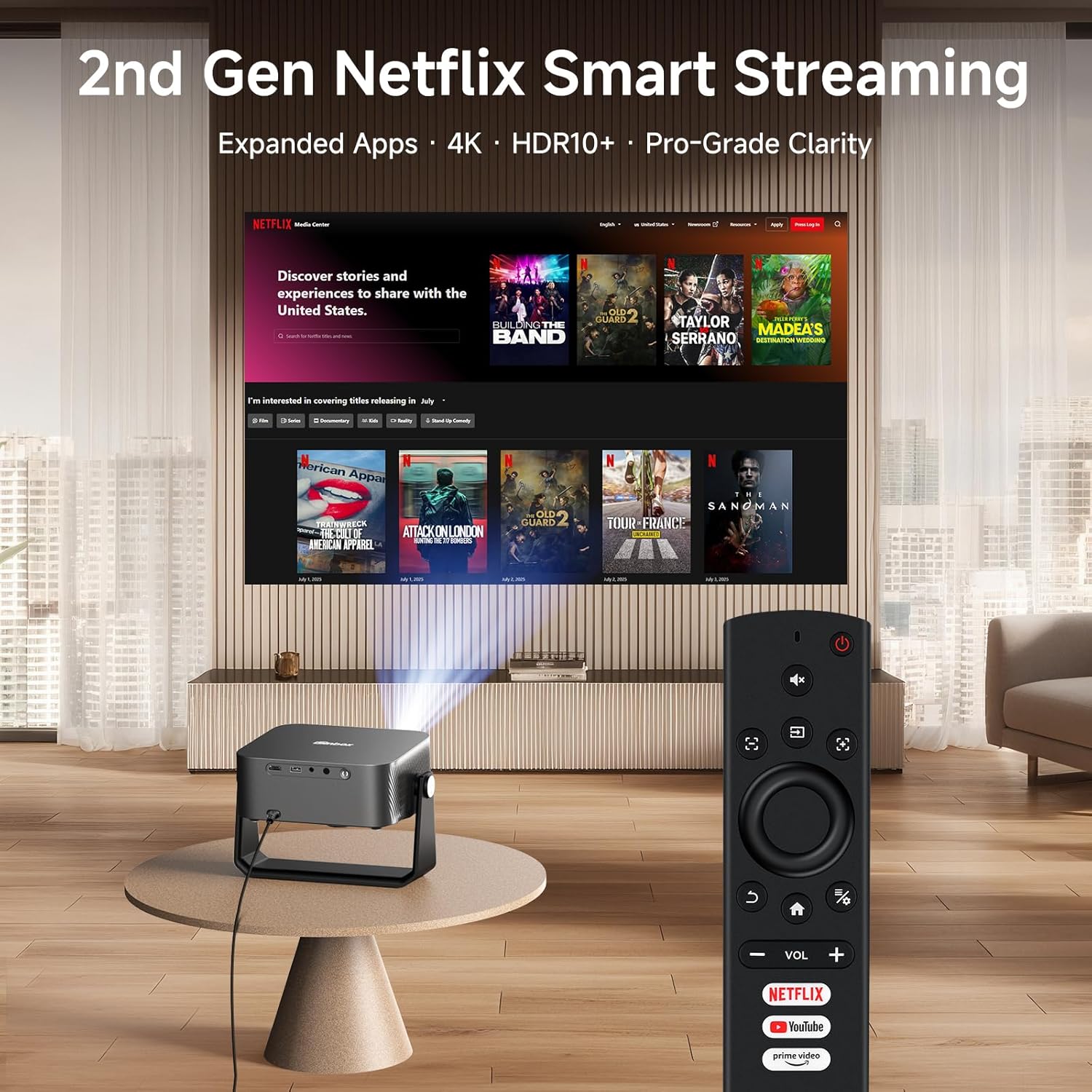
Image 5.1: The projector remote control with dedicated buttons for Netflix, YouTube, and Prime Video, simplifying access to built-in applications.
5.2 Audio Connectivity
The projector features Dolby-certified HiFi stereo speakers and DTS decoding technology. For external audio, use the bidirectional Bluetooth 5.3 functionality:
- Connecting to External Speakers: Pair the projector with Bluetooth speakers or headphones for enhanced audio output.
- Using as a Bluetooth Speaker: Connect your smartphone or other Bluetooth device to the projector to use its internal speakers for audio playback.

Image 5.2: Bidirectional Bluetooth 5.3 allows the projector to connect to external speakers or function as a standalone Bluetooth speaker for a phone.
5.3 Screen Mirroring and External Devices
The projector supports seamless screen mirroring via Wi-Fi 6 and can connect to external devices via HDMI and USB.
- Screen Mirroring: Use the built-in Wi-Fi 6 to mirror content from compatible devices.
- HDMI Input: Connect gaming consoles, laptops, or other media players using an HDMI cable.
- USB Input: Play media files directly from a USB storage device.

Image 5.3: Wi-Fi 6 technology provides a stable and fast connection for streaming and gaming, reducing lag.
6. Maintenance
6.1 Cleaning the Projector
- Lens: Use a soft, lint-free cloth specifically designed for optical lenses. Do not use abrasive cleaners.
- Exterior: Wipe the projector's exterior with a soft, dry cloth. For stubborn marks, a slightly damp cloth can be used, followed by a dry cloth.
- Vents: Periodically check the ventilation openings for dust accumulation. Use a soft brush or compressed air to gently clear any blockages.
6.2 Storage
When not in use for extended periods, store the projector in a cool, dry place, away from direct sunlight and extreme temperatures. It is recommended to use the original packaging or a protective case to prevent dust and damage.
7. Troubleshooting
If you encounter issues with your iSinbox YG381 projector, refer to the following common solutions:
| Problem | Possible Cause | Solution |
|---|---|---|
| No image displayed | Power cable disconnected, input source not selected, lens cap on. | Check power connection, select correct input source (HDMI/USB), remove lens cap. |
| Image is blurry | Out of focus, projector moved. | The projector features AI autofocus; if moved, it should auto-adjust. If not, check for obstructions or restart. |
| No sound | Volume too low, external speakers not connected, audio settings incorrect. | Increase volume, check Bluetooth connection to external speakers, verify audio output settings. |
| Wi-Fi connection unstable | Distance from router, network interference. | Ensure projector is within Wi-Fi range, minimize interference from other devices. |
For issues not covered here, please contact iSinbox customer support.
8. Specifications
| Feature | Detail |
|---|---|
| Brand | iSinbox |
| Model Number | YG381 |
| Display Resolution | 1920 x 1080 (Native 1080p), 4K Support |
| Brightness | 1200 ANSI Lumens |
| HDR Support | HDR10+ |
| Operating System | Movin Smart OS 2.0 |
| Connectivity | Wi-Fi 6, Bluetooth 5.3, HDMI, USB |
| Audio | Dolby Audio, DTS Decoding, eARC |
| Auto-Adjustment | AI Autofocus, 6D Keystone Correction, Auto Obstacle Avoidance, Auto Screen Alignment |
| Dimensions | 9.19 x 7.87 x 3.07 inches (approximate) |
| Weight | 14.4 ounces (approximate) |
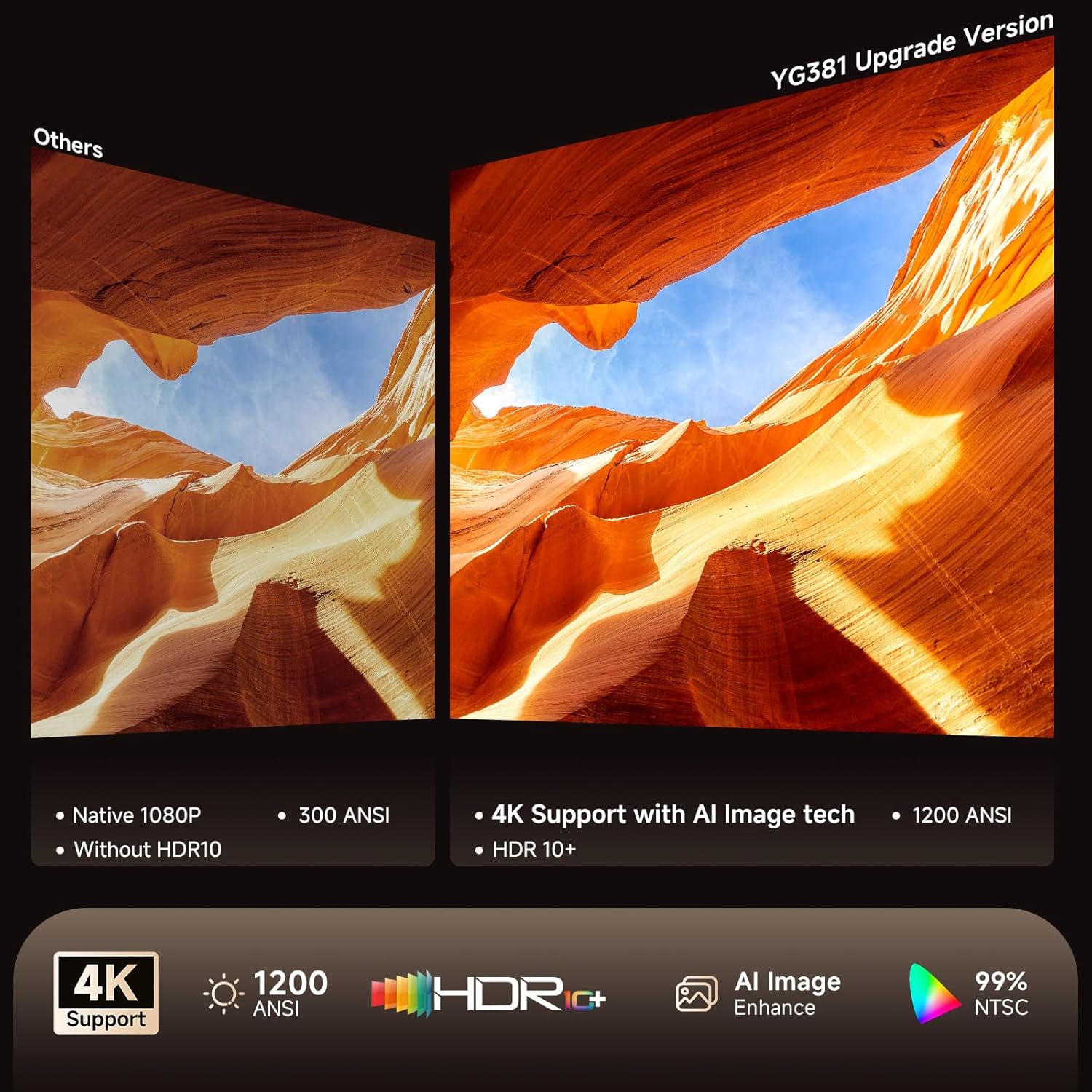
Image 8.1: Visual comparison highlighting the enhanced clarity and color accuracy with 4K support and HDR10+ on the YG381.
9. Warranty and Support
9.1 Warranty Information
The iSinbox YG381 projector comes with a 1-year free replacement warranty and a 3-year limited warranty from the date of purchase. This warranty covers manufacturing defects and malfunctions under normal use. Please retain your proof of purchase for warranty claims.
9.2 Customer Support
iSinbox provides lifetime technical support with a 24-hour response time. For technical assistance, warranty claims, or any questions regarding your projector, please contact iSinbox customer service through the retailer's platform or the official iSinbox website.
Related documentsYG381


Ask a question about this manual
Ask about setup, troubleshooting, compatibility, parts, safety, or missing instructions. Manuals+ will review the question and use this page’s manual context to help answer it.