
1. Introduction
Thank you for choosing the ORICO OM28PR USB-C 8-in-1 Docking Station with an integrated M.2 SSD enclosure and a bundled 128GB M.2 SATA SSD. This device is designed to expand the connectivity of your USB-C enabled laptop or desktop, providing multiple ports for data transfer, video output, network access, and power delivery, along with convenient storage expansion.
This manual provides detailed instructions for the proper installation, operation, and maintenance of your ORICO OM28PR docking station and the included M.2 SATA SSD. Please read this manual thoroughly before use to ensure optimal performance and longevity of the product.

Image 1.1: The ORICO OM28PR USB-C 8-in-1 Docking Station shown with the included Y20M-128 M.2 SATA SSD.
2. Package Contents
Please verify that all items are present in the package:
- ORICO OM28PR USB-C 8-in-1 Docking Station
- ORICO Y20M-128 M.2 SATA SSD (128GB)
- Thermal Pad for M.2 SSD
- Heatsink for M.2 SSD
- Screwdriver and Screws for SSD installation
- User Manual (this document)
3. Product Features and Port Layout
The ORICO OM28PR docking station offers a comprehensive set of ports and features:
- USB-C Host Connection: Connects to your laptop or desktop's USB-C port.
- HDMI Port: Supports 4K@60Hz video output for external displays.
- RJ45 Gigabit Ethernet Port: Provides stable wired network connectivity (1000Mbps).
- USB 3.2 Gen 2 Type-C Port: 10Gbps data transfer speed.
- USB 3.2 Gen 2 Type-A Port: 10Gbps data transfer speed.
- USB 2.0 Type-A Ports (x2): 480Mbps data transfer speed, suitable for peripherals like keyboards and mice.
- SD/TF Card Reader: Supports simultaneous reading and writing for SD and microSD cards.
- USB-C PD 100W Charging Port: Allows power delivery to your host device (requires an external USB-C power adapter, not included).
- M.2 SSD Enclosure: Supports M.2 NVMe and SATA SSDs (2230, 2242, 2260, 2280 sizes) up to 8TB. The included SSD is M.2 SATA.

Image 3.1: Detailed view of the ORICO OM28PR docking station's 8-in-1 port layout and M.2 SSD enclosure.
4. Setup Instructions
4.1. M.2 SATA SSD Installation
The ORICO OM28PR includes a built-in M.2 SSD enclosure. The bundled 128GB M.2 SATA SSD needs to be installed into this enclosure.
- Locate the M.2 SSD enclosure cover on the docking station.
- Using the provided screwdriver, carefully remove the screw securing the cover and slide it open.
- Insert the ORICO Y20M-128 M.2 SATA SSD into the M.2 slot. Ensure the notch on the SSD aligns with the key in the slot. The included SSD is a B+M Key SATA SSD.
- Gently press down the SSD and secure it with the provided screw.
- For optimal thermal management, place the thermal pad onto the SSD, then attach the heatsink on top of the thermal pad.
- Close the enclosure cover and secure it with the screw.
Important Note: The included SSD is M.2 SATA (B+M Key). This enclosure supports both M.2 NVMe (M Key) and M.2 SATA (B+M Key) SSDs. However, the bundled SSD is SATA. Ensure your host device's M.2 slot supports SATA if you plan to use the SSD directly in a computer, or verify compatibility if using a different M.2 SSD in the enclosure. PCIe NVMe is NOT supported by the bundled SSD.

Image 4.1: Visual guide for M.2 SATA SSD installation, highlighting compatibility warnings.

Image 4.2: Diagram illustrating M.2 SSD enclosure compatibility with NVMe and SATA drives of various sizes.
4.2. Connecting to Host Device
- Connect the integrated USB-C cable from the ORICO OM28PR docking station to an available USB-C port on your laptop or desktop. Ensure your host device's USB-C port supports data transfer and DisplayPort Alternate Mode (Alt Mode) for video output.
- The docking station is plug-and-play; no drivers are typically required for Windows, macOS, or Linux.
4.3. Power Delivery (Optional)
To charge your laptop via the docking station, connect a USB-C power adapter (not included) to the USB-C PD 100W charging port on the docking station. The docking station will then pass power through to your host device.
5. Operating Instructions
5.1. Data Transfer
Utilize the USB 3.2 Gen 2 (10Gbps) Type-C and Type-A ports for high-speed data transfer with external drives, flash drives, or other compatible devices. The USB 2.0 ports are suitable for connecting standard peripherals.
- 10Gbps Ports: 1x USB-C, 1x USB-A
- 480Mbps Ports: 2x USB-A
The integrated M.2 SSD enclosure, with the pre-installed 128GB M.2 SATA SSD, will appear as an external storage device on your computer. You can use it for file storage, backups, or running applications.

Image 5.1: Illustration of high-speed data transfer capabilities via the docking station's USB ports.
5.2. Video Output
Connect an external monitor or projector to the HDMI port on the docking station. Ensure your display cable is securely connected. Your computer should automatically detect the external display. You can configure display settings (mirror, extend, primary display) through your operating system's display settings.
- Supports resolutions up to 4K (3840x2160) at 60Hz.

Image 5.2: Example of the docking station connected to an external 4K display.
5.3. Network Connection
For a stable and fast internet connection, connect an Ethernet cable from your router or modem to the RJ45 Gigabit Ethernet port on the docking station. Your computer will automatically detect the wired network connection.
5.4. Card Reader
Insert SD or microSD cards into the corresponding slots for quick access to photos, videos, and other files. Both slots can be used simultaneously.
6. Maintenance and Care
- Keep the docking station in a dry environment, away from direct sunlight and extreme temperatures.
- Avoid dropping or subjecting the device to strong impacts.
- Clean the exterior with a soft, dry cloth. Do not use liquid cleaners or solvents.
- Ensure proper ventilation around the device during operation.
- When disconnecting, always safely eject any connected storage devices (including the internal M.2 SSD) from your operating system before unplugging the docking station.
7. Troubleshooting
| Problem | Possible Solution |
|---|---|
| No display output via HDMI. |
|
| M.2 SSD not detected. |
|
| Slow data transfer speeds. |
|
| No network connection. |
|
| Laptop not charging via PD port. |
|
8. Specifications
| Feature | Specification |
|---|---|
| Model | OM28PR |
| Host Interface | USB-C |
| HDMI Output | 1x HDMI (4K@60Hz) |
| Ethernet | 1x RJ45 Gigabit Ethernet (10/100/1000Mbps) |
| USB Data Ports | 1x USB-C 3.2 Gen 2 (10Gbps) 1x USB-A 3.2 Gen 2 (10Gbps) 2x USB-A 2.0 (480Mbps) |
| Power Delivery | 1x USB-C PD 100W (Input) |
| Card Reader | SD/TF (simultaneous read/write) |
| M.2 SSD Enclosure | Supports M.2 NVMe (M Key) and M.2 SATA (B+M Key) SSDs Sizes: 2230, 2242, 2260, 2280 Max Capacity: 8TB |
| Included SSD | ORICO Y20M-128 M.2 SATA SSD (128GB) Read Speed: Up to 500MB/s Write Speed: Up to 450MB/s |
| Compatibility | Windows, macOS, Linux, Android (with USB-C DP Alt Mode support) |
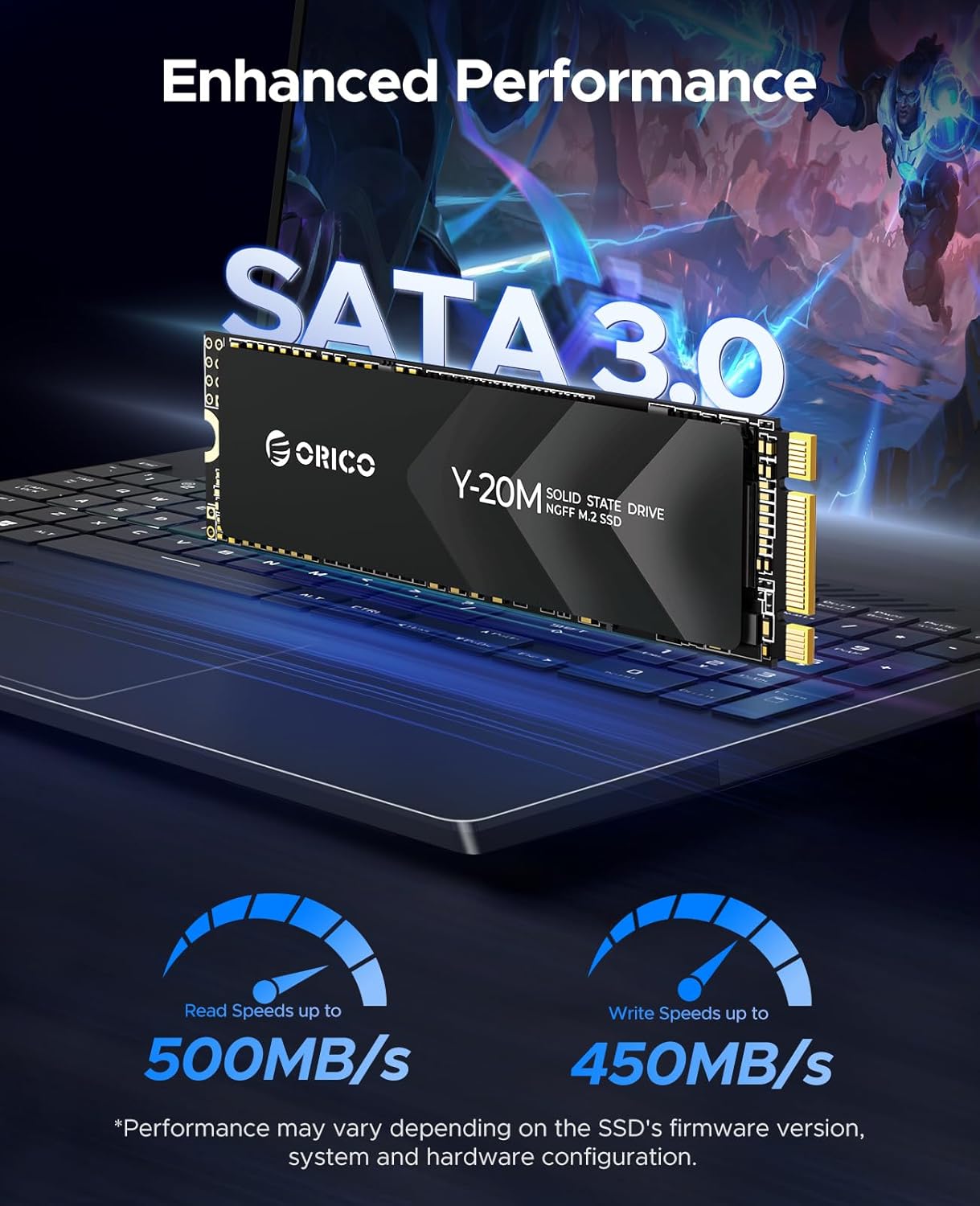
Image 8.1: Performance specifications for the included ORICO Y20M-128 M.2 SATA SSD.

Image 8.2: Compatibility information for the ORICO Y20M-128 M.2 SATA SSD with various devices.

Image 8.3: Features ensuring the reliability and durability of the ORICO Y20M-128 M.2 SATA SSD.
9. Warranty and Support
ORICO products come with a standard manufacturer's warranty. For specific warranty terms and conditions, please refer to the warranty card included with your product or visit the official ORICO website. If you encounter any issues or require technical assistance, please contact ORICO customer support through their official channels or the retailer where you purchased the product.
ORICO Official Website: www.oricotech.com


