
1. Introduction
Thank you for choosing the Fuers ERD054G01 4G LTE Solar Outdoor Surveillance Camera. This manual provides essential information for the proper installation, operation, and maintenance of your device. Please read it carefully before use to ensure optimal performance and longevity of the product. This camera is designed for outdoor security, offering advanced features such as 4G LTE connectivity, solar power, dual lenses, and intelligent motion detection.
2. Product Overview
2.1 Package Contents
- Fuers Solar Outdoor Surveillance Camera
- Solar Panel (integrated)
- Mounting Accessories (screws, wall plugs)
- User Manual
- 128GB TF Card (pre-installed or included separately)
2.2 Camera Components
Familiarize yourself with the main components of your camera:

Image 2.2.1: Detailed view of the camera highlighting the solar panel, upper and lower lenses, LED lights, microphone, and PIR motion sensor.
- Solar Panel: 6W panel for continuous power charging.
- Upper Fixed Lens: Provides a stable 90° field of view.
- Lower PTZ Lens: Rotates 355° horizontally (Pan) and 90° vertically (Tilt) for wide area coverage.
- LED Lights: 10 white LEDs for color night vision and 2 IR LEDs for infrared night vision.
- Microphone & Speaker: For two-way audio communication.
- PIR Motion Sensor: Passive Infrared sensor for human detection.
- SIM Card Slot: For 4G LTE connectivity.
- TF Card Slot: For local video storage (supports up to 128GB).
- Reset Button: To restore factory settings.
3. Setup
3.1 Initial Charging
Before first use, ensure the camera's internal 18600 mAh battery is sufficiently charged. Position the solar panel in direct sunlight for several hours, or connect the camera to a 5V/2A USB power adapter (not included) using a standard USB cable.

Image 3.1.1: The camera's solar panel charging the internal battery, ensuring continuous operation.
3.2 SIM Card and TF Card Installation
Locate the SIM card and TF card slots, usually protected by a rubber cover on the camera body. Carefully insert your 4G LTE SIM card and the provided 128GB TF card into their respective slots. Ensure they are inserted correctly according to the diagrams on the camera or in the quick start guide. Close the cover securely to maintain IP66 waterproofing.
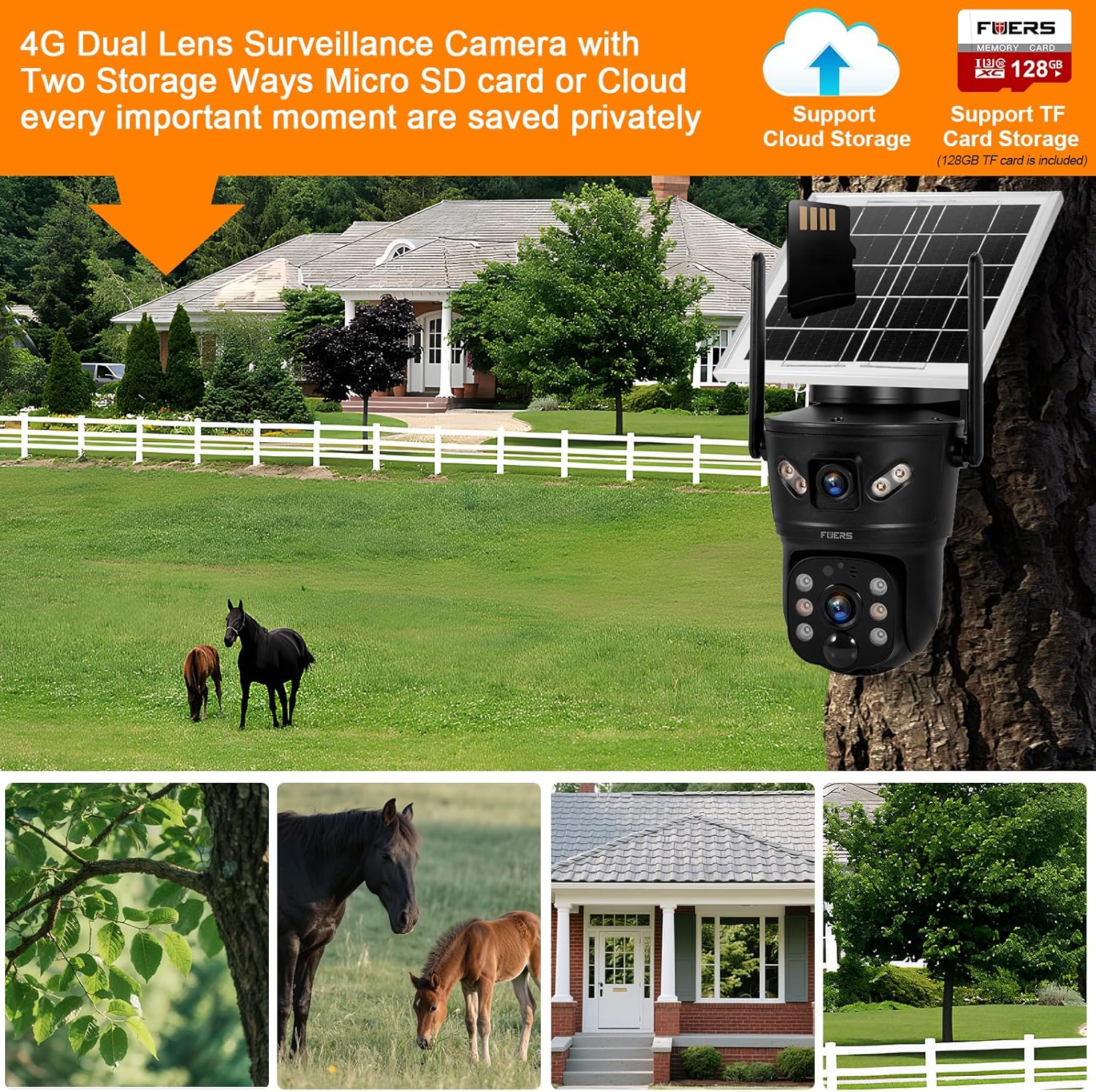
Image 3.2.1: Illustration of the camera's dual storage options: cloud and local TF card, along with 4G connectivity.
3.3 App Download and Registration
Download the V380 Pro application from your smartphone's app store (Google Play Store for Android or Apple App Store for iOS). Follow the on-screen instructions to register an account. An email verification may be required.
3.4 Camera Pairing
- Power on the camera. It will emit a voice prompt indicating it's ready for connection.
- Open the V380 Pro app and tap the '+' icon to add a new device.
- Select the option for '4G Camera' or 'Wireless Camera' and follow the voice prompts from the camera and instructions in the app.
- The app will guide you through connecting the camera to your 4G network. Ensure your SIM card has an active data plan.
- Once connected, you can name your camera and begin live viewing.
3.5 Mounting the Camera
Choose a suitable outdoor location with good 4G signal reception and ample sunlight exposure for the solar panel. Use the provided mounting bracket and screws to securely attach the camera to a wall or pole. Ensure the camera has a clear line of sight to the area you wish to monitor.
4. Operating Instructions
4.1 Live View and PTZ Control
Open the V380 Pro app and select your camera from the device list to access the live view. You can use the on-screen controls to pan (355° horizontal) and tilt (90° vertical) the lower lens to adjust the viewing angle. The upper lens provides a fixed wide-angle view.

Image 4.1.1: The camera's dual lens functionality, demonstrating the fixed upper lens and the pan/tilt capabilities of the lower lens.
4.2 Motion Detection and Alerts
The camera features dual PIR and radar detection for accurate motion sensing (0-12m range, 120° angle). When motion is detected, the camera can:
- Send instant push notifications to your smartphone.
- Trigger a 3W siren to deter intruders.
- Automatically record video footage.
Adjust sensitivity and alert settings within the V380 Pro app under 'Alarm Settings'. The AI Humanoid detection feature helps reduce false alarms by focusing on human shapes.

Image 4.2.1: The camera's motion detection feature in action, triggering an instant alert on a mobile device.
4.3 Two-Way Audio
Utilize the built-in microphone and speaker for two-way communication. In the live view interface of the V380 Pro app, tap the microphone icon to speak through the camera, and listen to audio from the camera's surroundings.
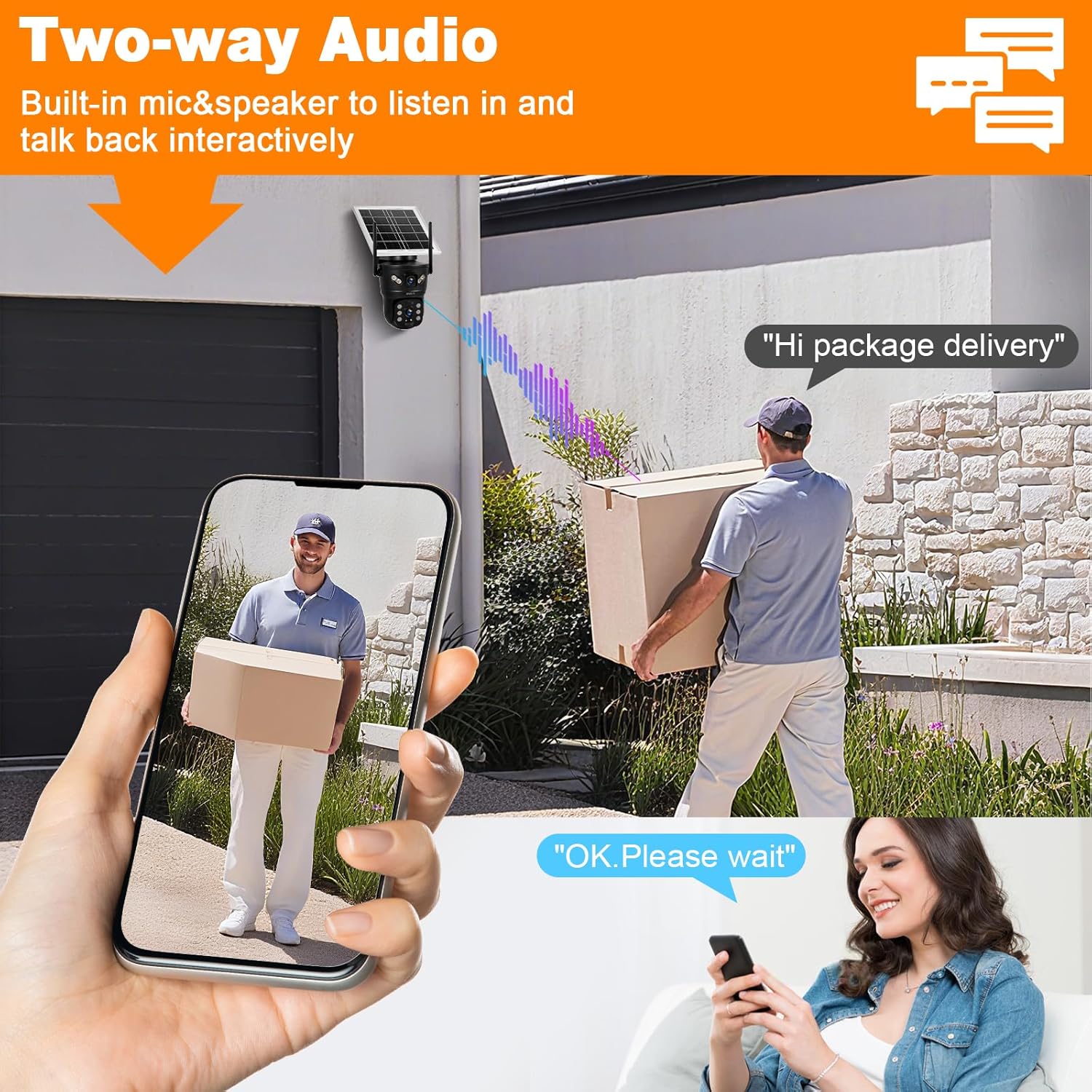
Image 4.3.1: Demonstrating the two-way audio function, allowing interactive communication through the camera.
4.4 Night Vision
The camera supports both infrared (black and white) and full-color night vision up to 10 meters. The 10 white LEDs provide illumination for color night vision, while the 2 IR LEDs enable standard infrared viewing. You can configure night vision modes (e.g., automatic, color, IR) within the app settings.

Image 4.4.1: Comparison of color night vision (ON) and standard night vision (OFF), highlighting the camera's ability to capture clear, colored images in low light.
4.5 Recording and Storage
The camera records video footage based on motion detection or continuous recording settings. Recordings are stored on the local 128GB TF card. Additionally, alarm videos can be uploaded to cloud storage (subscription may be required). Access recorded footage through the 'Playback' section in the V380 Pro app.
5. Maintenance
Regular maintenance ensures optimal performance of your surveillance camera.
- Cleaning: Periodically clean the solar panel and camera lenses with a soft, damp cloth to remove dust, dirt, or debris that may obstruct vision or reduce charging efficiency. Do not use harsh chemicals.
- Firmware Updates: Check the V380 Pro app regularly for available firmware updates. Keeping the firmware updated ensures the camera has the latest features and security patches.
- Battery Health: While the solar panel provides continuous charging, ensure the camera receives adequate sunlight to maintain battery health, especially during prolonged cloudy periods.
- Weather Protection: The camera is IP66 rated for outdoor use, meaning it is protected against dust and powerful water jets. However, avoid submerging the camera in water or exposing it to extreme physical impact.

Image 5.0.1: The camera's IP66 waterproof rating, indicating its durability in various weather conditions from -10°C to 60°C.
6. Troubleshooting
If you encounter issues with your Fuers ERD054G01 camera, refer to the following common problems and solutions:
| Problem | Possible Cause | Solution |
|---|---|---|
| Camera is offline/cannot connect to app. | No 4G signal; SIM card issue; low battery; app connectivity issue. | Check 4G signal strength at camera location. Ensure SIM card is active and has data. Recharge battery. Restart camera and app. Try resetting the camera using the reset button. |
| Poor image quality at night. | Lenses are dirty; incorrect night vision mode; insufficient ambient light for color night vision. | Clean lenses. Switch night vision mode in app (e.g., to IR for darker areas). Ensure white LEDs are enabled for color night vision. |
| Motion detection not working or too many false alarms. | Incorrect sensitivity settings; PIR sensor obstructed; environmental factors (e.g., moving branches). | Adjust motion detection sensitivity in the app. Ensure PIR sensor is clear. Enable AI Humanoid detection to filter out non-human motion. |
| Battery not charging via solar panel. | Insufficient sunlight; solar panel dirty or obstructed; faulty panel. | Relocate camera to an area with more direct sunlight. Clean the solar panel. If issue persists, contact support. |
| Two-way audio not functioning. | Microphone/speaker muted in app; poor network connection. | Ensure microphone and speaker are enabled in the V380 Pro app. Check network stability. |
For further assistance, consult the FAQ section within the V380 Pro app or contact customer support.
7. Specifications
| Feature | Specification |
|---|---|
| Model Number | ERD054G01 |
| Connectivity | 4G LTE (SIM card required), Wi-Fi (for initial setup/local access) |
| Power Source | Integrated 18600 mAh rechargeable battery, 6W Solar Panel |
| Resolution | 2MP (1920 x 2160P) 2K HD |
| Lens Type | Dual Lens (Fixed upper 90°, PTZ lower 355° Pan / 90° Tilt) |
| Night Vision | Color Night Vision (10 White LEDs), IR Night Vision (2 IR LEDs), up to 10m range |
| Motion Detection | Dual PIR and Radar (0-12m, 120° angle), AI Humanoid Tracking |
| Audio | Two-Way Audio (Built-in Mic & Speaker) |
| Storage | Local (128GB TF Card included), Cloud Storage (for alarm videos) |
| Weather Resistance | IP66 Waterproof |
| Operating Temperature | -10°C to +60°C |
| Dimensions (L x W x H) | 11 x 8 x 4 cm |
| Weight | 1.2 kg |
8. Warranty and Support
8.1 Warranty Information
Your Fuers ERD054G01 camera is covered by a standard manufacturer's warranty against defects in materials and workmanship. The specific duration and terms of the warranty may vary by region and retailer. Please retain your proof of purchase for warranty claims.
8.2 Customer Support
For technical support, warranty inquiries, or any questions regarding your product, please refer to the support section within the V380 Pro application or visit the official Fuers website. You may also contact the retailer from whom you purchased the product for assistance.