
1. Introduction
Thank you for choosing the RUPA RK3518pro Android TV Box 14.0. This device transforms your television into a smart entertainment hub, offering access to a vast array of streaming content, applications, and multimedia features. Equipped with the RK3518pro chipset, 2GB RAM, and 16GB internal storage, it supports 4K and 8K Ultra HD resolutions, Wi-Fi 6, dual-band Wi-Fi, HDR10+, 100M Ethernet, Bluetooth 5.0, and USB 3.0 connectivity. This manual provides essential information for setting up, operating, maintaining, and troubleshooting your device to ensure an optimal user experience.
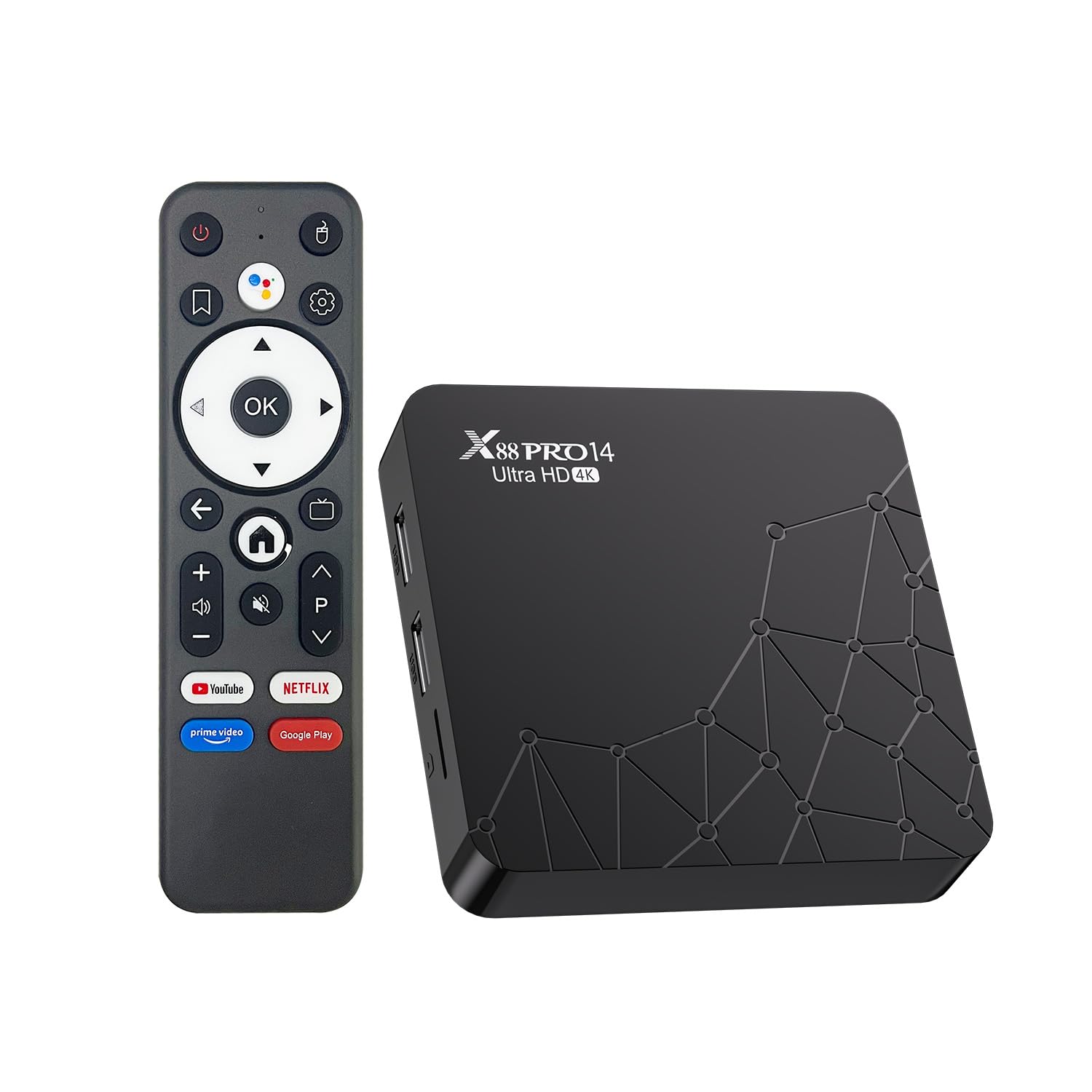
Image 1.1: RUPA RK3518pro Android TV Box 14.0 device.
2. Setup Guide
2.1 Unboxing and Package Contents
Carefully unpack all items from the box. Ensure all components are present before proceeding with the setup.

Image 2.1: Package contents including the TV box, remote control, user manual, HDMI cable, and power adapter.
2.2 Connecting Your Device
Follow these steps to connect your Android TV Box:
- Power Connection: Connect the provided power adapter to the DC 5V port on the TV box and then plug it into a wall outlet.
- HDMI Connection: Use the included HDMI cable to connect the HDMI OUT port on the TV box to an HDMI input port on your television. Note the HDMI input number (e.g., HDMI 1, HDMI 2) for later selection on your TV.
- Network Connection (Optional):
- Wired (Ethernet): For a stable connection, connect an Ethernet cable from your router to the LAN port on the TV box.
- Wireless (Wi-Fi): The device supports Wi-Fi 6 dual-band (2.4GHz/5.8GHz). You will configure this during the initial setup on screen.
- USB Devices (Optional): Connect USB storage devices, keyboards, or mice to the available USB 2.0 or USB 3.0 ports.
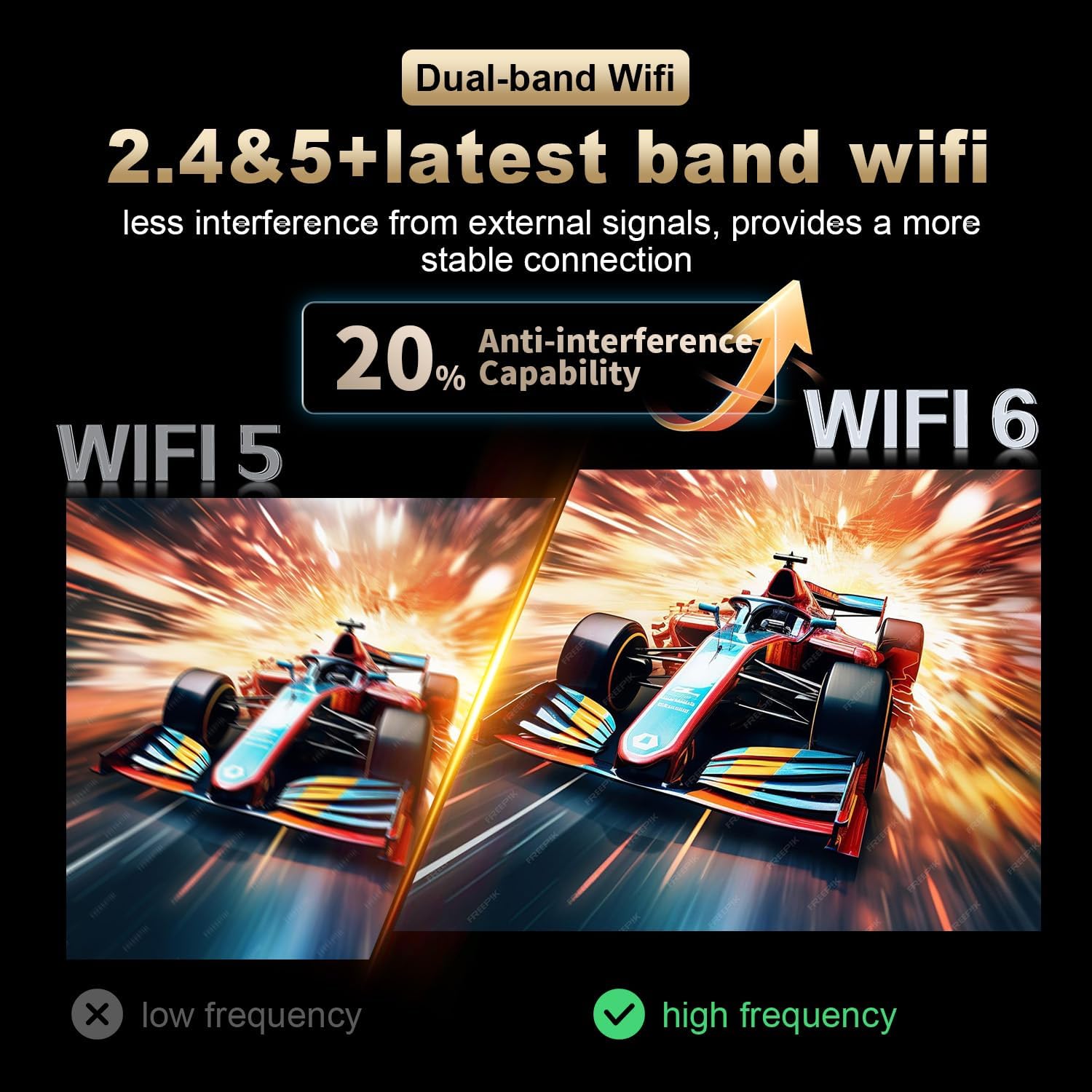
Image 2.2: Rear ports of the TV box, including HDMI, LAN, and power input.
2.3 Initial Power On and Setup Wizard
After connecting all cables, turn on your television and select the correct HDMI input source. The TV box will power on automatically. Follow the on-screen instructions for the initial setup, which typically includes:
- Language selection.
- Wi-Fi network connection (if not using Ethernet).
- Google account sign-in for app access.
- Date and time settings.
3. Operating Instructions
3.1 Navigating the Android 14.0 Interface
Your RUPA TV Box runs on the latest Android 14.0 operating system, offering a user-friendly interface. Use the provided remote control to navigate through menus, select applications, and adjust settings.
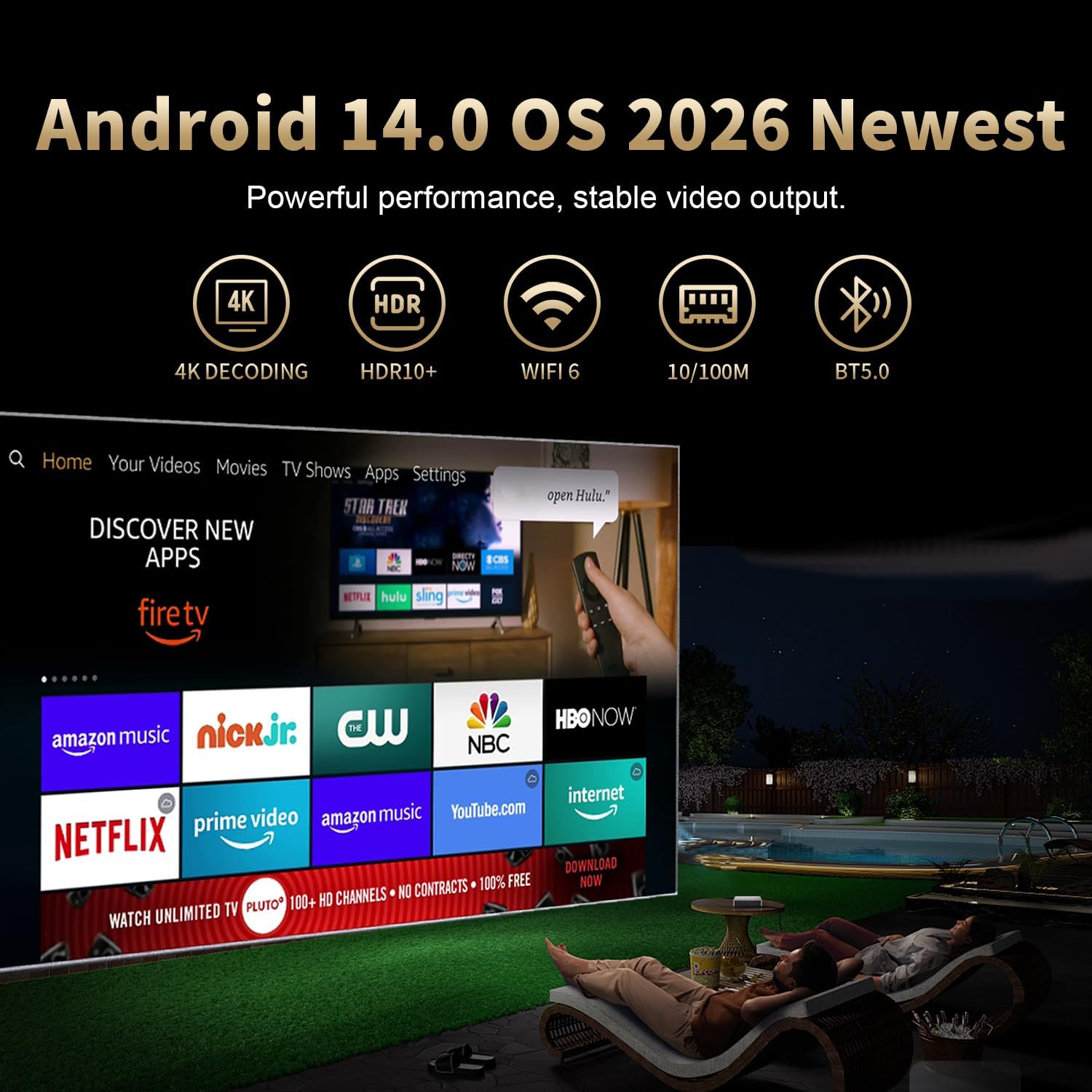
Image 3.1: Android 14.0 operating system interface with streaming service icons.
3.2 Using the Voice Remote Control
The included voice remote control allows for convenient navigation and voice commands. Press the dedicated voice button on the remote and speak clearly into the microphone to search for content, open apps, or control playback.

Image 3.2: Voice remote control in use, interacting with the TV box interface.
3.3 App Installation and Streaming
Access the Google Play Store to download and install your favorite streaming applications, games, and utilities. The device supports a wide range of apps compatible with Android 14.0.
3.4 4K and 8K Ultra HD Playback
The TV box supports video output resolutions up to 4K and 8K Ultra HD, providing a highly detailed and immersive viewing experience. Ensure your television is 4K or 8K compatible and that you are using a high-speed HDMI cable to fully utilize these resolutions. HDR10+ support enhances color and contrast for compatible content.

Image 3.3: Visual comparison demonstrating the enhanced clarity of 4K over 1080p.
3.5 Screen Mirroring and Sharing
Utilize the screen mirroring feature (e.g., Airplay, Airscreen, DLNA) to cast content from your smartphone, tablet, or laptop directly to your television via the TV box. This allows for easy sharing of photos, videos, and presentations on a larger screen.
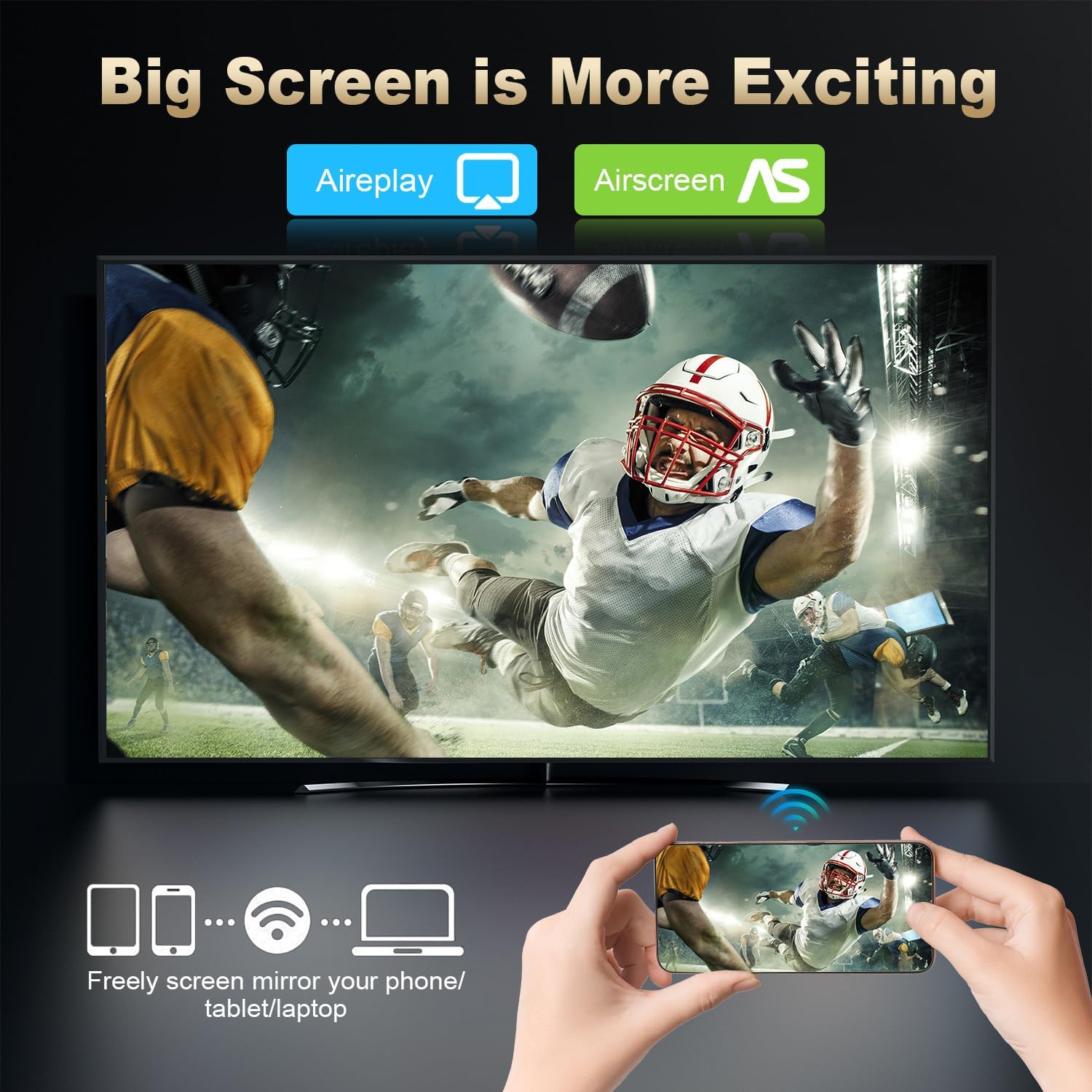
Image 3.4: Screen mirroring a mobile device to the television via the TV box.
3.6 Wi-Fi 6 and Bluetooth 5.0 Connectivity
The device features Wi-Fi 6 for faster and more stable wireless internet connections, especially in crowded network environments. Dual-band support (2.4GHz and 5.8GHz) ensures optimal performance. Bluetooth 5.0 allows for seamless connection of wireless accessories such as headphones, game controllers, and keyboards.

Image 3.5: Examples of multi-scene use, including watching TV, playing games, listening to music, and watching sports.
4. Maintenance
To ensure the longevity and optimal performance of your RUPA Android TV Box, consider the following maintenance tips:
- Cleaning: Use a soft, dry cloth to clean the exterior of the device. Avoid liquid cleaners or abrasive materials.
- Ventilation: Ensure the device is placed in a well-ventilated area to prevent overheating. Do not block ventilation openings.
- Software Updates: Regularly check for and install system updates to benefit from new features, performance improvements, and security patches. You can usually find this option in the device's settings menu.
- Environmental Conditions: Avoid exposing the device to extreme temperatures, direct sunlight, or high humidity.
- Power Cycle: If the device becomes unresponsive, disconnect the power adapter, wait 10 seconds, and then reconnect it to perform a power cycle.
5. Troubleshooting
If you encounter issues with your RUPA Android TV Box, refer to the following common problems and solutions:
- No Display on TV:
- Ensure the TV box is powered on and the power adapter is securely connected.
- Verify the HDMI cable is firmly connected to both the TV box and the television.
- Check that your TV is set to the correct HDMI input source.
- Try a different HDMI cable or HDMI port on your TV.
- No Internet Connection:
- Wi-Fi: Go to Settings > Network & Internet and ensure Wi-Fi is enabled and connected to your network. Re-enter the Wi-Fi password if necessary.
- Ethernet: Ensure the Ethernet cable is securely connected to both the TV box and your router. Check your router's internet connection.
- Restart your router and the TV box.
- Remote Control Not Responding:
- Replace the batteries in the remote control.
- Ensure there are no obstructions between the remote and the TV box.
- If it's a Bluetooth remote, ensure it's properly paired in the device's Bluetooth settings.
- Device is Slow or Lagging:
- Close any unused applications running in the background.
- Clear the cache of frequently used apps via Settings > Apps.
- Restart the TV box.
- Consider performing a factory reset (Settings > System > Reset options), but be aware this will erase all data and settings.
- Wi-Fi Disconnecting Frequently:
- Ensure the TV box is within a reasonable range of your Wi-Fi router.
- Minimize interference from other electronic devices.
- Try connecting to the 5.8GHz band if your router supports it, as it often has less interference.
- Update the TV box firmware if an update is available.
6. Specifications
Detailed technical specifications for the RUPA RK3518pro Android TV Box 14.0:

Image 6.1: RK3518pro+ chipset with integrated 2GB RAM and 16GB ROM.
| Feature | Specification |
|---|---|
| Brand | RUPA |
| Model Name | RK3518pro |
| Operating System | Android 14.0 |
| Chipset | RK3518pro |
| RAM Memory | 2GB |
| Storage Capacity | 16GB |
| Video Output Resolution | Up to 8K (7680 pixels), 4K |
| Video Codec Support | H.265/HEVC, VP9 |
| HDR Support | HDR10+ |
| Wi-Fi Connectivity | Wi-Fi 6, Dual-Band (2.4GHz/5.8GHz) |
| Ethernet | 100M Ethernet |
| Bluetooth | Bluetooth 5.0 |
| USB Ports | USB 2.0, USB 3.0 |
| Other Special Features | DLNA, Screen Mirroring |
| Compatible Devices | Television, Smartphone, Personal Computer, Laptop, Tablet |
| Dimensions (L x W x H) | 7.2" x 4.4" x 2.2" |
7. Warranty and Support
For warranty information and customer support, please refer to the documentation included with your purchase or contact the manufacturer directly. Keep your proof of purchase for warranty claims.
Manufacturer: RUPA