
SWZEC LSY-M122
Smart Playground KidsCam™ Durable Children Camera Blue
Brand: SWZEC | Model: LSY-M122
1. Introduction
The Smart Playground KidsCam™ is a durable and user-friendly camera designed specifically for children. Its robust construction ensures it can withstand typical play, while its simple operation allows young users to easily capture photos and videos. The camera features a rounded, ergonomic design for comfortable handling and bright colors to appeal to children. It is also waterproof and dustproof, making it suitable for both indoor and outdoor adventures. This manual will guide you through the camera's features and functions.
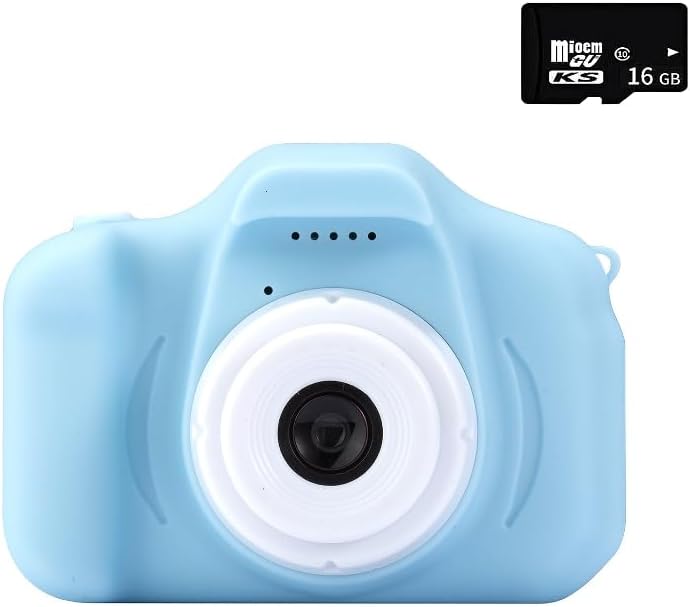
Figure 1.1: Front view of the Smart Playground KidsCam in blue, accompanied by a 16GB Micro SD card, indicating storage compatibility.
2. Key Features
- Durable Construction: Features three layers of soft rubber wrapping the body, designed to withstand drops from heights like a dining chair onto concrete.
- Ergonomic Handle: Equipped with raised anti-slip textures, making it easy for small hands to grip securely, even during active play.
- Full-Body Washable: Can be rinsed directly with water after outdoor play, ensuring no dirt is hidden in gaps.
- Extended Battery Life: Capable of taking approximately 800 photos on a single charge, providing ample usage for a full day out.
- Dual-Lens System: Includes both front and rear lenses for versatile photography, allowing for selfies and capturing moments from different perspectives.
- Child-Safe Design: Large rounded corners prevent skin scratches.
- Simple Operation: Designed with a single-button operation, making it easy for children as young as three years old to learn and use quickly.
3. What's in the Box
- Camera Body
- Necessary Accessories (e.g., charging cable, wrist strap)
4. Setup
- Charging the Camera:
Before first use, fully charge the camera. Connect the provided charging cable to the camera's charging port and plug the other end into a compatible USB power source (e.g., computer USB port, USB wall adapter). The charging indicator light will typically show charging status and turn off or change color when fully charged. A full charge supports approximately 800 photos.
- Inserting a Memory Card:
The camera requires a Micro SD card (not always included, but shown in product images) to store photos and videos. Locate the memory card slot, usually on the side or bottom of the camera. Gently insert the Micro SD card with the gold contacts facing down (or as indicated by a small diagram near the slot) until it clicks into place. Ensure it is inserted correctly to avoid damage.
- Powering On/Off:
Press and hold the Power button (usually marked with a universal power symbol) for a few seconds to turn the camera on. To turn it off, press and hold the Power button again until the screen shuts down.
5. Operating Instructions

Figure 5.1: Rear view of the camera showing the screen and control buttons, illustrating the user interface.
- Taking Photos:
With the camera powered on, point the lens at your subject. Press the designated 'Shutter' button (often a large, prominent button) once to take a photo. The camera is designed for simple, one-button photo operation.

Figure 5.2: Example of taking a photo with the camera, showing the captured image on the screen.
- Switching Lenses (Front/Rear):
The camera features both front and rear lenses. Look for a button or an on-screen icon that allows you to switch between the two. This enables children to take selfies or capture their surroundings.
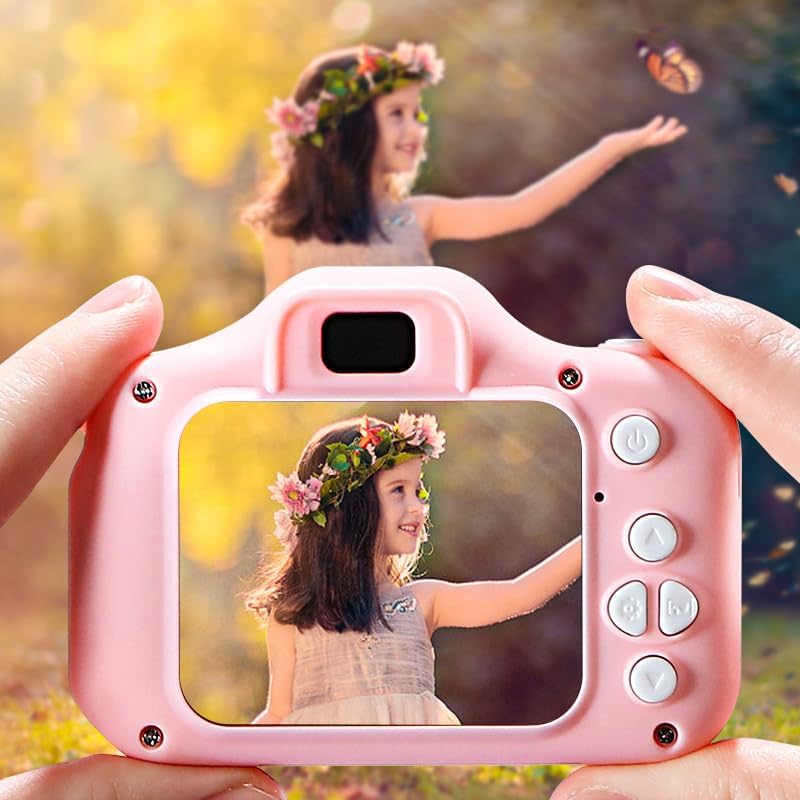
Figure 5.3: Illustrates the use of the front lens for taking selfies.
- Recording Videos:
To switch to video mode, locate the mode button or icon (often a camera/video icon). Once in video mode, press the Shutter/Record button to start recording. Press it again to stop recording. Videos are saved in MP4 format.

Figure 5.4: The camera's screen displaying a video, demonstrating its video recording function.
- Viewing Photos/Videos:
Enter playback mode by pressing the designated playback button (often an arrow or play symbol). Use the navigation buttons (up/down/left/right) to scroll through your captured images and videos. Press the Shutter/OK button to view a selected item or play a video.
- Deleting Files:
In playback mode, select the photo or video you wish to delete. Look for a 'Delete' button or an icon (often a trash can). Confirm your selection when prompted to permanently remove the file.
6. Maintenance
- Cleaning: The camera features a full-body washable design. After playing in muddy or dirty environments, you can rinse the camera directly with water. Ensure all ports are closed before rinsing. For general cleaning, wipe the camera body with a soft, damp cloth. Do not use harsh chemicals or abrasive cleaners.
- Lens Care: Gently wipe the camera lens with a soft, lint-free cloth specifically designed for optical surfaces. Avoid touching the lens with your fingers.
- Storage: When not in use, store the camera in a cool, dry place away from direct sunlight and extreme temperatures. Remove the memory card if storing for extended periods.
7. Troubleshooting
- Camera Not Turning On:
- Ensure the battery is charged. Connect the camera to a charger for at least 30 minutes.
- Press and hold the Power button for a few seconds.
- Cannot Take Photos/Videos:
- Check if a memory card is inserted correctly.
- Verify if the memory card has sufficient free space. Delete old files or insert a new card if full.
- Ensure the camera is in photo or video mode.
- Poor Image Quality:
- Clean the camera lens with a soft, lint-free cloth.
- Ensure adequate lighting in the environment.
- Camera Freezes/Unresponsive:
- If the camera becomes unresponsive, try pressing and holding the Power button for 10-15 seconds to force a shutdown.
- If a reset button is available (often a small pinhole), use a thin object (like a paperclip) to press it gently.
8. Specifications

Figure 8.1: Dimensions of the Smart Playground KidsCam.
| Specification | Detail |
|---|---|
| Model Name | COOLPIX 8700 (Note: Product model number is LSY-M122) |
| Item Model Number | LSY-M122 |
| Brand | SWZEC |
| Color | Blue |
| Package Dimensions | 5.91 x 3.94 x 3.94 inches |
| Item Weight | 4.9 ounces |
| Maximum Webcam Image Resolution | 48 MP |
| Effective Still Resolution | 800 (Implied photos per charge, not resolution) |
| Photo Sensor Technology | CCD |
| Photo Sensor Size | Smaller than 1/4-inch |
| Supported File Format | MP4 |
| Optical Zoom | 14 |
| Compatible Mountings | Micro Four Thirds (Likely an error in source data, as this is a children's camera) |
| Manufacturer | SWZEC |
| Date First Available | May 19, 2025 |
9. Warranty and Support
For warranty information, technical support, or service inquiries regarding your Smart Playground KidsCam™, please refer to the contact details provided on the product packaging or visit the official SWZEC website. Keep your purchase receipt as proof of purchase for any warranty claims.
Ask a question about this manual
Ask about setup, troubleshooting, compatibility, parts, safety, or missing instructions. Manuals+ will review the question and use this page’s manual context to help answer it.