
1. Introduction
This manual provides essential information for setting up, operating, and maintaining your KOOFORWAY Max16 Triple Screen Laptop. Please read this manual thoroughly before using the device to ensure proper function and longevity.

Image 1.1: KOOFORWAY Max16 Triple Screen Laptop with main 16-inch screen and two 10.5-inch side screens deployed.
2. Package Contents
Verify that all items are present in the package:
- KOOFORWAY Max16 Triple Screen Laptop
- Power Adapter
- User Manual (this document)
- Webcam
- USB for Windows installation (if applicable, check packaging)
3. Setup and Initial Use
3.1 Unpacking and Physical Setup
- Carefully remove the laptop from its packaging.
- Place the laptop on a stable, flat surface.
- Open the main 16-inch display.
- Gently extend the two 10.5-inch side displays from the main screen. These displays are designed to fold out for an expanded workspace.
Video 3.1: Demonstration of opening the KOOFORWAY Max16 laptop and deploying its triple screens, showcasing its ports and fingerprint unlock feature.
3.2 Powering On and Initial Configuration
- Connect the power adapter to the charging port on the laptop and then to a power outlet.
- Press the power button to turn on the laptop.
- Follow the on-screen instructions to complete the Windows 11 Pro setup. This includes language selection, network connection, and user account creation.
- Ensure all three screens are recognized and configured correctly. You may need to adjust display settings in Windows to extend or duplicate displays as desired.
4. Operating the Laptop
4.1 Triple Screen Functionality
The KOOFORWAY Max16 features a 16-inch main display and two 10.5-inch foldable side displays. These can be configured for various multitasking scenarios:
- Extended Display: Use all three screens as one continuous desktop for maximum workspace.
- Duplicated Display: Mirror content across screens (less common for triple-screen setup).
- Specific Applications: Dedicate each screen to a different application, such as a main work area, a reference screen, and a communication window.

Image 4.1: A user demonstrating multitasking with the triple screen setup, displaying various applications across the screens.
4.2 Secure Login
The laptop supports dual biometric authentication for enhanced security:
- Face Recognition: Utilize Windows Hello for quick and secure login using your face.
- Fingerprint Reader: The touchpad integrates a fingerprint reader for convenient access.

Image 4.2: The integrated fingerprint reader on the touchpad for secure login.
4.3 Connectivity
The Max16 laptop offers a range of ports for connecting peripherals and external devices:
- USB-C: Full-function USB-C ports for data transfer, display output, and charging.
- HDMI: For connecting to external monitors or projectors.
- RJ45 LAN: For wired network connections.
- USB-A 3.0: Multiple ports for standard USB devices.
- Headphone Jack: For audio output.
Wireless connectivity includes Wi-Fi 5 (802.11ax) and Bluetooth 5.0 for fast and reliable connections to networks and accessories.
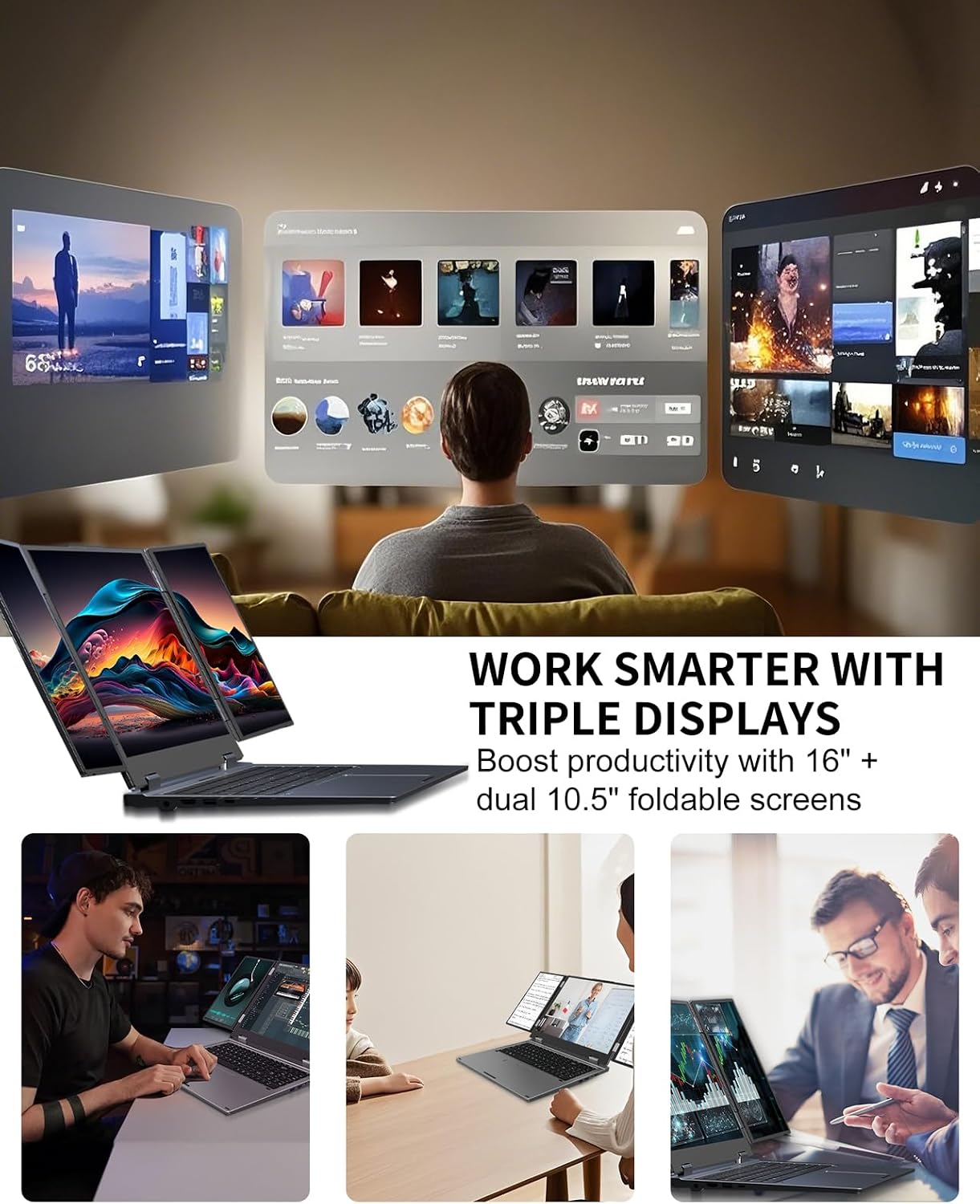
Image 4.3: Overview of the laptop's connectivity ports on its sides.
5. Maintenance and Care
To ensure the longevity and optimal performance of your KOOFORWAY Max16 laptop, follow these maintenance guidelines:
- Cleaning: Use a soft, lint-free cloth to clean the screens and exterior. For stubborn marks, dampen the cloth slightly with water or a screen-safe cleaner. Avoid harsh chemicals.
- Ventilation: Ensure the laptop's ventilation openings are clear and unobstructed to prevent overheating.
- Battery Care: For optimal battery life, avoid frequently discharging the battery completely or leaving it plugged in at 100% for extended periods.
- Storage: When not in use, close the side screens and the main lid to protect the displays. Store the laptop in a cool, dry place.
- Software Updates: Regularly update your operating system and drivers to maintain security and performance.
6. Troubleshooting
This section addresses common issues you might encounter with your KOOFORWAY Max16 laptop.
6.1 Display Issues
- Side screens not displaying:
- Check display settings in Windows (Right-click desktop > Display settings) to ensure screens are detected and set to 'Extend these displays'.
- Ensure physical connections of the side screens are secure.
- Restart the laptop.
- Screen flickering or distortion:
- Update graphics drivers.
- Reduce screen resolution temporarily to see if the issue persists.
- Ensure no strong magnetic fields are near the screens.
6.2 Power and Charging Problems
- Laptop not turning on:
- Ensure the power adapter is securely connected to both the laptop and a working power outlet.
- Allow the battery to charge for at least 30 minutes before attempting to power on again.
- Try a different power outlet.
- Battery not charging:
- Verify the power adapter is functioning correctly.
- Check the charging port for any debris or damage.
- The device supports charging via USB-C port; try using a compatible USB-C charger if available.
6.3 Performance Issues
- Slow performance:
- Close unnecessary applications running in the background.
- Check Task Manager for processes consuming high CPU or RAM.
- Ensure sufficient free space on the 2TB SSD.
- Run a disk cleanup and defragmentation (for SSDs, this is typically TRIM optimization, managed by the OS).
- Overheating:
- Ensure ventilation vents are clear.
- Use the laptop on a hard, flat surface rather than soft furnishings.
- Consider using a laptop cooling pad if issues persist during heavy use.
7. Specifications
Detailed technical specifications for the KOOFORWAY Max16 Triple Screen Laptop:
| Feature | Description |
|---|---|
| Model | Max16 |
| Main Screen Display Size | 16 Inches |
| Side Screen Display Size | Dual 10.5 Inches |
| Screen Resolution | 1920 x 1200 Pixels (Main & Side) |
| Processor | Intel Core i7-12700H (4.7 GHz Max Boost, 14 Core) |
| RAM | 32 GB DDR4 (3400 MHz) |
| Storage | 2 TB SSD (PCIE x 2) |
| Graphics Coprocessor | Integrated Graphics (Intel) |
| Operating System | Windows 11 Pro |
| Wireless Connectivity | Wi-Fi 5 (802.11ax), Bluetooth 5.0 |
| Ports | 4x USB 3.0, 1x USB Type-C 3.2 Gen1 (Full Functionality), HDMI, RJ45 LAN, Headphone Jack |
| Battery | 4 cells in series 5000mAh 77WH (Approx. 2-5 hours average battery life) |
| Item Weight | 8.38 pounds (3.8 kg) |
| Product Dimensions | 15 x 10 x 1 inches (38.1 x 25.4 x 2.54 cm) |
| Security Features | Face Recognition, Fingerprint Unlock |

Image 7.1: Laptop dimensions when closed.
8. Warranty and Support
Your KOOFORWAY Max16 Triple Screen Laptop comes with a standard manufacturer's warranty. Please refer to the warranty card included in your package for specific terms and conditions.
For technical support, troubleshooting assistance, or warranty claims, please contact KOOFORWAY customer service through their official website or the contact information provided in your product documentation.
It is recommended to register your product online to facilitate warranty service and receive important updates.