
1. Product Overview
The AMprime 12.3-inch Android 15 Car Stereo is designed to enhance your driving experience in Ford Fiesta models from 2009 to 2013. Featuring an 8-core CPU, 4GB RAM, and 64GB ROM, this unit provides a responsive and feature-rich infotainment system. Key functionalities include wireless/wired Carplay and Android Auto, GPS navigation, Bluetooth connectivity, FM/RDS radio, and support for a backup camera.

Image 1.1: Front view of the AMprime 12.3-inch Android 15 Car Stereo displaying various application icons.
2. Package Contents
Before beginning installation, please verify that all components are present in the package:

Image 2.1: Illustration of all components included in the product package, such as the main unit, camera, microphone, various cables, GPS antenna, user manual, antenna adapter, installation tool, Canbus, and radio antenna.
- Main Head Unit (12.3-inch Android Stereo)
- AHD Backup Camera
- External Microphone
- Power Cable
- USB Cables (x2)
- Rear Camera Input Cable
- RCA Cable
- Original USB Cable
- Ford Fiesta Adapter Cable (2009 model)
- GPS Antenna
- User Manual (this document)
- Antenna Adapter
- Installation Tool
- Canbus Decoder
- Radio Antenna
3. Setup and Installation
Professional installation is recommended. Ensure the vehicle's battery is disconnected before starting the installation process.
3.1 Pre-Installation Check
Confirm the stereo fits your Ford Fiesta dashboard (2009-2013 models, left-hand drive).

Image 3.1: Visual comparison showing the Ford Fiesta dashboard before and after the AMprime car stereo installation.
3.2 Wiring Diagram
Refer to the detailed wiring diagram for correct connections. Incorrect wiring can damage the unit or vehicle electronics.

Image 3.2: Comprehensive wiring diagram illustrating connections for power, speakers, USB, camera, and other accessories. Note the warning regarding the Canbus connector.
Important: The connector for the Canbus is specifically designed for Canbus communication. Do not plug this connector into the radio directly, as it may prevent the radio from starting. This connector is typically 16-pin or 20-pin.
3.3 General Installation Steps
- Remove Original Unit: Carefully remove the factory radio and trim from your Ford Fiesta dashboard.
- Connect Wiring Harness: Connect the provided power cable and adapter cable to the vehicle's wiring harness. Ensure all connections are secure.
- Connect Peripherals: Attach the GPS antenna, USB cables, microphone, and backup camera cable as per the wiring diagram.
- Install Canbus Decoder: Connect the Canbus decoder as indicated in the wiring diagram. This is crucial for steering wheel controls and other vehicle integrations.
- Test Functionality: Before fully reassembling the dashboard, temporarily connect the battery and power on the unit to test basic functions (power, audio, touch screen, steering wheel controls).
- Secure Unit: Mount the new head unit into the dashboard opening and secure it with screws or clips.
- Reassemble Dashboard: Reinstall all trim pieces and panels.
4. Operating Instructions
4.1 Wireless Carplay & Android Auto
This stereo supports both wireless and wired Carplay and Android Auto. Connect your smartphone via USB or Bluetooth to project its interface onto the stereo's large screen. This allows access to navigation, music, calls, and other applications using voice commands (Siri/Google Assistant).

Image 4.1: Display of the Carplay and Android Auto interfaces on the car stereo, demonstrating wireless and wired connection options.
4.2 Mirror Link Function
The dual system mirror link feature allows you to mirror your iOS or Android phone's screen directly onto the car stereo. This enables sharing of videos, photos, and other content from your phone.

Image 4.2: Visual representation of the Mirror Link function, where a smartphone's display is duplicated on the car stereo screen.
4.3 GPS Navigation & WiFi Connectivity
The unit includes a built-in WiFi module and supports both online and offline maps. A pre-installed offline map of North America is provided. Connect to a WiFi hotspot to use online navigation services and download additional Android applications from the application store.

Image 4.3: Display of WiFi/Hotspot connection options and the GPS navigation interface, showing map data and route information.
4.4 FM/RDS Radio Receiver
Enjoy your favorite radio stations with the built-in FM/RDS receiver. The automotive-grade chipset ensures optimal signal reception. The system supports 18 preset stations.
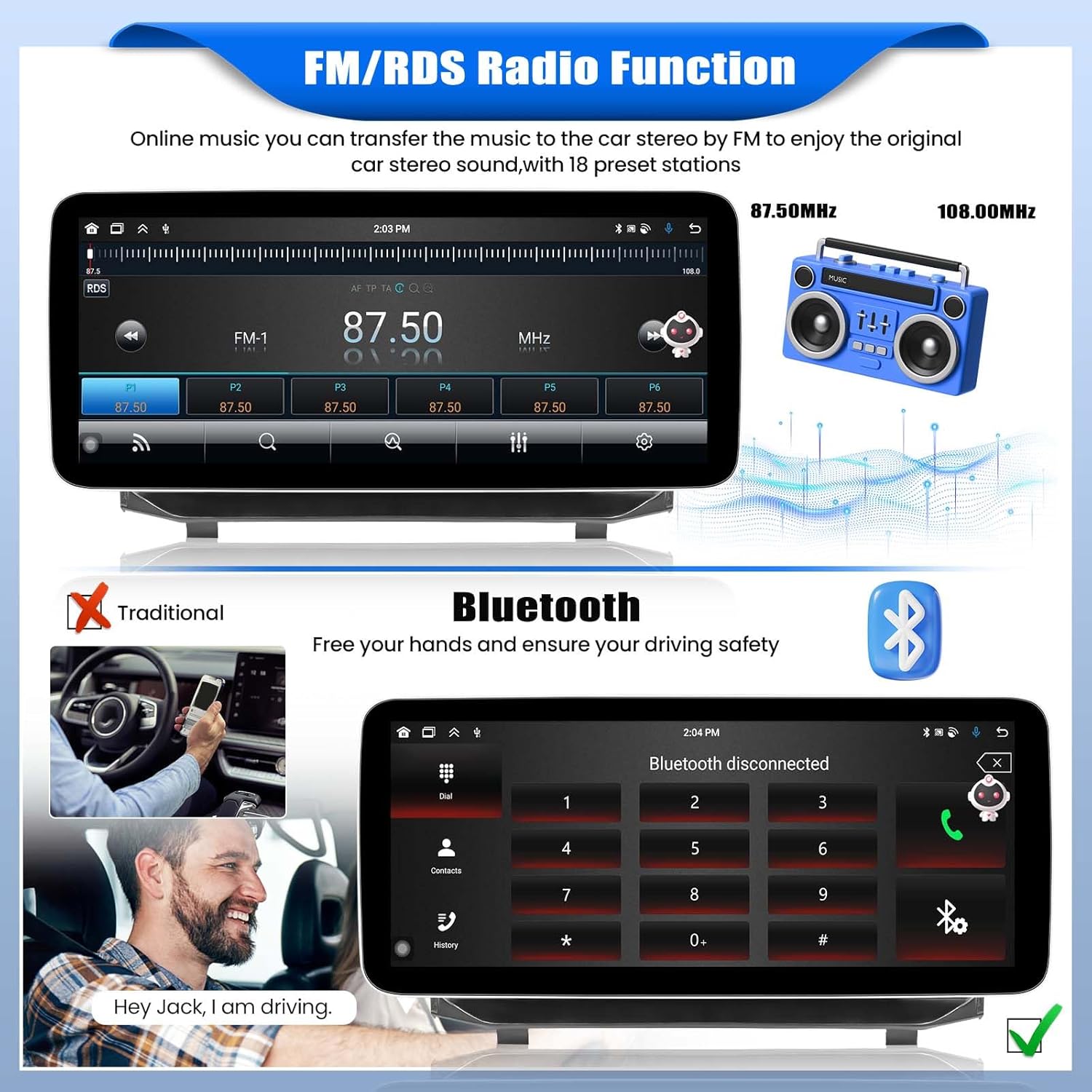
Image 4.4: The FM/RDS radio interface, showing frequency tuning and preset station options.
4.5 Bluetooth Hands-Free
Connect your mobile phone via Bluetooth for hands-free calling and audio streaming. Answer or hang up calls with a single button press, enhancing driving safety.

Image 4.5: The Bluetooth interface, showing a dial pad for making calls and options for music playback.
4.6 Steering Wheel Control (SWC)
The car radio supports integration with your vehicle's steering wheel controls. This allows you to manage functions such as switching songs, adjusting volume, and answering calls directly from your steering wheel.

Image 4.6: The interface for programming steering wheel controls, alongside an image of a steering wheel with integrated buttons.
4.7 EQ Setting & DSP
Utilize the built-in DSP (Digital Signal Processor) tuning software to customize audio output. Adjust frequency, AE, and 36-band equalization to optimize sound quality and compensate for original car speaker limitations.

Image 4.7: The graphical equalizer (EQ) settings interface, allowing for detailed audio adjustments.
4.8 AHD Backup Camera
The included AHD backup camera provides a clear, 170° ultra-wide field of view with excellent night vision. The image automatically displays on the touch screen when reversing, aiding in safer parking and maneuvering.

Image 4.8: A view from the backup camera displayed on the car stereo, complete with parking assistance lines.
5. Specifications
| Feature | Specification |
|---|---|
| Display Size | 12.3 Inches |
| Operating System | Android 15 |
| CPU | 8-Core |
| RAM | 4GB |
| Internal Storage (ROM) | 64GB |
| Screen Resolution | 1024*600 |
| Touch Screen Type | Capacitive |
| Connectivity Technology | Wi-Fi, Bluetooth |
| Special Features | Wireless Carplay, Android Auto, Mirror Link, GPS Navigation, FM/RDS Radio, Steering Wheel Control, DSP, AHD Backup Camera |
| Map Type | Worldwide (Offline North America included) |
| Item Weight | 6.21 pounds (2.82 Kilograms) |
| Package Dimensions | 15.39 x 15.04 x 7.87 inches |
6. Maintenance
To ensure the longevity and optimal performance of your AMprime car stereo, follow these general maintenance guidelines:
- Cleaning: Use a soft, dry cloth to clean the screen and exterior. Avoid abrasive cleaners or solvents that could damage the display or finish.
- Software Updates: Periodically check for software updates to ensure you have the latest features and bug fixes. Updates can typically be performed via WiFi.
- Temperature: Avoid exposing the unit to extreme temperatures for extended periods.
- Power: Ensure stable power supply to prevent electrical damage.
7. Troubleshooting
If you encounter issues with your car stereo, refer to the following common troubleshooting steps:
- No Power: Check all power connections, including the main power cable and fuse. Ensure the vehicle's battery is properly connected.
- No Sound: Verify speaker connections. Check volume levels and audio settings (EQ, DSP). Ensure the correct audio source is selected.
- Touch Screen Unresponsive: Try restarting the unit. If the issue persists, a factory reset might be necessary (note: this will erase all user data).
- GPS Not Working: Ensure the GPS antenna is properly connected and has a clear view of the sky. Check GPS settings within the unit.
- Bluetooth Connection Issues: Ensure Bluetooth is enabled on both the stereo and your phone. Delete previous pairings and try reconnecting.
- Carplay/Android Auto Not Connecting: Verify USB cable connection (if wired) or Bluetooth connection (if wireless). Ensure your phone's operating system is up to date.
- Steering Wheel Controls Not Working: Confirm the Canbus decoder is correctly installed and configured. Re-learn the steering wheel buttons in the unit's settings.
For persistent issues, please contact customer support.
8. Warranty and Support
8.1 Warranty Information
Warranty details for this product are typically provided at the point of purchase or within the product packaging. Please retain your proof of purchase for warranty claims. For specific warranty terms and conditions, refer to the documentation included with your product or contact the seller directly.
8.2 Customer Support
For technical assistance, installation queries, or troubleshooting not covered in this manual, please contact AMprime customer support:
Email: AmprimeTechSupport@yeah.net

Image 8.1: Customer support contact information for technical assistance.


