1. Introduction
The Roku Select Series Full HD TV offers a streamlined entertainment experience. This smart TV provides Full HD resolution, clear audio, and an intuitive interface for accessing streaming services and live television. This manual provides essential information for setting up, operating, maintaining, and troubleshooting your Roku Smart TV.

Image: Front view of the Roku Smart TV, showcasing its sleek design and display.
2. What's in the Box
Verify that all components are present in the packaging:
- Roku Select Series 40" FHD TV
- Stands and screws
- Roku Voice Remote with batteries
- Quick Start Guide (User Manual)
- Power Cable

Image: Diagram showing the Roku Select Series 40" FHD TV, stands, screws, Roku Voice Remote with batteries, and Quick Start Guide.
3. Setup Instructions
3.1. Attaching the TV Stands
- Carefully place the TV screen-down on a soft, flat surface to prevent damage.
- Align each stand with the corresponding screw holes on the bottom of the TV.
- Secure the stands using the provided screws. Ensure they are tightened firmly but do not overtighten.
3.2. Connecting Power and Devices
- Connect the power cable to the TV and then to a power outlet.
- Connect external devices (e.g., cable box, gaming console, DVD player) to the HDMI ports on the back of the TV. The TV includes HDMI 1 (ARC), HDMI 2, and HDMI 3 ports.
- For older devices, an AV input is available.
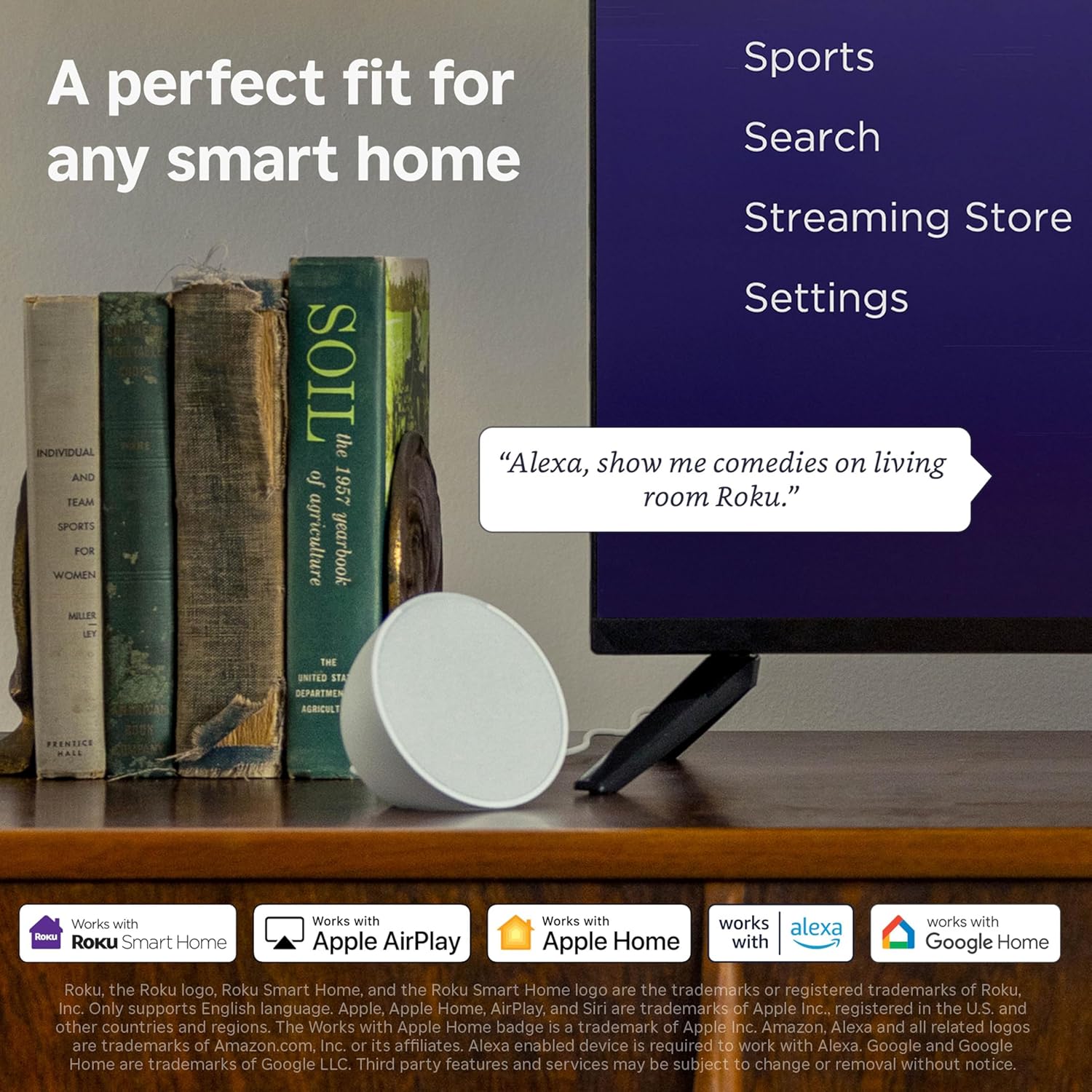
Image: Close-up of the TV's rear panel, highlighting the HDMI, USB, and other connectivity ports.
3.3. Initial Power-On and Network Connection
- Press the power button on the remote control or the TV.
- Follow the on-screen instructions to select your language and connect to your Wi-Fi network.
- Activate your Roku TV by linking it to a Roku account.
4. Operating Your TV
4.1. Roku Voice Remote
The included Roku Voice Remote simplifies navigation and control. It features dedicated buttons for power, volume, mute, instant replay, and app shortcuts for popular streaming services.
- Voice Search & Control: Use the voice button to search across thousands of apps, play entertainment, and control your streaming.
- App Shortcuts: Quickly access Netflix, Disney+, Apple TV, and Prime Video with dedicated buttons.
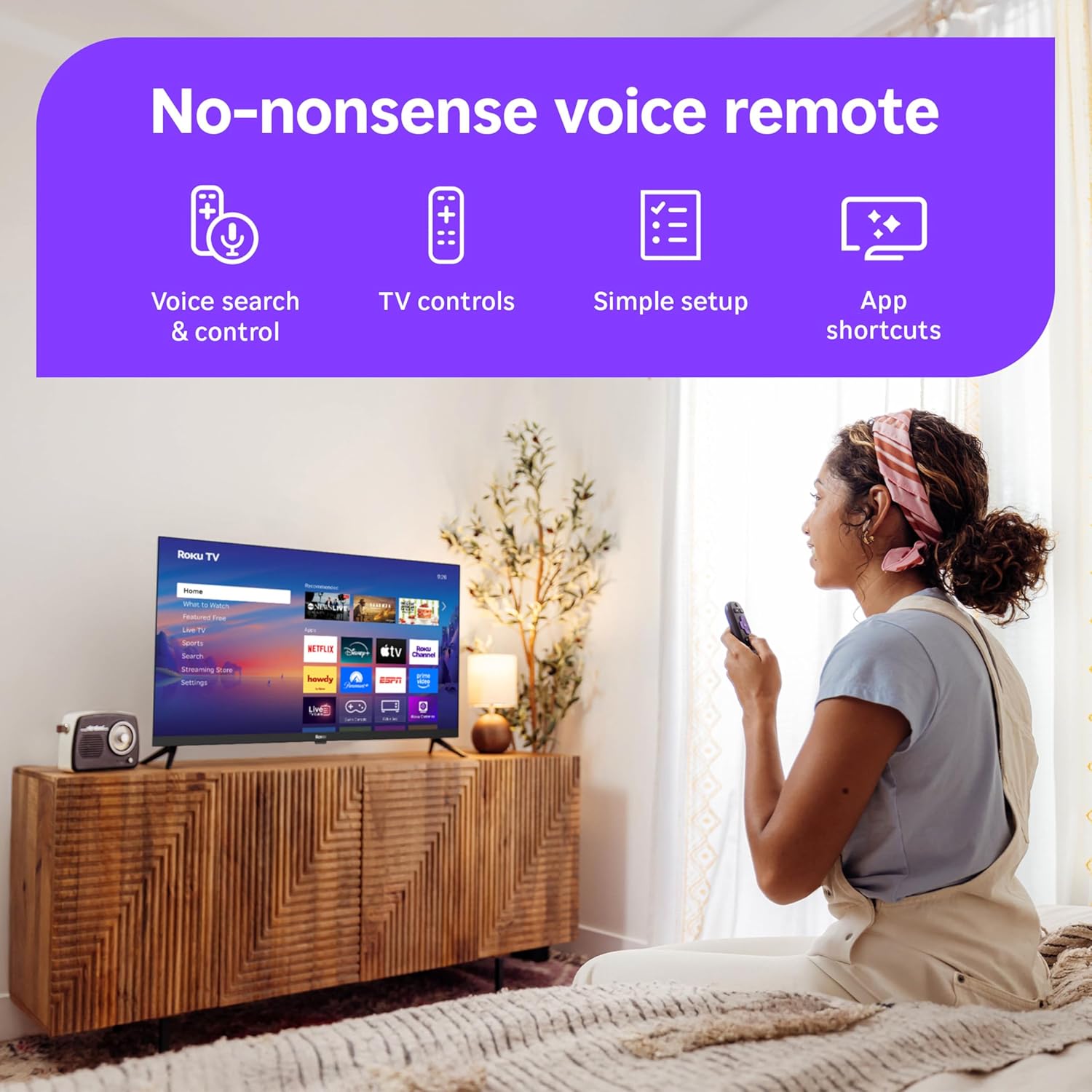
Image: Detailed view of the Roku Voice Remote, showing its layout and functions.
4.2. Home Screen Navigation
The Roku home screen provides quick access to your favorite apps, live TV, and content recommendations. You can customize the home screen by moving apps around to suit your preferences.

Image: The Roku TV home screen, showing the intuitive interface with app icons and content suggestions.
4.3. Streaming and Live TV
Enjoy seamless streaming with fast Wi-Fi and quick app launches. The Roku TV offers access to thousands of apps, including free movies, shows, and live TV channels.
- Free Live TV: Access over 500 free TV channels, including live news, weather, sports, and Roku Originals.
- Content Discovery: Easily find new favorites through the intuitive interface and personalized recommendations.

Image: A display of the Roku TV's Live TV interface, featuring trending shows and recommended channels.
4.4. Picture and Sound Settings
The Roku Smart TV features a bright 1080p Full HD picture. Roku Smart Picture automatically optimizes incoming TV signals and selects the appropriate picture mode (movie, sports, vivid, or standard) for optimal viewing.
- Dolby Audio: Designed for clear speech and louder sound.
- Bluetooth Headphone Mode: Connect your favorite wireless headphones for private listening.

Image: Screenshot of the Roku TV's picture mode settings menu.

Image: A user enjoying content with Bluetooth headphones, demonstrating the Bluetooth Headphone Mode feature.
5. Smart Features
5.1. Smart Home Integration
The Roku Smart TV integrates with various smart home ecosystems, allowing for easy voice control and content sharing.
- Voice Control: Compatible with Roku Voice, Siri, Alexa, and Google Assistant.
- Apple AirPlay: Effortlessly share videos, photos, and music from your Apple devices to your TV.

Image: A Roku TV screen displaying smart home integration options, including compatibility with Roku Smart Home, Apple AirPlay, Apple Home, Alexa, and Google Home.
5.2. Automatic Software Updates
Your Roku TV automatically receives software updates, ensuring you always have the newest apps, features, and performance enhancements.
5.3. Roku TV OS Video Overview
Video: An official overview of the Roku TV operating system, demonstrating its user interface and features.
6. Specifications
| Feature | Detail |
|---|---|
| Brand | Roku |
| Model Number | 40R3D5 |
| Screen Size | 40 Inches |
| Display Technology | LED |
| Resolution | 1080p Full HD |
| Refresh Rate | 60 Hz |
| Connectivity Technology | Bluetooth, Wi-Fi |
| Special Features | Bluetooth Headphone Mode, Dolby Audio, Voice Remote |
| Product Dimensions | 8.6"D x 35.1"W x 22.4"H |
| Item Weight | 11.7 Pounds |
| Color | Black |
7. Maintenance
7.1. Cleaning the TV
- Always unplug the TV before cleaning.
- Use a soft, dry cloth to wipe the screen and exterior surfaces.
- For stubborn marks, lightly dampen the cloth with water or a screen-cleaning solution specifically designed for electronics. Do not spray liquid directly onto the screen.
- Avoid using abrasive cleaners, waxes, or solvents as they can damage the TV's finish.
7.2. Remote Control Care
- Replace batteries when the remote's performance diminishes. Use AAA batteries as specified.
- Keep the remote control dry and away from direct sunlight or heat sources.
8. Troubleshooting
8.1. No Power
- Ensure the power cable is securely plugged into both the TV and a working electrical outlet.
- Check if the power outlet is functional by plugging in another device.
- Press the power button on the TV itself, not just the remote, to rule out a remote issue.
8.2. No Picture/Sound
- Verify that the correct input source (HDMI 1, HDMI 2, etc.) is selected on the TV.
- Check all cable connections between the TV and external devices.
- Ensure the volume is not muted or set too low.
8.3. Network Connectivity Issues
- Restart your Wi-Fi router and modem.
- Go to the TV's settings menu, navigate to "Network," and attempt to reconnect to your Wi-Fi network.
- Ensure the TV is within range of your Wi-Fi router.
9. Warranty and Support
9.1. Warranty Information
For detailed warranty information, please refer to the warranty card included with your product or visit the official Roku support website. Keep your proof of purchase for warranty claims.
9.2. Customer Support
If you encounter any issues not covered in this manual or require further assistance, please contact Roku customer support through their official website or the contact information provided in your Quick Start Guide.
Online resources and FAQs are also available on the Roku support portal.


