
1. Introduction
This manual provides essential information for setting up, operating, maintaining, and troubleshooting your Roku Smart TV 2025 – 24-Inch Select Series 720p HD TV. Please read these instructions carefully before using your television.
The Roku Select Series HD TV offers a streamlined entertainment experience. It features bright HD picture quality, auto speech clarity, and a night mode. Access free live television directly from the home screen and utilize the voice remote for content discovery across various applications. This television is suitable for various rooms including bedrooms, living rooms, kitchens, or children's rooms.
2. What's in the Box
Verify that all components are present in the packaging:
- Roku Select Series 24" HD TV
- Stands and screws
- Roku Voice Remote with batteries
- Quick Start Guide
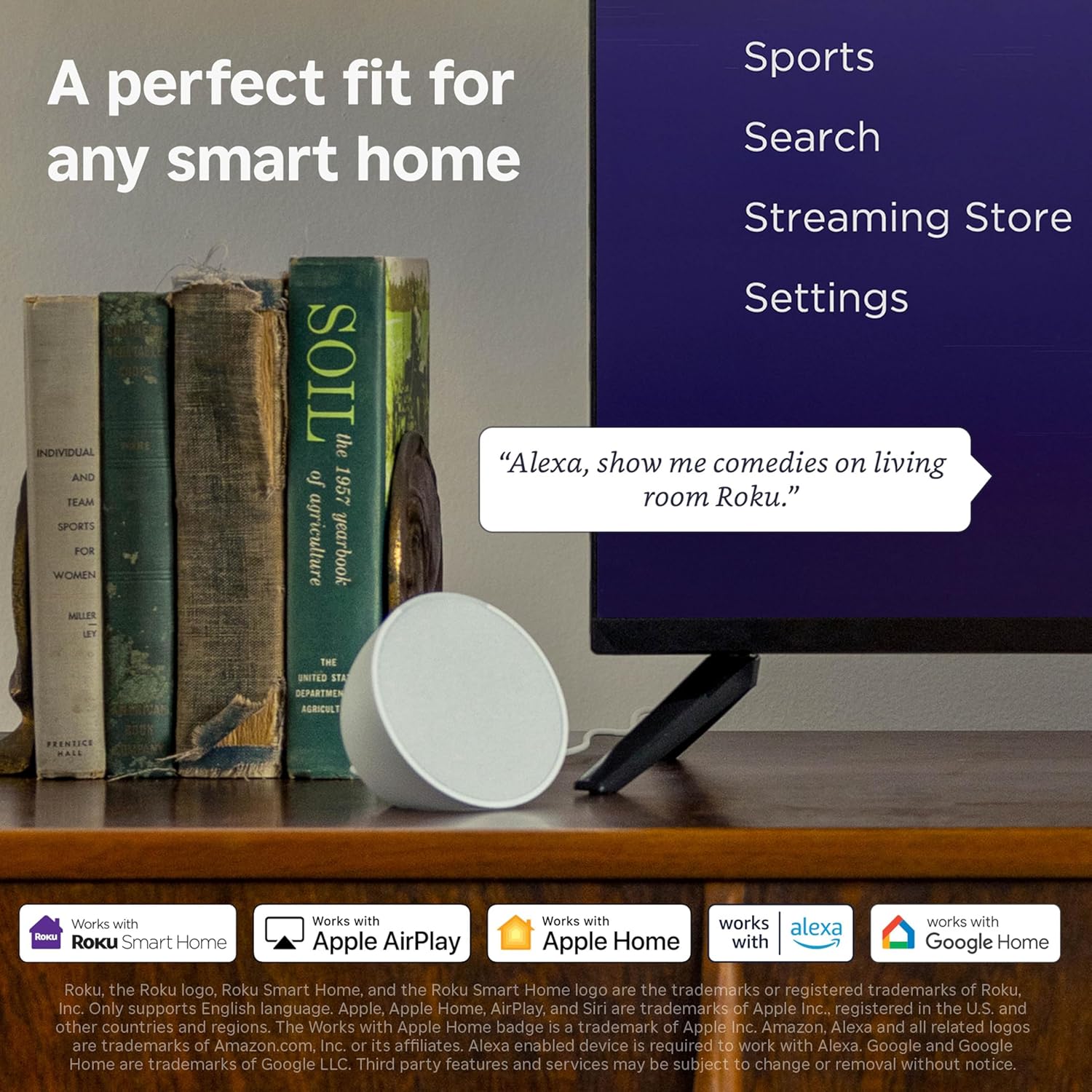
Image: The Roku Select Series TV box contents, showing the television, remote, and stand components.
3. Setup
3.1 Attaching the TV Stands
- Carefully place the TV screen-down on a soft, clean surface to prevent scratches.
- Align each stand with the corresponding screw holes on the bottom of the TV.
- Secure the stands using the provided screws. Ensure they are tightened firmly.
3.2 Connecting Peripherals
Your Roku TV includes multiple ports for connecting external devices:
- HDMI Ports: Connect devices such as cable boxes, gaming consoles, or Blu-ray players. The HDMI 1 (ARC) port supports Audio Return Channel for simplified audio connections.
- USB Port: For media playback from a USB drive or powering compatible devices.
- Antenna/Cable Input: Connect an antenna for over-the-air broadcasts or a cable TV connection.
- Optical Audio Output: For connecting to a soundbar or audio receiver.
- AV Input: For connecting older devices using composite video and stereo audio cables.

Image: Close-up of the back of the Roku TV, highlighting the HDMI, USB, optical, and AV input ports.
3.3 Initial Power-On and Network Connection
- Plug the power cable into the TV and then into a wall outlet.
- Insert the included AAA batteries into the voice remote.
- Press the power button on the remote to turn on the TV.
- Follow the on-screen instructions to select your language, connect to your Wi-Fi network, and activate your Roku account.
4. Operating Your Roku TV
4.1 Using the Voice Remote
The Roku Voice Remote simplifies navigation and content search. It features dedicated buttons for popular streaming services and voice control capabilities.
- Voice Button: Press and hold to speak commands for searching content, launching apps, or controlling playback.
- Navigation Pad: Use the directional arrows and OK button to move through menus and select items.
- App Shortcuts: Dedicated buttons provide quick access to services like Netflix, Disney+, and Prime Video.
- Volume Controls: Adjust TV volume directly from the remote.
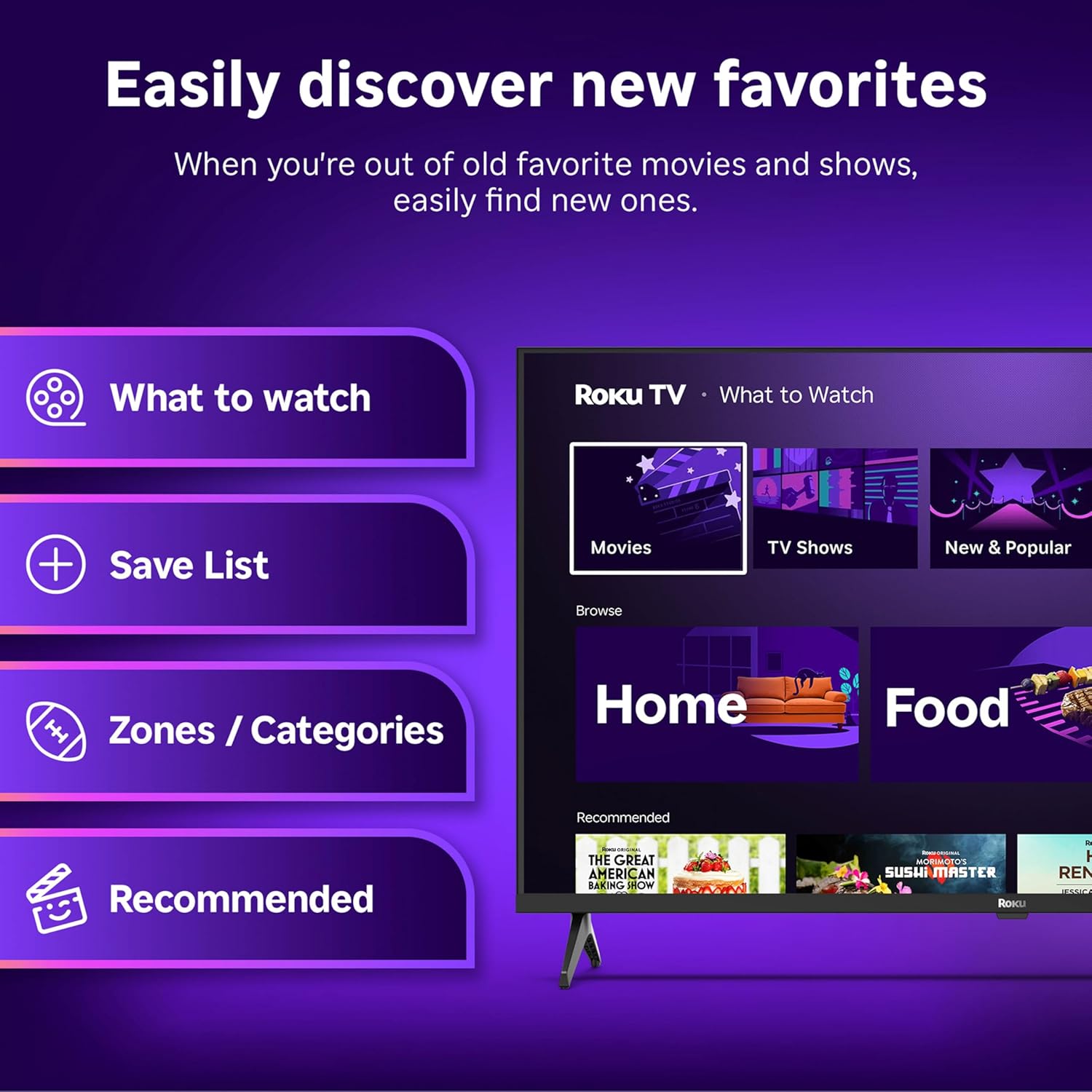
Image: The Roku Voice Remote, showing its layout and key functions.
4.2 Streaming and App Navigation
The Roku TV home screen provides quick access to all your streaming channels and inputs. You can customize the order of your apps for personalized access.
- Home Screen: Displays your installed apps, recommended content, and TV inputs.
- Streaming Store: Browse and add new streaming channels.
- Live TV: Access free live television channels directly from the home screen.
- Search: Use the search function or voice remote to find movies, shows, actors, or directors across various services.

Image: The Roku TV user interface, showing the home screen with app tiles and menu options.
4.3 Picture and Sound Settings
Your Roku TV features Smart Picture technology to optimize viewing and offers enhanced audio features.
- Smart Picture: Automatically adjusts picture settings based on the content being viewed (e.g., movie, sports, vivid, standard).
- Audio Clarity: Designed for clear speech and louder sound.
- Bluetooth Headphone Mode: Connect your wireless headphones for private listening.

Image: A vibrant nature scene displayed on the Roku TV, demonstrating the clear picture quality.
4.4 Smart Home Integration
The Roku TV integrates with various smart home ecosystems for convenient voice control and content sharing.
- Voice Control: Compatible with Roku Voice, Siri, Alexa, and Google Assistant for hands-free operation.
- Apple AirPlay: Effortlessly share videos, photos, and music from your Apple devices to your TV.

Image: A Roku TV screen with a smart speaker nearby, illustrating voice control integration with smart home systems.
5. Maintenance
5.1 Cleaning Your TV
- Always unplug the TV before cleaning.
- Use a soft, lint-free cloth to gently wipe the screen and cabinet.
- For stubborn marks, lightly dampen the cloth with water or a mild, non-abrasive screen cleaner. Never spray cleaner directly onto the screen.
- Avoid using harsh chemicals, abrasive pads, or solvents.
5.2 Software Updates
Your Roku TV receives automatic software updates to provide new features and improve performance. Ensure your TV is connected to the internet to receive these updates.
6. Troubleshooting
If you encounter issues with your Roku TV, try the following basic troubleshooting steps:
- No Power: Ensure the power cable is securely plugged into both the TV and a working electrical outlet. Try a different outlet.
- No Picture/Sound: Verify that the correct input source is selected. Check all cable connections (HDMI, AV, etc.) are secure.
- Remote Not Responding: Replace the batteries in the remote. Ensure there are no obstructions between the remote and the TV.
- Network Connection Issues: Restart your Wi-Fi router. Go to the TV's network settings to reconnect to your Wi-Fi.
- App Not Loading: Try restarting the app. If the issue persists, remove the app and reinstall it from the Streaming Store.
- Factory Reset: As a last resort, a factory reset can resolve many software issues. This will erase all personal settings and installed apps. Access this option through the TV's Settings menu.
7. Specifications
| Feature | Specification |
|---|---|
| Brand | Roku |
| Model Number | 24R2D5 |
| Screen Size | 24 Inches |
| Display Technology | LED |
| Resolution | 720p |
| Refresh Rate | 60 Hz |
| Aspect Ratio | 16:9 |
| Connectivity Technology | Bluetooth, Wi-Fi |
| Special Features | Bluetooth Headphone Mode, Dolby Audio, Voice Remote |
| Item Weight | 5.7 Pounds |
| Product Dimensions | 7 x 21.1 x 14.3 inches |
| Batteries Required | 2 AAA batteries (for remote) |
8. Warranty and Support
For warranty information and technical support, please refer to the documentation included with your product or visit the official Roku support website. Keep your purchase receipt for warranty claims.
Roku offers various support resources, including online FAQs, troubleshooting guides, and customer service contact options.


